Listed from the MCP registry; nobody on Odel publishes it.

craftos-mcp
CC:Tweaked (ComputerCraft) emulator: run, test and screenshot Lua programs, monitors and turtles.
Runs on your machine from its package; the steps are below.
What it does
- Reads
- Writes
- High impact
At most: moves money, runs code or commands, deletes data, or sends messages for you.
What it costs
FreeOdel charges nothing per call. The publisher may charge for its own service.
Runs locally over stdio
This server isn't hosted — your MCP client launches it from a package registry. Use one of the commands below, or drop the config into your client (e.g. Claude Desktop).
Run
npx -y craftos-mcp
MCP client config
{
  "mcpServers": {
    "craftos-mcp": {
      "command": "npx",
      "args": [
        "-y",
        "craftos-mcp"
      ]
    }
  }
}Run and test your ComputerCraft programs without starting Minecraft. craftos-mcp is a CC:Tweaked emulator for people who write CC Lua: computers, monitors you can tap, turtles that dig and build in a block world, rednet between several computers, and blocks from Create, Mekanism, Advanced Peripherals and more. Pause the clock, jump a day ahead, save the whole world and put it back. Write tests for your programs and run them with one command. It works by hand, like CraftOS-PC, and an AI coding agent can drive it too (below).
The ROM is built from the real CC:Tweaked jar, and the engine passes 1189 of 1190 of CC:Tweaked's own tests at 1.101.3 (and 1361 of 1362 at 1.121.0). 58 of the community's libraries, programs and operating systems, from Basalt and Pine3D to Opus, LevelOS and Phoenix, install and run in it as they do in the game: the list. How exact is it says, area by area, what was measured in game and what was written from source.
Some games built and tested with it are playable in your browser, no install.
Start in a minute
The app: download it and press Run
No Node.js and no terminal. Get the file for your computer from the latest release:
| Your computer | Download | Then |
|---|---|---|
| Windows 10 or 11 | CraftOS-<version>-windows-x64-setup.exe | Run it. It installs for you alone (no admin rights) and puts CraftOS in the Start menu. If Windows says it does not know the app: More info, Run anyway. |
| Mac, Apple silicon (M1 on) | CraftOS-<version>-macos-arm64.dmg | Open it and drag CraftOS onto Applications. For the first start, see the note below. |
| Mac, Intel | CraftOS-<version>-macos-x64.dmg | The same. |
| Linux, any distribution | CraftOS-<version>-linux-x64.AppImage | chmod +x CraftOS-*.AppImage, then run it. |
| Linux, Debian, Ubuntu or Mint | CraftOS-<version>-linux-x64.deb | sudo apt install ./CraftOS-*.deb, then CraftOS is in your applications menu. |
First start on a Mac: the app is not signed with a paid Apple developer id, so macOS stops it once. Right-click (or Control-click) CraftOS in Applications, choose Open, then Open again. On macOS 15 and newer: open it once and dismiss the warning, then go to System Settings, Privacy & Security, find "CraftOS was blocked" near the bottom and click Open Anyway. After that it opens like any app.
CraftOS opens on its home screen. Open a folder that holds your Lua programs (or New project for a folder with
a first program and a first test), pick your Minecraft version, tick the mods your modpack has, and press Run: the
computer opens in the window, with its monitors, the world around it and its files. Run tests runs every
*.test.lua in the folder. Your choices are kept in craftos.json in that folder, which the command line and an AI
agent read too. The first Run downloads CC:Tweaked's own files from its official page, once (under a minute); they
cannot ship inside the app. More in the desktop app guide.
With npm
You need Node.js 22 or newer, on Windows x64, Linux x64, or macOS 11+ (Apple silicon or Intel). Run these from a terminal in the folder with your Lua files. That folder is the computer's disk.
npx craftos-mcp window                    # the computer in a desktop window, like CraftOS-PC
npx craftos-mcp window --monitor top:3x2  # with a monitor on top, 3 blocks wide and 2 high, in its own window
npx craftos-mcp app                       # computers, monitors, turtles and the world side by side in your browser
npx craftos-mcp run door.lua              # run one program and print what the screen showed
npx craftos-mcp test                      # every *.test.lua below here; exits 1 on a failure
The first one gets the engine and builds the CC:Tweaked ROM of your Minecraft version, once, in about a minute; it
says so in four short lines (craftos-mcp setup --verbose shows every step). npm install -g craftos-mcp once and
you can leave out npx.
A short tour
Each step is one small program. Getting started has every file in full.
-
Run a program. Put
hello.luain your folder and runnpx craftos-mcp run hello.lua: it prints what the screen showed. In the window or the app, typehelloat the prompt. -
A monitor.
npx craftos-mcp run sign.lua --monitor top:3x2gives the computer a monitor 3 blocks wide and 2 high, and prints the monitor's text too. A world file ({"monitors": [{"name": "top", "blocksWide": 3, "blocksHigh": 2}]}) keeps it there. -
A button. In the app (
npx craftos-mcp app), + New computer with a monitor, run your program, and click the monitor: a click is a player's tap, amonitor_touchevent. UI shows each button and where it starts.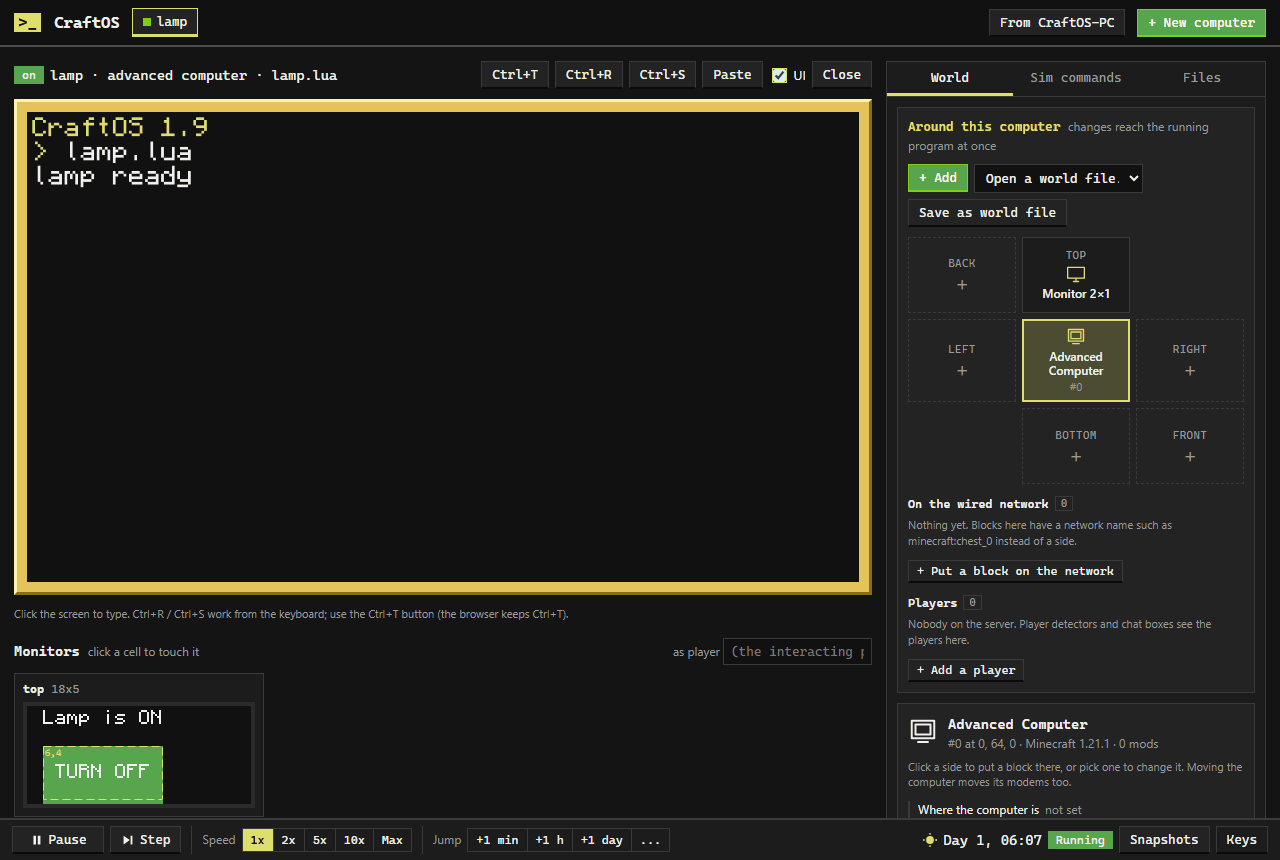
-
Test it.
lamp.test.luaruns the program, taps the button withccunit.touch("top", 4, 4)and checks the monitor saysLamp is ON.npx craftos-mcp test --monitor top:2x1printsPASS lamp.test.lua (2 tests). -
Rednet between two computers. In the app set Computers to 2: each gets a wireless modem and a tab. One runs
rednet.receive(), the otherrednet.broadcast(...), and the Network view shows each message go across.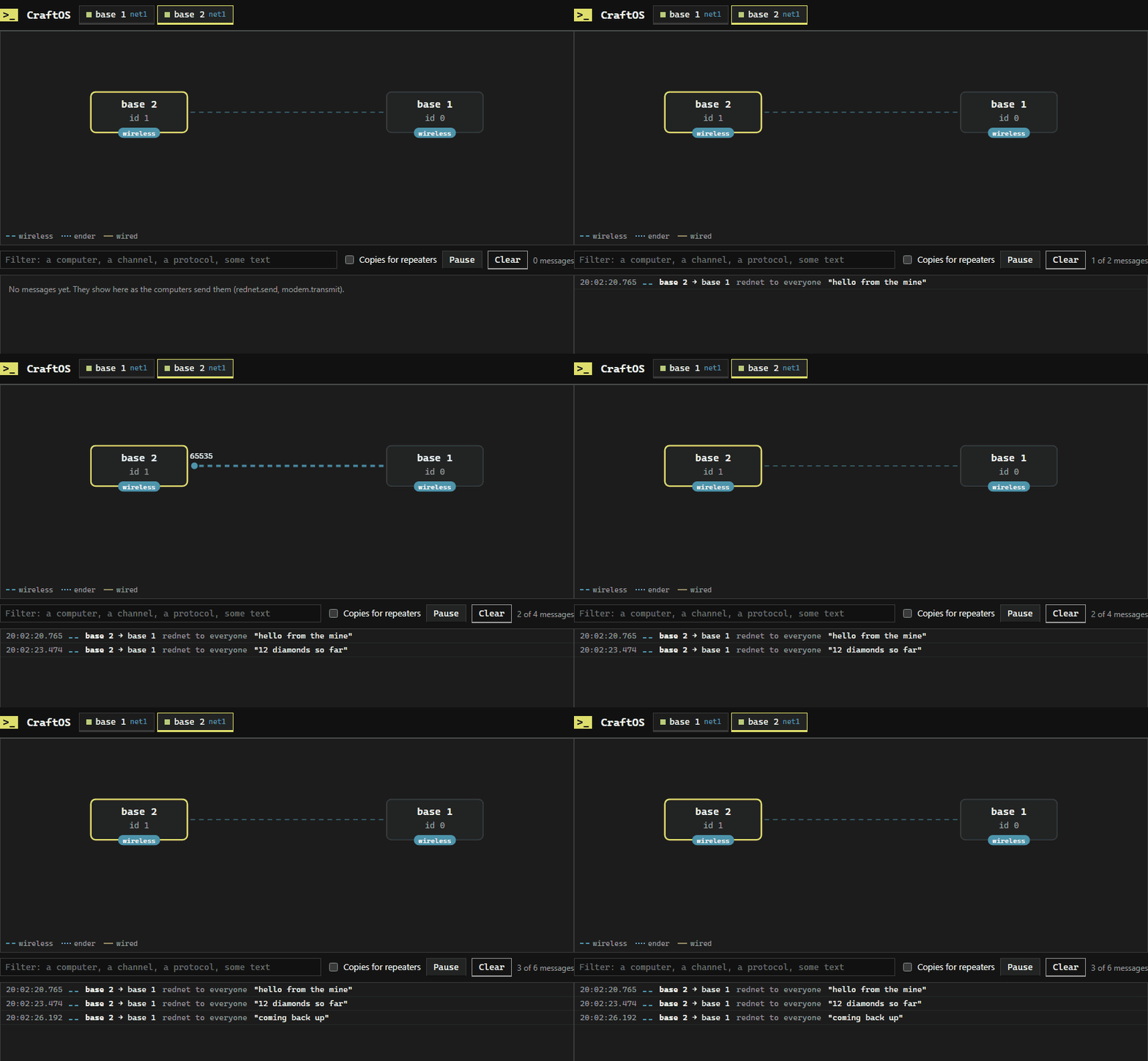
-
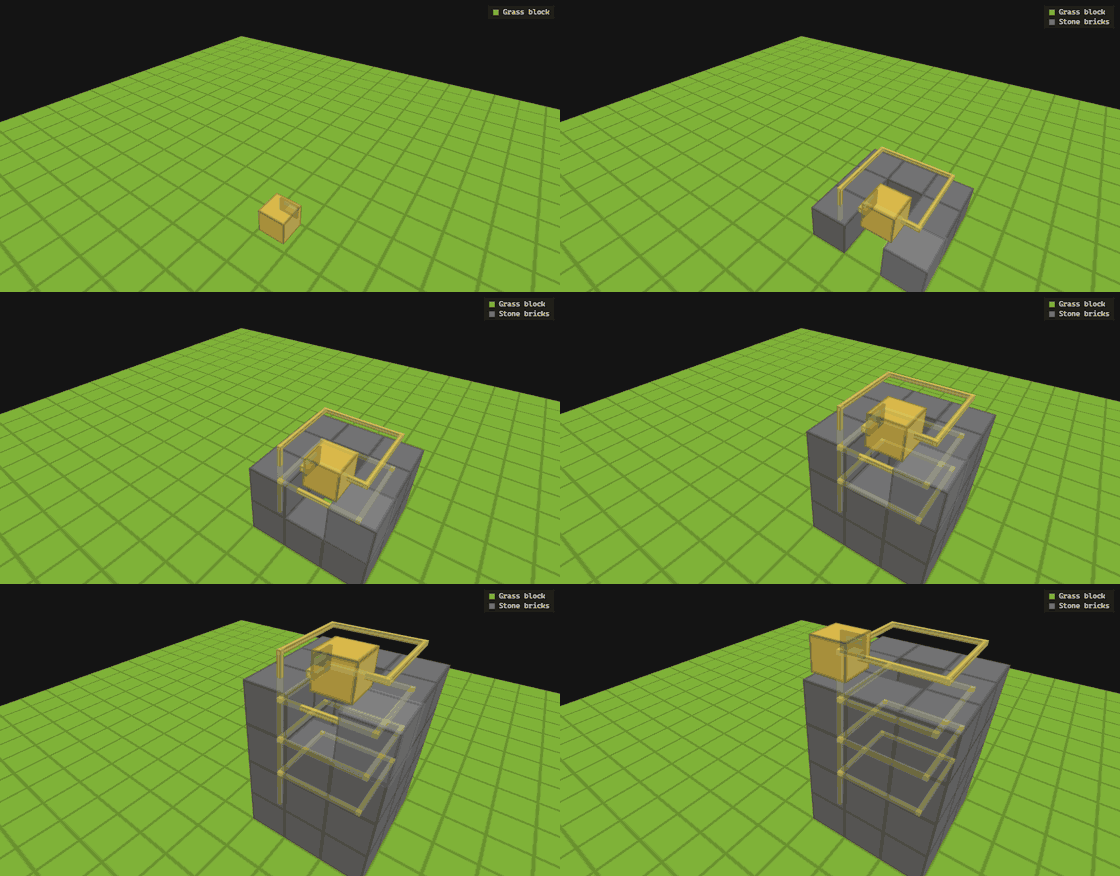
A turtle that builds. Give a turtle a world with ground, fuel and a stack of blocks, and watch it build in the Blocks view in 3D (the picture at the top).
npx craftos-mcp run tower.lua --world tower.world.json --timescale 5runs it on the command line, five times faster than the game. -
A block from a mod. Advanced Peripherals' player detector, a Create station or a Mekanism reactor is one line in a world file. Move a player in the World panel and a door program opens for them. Switch on only the mods your pack has.
-
Pause and jump time. The bar along the bottom of the app pauses every computer, steps one tick, runs 2 to 10 times faster, or jumps a minute, an hour or a Minecraft day ahead, so a
sleep(600)is over in a click. -
Snapshots. Save the whole world under a name, change things, and Restore puts it back. Export gives you a
.craftos-worldfile to share.
The guide
docs/guide has a page for each part: getting started, the desktop app, the browser app, the window, worlds and world files, testing with ccunit, mods, time and snapshots, coming from CraftOS-PC and troubleshooting.
Use it with an AI agent
AI agents write CC:Tweaked Lua they have never run, and the bugs turn up on your server. craftos-mcp lets the agent test its code itself over MCP: it runs the program, reads the terminal and every monitor, taps buttons, changes the world around the computer (a player walks up, a chest fills, a train arrives, a reactor heats up, an hour passes), writes and runs tests, and fixes what broke until it works.
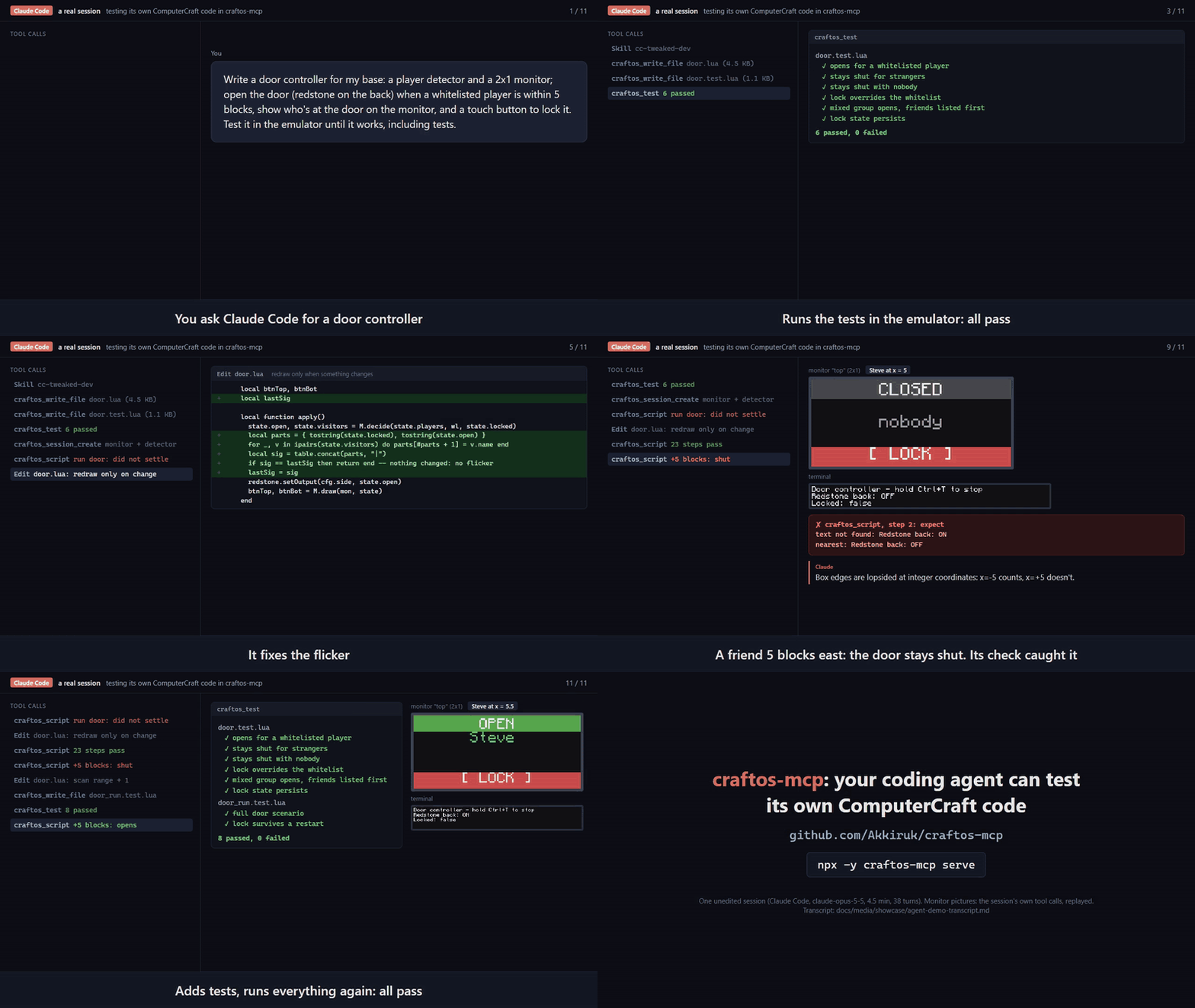
A real Claude Code session, unscripted: asked for a door controller with tests, it ran its program in the emulator, caught a monitor that never stopped redrawing and a player at the range edge who could not get in, fixed both, and finished with its tests passing. Then the same file went onto a computer in real Minecraft and worked there with no code changes, just a player name added to its whitelist (the diff, the clip). The full transcript is next to the video.
The server needs Node.js 22 or newer. Its first start downloads the engine and builds the CC:Tweaked ROM by itself, once (a minute or so); the server answers straight away and the tools that run computers wait for it. The computers' files are the folder the server starts in. While an agent works, you can watch and help in the live viewer at http://127.0.0.1:7878, which is the browser app.
Claude Code
claude mcp add craftos -- npx -y craftos-mcp serve                 # Linux, WSL
claude mcp add craftos -- cmd /c npx -y craftos-mcp serve          # Windows (native)
Or install the plugin, which adds the cc-tweaked-dev skill too:
/plugin marketplace add Akkiruk/craftos-mcp
/plugin install craftos-mcp@craftos-mcp
The plugin's first start runs the setup in the background (a few minutes). If /mcp shows the server as failed on
that first try, wait a minute and reconnect. Progress is in .cache/setup.log inside the plugin's folder.
VS Code with Copilot
Install the extension (also on
Open VSX). It gives Copilot's agent mode the server, adds Run in
CraftOS for any .lua file, and lists your *.test.lua files in the Testing view. Without the extension, put this in
.vscode/mcp.json:
{
  "servers": {
    "craftos": {
      "type": "stdio",
      "command": "npx",
      "args": ["-y", "craftos-mcp", "serve"]
    }
  }
}
Cursor
Cursor has no MCP API for extensions, so the server goes in .cursor/mcp.json in your project (or
~/.cursor/mcp.json for every project). The extension offers to write it for you, in Cursor and in Windsurf, or add
it yourself:
{
  "mcpServers": {
    "craftos": { "command": "npx", "args": ["-y", "craftos-mcp", "serve"] }
  }
}
The extension also gives Cursor Run in CraftOS and the Testing view.
Windsurf, Claude Desktop, Codex and others
The same mcpServers entry as Cursor goes in Windsurf's ~/.codeium/windsurf/mcp_config.json and Claude Desktop's
claude_desktop_config.json. Codex takes it in ~/.codex/config.toml:
[mcp_servers.craftos]
command = "npx"
args = ["-y", "craftos-mcp", "serve"]
Any other MCP client: run npx -y craftos-mcp serve over stdio. On Windows, if a client cannot start npx, give it
cmd with the arguments /c npx -y craftos-mcp serve.
Your agent's first program and test
Ask your agent for something ("a door that opens for players on a whitelist, with a status monitor and tests"). It
writes files like these. door.lua:
local mon = peripheral.find("monitor")
mon.clear()
mon.setCursorPos(1, 1)
mon.write("CLOSED")
print("door ready")
door.test.lua:
ccunit.test("starts closed", function()
  local r = ccunit.run("door.lua", { seconds = 1 })
  ccunit.contains(r.screen, "door ready")
  ccunit.eq(ccunit.screen("top")[1], "CLOSED")
end)
npx craftos-mcp run door.lua --monitor top:2x1      # the terminal and the monitor, as text
npx craftos-mcp test --monitor top:2x1              # PASS door.test.lua (1 test)
The agent runs them with craftos_run and craftos_test, the same as these commands. A program that fails comes back with
error {kind, message, file, line}, so the agent sees where without reading the screen.
What it does
- Run and test: run a program in a fresh computer and get the terminal and every monitor back as text, PNGs or
golden snapshots; run
*.test.luafiles with the built-inccunitharness (below). - Interactive sessions: type, press keys, touch monitors, send events, wait for text.
craftos_uireads every screen as buttons and text runs with colours, so an agent can drive a UI without screenshots. - Monitors at any wall size and text scale, with real touch events.
- Several computers at once: wireless, ender and wired modems with real rednet, ranges and wired names.
- Turtles in a block world built from vanilla Minecraft data: the whole turtle API with its tick timing, digging with loot-table drops, placing, inventories, refuelling, upgrades and crafting. What a turtle places comes alive: computers boot, disk drives take floppies, monitors join into walls.
- CC's generic peripherals: chests, barrels and any modded block as an inventory, fluid tank and energy store,
with
pushItems,pullItems,pushFluidand levels that move over time. - Peripherals from other mods, written from each mod's source and checked against its jar, each one an addon
you switch on only if your pack has it (see Choose your mods):
- Advanced Peripherals (0.7.31r, 0.7.48r, 0.7.62b): player, energy and environment detectors, chat box, redstone
integrator, NBT storage, AR controller, ME and RS bridges, each under the name and with the methods its version
has (
player_detectoron 1.21.1). - Mekanism (10.2.5, 10.4.16, 10.7.19): QIO, the Quantum Entangloporter, the boiler and induction matrix; with Mekanism Generators, the fission reactor, turbine and fusion reactor, running tick by tick (a reactor left alone melts down). On 1.21.1, gases are chemicals, as in the game.
- Create (0.5.1, 6.0): train stations with schedules and trains on the clock, gauges, speed controllers, sequenced gearshifts and the display link, plus Create 6's stock ticker, packager, frogport and postbox; Create Crafts & Additions 1.0.0's motor, accumulator, relay and digital adapter.
- Tom's Peripherals: the GPU with its full drawing API, pixel-exact and in screenshots, keyboard, redstone port and watchdog.
- Bigger Reactors and Extreme Reactors: reactors and turbines with their real heat, fuel and rotor physics, and Extreme Reactors' energizer on 1.20.1 and 1.21.1.
- Mobs with a computer in them (Minecraft 1.20.1): CC: Androids 1.3.0 androids that walk, mine, fight and carry; CC: Drones 0.0.1, CC: Drones+ 0.2.0 and AC-Drones alpha 7 drones that fly on the game's own physics. The computer is the mob, in the block world a turtle lives in.
- Advanced Peripherals (0.7.31r, 0.7.48r, 0.7.62b): player, energy and environment detectors, chat box, redstone
integrator, NBT storage, AR controller, ME and RS bridges, each under the name and with the methods its version
has (
- Determinism: seed
math.random, run the clock faster, or jump it forward so timers fire instantly. - Checks before boot: a misspelt world key, a peripheral type the sim cannot build, a missing program or test file comes back at once with "did you mean".
- Your way in: a desktop window, a browser app (also the MCP server's live viewer at http://127.0.0.1:7878),
a command line, and an in-computer
simcommand to change the world by typing (sim join Alice).
ccunit
Every *.test.lua file has the global ccunit:
| Call | Does |
|---|---|
test(name, fn [, {timeout = s}]) | one test; with a timeout it fails instead of hanging the file |
eq, neq, near(a, b [, within]), truthy, raises | checks; eq compares tables deeply |
contains(haystack, needle) | text in a string, a value in a list, or text on one of a screen's lines |
skip(name) | listed as skipped |
run(program, {args, seconds | script}) | runs a program as the shell would and returns {ok, done, screen} |
screen([monitor]), touch(monitor, x, y) | a monitor's (or the terminal's) lines after run; a player tapping a monitor |
Each file runs in its own fresh computer. Results are kept as each test ends, so a file that hangs keeps the tests it finished and names the one it was in.
To tap a button, give run a script: it runs next to the program, and the run ends when it returns. A touch
after run has returned reaches nothing, because the program has stopped by then.
ccunit.test("a tap turns it on", function()
  ccunit.run("button.lua", { script = function()
    sleep(0.5)                  -- let the program draw
    ccunit.touch("top", 3, 2)   -- monitor, column, row
    sleep(0.5)                  -- let it react
  end })
  ccunit.contains(ccunit.screen("top"), "ON")
end)
The monitor comes from --monitor top:2x1 on the command line, or from "monitors" in a world file next to the
test (button.world.json for button.test.lua in VS Code, --world or craftos.json's world on the command line).
Games
Three game cabinets and an RPG in plain CC:Tweaked Lua, each with a world file and tests that play real games through taps on the monitors. They're examples of what you can build and test here, and they use nothing but CC:Tweaked's own APIs.
| Cabinet | Games | Shows off |
|---|---|---|
| Board | Ultimate Tic-Tac-Toe, Four in a Row, Reversi, Checkers, Dots and Boxes, Mancala, Fleet, Codebreaker; three computer levels | touch monitor walls, two players at one wall |
| Action | Snake, Blocks, Bricks, Lander, Mines | fast redraws, real-time touch |
| Versus | Paddle, Trails, Artillery | two computers in one match over rednet |
| BLIGHTMARE | a first-person RPG in eleven acts: towns, a world map, turn-based fights, bosses, saves | 2 MB of game packed onto a 1 MB disk |

BLIGHTMARE, played by touch (the whole showcase)
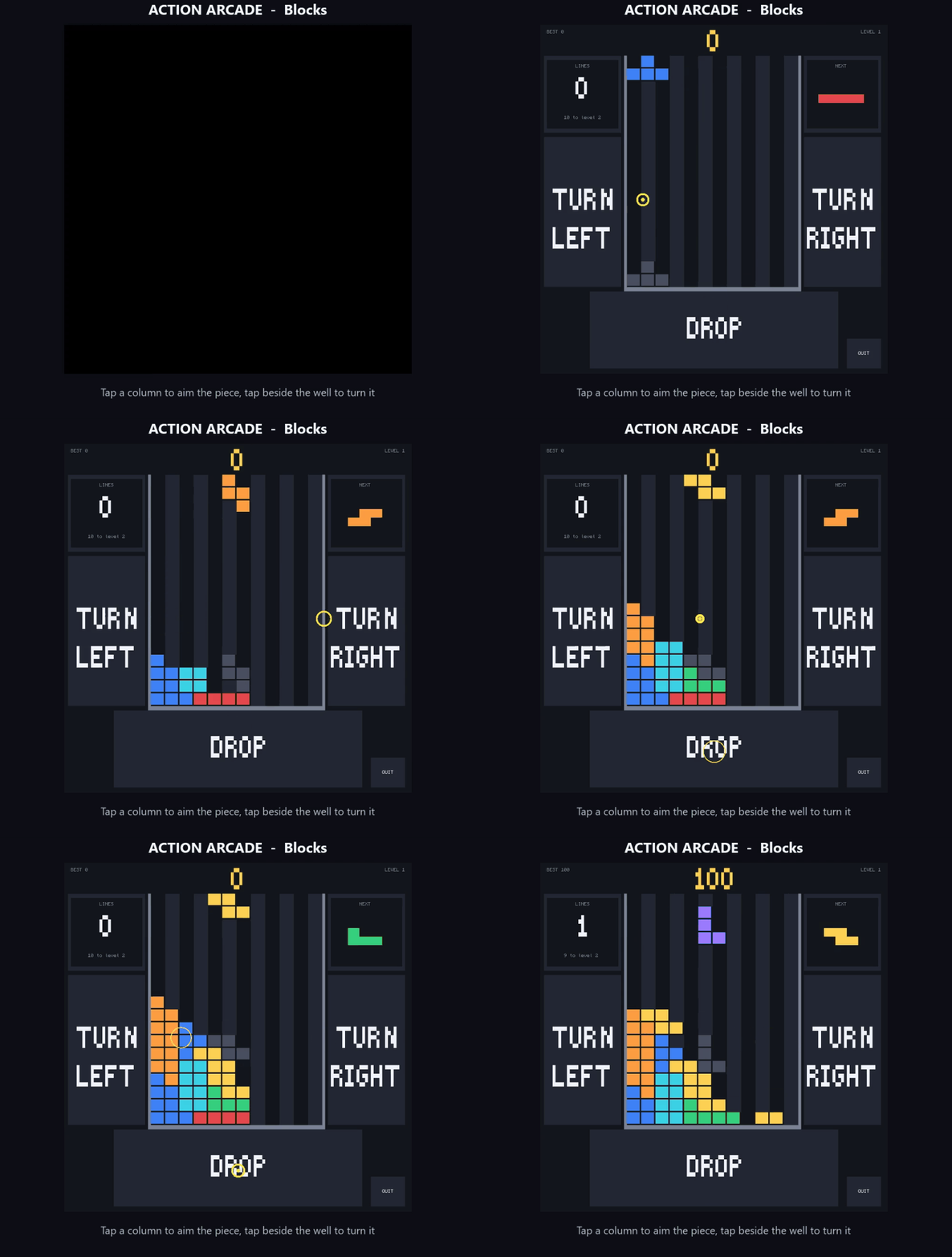 | 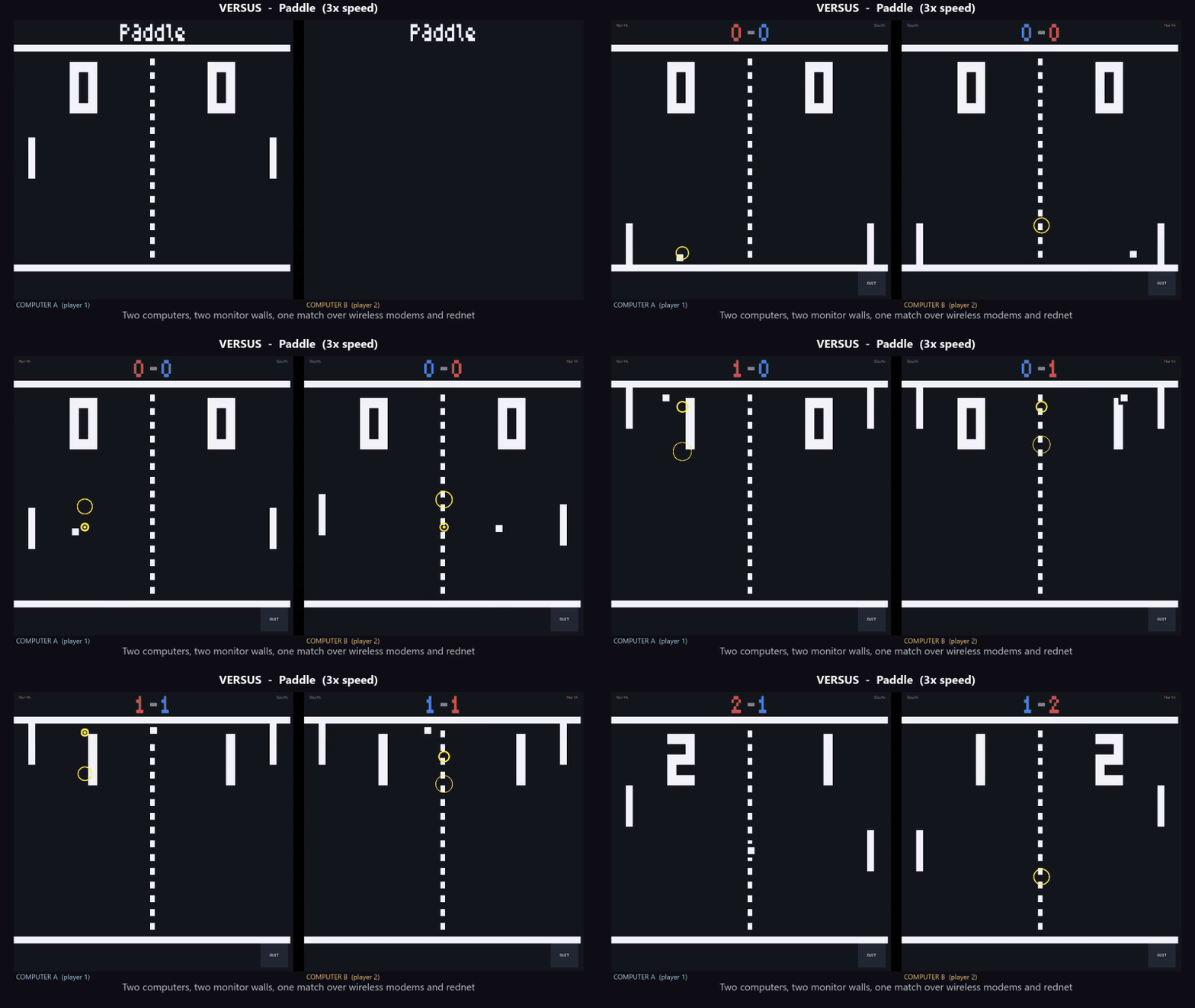 |
| Blocks, steered by tapping the wall | Paddle across two computers on rednet (3x speed) |
Each cabinet's README says how to open it. The board games, for example:
craftos-mcp window workspace/examples/games/board/arcade.world.json --dir workspace --monitor left:6x6 --monitor right:6x6
# then, in the computer: examples/games/board/arcade
node scripts/make-showcase.mjs records the videos again from real runs.
Examples
workspace/examples/ also has complete programs for the mods above, each with a world
and a test that proves it works: a Mekanism reactor controller, a Create train departure board, an energy monitor for
any modded battery, a Tom's Peripherals GPU demo, an Extreme Reactors rod controller, an Advanced Peripherals player
greeter and a rednet chat between two computers. These pictures are rendered from real runs (node scripts/make-demo-gif.mjs makes them again).
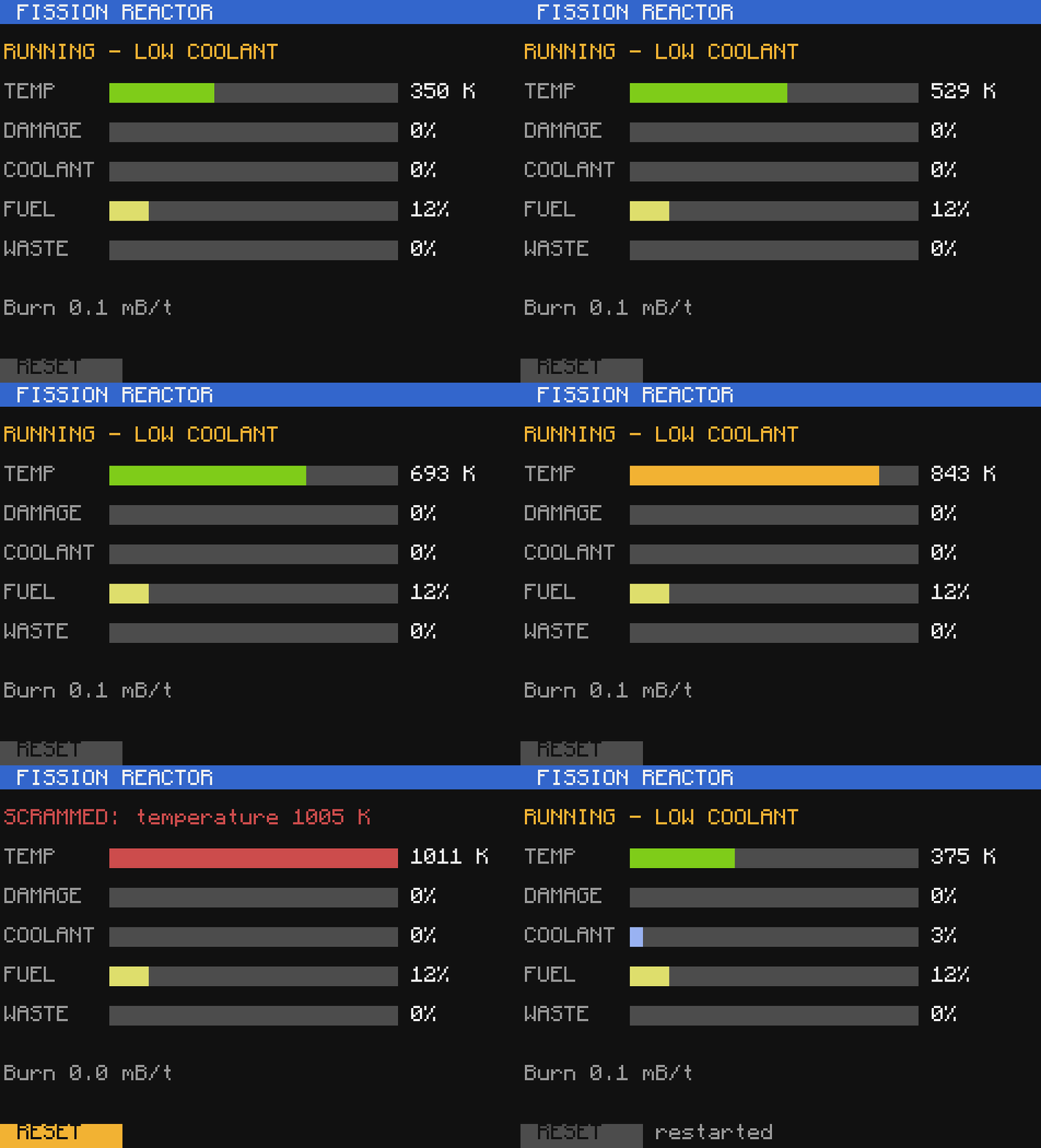
The reactor controller on a simulated Mekanism reactor, with the clock sped up: it scrams the reactor before it is damaged, and RESET restarts it once it has cooled. The test checks exactly that.
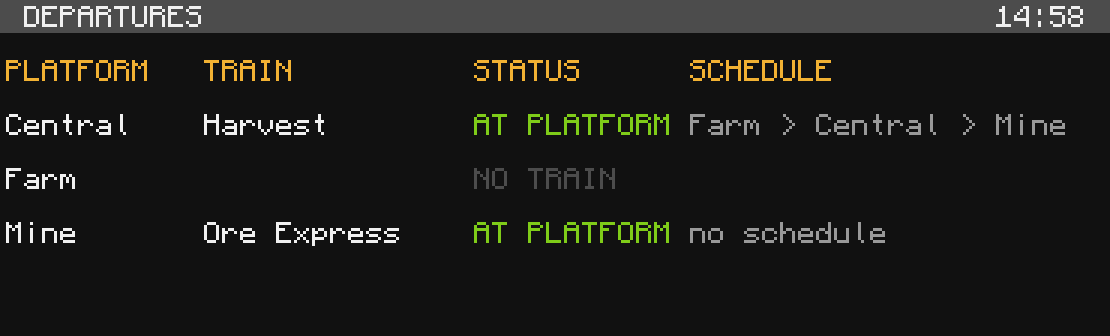 | 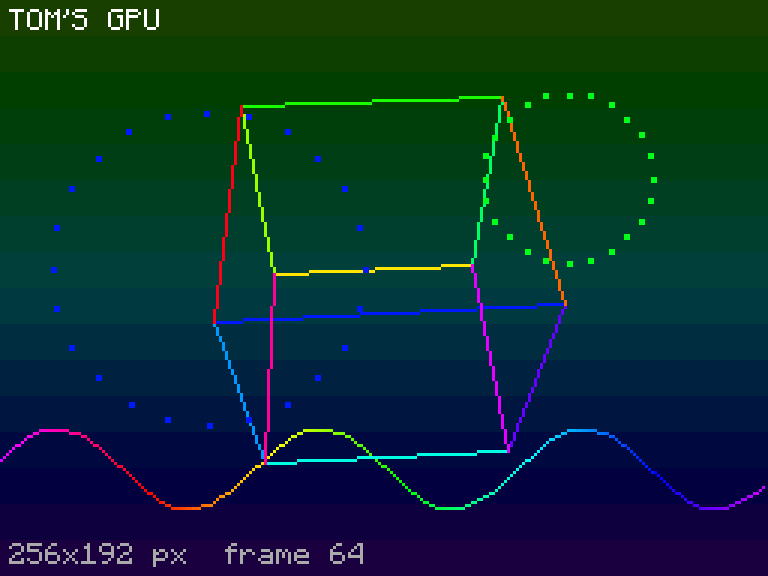 |
| Train departure board: platform, train, status and schedule for each station | GPU demo: a spinning cube, a sine ribbon and ripples where you right-click |
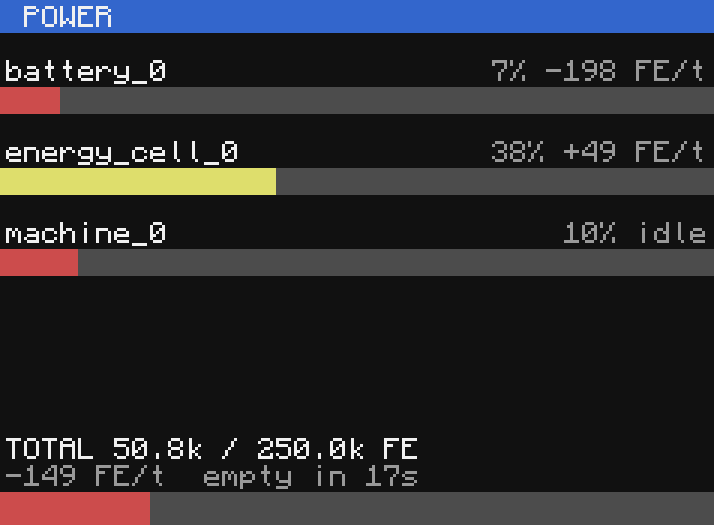 | 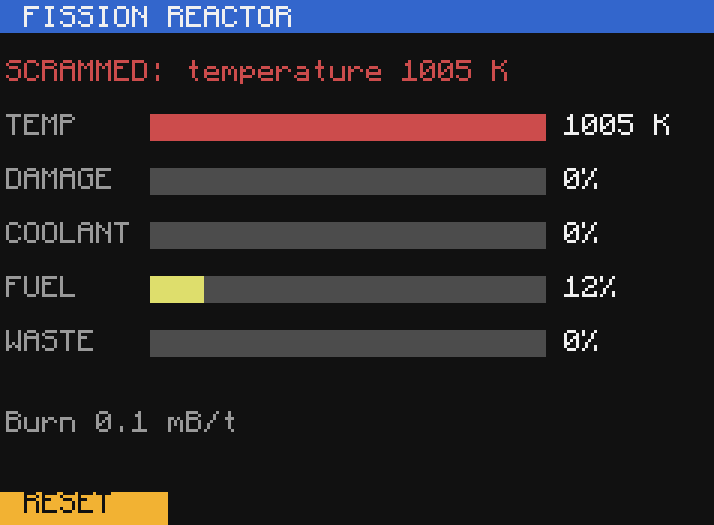 |
| Power monitor: any block with an energy store, with rates and a low-power alarm | The reactor controller after it has scrammed on temperature |
Without an AI agent
Everything below in short; the guide has it at a slower pace, with pictures.
The desktop app
CraftOS, the app from Start in a minute, is the emulator with its own runtime and engine inside, so there is nothing else to install.
- Home screen. Recent projects on the left; Open a folder and New project. For the open project: the Minecraft version (1.21.1, 1.20.1 or 1.18.2, each with its CC:Tweaked version), the program to run, and every mod as a checklist with a line on what it adds. A mod that needs another one switches it on too; a mod with no release for the chosen Minecraft version is left out of the list.
- Run starts a computer with your folder's files and shows it in the window. It is the page from In your browser, so everything there works: more computers, monitors, the world, sim commands, the files. Home shuts the computers down and goes back; Run again starts over with the files as they are now.
- Run tests runs every
*.test.lua(or thetestsglobs incraftos.json) and lists what passed and failed. - Your choices go into
craftos.jsonin the project folder (minecraft,addons, andrunfor the program), socraftos-mcpon the command line and an AI agent use the same ones. Opening a folder writes nothing until you change a choice or press Run. - CC:Tweaked's files are downloaded from its official page the first time a Minecraft version is used and kept in
your per-user folder (
%LOCALAPPDATA%\craftos-mcpon Windows,~/.cache/craftos-mcpelsewhere). Settings has Get every version now for working without internet later. - Updates. On Windows and from the AppImage the app downloads a new version by itself and offers Restart to update. On macOS and from the .deb it tells you a new version is out and opens the download page. Settings can switch the check off.
- Uninstall. Windows: Settings, Apps, CraftOS, Uninstall. macOS: drag CraftOS from Applications to the Bin. Linux:
delete the AppImage, or
sudo apt remove craftos-desktop. Your projects are never touched.
The installers are built by the release workflow from apps/desktop (Electron). To build one yourself, in a clone
with the engine built: cd apps/desktop && npm ci && npm run dist.
In a window
craftos-mcp window opens the computer in a desktop window, with the same simulated world an agent gets:
craftos-mcp window worlds/generic-storage-demo.json --monitor top:3x2   # from your Lua project folder
craftos-mcp window create-demo --dir path/to/project                    # a world from worlds/ by name
The computer's files are your folder (--dir, default the current one), live, the way CraftOS-PC keeps a computer's
folder: what a program saves appears there, and what you save there in your own editor the computer sees at once
(hold Ctrl+R in the window to start a program again). Its .git and node_modules show as empty and the computer
cannot change them. --copy gives it a scratch copy instead, gone when the window closes. Monitors open as windows of
their own and a click is a touch; a world can list them under "monitors". A world's speakers play real sound. F12
copies a screenshot to the clipboard; F2 saves one and F3 records a GIF, in Pictures/craftos-mcp (or
CRAFTOS_SCREENSHOTS), and the command prints where each one went.
A turtle world opens the turtle in its window, and every computer or turtle it places and turns on gets a window of
its own. The browser opens beside it on the turtle's blocks in 3D (--no-browser to skip it):
craftos-mcp window hut.world.json # a world with a "turtle" entry, or blocks
Several computers on one network open a window each, and rednet works between them. Give one world file per
computer, or one world and --computers:
craftos-mcp window sender.world.json receiver.world.json   # windows titled "sender" and "receiver"
craftos-mcp window --computers 2                           # computer1 and computer2, each with a wireless modem
They share your folder (a file one saves, the others see), except that a computer with a computer/<id> folder
there uses that one, as CraftOS-PC lays them out; --own-folders makes one for each. The command prints which folder
each computer uses. Closing a computer's window turns it off, and closing the last one ends the command. --browser
opens the browser app on them too, for the messages flying between them, the world and the clock.
The clock has the same keys as the browser app: Alt+P pause or resume, Alt+. one tick, Alt+] faster, Alt+[ slower,
Alt+J / Alt+H / Alt+N a minute / an hour / a Minecraft day ahead; the title shows [Paused] or the speed.
--speed 5 starts it five times faster.
What stands around the computer comes from a world file, a small JSON file you keep next to your program. This one has a monitor on top, a chest, a wireless modem, a disk drive and a speaker:
{
  "monitors": [{ "name": "top", "blocksWide": 3, "blocksHigh": 2 }],
  "peripherals": [
    {
      "name": "left",
      "type": "minecraft:chest",
      "items": { "1": { "name": "minecraft:coal", "count": 16 } }
    },
    { "name": "back", "type": "modem" },
    { "name": "right", "type": "drive" },
    { "name": "bottom", "type": "speaker" }
  ]
}
craftos-mcp window base.world.json # the same file: --world for run and test, World JSON in the browser app
A printer is { "name": "right", "type": "printer", "ink": 64, "paper": 64 }: black dye in its ink slot and
paper in its paper slots, as in the game (any dye gives its own colour, through items). Its pages come out as
computercraft:printed_page items that a chest can pull, and the browser app shows each page printed under the
computer's screens.
A name is a side (top, left, ...) or a wired network name (chest_0). A wrong key or type is refused before the
computer starts, with the nearest real one. Mod blocks are the same list with the mod's type (playerDetector,
Create_Station, ...): each mod's page under docs/ has its types and fields, and
worlds/ has a ready world per mod. In VS Code a *.world.json opens in the World Editor, where
you add blocks by clicking instead.
A turtle needs a world too, or it hangs in empty air with nothing to dig. mine.world.json:
{
  "turtle": {
    "x": 0,
    "y": 64,
    "z": 0,
    "facing": "north",
    "fuel": 500,
    "right": "minecraft:diamond_pickaxe"
  },
  "ground": {
    "y": 63,
    "name": "minecraft:stone",
    "top": "minecraft:grass_block"
  },
  "fills": [
    { "from": [-2, 64, -5], "to": [2, 66, -1], "name": "minecraft:stone" }
  ],
  "blocks": [{ "x": 0, "y": 64, "z": -2, "name": "minecraft:coal_ore" }]
}
craftos-mcp run dig.lua --world mine.world.json # or the app: New computer, Turtle, paste it as the World JSON
docs/turtle.md has every field. Two computers on rednet: in the app set Computers to 2; each gets a modem and a tab.
Coming from CraftOS-PC? The keys are the same (hold Ctrl+T, Ctrl+R, Ctrl+S; F12 copies a screenshot), and your
programs run unchanged unless they call CraftOS-PC's own periphemu, config or mounter, which a real computer
does not have either. craftos-mcp import craftos-pc brings your computers over, and
Coming from CraftOS-PC has the rest. In short:
| CraftOS-PC | Here |
|---|---|
attach left monitor | the same in the shell, live; or --monitor left:2x2, or "monitors" in a world file |
attach left chest, periphemu.create(...) | "peripherals" in a world file |
attach 1 computer for a second computer | the app: Computers 2 |
the computer's files in %appdata%\CraftOS-PC | the folder you start it in (--dir), live in the window, a copy in the app |
mount | not needed: your project folder is the computer's disk |
| no turtle, no mod peripherals | turtles in a block world, and the mods under Choose your mods |
Inside the computer, the sim program changes the world, as craftos_sim_command does for an agent. It is the
emulator's own: a real CC:Tweaked computer has no sim.
sim join Alice                      sim leave Alice
sim chat Alice hello                sim advance 60          (jump the clock 60 seconds)
sim item chest_0 1 minecraft:diamond 5
sim state                           (players, peripherals, chat)
sim createTrainArrive station=Create_Station_0 train=Express   (any command a mod's simulation knows)
sim help                            (all of them)
In your browser
craftos-mcp app starts a local web page and opens it:
craftos-mcp app --dir path/to/project # --port 7878 by default; --no-open just prints the address
New computer makes one: a normal, advanced, pocket or turtle computer, a world from worlds/ or your own JSON,
the mods your pack has, monitors and their sizes, and a program to run (or just the shell). Set Computers above 1
for a network, each with a modem. Every computer gets a tab. Its terminal takes the keyboard, paste and mouse; the
Ctrl+T, Ctrl+R and Ctrl+S buttons hold the keys for a second as CC needs (your browser keeps Ctrl+T for itself).
Monitors and Tom's Peripherals GPU screens update live, and a click is a touch on that cell or pixel; UI outlines
what the screens show as buttons. On the side: the world (players join, leave and chat, the clock jumps, items go
into slots, and the whole sim state as a tree), a box for any sim command with the list of the ones this world knows,
and the computer's files, which you can edit.
A computer's files are your project folder itself, live: what a program saves (with edit or anything else) lands in
the folder and stays after the computer is closed, and what you save there in your own editor the computer sees at
once. Files in the New computer form can give each computer its own folder in the project instead
(computer/<id>, as CraftOS-PC keeps them; handy for a network), or a scratch copy that goes when the computer is
closed. craftos-mcp app --copy makes the copy the default. Without that choice the computers of a network share
the folder.
The bar along the bottom controls time for every computer at once, and shows the world's time of day:
- Pause stops every computer and the clock. A computer in the middle of something finishes that first, so a pause never ends in "Too long without yielding". Resume carries on where it stood: a timer due in 3 seconds is still due 3 seconds later, as in the game when the server pauses.
- Step runs one tick (1/20 of a second) and stops again: the timers due in it fire and every computer handles them.
- Speed runs the clock 2, 5 or 10 times faster. Max goes as fast as it can: whenever every computer is waiting,
the clock skips straight to the next timer, so a
sleep(600)passes at once. - Jump moves the clock a minute, a Minecraft day (20 minutes) or an hour (three Minecraft days) ahead. The timers
on the way fire one at a time, in order, and the programs run between them, so a
sleep(600)loop harvests six times in an hour's jump; ... takes any amount (90s,5m,2h,1d,40tfor ticks) or a time of day (18:00). - Snapshots saves the whole world under a name: every computer's label, players, items, chat, peripherals, a
turtle's blocks, the time of day, and every computer's files. Restore puts it all back and reboots the computers
into it (computers made since then are closed). For a computer on your project folder itself that means your real
files: changed ones are written back and ones made since are removed, a copy of each goes to
runtime/restore-backupsfirst, and the Restore box says so before it starts. Export downloads a.craftos-worldfile to share; Import takes one in, andcraftos-mcp app --snapshot setup.craftos-worldopens with it.
Keys: Alt+P pause or resume, Alt+. one tick, Alt+] faster, Alt+[ slower, Alt+\ normal speed, Alt+J / Alt+H / Alt+N a minute / an hour / a Minecraft day ahead, Alt+S snapshots.
Above the screen, a bar picks what you look at (a view shows when the computer has something for it):
- Side by side: every computer at once, each with its monitors. Click one to type on it, drag a tile's right edge to resize it, and hide or show computers from the list on top. A computer a turtle placed and turned on gets a tile too.
- Blocks: the world around a turtle, live. It shows the turtle and the way it faces, each block it digs or places, and its last 300 steps. 3D turns with a drag and zooms with the wheel; Follow turtle keeps it in the middle, See through finds a turtle that is underground, Cut above turtle leaves out what is over it. Layers is the same world one layer at a time from above. Point at a block to read its name and place.
- Network: the computers of a network with their modems (wireless, ender, wired) and what can reach what. Each message runs along its link as it is sent, and the list below has every one: who sent it, who heard it, the channel or rednet target, the protocol and the start of the message. Click a row for the whole message. Type in the filter to narrow the list, Pause to read it while the computers keep talking.
Try them with examples/turtle/hut (make a turtle with the world in examples/turtle/hut.world.json) and with
examples/rednet/chat <name> or examples/games/versus/versus on two computers.
Around this computer, at the top of the World tab, builds the world with the mouse while the program runs. Click
a side to put something there: a search box finds any block the emulator knows, CC:Tweaked's first, then chests,
tanks and batteries, then each mod's blocks under its name. Blocks named like minecraft:chest_0 go on the wired
network, and players join the server. Pick one to change it: a monitor's size and whether it is advanced (normal
monitors show greys and take no touches), what is in a chest slot by slot, energy and fluid levels, where a player
stands, and every other setting the world file has. Each change reaches the running computer at once, the way the
game sends it: peripheral when a block is placed, peripheral_detach when it is broken, monitor_resize when a
wall grows, and a list under the sides says what the computer saw. Save as world file writes it all to a
.world.json; Open a world file loads one, from your PC or your project, and the computer gets every block in it.
It listens on 127.0.0.1 only. The MCP server's live viewer (http://127.0.0.1:7878) is the same page, so you can
watch and help while an agent works. The computers you start there are yours: the agent's craftos_session_list
shows them apart, under others, and craftos_session_destroy leaves them running unless it passes force.
The command line
craftos-mcp runs without an agent, so it works in scripts and CI. Run it from your Lua project folder (--dir
changes that):
craftos-mcp init                         # write craftos.json: a few questions (--yes takes the defaults)
craftos-mcp test                         # every *.test.lua below here, ccunit harness; exits 1 on a failure
craftos-mcp test tests/ --addons create --timescale 10
craftos-mcp test --watch                 # again on every .lua change, only the test files it touches
craftos-mcp test --json                  # the whole result as JSON
craftos-mcp test --reporter junit --out results.xml   # JUnit XML for CI test views; the human report stays on screen
craftos-mcp test --reporter github       # ::error annotations on the failing lines (on by itself in GitHub Actions)
craftos-mcp run clock.lua --monitor top:2x2 --screenshot shot.png   # terminal and monitors as text, PNGs saved
craftos-mcp run sort.lua --world worlds/chests.json --timeout 20 -- --verbose
craftos-mcp import craftos-pc            # bring your CraftOS-PC computers over as a project (--list to look first)
craftos-mcp doctor                       # check everything and say how to fix what is wrong (--json for scripts)
craftos-mcp info                         # engine, ROM and addons status
craftos-mcp setup                        # first-run setup again (--force redoes it, --all: every ROM, --verbose: each step)
craftos-mcp cache list                   # the versions in CRAFTOS_HOME; cache prune keeps this one and the one before
craftos-mcp serve                        # the MCP server over stdio
Inside a clone use node apps/cli/dist/index.js .... craftos-mcp help <command> lists the options. A --world is a
JSON file or the name of one in worlds/; --addons is all, none or ids separated by commas.
craftos.json
A project can keep its settings in a craftos.json at its root, so nobody has to remember the flags. craftos-mcp init writes one:
{
  "$schema": "https://raw.githubusercontent.com/Akkiruk/craftos-mcp/main/schemas/craftos.schema.json",
  "workspace": "src",
  "minecraft": "1.20.1",
  "addons": ["advanced-peripherals", "create"],
  "tests": ["tests/**/*.test.lua"],
  "world": "base.world.json",
  "run": "startup.lua"
}
Every command, the MCP server, the VS Code extension and the desktop app read it, found from the folder you are in
upwards (it stops at the folder with .git). workspace and world are relative to the file; tests globs are
relative to the workspace and pick the files craftos-mcp test and craftos_test run when you name none; run is
the program the desktop app's Run button starts (the app writes minecraft, addons and run itself). Whatever you say
explicitly still wins: a flag (--dir, --mc, --addons, --world) or an environment variable beats
craftos.json, and craftos.json beats the defaults. In VS Code a setting you set beats it too. The schema is
schemas/craftos.schema.json; CRAFTOS_PROJECT_FILE names another file, or off for
none.
Long calls
craftos_test and craftos_run send MCP progress notifications when the client asks for them (a file finished, or
the seconds a program has run), so clients that wait on progress keep waiting. craftos_test has a time budget for
the whole call (budgetMs, default 10 minutes, CRAFTOS_CALL_BUDGET_MS): when it runs out the files still running
stop with the tests they finished, and the reply lists the ones that never started under notRun.
World files have a JSON Schema, schemas/world.schema.json, generated from the emulator's
own types: put "$schema": "https://raw.githubusercontent.com/Akkiruk/craftos-mcp/main/schemas/world.schema.json" in a
world, or map *.world.json to it in your editor, for completion, hover docs and checking of every field and
peripheral type (schemas/INTEGRATION.md).
In CI
craftos-mcp test exits 1 when a test fails, and in GitHub Actions it marks the failing lines on the pull request by
itself. The first run downloads the engine and builds the ROM (about a minute); caching the per-user folder
(~/.cache/craftos-mcp on Linux) makes every later run start in seconds. Pin the version, so the cache key changes
when you move to a new one:
# .github/workflows/lua-tests.yml
name: Lua tests
on: [push, pull_request]
jobs:
  test:
    runs-on: ubuntu-latest
    env:
      CRAFTOS_MCP: craftos-mcp@0.4.0
    steps:
      - uses: actions/checkout@v7
      - uses: actions/setup-node@v7
        with:
          node-version: 22
      - uses: actions/cache@v4
        with:
          path: |
            ~/.cache/craftos-mcp
            !~/.cache/craftos-mcp/runtime
          key: craftos-mcp-${{ runner.os }}-${{ env.CRAFTOS_MCP }}
      # the engine and both ROMs (CC:Tweaked 1.101.3 and 1.121.0), once; a cache hit makes this a no-op
      - run: npx -y $CRAFTOS_MCP setup --all
      - run: npx -y $CRAFTOS_MCP test --mc 1.21.1 --reporter junit --out results-1.21.1.xml
      - run: npx -y $CRAFTOS_MCP test --mc 1.18.2 --reporter junit --out results-1.18.2.xml
Test only the version your server runs and one test step is enough (setup then needs no --all: it builds the ROM
in use, and a world that asks for another version gets that ROM built the first time). --addons picks the mods as
CRAFTOS_ADDONS does, --dir the folder when your Lua is not at the repository's root, and --reporter json gives
the whole result as JSON.
Coming from CraftOS-PC
craftos-mcp runs on a fork of CraftOS-PC 2, so the keys, the shell and the ROM will feel familiar. The difference: it behaves like a computer on a Minecraft server, not one on your desk, so what works here works in game.
Bring your computers over with one command (your CraftOS-PC folder is only read, never changed):
craftos-mcp import craftos-pc            # finds %APPDATA%\CraftOS-PC, ~/Library/Application Support/CraftOS-PC or ~/.local/share/craftos-pc
cd craftos-pc && craftos-mcp window      # the first computer; --list shows what comes over first
Each computer's files, label, colour and screen size come across, and the peripherals its startup made with
periphemu.create go into its world file. The browser app has the same thing under From CraftOS-PC.
What is different, and why:
- No
periphemu,configormounterfor programs. A real computer has none of them. A world with"craftosPcApis": truegives them back for code you are still moving over:periphemu.createthen places the block in the world, live. - Typing
attach,detach,configormountstill works on a computer you drive (the window, the app), and each says what the game does instead.attach top monitorplaces a monitor wall on top, live, and prints the line for the world file that keeps it there. - A monitor is a wall of blocks (1x1 to 8x6), not a window of any size. 5x3 blocks is about CraftOS-PC's 51x19.
- Nothing mounts a folder of your PC. A computer's files are your project folder; edit them there and reboot.
- No graphics mode, and
_HOSTnames CC:Tweaked and Minecraft, as on a server.
The whole story: Coming from CraftOS-PC.
Choose your Minecraft version
| Version | CC:Tweaked | State |
|---|---|---|
1.21.1 (default) | 1.121.0 | CC itself as in 1.121.0 (Lua 5.2 with goto); turtle data is still the 1.18.2 version |
1.20.1 | 1.121.0 | CC itself and turtles (1.20.1 block data) as in 1.121.0 |
1.18.2 | 1.101.3 | Complete: CC itself (Lua 5.1, no goto), turtles, modems and every 1.18.2 mod below |
Every mod acts as its release for the version you pick (the table below gives it), read from that release's jar:
on 1.21.1 Advanced Peripherals' detector is player_detector, not playerDetector, and Mekanism has chemicals
instead of gases. A world may name a block either way; the program sees the name its version really reports, and a
block its version doesn't have (the redstone integrator on 1.21.1) is refused with the reason. The one exception is
Create Crafts & Additions, which acts as 1.0.0 on every version; the app's mods list and craftos-mcp info say
"acts as 1.0.0" next to it.
The default is the newest version there is. Pick another per world with "version": "1.18.2", for the MCP server
with CRAFTOS_VERSION, or on the command line with --mc 1.18.2; use the one your server runs. The npm package sets
up the ROM of the version in use on its first run (CRAFTOS_VERSION, else the default) and builds another the
first time a world asks for it, with one line saying so (about 20 s, once); craftos-mcp setup --all builds them all
at once. In a clone, npm run setup builds the default's and npm run setup -- --mc all every one (node scripts/build-rom.mjs --download 1.18.2 builds one). A mod that has no release for the chosen
version (Bigger Reactors on 1.21.1) is refused with the versions it does have and how to pick one.
Choose your mods
Every mod besides CC:Tweaked is an addon. Switch on only the ones your pack has, so a program cannot come to rely on
a peripheral your server does not have. Set CRAFTOS_ADDONS for the MCP server, or give one world its own list with
addons:
{
  "addons": ["create", "mekanism"],
  "peripherals": [{ "name": "station_0", "type": "Create_Station" }]
}
| Id | Mod |
|---|---|
advanced-peripherals | Advanced Peripherals 0.7.31r (1.18.2), 0.7.48r (1.20.1), 0.7.62b (1.21.1) |
mekanism | Mekanism 10.2.5 (1.18.2), 10.4.16 (1.20.1), 10.7.19 (1.21.1) |
mekanism-generators | Mekanism Generators, as Mekanism; needs mekanism |
create | Create 0.5.1.i (1.18.2), 6.0.8 (1.20.1), 6.0.10 (1.21.1) |
create-additions | Create Crafts & Additions 1.0.0 (on every version; needs create) |
toms-peripherals | Tom's Peripherals 1.2.1 (1.18.2), 1.3.1 (1.20.1, 1.21.1) |
bigger-reactors | Bigger Reactors 0.6.0-beta.1.4 (1.18.2), 0.6.0-beta.10.5 (1.20.1) |
extreme-reactors | Extreme Reactors 2.0.71 (1.18.2), 2.0.97 (1.20.1), 2.4.28 (1.21.1) |
unlimited-peripheral-works | UnlimitedPeripheralWorks 1.9.2 (1.20.1, 1.21.1) |
metaphysics | Metaphysics 0.0.6 (1.20.1) |
some-peripherals | Some Peripherals 0.0.12 (1.18.2) |
cloud-solutions | SirEdvin's Cloud Solutions 0.3.4 (1.20.1, 1.21.1) |
cccbridge | CC:C Bridge 1.5.1 (1.18.2), 1.7.1 (1.20.1), 1.7.3 (1.21.1); needs create |
create-cc-logistics | Create: CC Total Logistics 0.3.7 (1.20.1, 1.21.1; needs create) |
cc-liftlink | CC: LiftLink 1.0.3 (1.20.1, 1.21.1; needs create) |
cc-vs | CC: VS 0.5.1 (1.18.2), 0.6.6 (1.20.1): Valkyrien Skies ship APIs |
cc-shops | CC Shops 0.0.1 (Simple Shops; 1.18.2, 1.20.1) |
cc-androids | CC: Androids 1.3.0 (1.20.1) |
cc-drones | CC: Drones 0.0.1 (1.20.1) |
cc-drones-plus | CC: Drones+ 0.2.0 (1.20.1) |
ac-drones | AC-Drones 1.20.1-alpha-7 (1.20.1) |
advanced-math | Advanced Math 0.3.7 (a datapack: ROM APIs and modules) |
lectern-hub | CC: Lectern Hub 1.0.0-1.115.0 (1.20.1) |
crickets-peripherals | Cricket's Peripherals 0.1.1 (1.21.1) |
cctech | CCTech 0.1.6 (1.18.2: tapes and magnetic cards) |
embedded-computer | Embedded Computer 0.6.0 (1.20.1), 1.3.0 (1.21.1) |
lakes-cc-additions | Lake's CC Additions 1.7.0 (1.20.1) |
sc-peripherals | SwitchCraft Peripherals 1.20.1-1.10.5 (3D and poster printers) |
ccsecureboot | CCSecureBoot 1.0.2 (1.20.1, 1.21.1) |
ccx | CCX 6.1.1 (1.20.1: PCIe hub, USB port) |
directgpu | CC: DirectGPU 1.0.25 (1.21.1: 2D displays) |
cide | CIDE 1.1.0 (1.21.1: its debugger API and runner) |
plethora | Plethora Peripherals 1.20.1-1.13.0 (1.20.1 only) |
cc-link | CC: Link 6.2.1 (1.20.1 only) |
finer-peripherals | Finer Peripherals 1.20.1-0.6.1 (1.20.1 only) |
ducky-peripherals | Ducky Peripherals 1.0.2 / 1.20.1-1.3.1 |
more-peripherals | More Peripherals 1.20.1-1.13.0 (1.20.1 only) |
classic-peripherals | Classic Peripherals 0.5.1 / 0.6.6 (not 1.18.2) |
vhcctweaks | vhcctweaks 2.2.36 / 2.2.37 (1.18.2 only; opt-in, never part of all) |
"all" and "none" work too. With no setting at all, everything the version has is on, except vhcctweaks.
vhcctweaks (Akkiruk/vhcctweaks, a Vault Hunters server mod for 1.18.2)
is opt-in: name it ("addons": ["all", "vhcctweaks"]) or give the world "vhcctweaks": "2.2.36" or "2.2.37", with
"version": "1.18.2". It adds ccvault (player token balances and transfers a player approves), the vhcc file store,
lockdown, linked ender modems and the batch inventory methods; "2.2.37" adds the 2.2.37 API (Gear Power, Temper,
skills and stats reads, items inside backpacks and shulker boxes, identify), which the emulator models from the
mod's spec: identify's roll is the emulator's, not Vault Hunters'. docs/vhcctweaks.md says what
is simulated and how faithfully. Linked computers (ender modem links, remote peripherals) run in real time: on a slow
or busy machine a linked-peripheral call can time out, stall or behave inconsistently. A world that uses a block
from an addon that is off fails before the computer boots and names the addon; craftos_info lists what is on.
Tools
| Tool | Purpose |
|---|---|
craftos_info, craftos_help | Engine, ROM and workspace status; the guide, the world schema, ccunit, saved worlds |
craftos_write_file, craftos_read_file, craftos_list_files | Workspace files (copied to the root of each computer) |
craftos_run | Run a program in a fresh computer: terminal and monitor text, PNGs, golden snapshots |
craftos_test | Run *.test.lua files with the ccunit harness |
craftos_session_create, craftos_type, craftos_key, craftos_touch_monitor, ... | Interactive computers |
craftos_ui, craftos_act, craftos_settle, craftos_expect, craftos_script | Read screens as data, act and wait until the program is done, assert |
craftos_network_create, craftos_network_update | Several computers with modems |
craftos_sim_command, craftos_sim_state | Change and read the simulated world during a session |
craftos_seed, craftos_advance, craftos_trace, craftos_screenshot | Determinism, the virtual clock, what the program saw, pictures |
craftos_clock, craftos_world_snapshot | Pause, step, speed up or jump every computer; save and restore the whole world |
The server also gives its client short instructions on how to work, resources (craftos://guide,
craftos://schema/world, craftos://worlds/<name>, craftos://docs/<name>, craftos://examples/<path>) and prompts
(new-program, add-tests, debug-ui). CRAFTOS_TOOLS=core offers a lean set of 17 tools instead of all 32, for
clients that pay for every tool in every request; what the rest do is covered by the core ones (craftos_act types and
taps, craftos_expect waits for text, craftos_ui reads the terminal). A longer guide for agents is the
cc-tweaked-dev skill (.claude/skills/, .agents/skills/ and .github/skills/), with the same in AGENTS.md,
GEMINI.md, .github/copilot-instructions.md and .cursor/rules/craftos-mcp.mdc; the VS Code extension's Add
Agent Instructions to Workspace copies them into your own project.
Settings
Every environment variable craftos-mcp reads. The MCP server takes them from its client's config (env in
.vscode/mcp.json, -e for claude mcp add); the command line from the shell.
| Variable | Default | Meaning | Extension setting |
|---|---|---|---|
CRAFTOS_WORKSPACE | the folder the server starts in | The computers' files | craftos-mcp.workspace |
CRAFTOS_VERSION | the newest Minecraft version | 1.21.1, 1.20.1 or 1.18.2, or {"mc": ..., "cc": ..., "loader": ...} | craftos-mcp.minecraftVersion |
CRAFTOS_ADDONS | every addon the version has | all, none or addon ids separated by commas | craftos-mcp.addons |
CRAFTOS_TOOLS | all | core for the lean tool set | |
CRAFTOS_CALL_BUDGET_MS | 600000 | craftos_test's time for a whole call when it gives no budgetMs | |
CRAFTOS_PROJECT_FILE | the nearest craftos.json | The project file to read, or off for none | |
CRAFTOS_KEEP_OLD | 1 keeps every cached version instead of pruning all but the newest older one after a new setup | ||
CRAFTOS_VIEWER_PORT | 7878 | The live viewer's port (another free one when it is taken); off turns it off | |
CRAFTOS_TEST_CONCURRENCY | half the cores, 4 to 16 | How many test files run at once | |
CRAFTOS_COBALT_SPEED | 1 (native speed) | How much slower Lua runs, to match CC:Tweaked's own VM: 8 is about a real server | |
CRAFTOS_POOL | off (an engine per computer) | Computers per shared engine process, e.g. 32: about 4 MB and 1 thread a computer instead of 10 MB and 10. A crash then takes down every computer in that engine (each reports it, with the crash report's path) | |
CRAFTOS_CRASH_DIR | %LOCALAPPDATA%\craftos-mcp\crashes, ~/.cache/craftos-mcp/crashes | Where an engine crash writes its report (and a minidump on Windows) | |
CRAFTOS_LINK_LATENCY | 30 | ms a call to a vhcctweaks-linked computer's monitor or other computer-thread peripheral takes, as in game; fast answers at once (a world's linkLatency wins) | |
CRAFTOS_HOME | %LOCALAPPDATA%\craftos-mcp, ~/.cache/craftos-mcp | Where the npm package keeps the engine, ROMs, jars and scratch folders | |
CRAFTOS_ENGINE, CRAFTOS_ROM | the set-up ones | An engine binary, or one ROM folder for every version | |
CRAFTOS_WORLDS | worlds/ | The saved worlds worldFile names | |
CRAFTOS_SCREENSHOTS | Pictures/craftos-mcp in your user folder | Where craftos-mcp window saves F2 screenshots and F3 recordings | |
CRAFTOS_RUNTIME_ROOT | <CRAFTOS_HOME>/runtime, .runtime/ in a clone | Where each run's scratch folder goes | |
CRAFTOS_ENGINE_URL | this repository's release | Where setup gets the engine zip: a URL (checked against <url>.sha256 when there is one) or a local file | |
CRAFTOS_RELEASE_REPO | Akkiruk/craftos-mcp | The repository whose releases hold the engine zips (a fork's) | |
CRAFTOS_RELEASE_API | from CRAFTOS_RELEASE_REPO | npm run setup in a clone: the "latest release" API URL |