Listed from the MCP registry; nobody on Odel publishes it.

Mac Use
Zero-dependency macOS desktop automation for AI agents. 18 tools via MCP. macOS 13+.
Runs on your machine from its package; the steps are below.
What it does
- Reads
- Writes
- High impact
At most: moves money, runs code or commands, deletes data, or sends messages for you.
What it costs
FreeOdel charges nothing per call. The publisher may charge for its own service.
Runs locally over stdio
This server isn't hosted — your MCP client launches it from a package registry. Use one of the commands below, or drop the config into your client (e.g. Claude Desktop).
Run
npx -y mac-use-mcp
MCP client config
{
  "mcpServers": {
    "mac-use": {
      "command": "npx",
      "args": [
        "-y",
        "mac-use-mcp"
      ]
    }
  }
}mac-use-mcp
Warning
This tool has full control over mouse, keyboard, and screen. Please use in a sandboxed environment to protect your privacy and avoid accidental data loss by your agents. You are responsible for any actions performed through this tool.
Zero-native-dependency macOS desktop automation via MCP.
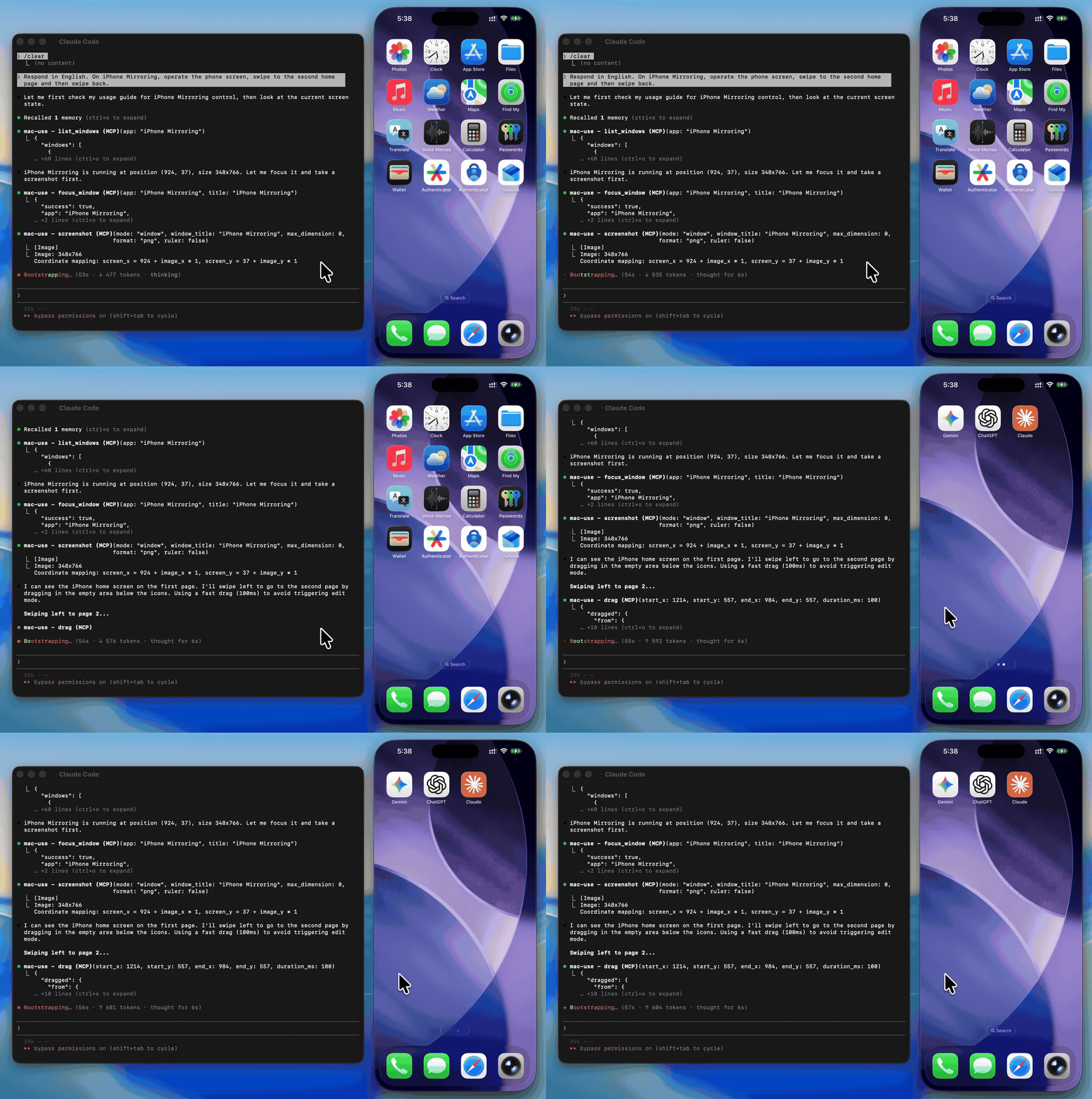
Give AI agents eyes and hands on macOS — click, type, screenshot, and inspect any application.







Use Cases
- Automated UI testing — click buttons, verify element states with
get_ui_elements, validate screen content viascreenshot - Desktop workflow automation — launch apps with
open_application, fill forms withtype_text, navigate menus viaclick_menu - Screenshot-based monitoring — capture screen regions periodically with
screenshotfor visual diffing or alerting - Accessibility inspection — query UI element trees with
get_ui_elementsfor QA and compliance checks - AI agent computer use — give LLMs eyes and hands on macOS via
screenshot,click,type_text, and more
Why mac-use-mcp?
- Just works —
npx mac-use-mcpand grant two macOS permissions. No node-gyp, no Xcode tools, no build step. - 18 tools, one server — screenshots, clicks, keystrokes, window management, accessibility inspection, and clipboard.
- macOS 13+ on Intel and Apple Silicon — no native addons, no architecture headaches.
Install
Requirements: macOS 13+ and Node.js 22+. The server communicates over stdio transport.
This package only works on macOS. It will refuse to install on other operating systems.
No build steps. No native dependencies. Just run:
npx mac-use-mcp
npxwill prompt to install the package on first run. Usenpx -y mac-use-mcpto skip the confirmation.
Tip
Model selection matters. Desktop automation involves screenshot–action loops that add up in token usage. A fast model with solid reasoning, good vision, and reliable tool calling is recommended:
| Model | Provider |
|---|---|
| Gemini 3 Flash | |
| Claude Sonnet 4.6 | Anthropic |
| GPT-5 mini | OpenAI |
| MiniMax-M2.5 | MiniMax |
| Kimi K2.5 | Moonshot AI |
| Qwen3.5 | Alibaba |
| GLM-4.7 | Zhipu AI |
Permission Setup
mac-use-mcp requires two macOS permissions to function. Grant them once and you're set.
Accessibility
Required for mouse and keyboard control.
- Open System Settings > Privacy & Security > Accessibility
- Click the + button
- Add your MCP client application (e.g., Claude Desktop, your terminal emulator)
- Ensure the toggle is enabled
Screen Recording
Required for screenshots.
- Open System Settings > Privacy & Security > Screen Recording
- Click the + button
- Add your MCP client application
- Ensure the toggle is enabled
- Restart the application if prompted
Verify permissions
After granting both permissions and configuring your MCP client (see next section), use the check_permissions tool to confirm everything is working:
> check_permissions
✓ Accessibility: granted
✓ Screen Recording: granted
MCP Client Configuration
Claude Code
claude mcp add mac-use-mcp -- npx mac-use-mcp
Claude Desktop
Add to ~/Library/Application Support/Claude/claude_desktop_config.json:
{
  "mcpServers": {
    "mac-use-mcp": {
      "command": "npx",
      "args": ["mac-use-mcp"]
    }
  }
}
OpenAI Codex
Add to ~/.codex/config.toml:
[mcp_servers.mac-use]
command = "npx"
args = ["-y", "mac-use-mcp"]
Or via CLI:
codex mcp add mac-use -- npx -y mac-use-mcp
Google Antigravity
Add to ~/.gemini/antigravity/mcp_config.json:
{
  "mcpServers": {
    "mac-use-mcp": {
      "command": "npx",
      "args": ["mac-use-mcp"]
    }
  }
}
Gemini CLI
Add to ~/.gemini/settings.json:
{
  "mcpServers": {
    "mac-use-mcp": {
      "command": "npx",
      "args": ["mac-use-mcp"]
    }
  }
}
VS Code / Copilot
Add to .vscode/mcp.json in your workspace (or open the Command Palette and run MCP: Open User Configuration for global setup):
{
  "servers": {
    "mac-use-mcp": {
      "command": "npx",
      "args": ["mac-use-mcp"]
    }
  }
}
Cursor
Add to ~/.cursor/mcp.json (global) or .cursor/mcp.json (project-level):
{
  "mcpServers": {
    "mac-use-mcp": {
      "command": "npx",
      "args": ["mac-use-mcp"]
    }
  }
}
Windsurf
Add to ~/.codeium/windsurf/mcp_config.json:
{
  "mcpServers": {
    "mac-use-mcp": {
      "command": "npx",
      "args": ["mac-use-mcp"]
    }
  }
}
Cline
Open Cline's MCP settings (in the Cline extension panel, click the MCP servers icon), then add:
{
  "mcpServers": {
    "mac-use-mcp": {
      "command": "npx",
      "args": ["mac-use-mcp"]
    }
  }
}
Kiro
Add to ~/.aws/amazonq/mcp.json:
{
  "mcpServers": {
    "mac-use-mcp": {
      "command": "npx",
      "args": ["mac-use-mcp"]
    }
  }
}
Tools
This Node.js MCP server exposes 18 tools for mouse, keyboard, and screen control to any MCP-compatible client.
Screen
| Tool | Description |
|---|---|
screenshot | Capture the screen, a region, or a window by title (PNG or JPEG) |
get_screen_info | Get display count, resolution, origin, and scale factor for each display |
get_cursor_position | Get current cursor coordinates |
Input
| Tool | Description |
|---|---|
click | Click at screen coordinates with button, click count, and modifier options |
move_mouse | Move the cursor to a position |
scroll | Scroll up, down, left, or right at a position |
drag | Drag from one point to another over a configurable duration |
type_text | Type text at the cursor position (supports Unicode, CJK, and emoji) |
press_key | Press a key or key combination (e.g., "cmd+c", "Return") |
Window & App
| Tool | Description |
|---|---|
list_windows | List all visible windows with positions and sizes |
focus_window | Activate an app and bring a specific window to the front |
open_application | Launch an application by name |
click_menu | Click a menu bar item by path (e.g., "File > Save As...") |
App names support fuzzy matching — "chrome" resolves to "Google Chrome", "code" to "Code", etc.
Accessibility
| Tool | Description |
|---|---|
get_ui_elements | Query UI elements via Accessibility API — find buttons, text fields, and other controls by role or title |
Clipboard
| Tool | Description |
|---|---|
clipboard_read | Read the current system clipboard as plain text |
clipboard_write | Write text to the system clipboard |
Utility
| Tool | Description |
|---|---|
wait | Pause for a specified duration (in milliseconds, 0–10 000, default 500) |
check_permissions | Verify Accessibility and Screen Recording access |
Examples
Common workflow patterns using mac-use-mcp tools:
Screenshot a specific window
1. focus_window({ app: "Safari" })
2. screenshot({ mode: "window", window_title: "Safari" })
Click a button in a dialog
1. get_ui_elements({ app: "Finder", role: "AXButton" })
   → finds "OK" button at position (500, 300)
2. click({ x: 500, y: 300 })
Automate a menu action
1. open_application({ name: "TextEdit" })
2. click_menu({ app: "TextEdit", path: "Format > Make Plain Text" })
Copy text between apps
1. focus_window({ app: "Safari" })
2. press_key({ key: "cmd+a" })       # select all
3. press_key({ key: "cmd+c" })       # copy
4. focus_window({ app: "Notes" })
5. press_key({ key: "cmd+v" })       # paste
How It Works
- Swift binary handles mouse input (CGEvent), screen capture (CGWindowListCreateImage), window enumeration (CGWindowListCopyWindowInfo), and UI element queries (Accessibility API)
- AppleScript handles keyboard input (System Events
key code), window focus, and menu clicks - Node.js MCP server orchestrates everything over stdio, translating MCP tool calls into system operations
- No native Node.js addons — the Swift binary is pre-compiled and ships with the npm package
- Serial execution queue prevents race conditions between system operations
Known Limitations
- Screen Recording prompt on Sequoia: macOS 15 shows a monthly system prompt asking to reconfirm Screen Recording access. This is an OS-level behavior and cannot be suppressed.
- Secure input fields: Password fields and other secure text inputs block synthetic keyboard events. This is a macOS security feature.
- Keyboard input on macOS 26+: CGEvent keyboard synthesis is silently blocked. Keyboard input uses AppleScript (
System Events key code) as a workaround, which may behave differently in some edge cases. - System dialogs: Some system-level dialogs (e.g., FileVault unlock, Login Window) cannot be interacted with programmatically due to macOS security restrictions.
- Headless / CI: Requires a graphical session. Headless macOS environments (e.g., standard GitHub Actions runners) are not supported.
Troubleshooting
Permission prompts keep appearing
Grant Accessibility and Screen Recording permissions to your terminal app in System Settings > Privacy & Security. A restart of the terminal may be required.
macOS Sequoia permission dialogs
macOS 15 (Sequoia) introduced stricter permission prompts. Allow the prompts when they appear. The check_permissions tool can verify your current permission status.
Secure input fields
Some password fields and secure text inputs block programmatic key events. This is a macOS security feature. Use clipboard_write + press_key("cmd+v") as a workaround.
Screen recording shows black screenshots
Ensure Screen Recording permission is granted to your terminal app (not just Accessibility). Restart the terminal after granting.
Related Projects
- Playwright MCP — Browser automation via accessibility tree. Complements mac-use-mcp for web-only tasks.
- Peekaboo — macOS screen automation with ScreenCaptureKit. Requires macOS 15+ and a Swift build.
- awesome-mcp-servers — Curated list of MCP servers across the ecosystem.
Contributing
See CONTRIBUTING.md for development setup and guidelines.
Security
To report a vulnerability, see SECURITY.md.
Support
- Found a bug? Open an issue
- Have a feature idea? Open an issue
- Like the project? Give it a star — it helps others discover mac-use-mcp.
License
MIT © 2026 antbotlab
macOS is a trademark of Apple Inc., registered in the U.S. and other countries and regions.