ExpenseLM
An MCP server that provides access to your expense data on ExpenseLM.
Runs on your machine from its package; the steps are below.
What it does
- Reads
- Writes
- High impact
At most: only reads or looks up information.
What it costs
FreeOdel charges nothing per call. The publisher may charge for its own service.
Runs locally over stdio
This server isn't hosted — your MCP client launches it from a package registry. Use one of the commands below, or drop the config into your client (e.g. Claude Desktop).
Run
uvx expenselm-mcp-server
MCP client config
{
  "mcpServers": {
    "expenselm": {
      "command": "uvx",
      "args": [
        "expenselm-mcp-server"
      ]
    }
  }
}ExpenseLM MCP Server
Introduction
MCP server for ExpenseLM.
ExpenseLM is an easy to use, GenAI powered Expense Management application. From expense recording to expense insights and advice, ExpenseLM puts you in control of your money like never before. MCP server enables access to your expense data with your favorite AI Agent.
mcp-name: io.github.clarenceh/expenselm-mcp-server
Installation
Prerequisites
- uv
- Python 3.9+
- ExpenseLM API key (Instructions)
Setup MCP Client
Claude Desktop (Mac)
Add the following MCP server in your Claude Desktop configuration.
Config file (create if not exists): ~/Library/Application Support/Claude/claude_desktop_config.json
Add the following into your config file (replace the value of EXPENSELM_API_KEY with your own key).
{
  "mcpServers": {
    "expenselm": {
      "command": "uvx",
      "args": [
        "expenselm-mcp-server"
      ],
      "env": {
        "EXPENSELM_API_KEY": "Replace with your ExpenseLM API Key",
        "MCP_TIMEOUT": "200000"
      }
    }
  }
}
Claude Desktop (Windows)
Add the following MCP server in your Claude Desktop configuration.
Config file (create if not exists): %AppData%\Claude\claude_desktop_config.json (e.g. C:\Users[YourUsername]\AppData\Roaming\Claude\claude_desktop_config.json)
Add the following into your config file (replace the value of EXPENSELM_API_KEY with your own key).
{
  "mcpServers": {
    "expenselm": {
      "command": "uv",
      "args": [
        "tool",
        "run",
        "expenselm-mcp-server"
      ],
      "env": {
        "EXPENSELM_API_KEY": "Replace with your ExpenseLM API Key",
        "MCP_TIMEOUT": "200000"
      }
    }
  }
}
Perplexity Desktop (Mac)
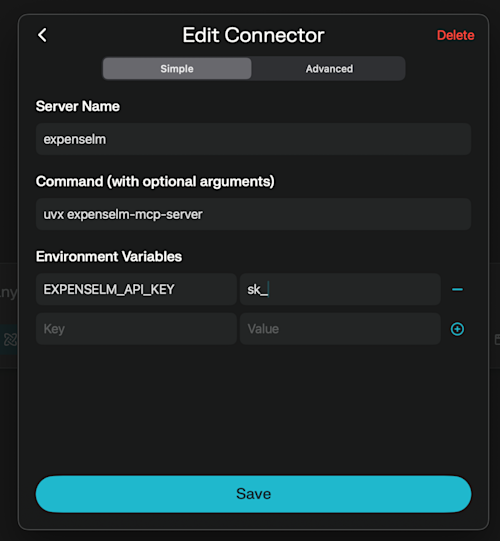
- In Perplexity Desktop for Mac, navigate to "Settings" -> "Connectors". Click "Add Connector".
- Enter ExpenseLM MCP Server configuration like the below screenshot. Replace the environment variable "EXPENSELM_API_KEY" with your own key.