

vamoose
Calendar workflows, minus the tedium.




The moose does the paperwork. You go to the beach.
Four calendar backends behind one workflow engine that branches, approves, waits, recurs, and files real leave with your HR system, driven from your terminal, Claude, Slack, or a local dashboard, and authorable by an AI agent over MCP. Every run is recorded, and the daemon resumes exactly where it left off after a crash. Install with brew install dcadolph/tap/vamoose.
Calendar busywork is death by a thousand cuts: create the hold marked free, invite your manager, Slack them for the yes, go back in and add the team one by one, add a second blocked event so your own calendar says away, then file the leave in the HR portal. vamoose turns those chores into workflows it runs for you and advances in the background. Time off is the flagship workflow, and you can define your own.

Two minutes to running
brew install dcadolph/tap/vamoose
vamoose login --provider google   # sign in; Outlook and iCloud setup in docs
vamoose off next week --watch     # hold the dates, invite your manager
vamoose daemon                    # advances the workflow when the manager accepts
vamoose app                       # or watch and run everything from a dashboard
That is the whole flow: the hold shows as free so it blocks nobody, your manager's calendar accept is the approval, and the daemon notifies your team the moment it lands.
How it works
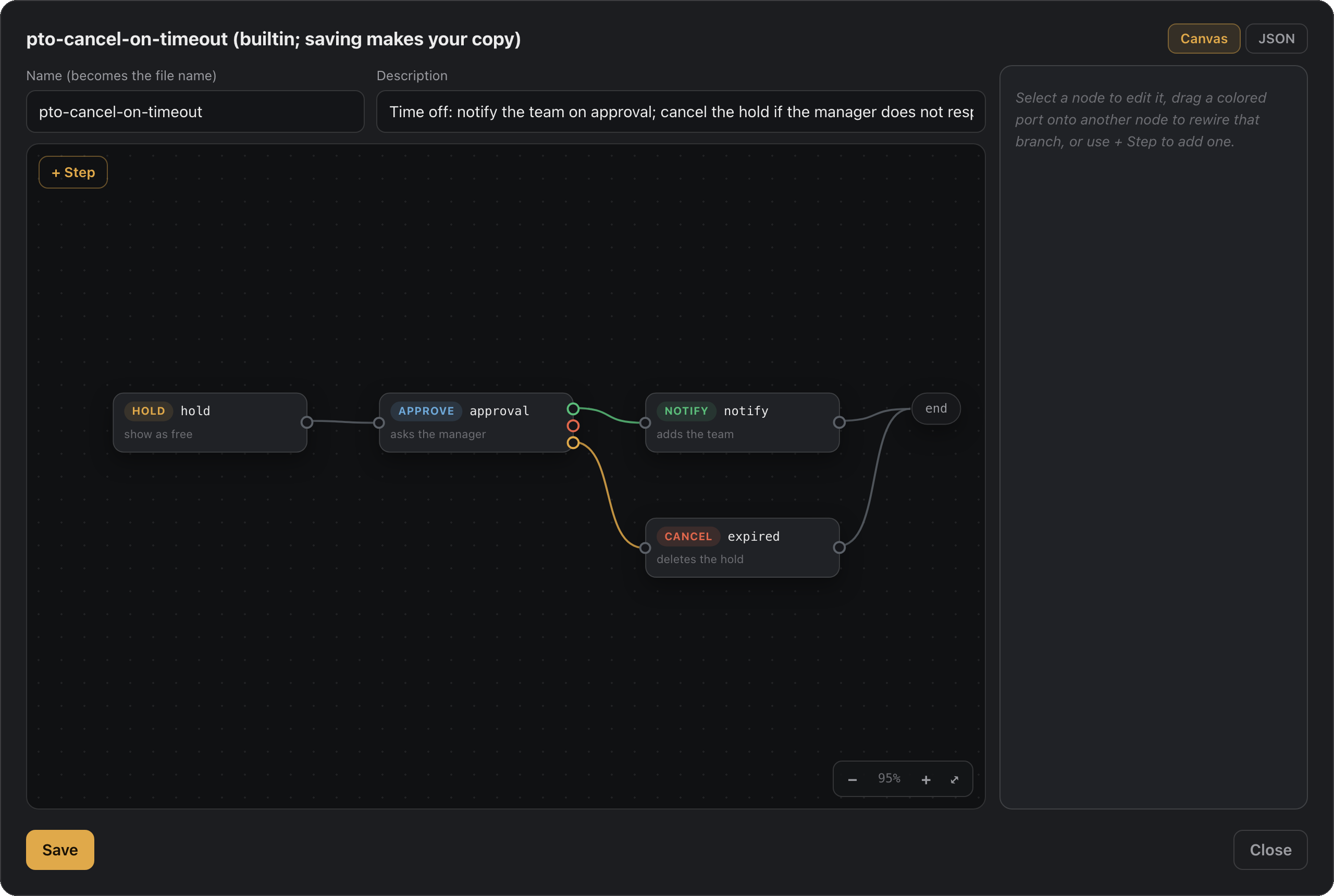
- Declare. A workflow is ordered steps in JSON: create a hold, gate on approval, branch on the outcome, wait, message a channel, file the leave. Time off ships built in; author your own in a file, on the dashboard's workflow canvas, or through an AI agent.
- Run. Drive it from the terminal, Claude, Slack, or
vamoose app, against Microsoft Graph, Google, iCloud, or any CalDAV host. Same workflow, any backend. - Advance. The daemon moves runs forward on its own: your manager accepting the invite is the approval signal (no separate approval product), timeouts and waits fire on the clock, recurring schedules re-run, and every step lands in the run history.
The built-in pto workflow is the flagship: hold shown free, manager approves by
accepting, team added as optional attendees so nobody's calendar gets blocked.
request, check, and promote are fronts over its steps. See Workflows.
Four backends ship behind one provider interface: Microsoft Graph (Outlook,
Microsoft 365, and Teams), Google Calendar, Apple iCloud, and any standard CalDAV host.
Pick one with --provider or the VAMOOSE_PROVIDER environment variable, and every
command works the same across them. Approval detection is the one exception: iCloud
sends invites but does not report accept/decline over CalDAV, so on iCloud you promote
by hand. See providers.
Why not just calendar rules?
You can rig a version of this with one calendar's rules or a saved email. vamoose earns its keep the moment you have more than one account:
- One brain for every account. The same workflows, commands, and setup whether you are on Google, Outlook, or Microsoft 365. Learn it once, not once per client.
- No rebuilding per client. Native rules live inside one app and stop at its edge.
Define a workflow once and point it at any backend with
--provider. - No drift. Change your time-off flow in one place. Hand-built rules drift the day you update Outlook and forget Gmail.
- Workflows are files, not clicks. JSON you can read, diff, share, version, and dry-run, instead of a settings panel you rebuild by hand on every machine.
- Runs where you already are. The CLI, Claude, and Slack, not one vendor's web UI.
Install
macOS and Linux:
brew install dcadolph/tap/vamoose
Windows:
scoop bucket add vamoose https://github.com/dcadolph/scoop-vamoose
scoop install vamoose
Docker (for hosting):
docker run --rm ghcr.io/dcadolph/vamoose:latest version
Or with Go 1.26 or newer:
go install github.com/dcadolph/vamoose@latest
Zips and tarballs for every platform are on the releases page.
New to vamoose? The Quickstart takes you from zero to a first approved hold in a few minutes.
Setup
Set one calendar backend and export its credentials, then run vamoose doctor to check the
setup. Every backend, including iCloud and any CalDAV host, is covered in providers.
Microsoft 365 / Outlook
vamoose talks to Microsoft Graph as you, using the OAuth device-code flow.
- Register an application in the Microsoft Entra admin center (single tenant is fine). Enable Allow public client flows so device code works.
- Grant these delegated permissions and admin consent:
User.Read,User.Read.All(read your manager and their direct reports)Calendars.ReadWrite(create and update the hold)MailboxSettings.ReadWrite(reserved for the out-of-office reply)offline_access(stay signed in between runs)
- Export the settings:
export VAMOOSE_CLIENT_ID=<application-client-id>
export VAMOOSE_TENANT=<tenant-id-or-organizations>
export VAMOOSE_TIMEZONE=America/Chicago
The first command opens a device-code prompt. Tokens are cached under your user
config directory and refreshed automatically after that. Run vamoose whoami
first to confirm auth and directory access before creating any holds.
Google Calendar
For --provider google, create an OAuth desktop app client in the Google Cloud
console, enable the Google Calendar API, then sign in:
export VAMOOSE_PROVIDER=google
export VAMOOSE_GOOGLE_CLIENT_ID=<oauth-desktop-client-id>
export VAMOOSE_GOOGLE_CLIENT_SECRET=<oauth-desktop-client-secret>
vamoose login
login opens your browser for consent on a local loopback address, then caches and
refreshes tokens after that. Two things catch people out. Consent is denied until you add
the signing-in account under Google Auth Platform, Audience, Test users. And while the app
sits in Testing status, Google expires its refresh tokens after seven days, so login
comes back around once a week. Both are covered step by step, with a troubleshooting
table, in the Google guide.
Google Calendar has no directory, so pass your approver with --manager and set your team
with vamoose team set.
Apple iCloud
For --provider icloud, create an app-specific password at appleid.apple.com and export:
export VAMOOSE_PROVIDER=icloud
export VAMOOSE_ICLOUD_USERNAME=you@icloud.com
export VAMOOSE_ICLOUD_APP_PASSWORD=xxxx-xxxx-xxxx-xxxx
iCloud sends invites but does not report approvals over CalDAV. Recover them with the macOS EventKit helper or a Slack Approve button, or promote by hand. See providers.
Any CalDAV host
For --provider caldav, point at any standard CalDAV server, such as Fastmail or Nextcloud:
export VAMOOSE_PROVIDER=caldav
export VAMOOSE_CALDAV_URL=https://caldav.fastmail.com
export VAMOOSE_CALDAV_USERNAME=you@fastmail.com
export VAMOOSE_CALDAV_PASSWORD=xxxx-xxxx-xxxx-xxxx
HR system, for balance and leave filing
Calendar setup is enough for holds, coverage, and approvals. Reading your remaining
balance with vamoose balance, and filing approved time off as real leave, both need an
HR system as well. Skip this section if you only want the calendar side.
Point at BambooHR directly:
export VAMOOSE_BAMBOOHR_SUBDOMAIN=<your-bamboohr-subdomain>
export VAMOOSE_BAMBOOHR_API_KEY=<bamboohr-api-key>
export VAMOOSE_BAMBOOHR_EMPLOYEE_ID=<your-employee-id>
Or post to any HR system through a webhook:
export VAMOOSE_BALANCE_WEBHOOK_URL=https://hr.example.com/balance
export VAMOOSE_LEAVE_WEBHOOK_URL=https://hr.example.com/leave
export VAMOOSE_HRIS_EMPLOYEE_ID=<your-employee-id>
Without one of these, vamoose balance exits reporting that no HR system is configured.
Run vamoose doctor to see which parts are set.
Usage
# Confirm auth and directory access work in your tenant.
vamoose whoami

# Create the hold and invite your manager. Manager is resolved from the directory.
vamoose request --start 2026-07-20 --end 2026-07-24 --subject "Out: beach week"

# Or request time off from a plain-language phrase. It reports the working days,
# skipping weekends and configured holidays.
vamoose off next week --subject "Out: beach week"

# Just the afternoon.
vamoose off tomorrow --half pm

# Who else is off that week, and what do you have left?
vamoose coverage next week
vamoose balance

# See whether your manager has approved.
vamoose check

# Once approved, fan out to the team as optional attendees.
vamoose promote

# Changed plans? Cancel the hold and notify everyone.
vamoose cancel

# Or let check promote the moment approval lands.
vamoose check --promote

# Hands-off: watch for approval and let the daemon auto-promote in the background.
vamoose off next week --watch
vamoose daemon

# Run the daemon unattended (prints a launchd or systemd manifest to install).
vamoose service

# See what every hold did and who approved it.
vamoose history

# Open the local dashboard: run workflows, author them, act on holds.
vamoose app
Times accept YYYY-MM-DD for all-day holds or RFC3339 for partial days. Pass
--manager you@work.com to skip directory lookup, or --dry-run on request to
preview without sending. off also accepts explicit --start/--end.
Quick actions
Not everything needs approval:
# Block yourself out of office over a range, no approval or fanout.
vamoose away --start 2026-07-20 --end 2026-07-24

# Create a quick event, optionally inviting others.
vamoose event --start 2026-07-20T15:00:00Z --end 2026-07-20T15:30:00Z \
  --subject "1:1" --attendees boss@work.com
Workflows
A workflow is an ordered list of steps that vamoose runs and the daemon advances.
The request-approve-promote flow above is the built-in pto workflow. Run a
workflow by name, with a date phrase or explicit --start/--end:
vamoose run pto next week --watch
vamoose run notify-only next week
vamoose run away --start 2026-07-20 --end 2026-07-24
vamoose workflows            # list the available workflows
Three workflows ship built in:
| Name | Steps | Use |
|---|---|---|
pto | hold shown free, approve, notify | Time off that a manager approves. |
notify-only | hold shown free, notify | Tell the team, no approval needed. |
away | out-of-office block | Personal out of office, no fanout. |
Define your own by dropping a JSON file in ~/.config/vamoose/workflows/<name>.json.
A file there overrides a built-in of the same name.
{
  "name": "team-heads-up",
  "description": "Hold shown free, tell the team, no approval.",
  "steps": [
    { "verb": "hold", "showAs": "free" },
    { "verb": "notify", "team": "optional" }
  ]
}
Then vamoose run team-heads-up next week. Steps use these verbs:
holdcreates the event and invites the manager when anapprovestep follows.approvewaits for the manager to accept the invite.notifyadds the team as optional attendees.awaymarks you out of office with no attendees.eventcreates a plain event, with attendees from--attendees.canceldeletes the hold.
A workflow starts with exactly one creating step (hold, away, or event).
Approval waits on the manager that only a hold invites, so an approve step
needs a hold, and only notify may follow approval. With --watch, the hold is
recorded and vamoose daemon runs the remaining steps once the manager accepts.
Defining your team
By default promote derives your team from the directory: your manager's direct
reports, minus you. That assumption breaks if you are the manager, your team is a
distribution list, or the directory is sparse. Set an explicit team instead:
vamoose team set alex@work.com jordan@work.com sam@work.com
vamoose team list     # show the current team
vamoose team clear    # revert to the directory
The list is stored as JSON under your user config directory
(team.json). When it is set, promote and whoami use it; when it is absent,
they fall back to the directory.
Claude (MCP)
vamoose mcp speaks the Model Context Protocol over stdio, exposing the commands as
tools so Claude can book time off for you. Point an MCP client at the binary:
{ "mcpServers": { "vamoose": { "command": "vamoose", "args": ["mcp"] } } }
Authenticate once first with vamoose whoami; the server reuses the cached token.
Docs
These guides are also on the site at vamoose.dev.
| Guide | What |
|---|---|
| Quickstart | Zero to a first approved hold in a few minutes. |
| Concepts | Holds, approval, workflows, and the three adapters. |
| Commands | Every command, flag, and environment variable. |
| Workflows | Built-in and custom workflows: branching, delays, guards. |
| Providers | Microsoft Graph, Google, iCloud, and CalDAV setup. |
| Slack | Drive vamoose from Slack, with approval buttons. |
| Claude | The MCP server and the skill. |
| Hosting | Run it as a service, secrets encrypted at rest. |
| Architecture | Surfaces, core, and adapters. |
Roadmap
- Live-prove per-user Slack against a real workspace, then drop its experimental label.
- A signed, notarized native desktop app wrapping the dashboard.
- Auto-promote via Graph change-notification webhooks instead of polling.
- Set the scheduled out-of-office auto-reply for the time-off window.
- More HR systems behind the leave seam, as users ask.
More tools
- kibble, test your README's install steps in a clean container
- preen, split a messy working tree into clean, atomic git commits
- slop-chop, strip the AI tells out of your writing
- whodar, find who to talk to about X across your work tools
License
MIT (see LICENSE). Use it, change it, ship it, sell it. No conditions beyond keeping the copyright notice.