Listed from the MCP registry; nobody on Odel publishes it.

Dgmo
Generate 40+ diagram types from text; render locally to SVG/PNG, open in the Diagrammo editor
Runs on your machine from its package; the steps are below.
What it does
- Reads
- Writes
- High impact
At most: creates or changes data: records, files, settings.
What it costs
FreeOdel charges nothing per call. The publisher may charge for its own service.
Runs locally over stdio
This server isn't hosted — your MCP client launches it from a package registry. Use one of the commands below, or drop the config into your client (e.g. Claude Desktop).
Run
npx -y @diagrammo/dgmo-mcp
MCP client config
{
  "mcpServers": {
    "dgmo": {
      "command": "npx",
      "args": [
        "-y",
        "@diagrammo/dgmo-mcp"
      ]
    }
  }
}@diagrammo/dgmo-mcp
Turn a conversation into a real diagram — without leaving your AI tool.



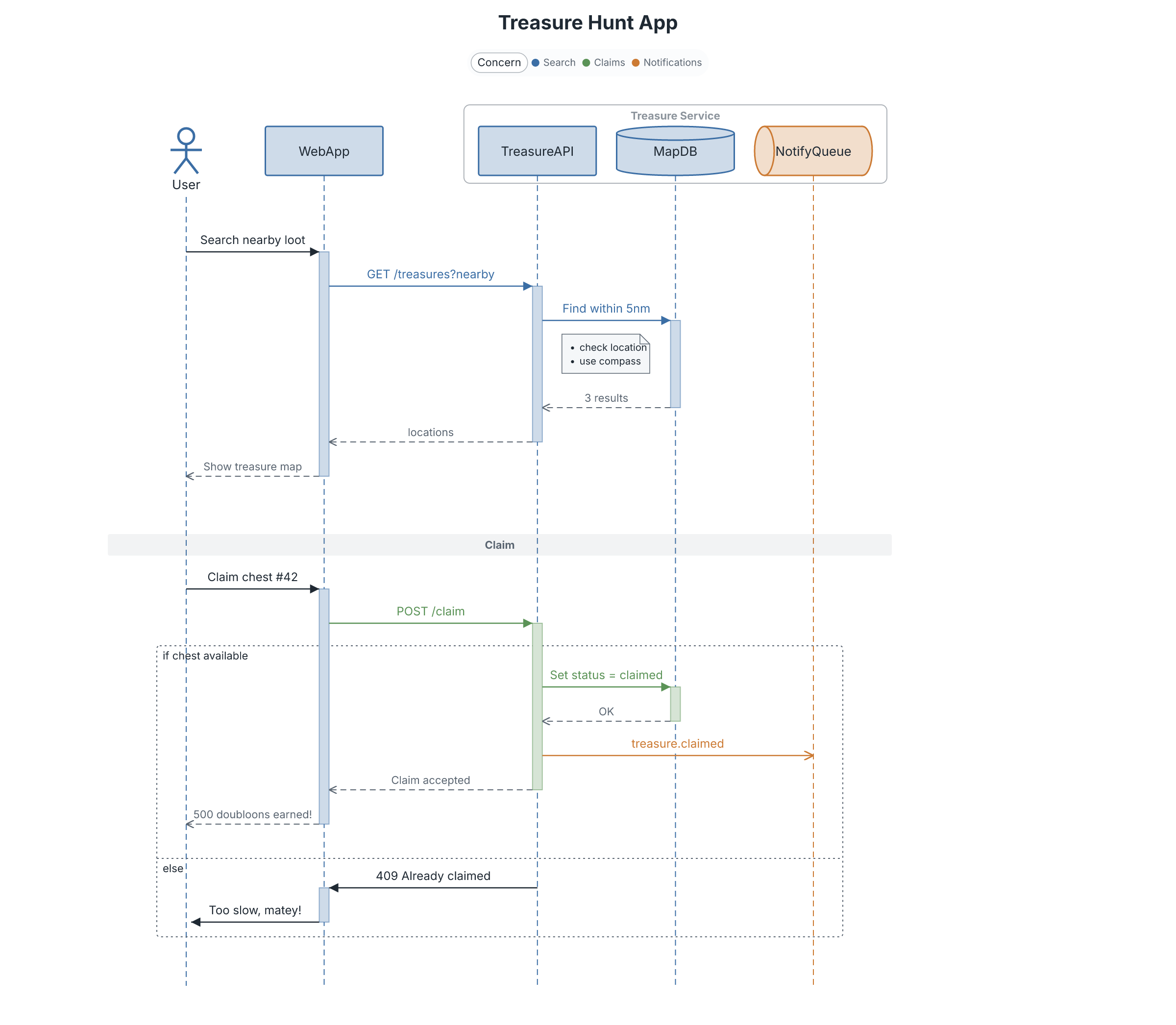
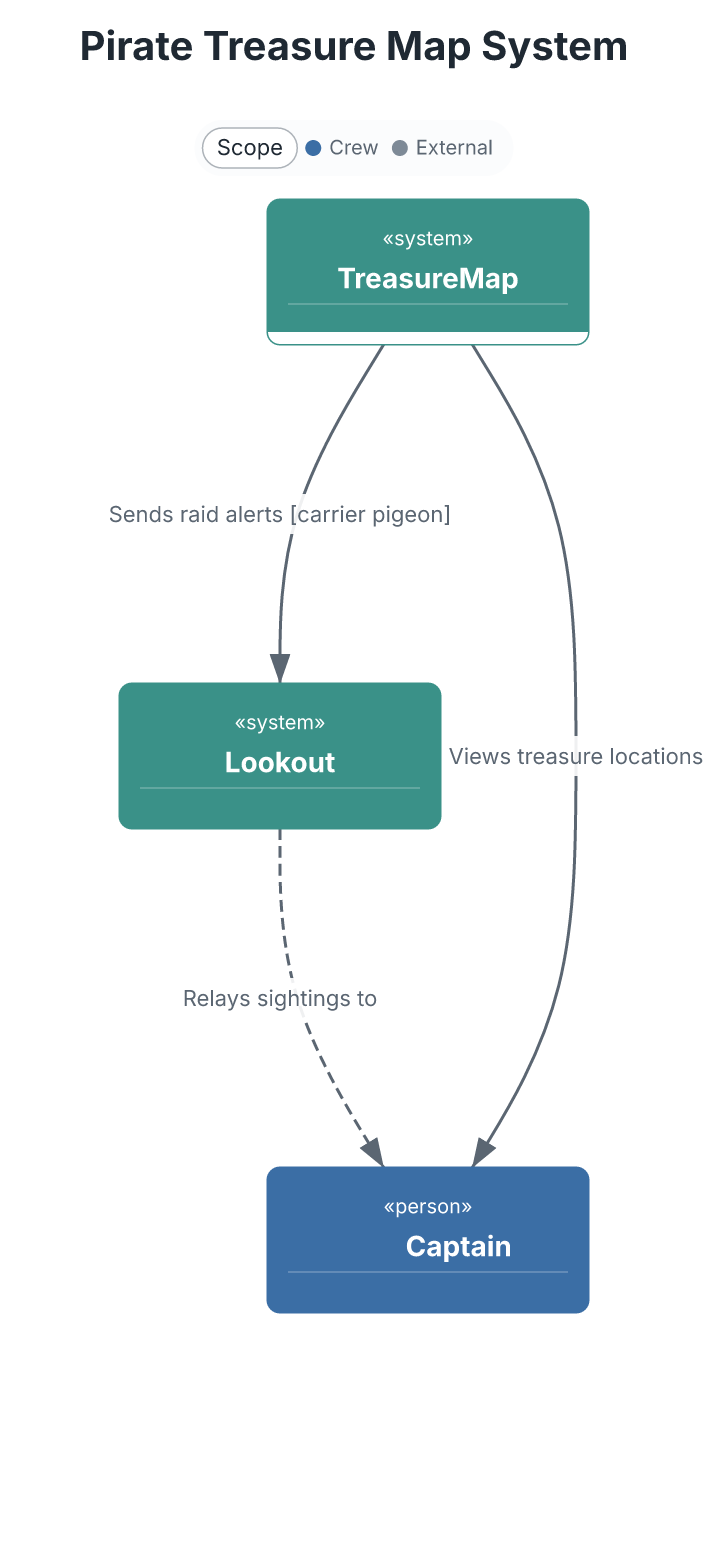
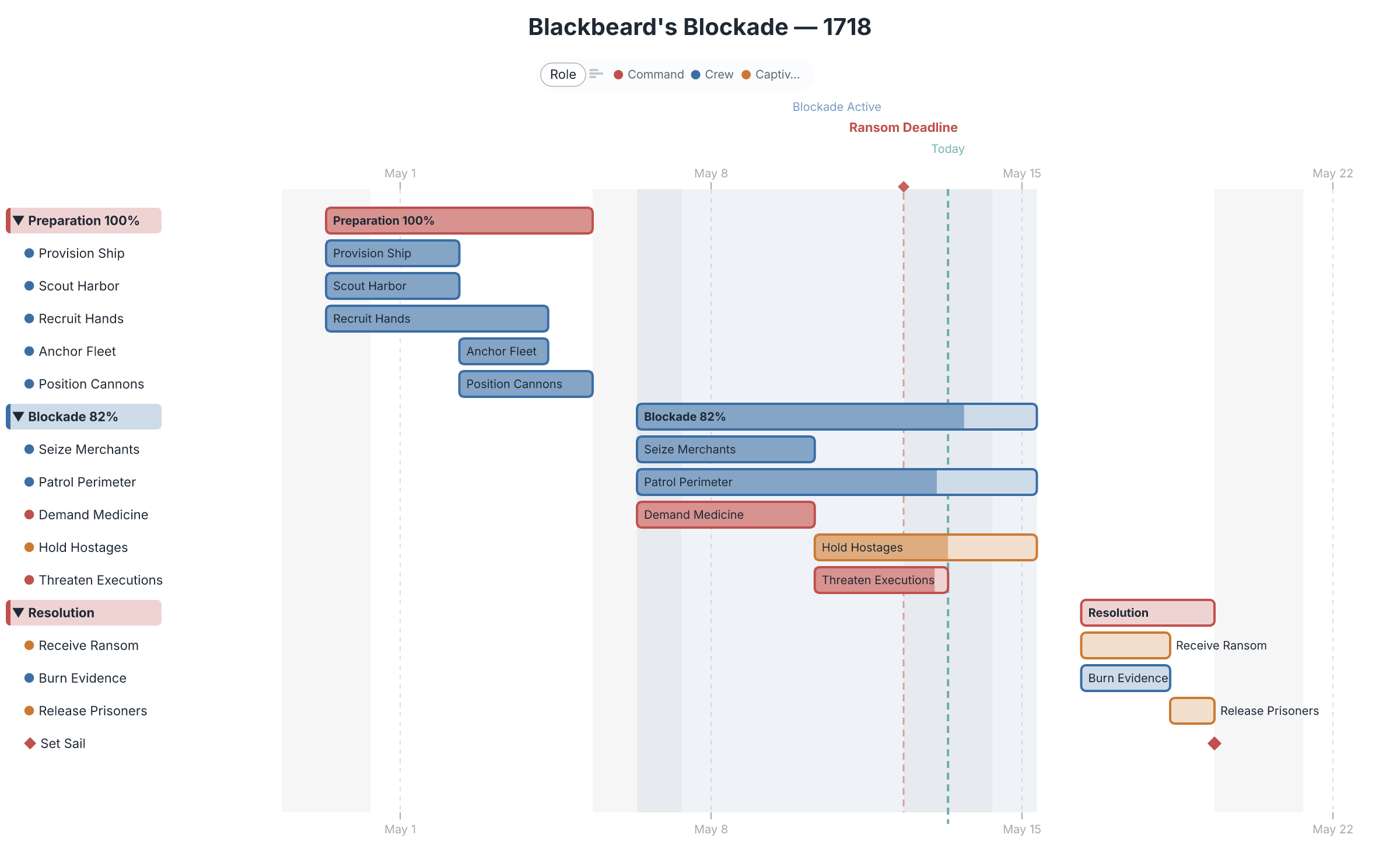
This MCP server gives Claude (and any MCP-compatible AI tool) the ability to render sequence diagrams, flowcharts, ER diagrams, C4 architecture, gantt charts, and 40+ other chart types from concise text markup — then hand the result off to a full editor for refinement. Ask for a diagram in chat; get a real one back.
|  |
 |  |
What you can do
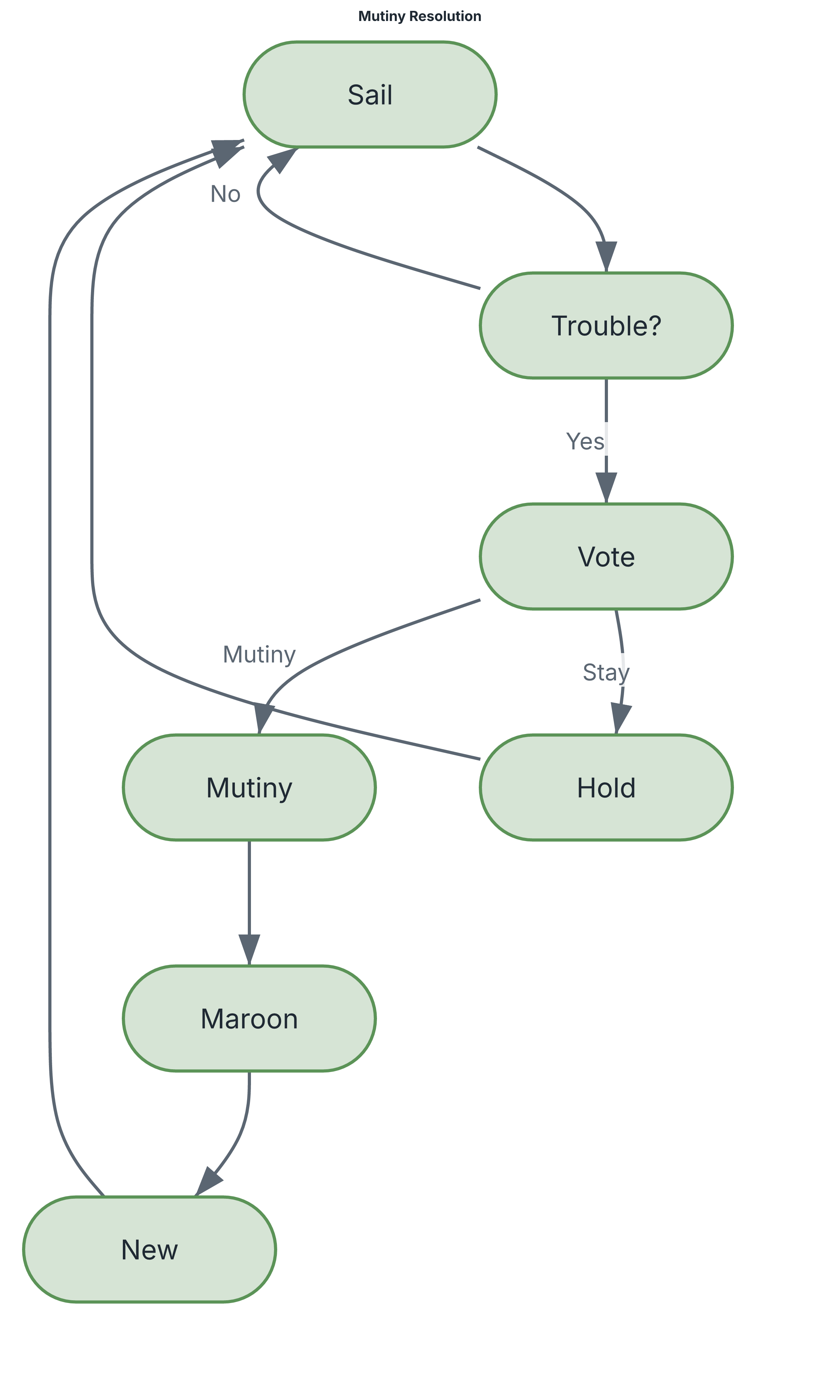
Ask in plain language — "diagram the auth flow as a sequence", "chart the Q3 plan as a gantt", "draw our services as a C4 diagram" — and Claude writes the markup and renders it. The markup stays readable and diffable:
flowchart Mutiny Resolution
direction-tb

[Sail]     Set sail under the captain
{Trouble?} Discontent in the crew?
{Vote}     Crew vote called
[Mutiny]   Seize the ship

(Sail) -> (Trouble?)
(Trouble?) -Yes-> (Vote)
(Vote) -Mutiny-> (Mutiny)
→ renders to the flowchart above. All rendering happens locally — no diagram data leaves your machine.
Tools
| Tool | What it does | Over HTTP |
|---|---|---|
render_diagram | Render DGMO markup to SVG or PNG | yes |
validate_diagram | Check markup and report parse errors, without rendering | yes |
suggest_chart_type | Suggest the chart types that fit a description | yes |
list_chart_types | List all supported chart types, marking the beta ones | yes |
get_language_reference | Get DGMO syntax documentation for accurate generation | yes |
get_examples | Fetch worked examples for a chart type | yes |
share_diagram | Get a shareable diagrammo.app URL — hand your diagram to the web editor | yes |
open_in_app | Open the diagram straight into the Diagrammo desktop app for editing | no |
check_app_installed | Report whether the desktop app is installed | no |
preview_diagram | Render one or more diagrams and open an HTML preview in the browser | no |
generate_report | Build a polished multi-section HTML report with ToC and optional source | no |
put_space_diagram | Write a diagram into a Diagrammo Cloud space, by folder and title | yes |
get_space_diagram | Read a diagram from a Cloud space, by id or by folder and title | yes |
list_space_diagrams | List every diagram in a Cloud space | yes |
The three space tools send the diagram to Diagrammo Cloud. They need a space API key
(minted on the Diagrammo account page) as DGMO_API_KEY in the server's environment —
never as a tool argument, so the key stays out of the transcript.
share_diagram and open_in_app are the bridge out of chat: a diagram Claude generates
becomes something you can refine, restyle, and embed — see below.
The four marked no open a browser or launch the desktop app. Over HTTP that would happen on the machine running the server rather than on yours, so they are not offered there — see Serving over HTTP.
Beyond the MCP server
The MCP server is one entry point into Diagrammo — a whole ecosystem built on the same DGMO markup. Generate in chat, refine in a real editor, embed anywhere:
- diagrammo.app — the desktop app.
open_in_appdrops an AI-generated diagram straight into it, with live preview, palettes, and export. - online.diagrammo.app — a full editor in the
browser, zero install.
share_diagramURLs open right here. - Docs integrations — drop DGMO fenced code blocks into your docs site: remark-dgmo, astro-dgmo, docusaurus-plugin-dgmo, fumadocs-dgmo.
- Obsidian — the Diagrammo Diagrams community plugin renders DGMO in your vault.
- CLI —
npx @diagrammo/dgmo-cli file.dgmo -o out.png, or install it withnpm install -g @diagrammo/dgmo-cli(macOS and Linux).
One markup, everywhere. A diagram you generate here renders identically in the app, in your docs, and in Obsidian — because they all speak DGMO.
→ Try it free at diagrammo.app
Setup
Easiest — one command
Install the dgmo CLI and let it wire everything up:
npm install -g @diagrammo/dgmo-cli   # macOS and Linux
dgmo install                         # auto-detects Claude Code, Codex, Claude Desktop, Cursor, …
Prefer Homebrew or pacman? See diagrammo.app/dev.
dgmo install configures each detected assistant non-interactively and points it at dgmo mcp, so there's no separate package to install or prompts to answer. Target one surface with dgmo install claude-code (or codex, claude-desktop, …).
Manual configuration
Prefer to edit configs yourself? Point any MCP client at the server via npx (no global install needed):
Claude Code — .claude/settings.local.json; Claude Desktop — ~/Library/Application Support/Claude/claude_desktop_config.json:
{
  "mcpServers": {
    "dgmo": {
      "command": "npx",
      "args": ["-y", "@diagrammo/dgmo-mcp"]
    }
  }
}
If you have the dgmo CLI installed, { "command": "dgmo", "args": ["mcp"] } works too. Restart the client after saving — the tools appear automatically.
Serving over HTTP
The setups above launch the server as a child process and talk to it over its standard input and output. That needs the server and the client on the same machine. Where they are not — a hosted agent platform, a container, one server shared by several people — start it as an HTTP endpoint instead. The same endpoint also suits one machine, when you want a single server always running for every AI tool you use:
dgmo mcp --http                              # with the dgmo CLI installed
npx -y @diagrammo/dgmo-mcp --http            # http://127.0.0.1:3333/mcp
MCP_TRANSPORT=http MCP_PORT=8080 npx -y @diagrammo/dgmo-mcp
Every option takes a flag or an environment variable, whichever your setup can express:
| Flag | Variable | Default | What |
|---|---|---|---|
--http | MCP_TRANSPORT=http | off | Serve streamable HTTP instead of stdio |
--port <n> | MCP_PORT | 3333 | Port to listen on |
--host <addr> | MCP_HOST | 127.0.0.1 | Interface to bind |
--path <path> | MCP_PATH | /mcp | Path the endpoint answers on |
--allow-host <h> | MCP_ALLOWED_HOSTS | loopback | Extra Host headers to accept, repeatable |
--allow-origin <o> | MCP_ALLOWED_ORIGINS | own origin | Origin headers to accept, repeatable |
Each request is served independently — no sessions, nothing kept between calls — so one endpoint can serve several clients at once.
The server has no authentication of its own. It binds loopback by default and rejects requests carrying a
Hostheader it was not told to expect, or anOriginheader other than its own unless--allow-originnames it, which is enough for a client on the same machine or inside the same container. Anything reachable from a wider network needs your own authentication in front of it, and--allow-hostfor the hostname it will be reached by. Binding a non-loopback interface without naming a host prints a warning saying so.
--help prints all of this from the installed version.
Keep it running
Run the server as a background service so it starts at login and restarts if it stops.
Change the dgmo path to what which dgmo prints.
Linux — systemd user service, saved as ~/.config/systemd/user/dgmo-mcp.service:
[Unit]
Description=Diagrammo MCP server over HTTP
After=network.target

[Service]
ExecStart=%h/.local/bin/dgmo mcp --http
Environment=PATH=%h/.local/bin:/usr/local/bin:/usr/bin:/bin
Restart=on-failure
RestartSec=3

[Install]
WantedBy=default.target
systemctl --user daemon-reload
systemctl --user enable --now dgmo-mcp
macOS — launchd agent, saved as ~/Library/LaunchAgents/app.diagrammo.mcp.plist:
<?xml version="1.0" encoding="UTF-8"?>
<!DOCTYPE plist PUBLIC "-//Apple//DTD PLIST 1.0//EN" "http://www.apple.com/DTDs/PropertyList-1.0.dtd">
<plist version="1.0">
<dict>
  <key>Label</key><string>app.diagrammo.mcp</string>
  <key>ProgramArguments</key>
  <array>
    <string>/opt/homebrew/bin/dgmo</string><string>mcp</string><string>--http</string>
  </array>
  <key>EnvironmentVariables</key>
  <dict><key>PATH</key><string>/opt/homebrew/bin:/usr/local/bin:/usr/bin:/bin</string></dict>
  <key>RunAtLoad</key><true/>
  <key>KeepAlive</key><true/>
</dict>
</plist>
launchctl bootstrap gui/$(id -u) ~/Library/LaunchAgents/app.diagrammo.mcp.plist
Then point each AI tool at http://127.0.0.1:3333/mcp as a streamable-HTTP MCP server.
Privacy
All rendering is local. Your diagram markup and the images it produces never leave
your machine, except when you explicitly call share_diagram (which encodes the diagram
into a diagrammo.app URL). See the privacy terms.
Dev hub (AI-tuning tools)
pnpm hub
One command, one server, one browser tab. The hub opens a tabbed shell over the three AI-tuning dev tools — switch between them with the top tabs, no separate ports or commands to remember:
- Trigger tuning — edit the phrase/concept vocabulary that drives
suggest_chart_type, score prompts live, save back totriggers.json. - LLM judge — judge chart-type descriptions against prompts with
claude -p. - Guidance studio — author the per-type styling guidance the server
delivers (the
<!-- TIPS -->blocks in dgmo'slanguage-reference.md, sliced intoget_language_reference): pick a type, edit how the AI is told to style it, run a prompt against a committed dataset fixture (so inputs never move between runs), and see the generated DGMO + rendered image side by side. The picker doubles as a coverage bar; "Compare 3×" renders no-guidance vs your tips for a by-eye check; Save validates and writes back tolanguage-reference.md.
These tools are dev-only and never bundled into the published server. (The
standalone pnpm harness and pnpm studio scripts still run a single tool each
if you ever want one in isolation.)
Contributing & releases
Development setup and the release workflow live in CONTRIBUTING.md.
License
MIT