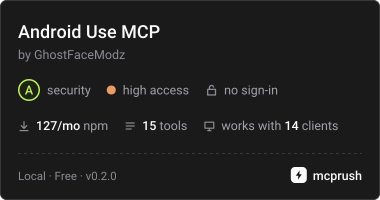
Listed from the MCP registry; nobody on Odel publishes it.

android-use
Let AI agents see and control an Android phone over ADB, with safety guards.
Runs on your machine from its package; the steps are below.
What it does
- Reads
- Writes
- High impact
At most: moves money, runs code or commands, deletes data, or sends messages for you.
What it costs
FreeOdel charges nothing per call. The publisher may charge for its own service.
Runs locally over stdio
This server isn't hosted — your MCP client launches it from a package registry. Use one of the commands below, or drop the config into your client (e.g. Claude Desktop).
Run
npx -y @ghostfacemodz/android-use
MCP client config
{
  "mcpServers": {
    "android-use": {
      "command": "npx",
      "args": [
        "-y",
        "@ghostfacemodz/android-use"
      ]
    }
  }
}Let AI agents see and control an Android phone over ADB, with safety guards built in.


android-use is a Model Context Protocol (MCP) server. Any MCP-capable app (Claude Desktop, Claude Code, Cursor, Hermes Agent and others) can use it to take screenshots, read the on-screen UI, tap, swipe, type, press keys and launch apps on a real Android device. Since v0.3 it can also run as a remote connector: a private https://…/mcp URL you paste into Claude.ai, ChatGPT, Cursor, LibreChat, Open WebUI or LM Studio.
npx -y @ghostfacemodz/android-use          # local (stdio) MCP server
npx -y @ghostfacemodz/android-use setup    # guided setup as a remote connector (URL + key)
Get started in 2 minutes
With a computer (Windows, macOS or Linux):
- Install Node.js 18+ and adb (
winget install Google.PlatformTools·brew install android-platform-tools·sudo apt install adb). - On the phone, turn on Developer options → USB debugging (or Wireless debugging), plug it in and accept the prompt. (Phone setup)
- Run:
It checks adb, finds your phone (and helps youbash
npx -y @ghostfacemodz/android-use setupadb pair/adb connectif needed), creates your own secret token, starts the server, and offers to open a publichttps://link through a free Cloudflare quick tunnel (it downloadscloudflaredfor you). It then prints your connector URL, key and copy-paste configs. - Paste the URL into your AI app (Use as a connector). Next time just run
npx -y @ghostfacemodz/android-use start --tunnel.
With only the phone (no PC, no root): install Termux and run one command. See docs/PHONE-ONLY.md.
Just want a local MCP server for Claude Desktop / Cursor? Skip setup and use the stdio configs in Add it to your MCP client.
Formerly
android-adb-mcp. The tools, environment variables and behaviour are unchanged; only the package name, binary name (android-use) and MCP server name changed.
⚠️ Read Safety before you connect a phone you care about. An AI with this tool can do anything you could do by tapping the screen.
Not affiliated with, endorsed by, or sponsored by Google, Android or Samsung. "Android" is a trademark of Google LLC.
Contents
- What it does
- What you can do with it
- How much control it has on your phone
- Requirements
- Phone setup
- Get started in 2 minutes
- Use as a connector (remote MCP over HTTPS)
- Phone-only setup with Termux (docs/PHONE-ONLY.md)
- Add it to your MCP client: Claude Desktop · Claude Code · Cursor · Hermes Agent · Other clients
- Configuration
- Tools
- Safety
- Run it on a remote computer (Tailscale + ADB)
- Use cases and control in depth (docs/USE-CASES.md)
- Development
What it does
android-use is a small TypeScript wrapper around the adb command-line tool. It talks to your MCP client over stdio (default) or Streamable HTTP (--http, setup, start) and has two runtime dependencies (@modelcontextprotocol/sdk and zod).
Example: "Open YouTube and search for lo-fi beats."
current_app→com.sec.android.app.launcheropen_app { package: "com.google.android.youtube" }ui_dump→#4 ImageView [clickable] desc="Search" center=980,140 …tap_element { text: "Search" }type_text { text: "lo-fi beats" }, thenkey_event { key: "enter" }screenshotto check the result
What you can do with it
You talk to your AI assistant normally. It works out the steps and uses android-use to carry them out on your phone: it looks at the screen (ui_dump, screenshot), acts (open_app, tap_element, tap, swipe, type_text, key_event) and checks the result before moving on. The phone needs to be unlocked.
The full guide, with step-by-step walkthroughs, more prompts and limits for each use case, is in docs/USE-CASES.md.
Hands-free errands
Put on a video or stream, start music, open navigation, or set an alarm or timer while your hands are busy.
Real example: an assistant connected to a phone over Tailscale and Wireless debugging opened a YouTube channel's newest video, then switched to another channel's live stream, all from a chat message while the owner was away from the phone.
- "Play my Discover Weekly playlist on Spotify and turn the volume up a bit."
- "Open Google Maps and start directions to the nearest Tesco."
- "Set a 12-minute timer."
Tips: ask for list_apps if you don't know an app's package name. type_text is ASCII-only, so searches with accents or emoji won't type. More detail →
Repetitive taps
Clear notifications, check for updates, or run the same daily flow, such as collecting a daily reward. Pair it with an AI agent that can run on a schedule (for example a cron job running Claude Code headless) to make it happen every morning.
- "Pull down the notification shade and tap Clear." →
swipefrom the top edge →tap_element "Clear"→key_event home - "Open [game], collect the daily reward, then go home." →
open_app→screenshot→tap_element "Collect"→key_event home - "Open Galaxy Store and update everything."
Limits: Google Play is on the sensitive-app list by default (it can make purchases), so use Play's own auto-update instead. Scheduled runs fail if the phone has locked. Respect each app's terms of service: many games and apps ban automation and can suspend accounts for it. More detail →
Social posting from the phone
Use mobile-only features, such as TikTok's editor or Instagram Stories, without a third-party scheduler, because the assistant drives the real app.
- "Start a new Instagram Story from my latest photo and stop before sharing so I can check it."
- "Upload my newest video to TikTok with this caption, and leave it on the Post screen."
- "Read me the comments on my latest post." (
ui_dump+swipe)
Keep a human in the loop: have the assistant stop on the final screen and send a screenshot, and write or approve captions yourself. Emoji can't be typed. Respect platform rules on automated activity; no bulk liking, following or fake engagement. More detail →
Accessibility
If touchscreens are hard for you, you can control the phone by talking or typing to an AI in plain language, and have it read the screen back using ui_dump (on-screen text) and screenshot (images and anything unlabelled).
- "What's on my screen right now?"
- "Turn on dark mode and make the text bigger."
- "Go back", "Scroll down", "Turn the volume down." (
key_event back,swipe,key_event volume_down)
Be realistic: this complements Android's built-in tools such as TalkBack and Voice Access; it doesn't replace them. Those run on the phone, work offline and work on the lock screen. android-use needs a computer, a connection, an AI service and an unlocked phone, and it's slower. More detail →
Remote help for family
Fix a relative's settings from anywhere over Tailscale plus ADB debugging: turn the ringer back on, enlarge the text, or find a missing app icon. Set ADB_SERIAL to their phone so nothing else can be touched.
- "Mum's phone isn't ringing. Put it back on Sound with the ringtone at about 70%."
- "Make Dad's font one size bigger and turn on bold."
Always with their consent. They grant access by accepting the "Allow USB debugging?" prompt, and they can switch it off at any time by turning off USB/Wireless debugging or disconnecting Tailscale. Leave the sensitive-app guard on. More detail →
How much control it has on your phone
In short: anything you could do by tapping the unlocked screen, the AI can do too, within the limits of what ADB allows and the guards below. This is based on the code in src/; the full breakdown has more detail.
| Can | Can't | Off by default |
|---|---|---|
See the screen (screenshot) | Get past the lock screen or bypass your PIN | Raw shell tool (ALLOW_SHELL=1) |
Read the UI as text (ui_dump) | Root the phone or gain system privileges | Banking, payment, messaging and password apps (ALLOW_SENSITIVE=1) |
| Tap, long-press, swipe | Read apps' private data (chats, databases, saved logins) | Device allowlist: off until you set ADB_SERIAL (recommended) |
| Type text (printable ASCII only) | Do anything when USB and Wireless debugging are off | |
| Press keys (home, back, recents, volume, power, enter…) | Type emoji or non-ASCII text | |
| Open apps, list apps, see the foreground app | Hear or speak on phone calls |
What it can't do, in more detail. It can wake the screen but can't unlock it without your PIN, pattern or password. ADB runs as Android's limited shell user, so it can't root the phone or read other apps' private storage; it only sees what's on screen, and screens that apps mark as secure show up black. If USB and Wireless debugging are off, or the phone hasn't authorised your computer, nothing works.
Safety guards that exist in the code:
- Device allowlist:
ADB_SERIAL(default: not set, so any connected device). Comma-separated serials; every other device is refused and hidden fromlist_devices. The first entry is used by default. - Sensitive-app guard: on unless
ALLOW_SENSITIVE=1.screenshot,ui_dump,tap,tap_element,swipe,long_press,type_textand most keys are refused while a sensitive app is in the foreground, andopen_appwon't launch one. Blocked by default: Google Wallet, Samsung Wallet/Pay, PayPal, Venmo, Cash App, Zelle, Coinbase, WhatsApp, Telegram, Signal, Google Messages, Samsung Messages, Messenger and Google Play, plus any package whose name containsbank,wallet,pay,finance,crypto,authenticator,messag,signal,keepass,bitwardenor1password. Add more withSENSITIVE_PACKAGES. Home, back, recents and power always work. It matches package names, so it's a best-effort heuristic: many banking apps need adding by hand. - Raw shell off by default:
ALLOW_SHELL. Unless set to1, theshelltool isn't registered at all. If enabled, it isn't covered by the sensitive-app guard. - Rate limit:
RATE_LIMIT_PER_MIN(default120calls per rolling minute). - Action log: every tool call is written to stderr with a timestamp and its arguments; typed text is logged as a length only.
Revoke access instantly: on the phone, turn off Wireless debugging or USB debugging (or unplug). For a full reset, use Developer options → Revoke USB debugging authorisations, disconnect Tailscale, or restart the phone (which ends adb tcpip sessions).
Recommended safe setup:
- Set
ADB_SERIALto just your phone. - Leave
ALLOW_SENSITIVEandALLOW_SHELLunset. - Add your banking apps to
SENSITIVE_PACKAGESif their names don't contain a keyword. - Keep a screen lock on, and watch the screen while the agent works.
- Ask the assistant to stop before anything public or paid.
- Turn off Wireless debugging when you're done.
Requirements
- Node.js 18 or newer (provides
npx) - ADB (Android platform-tools) on your
PATH, or setADB_PATH- macOS:
brew install --cask android-platform-tools - Windows:
winget install Google.PlatformTools, or download platform-tools and add the folder toPATH - Linux:
sudo apt install adb(or the platform-tools zip) - Check with
adb version
- macOS:
- An Android phone with USB debugging or Wireless debugging enabled (see below)
Phone setup
- Enable Developer options: Settings → About phone (Samsung: → Software information) → tap Build number 7 times.
- Enable debugging: Settings → Developer options → turn on USB debugging and/or Wireless debugging (Android 11+).
- Samsung: if taps are ignored, turn off Auto Blocker (Settings → Security and privacy) while using ADB. Xiaomi and some other ROMs: also enable USB debugging (Security settings).
Connect over USB: plug in the phone, accept the "Allow USB debugging?" prompt, then run adb devices.
Connect wirelessly (Android 11+): Developer options → Wireless debugging → Pair device with pairing code. That screen shows an IP, a pairing port and a 6-digit code; the main Wireless debugging screen shows a different connect port.
adb pair 192.168.1.23:41234 123456     # pairing port + code
adb connect 192.168.1.23:37099         # connect port
You can also ask the assistant to call connect_wifi { host, port, pairing_code, pair_port }.
Run adb devices and note your device's serial. You'll use it for ADB_SERIAL.
Use as a connector (remote MCP over HTTPS)
In HTTP mode android-use speaks the MCP Streamable HTTP transport, so any app that can "add an MCP server by URL" can use your phone.
| Endpoint | Purpose |
|---|---|
POST/GET/DELETE /mcp | Streamable HTTP (current MCP spec, sessions via Mcp-Session-Id) |
GET /sse + POST /messages | Legacy HTTP+SSE transport for older clients |
GET /health | Liveness check (no auth, reveals nothing about the phone) |
Start it
npx -y @ghostfacemodz/android-use setup             # guided: phone + token + optional public URL
npx -y @ghostfacemodz/android-use start --tunnel    # later: reuse saved phone + token, open a public URL
npx -y @ghostfacemodz/android-use start --funnel    # same, but a stable Tailscale Funnel URL
MCP_AUTH_TOKEN=... npx -y @ghostfacemodz/android-use --http --port 3333   # plain HTTP server, bring your own tunnel
setup stores your token in ~/.config/android-use/token (%APPDATA%\android-use\token on Windows) with owner-only permissions and remembers the phone's serial in config.json next to it. It prints the token in the copy-paste configs only when run in an interactive terminal (--hide-token to suppress, --show-token to force). Read it again any time with cat ~/.config/android-use/token.
Public URL options:
| Option | URL | Notes |
|---|---|---|
--tunnel (Cloudflare quick tunnel) | https://<random>.trycloudflare.com/mcp | Free, no account. cloudflared is downloaded automatically. The URL changes every restart, so you re-paste it into your apps. Needs outbound port 7844 (some networks block it). |
--funnel (Tailscale Funnel) | https://<machine>.<tailnet>.ts.net/mcp | Stable. Needs Tailscale and Funnel enabled for your tailnet (the command prints the admin link if it isn't). |
| Named Cloudflare tunnel / your own reverse proxy | your domain | Stable. Point it at http://127.0.0.1:3333. |
Generic remote MCP config
{
  "mcpServers": {
    "android-use": {
      "url": "https://YOUR-HOST/mcp",
      "headers": { "Authorization": "Bearer YOUR_TOKEN" }
    }
  }
}
Some apps can't send custom headers. For those, put the token in the URL instead: https://YOUR-HOST/mcp?key=YOUR_TOKEN. Tradeoff: a URL is easier to leak than a header (it can end up in browser history, screenshots, proxy or app logs, and shared chats), so only use the ?key= form where headers aren't possible, never share it, and rotate the token if it might have leaked (delete the token file and run setup again). android-use itself never logs query strings. X-API-Key: YOUR_TOKEN is also accepted.
App-specific snippets
Claude.ai and Claude Desktop (custom connectors): Settings → Connectors → Add custom connector → Remote MCP server URL: https://YOUR-HOST/mcp?key=YOUR_TOKEN (leave the OAuth fields empty). Custom connectors added on claude.ai also appear in Claude Desktop and mobile. To use headers from Claude Desktop instead, bridge it through mcp-remote in claude_desktop_config.json:
{
  "mcpServers": {
    "android-use": {
      "command": "npx",
      "args": ["-y", "mcp-remote", "https://YOUR-HOST/mcp", "--header", "Authorization:${AUTH}"],
      "env": { "AUTH": "Bearer YOUR_TOKEN" }
    }
  }
}
Claude Code:
claude mcp add --transport http android-use https://YOUR-HOST/mcp --header "Authorization: Bearer YOUR_TOKEN"
Cursor (~/.cursor/mcp.json or .cursor/mcp.json):
{
  "mcpServers": {
    "android-use": {
      "url": "https://YOUR-HOST/mcp",
      "headers": { "Authorization": "Bearer YOUR_TOKEN" }
    }
  }
}
ChatGPT (developer mode): on the web, Settings → Apps → Advanced settings → turn on Developer mode, then Create app (newer UI: Plugins → + → Add custom MCP server). Server URL: https://YOUR-HOST/mcp?key=YOUR_TOKEN, Authentication: No authentication (the key in the URL is the auth). Developer mode is available on Plus, Pro, Business, Enterprise and Edu plans.
LibreChat (librechat.yaml):
mcpServers:
  android-use:
    type: streamable-http
    url: https://YOUR-HOST/mcp
    headers:
      Authorization: "Bearer ${ANDROID_USE_TOKEN}"   # set ANDROID_USE_TOKEN in LibreChat's .env
    timeout: 120000
Open WebUI: Admin Settings (or Settings) → External Tools → + → Type: MCP (Streamable HTTP), URL: https://YOUR-HOST/mcp, Auth: Bearer, Key: YOUR_TOKEN. Enable the tool in a chat with a model that supports native tool calling.
LM Studio (Program → Install → Edit mcp.json):
{
  "mcpServers": {
    "android-use": {
      "url": "https://YOUR-HOST/mcp",
      "headers": { "Authorization": "Bearer YOUR_TOKEN" }
    }
  }
}
LM Studio can also reach http://127.0.0.1:3333/mcp directly when it runs on the same computer, no tunnel needed.
Venice: Venice's own chat app doesn't support custom MCP servers yet (it's on their feature-request board, not shipped). You can still use Venice models with android-use by adding your Venice API key as an OpenAI-compatible provider (https://api.venice.ai/api/v1) in one of the apps above, such as LibreChat, Open WebUI or LM Studio-compatible clients, and adding the connector there.
Older clients that only speak HTTP+SSE: use https://YOUR-HOST/sse (with the Authorization header, or /sse?key=YOUR_TOKEN). Note: Cloudflare quick tunnels buffer GET event streams, so legacy /sse doesn't work through --tunnel; use /mcp (which answers with plain JSON by default and works fine), Tailscale Funnel or a named tunnel.
Docker
The image runs HTTP mode on 0.0.0.0:3333 inside the container. adb inside the container connects to the phone over the network (Wireless debugging or adb tcpip); USB passthrough also works on Linux with --device /dev/bus/usb.
docker build -t android-use .
docker run -d --name android-use -p 127.0.0.1:3333:3333 \
  -e MCP_AUTH_TOKEN="$(cat ~/.config/android-use/token)" \
  -e ADB_SERIAL=192.168.1.23:37099 \
  -v android-use-adb:/root/.android \
  android-use
docker exec -it android-use adb pair 192.168.1.23:41234 123456   # first time only
docker exec -it android-use adb connect 192.168.1.23:37099
The /root/.android volume keeps the container's adb key, so the phone doesn't ask to authorise it again. Put a tunnel or reverse proxy in front of port 3333 for a public URL.
Keep it running
scripts/keepalive.sh (in this repo and in the npm package at $(npm root -g)/@ghostfacemodz/android-use/scripts/) runs android-use start in the background and restarts it if it exits (macOS/Linux/Termux):
scripts/keepalive.sh start --tunnel     # or --funnel
scripts/keepalive.sh status             # running? + current public URL
scripts/keepalive.sh restart
scripts/keepalive.sh stop
It logs to ~/.config/android-use/android-use.log and the current URL is always in ~/.config/android-use/connection.json (the token is never written there). On Windows, run npx -y @ghostfacemodz/android-use start --tunnel in a terminal you leave open, or wrap it with Task Scheduler / NSSM.
Connector security
- A token is mandatory. HTTP mode won't start without
MCP_AUTH_TOKEN/ a token file unless you setMCP_ALLOW_NO_AUTH=1(only sensible on127.0.0.1for testing). Tokens fromsetupare 256-bit random values. - Tokens are compared in constant time; failed attempts are logged without the token and limited to 10 per minute per client; requests are rate-limited per client (
HTTP_RATE_LIMIT_PER_MIN), on top of the tool-call limit (RATE_LIMIT_PER_MIN). - It binds to
127.0.0.1by default, so only the tunnel (or apps on the same machine) can reach it. - CORS allows any origin by default so browser-based clients work; that's safe because auth is by token, not cookies. Restrict it with
MCP_CORS_ORIGINSif you like. - Sessions expire after 30 minutes idle; at most 50 at once.
- Anyone with the URL and token controls your phone (within the guards: device lock, no shell, sensitive apps blocked). Never share them. Rotate by deleting the token file and running
setupagain. To cut access instantly, stop the server or turn off Wireless/USB debugging.
Add it to your MCP client
Every client runs the same command: npx -y @ghostfacemodz/android-use. Setting ADB_SERIAL to your phone's serial is optional but strongly recommended. Restart the client after editing its config.
Claude Desktop
Edit claude_desktop_config.json (Settings → Developer → Edit Config):
- macOS:
~/Library/Application Support/Claude/claude_desktop_config.json - Windows:
%APPDATA%\Claude\claude_desktop_config.json
{
  "mcpServers": {
    "android-use": {
      "command": "npx",
      "args": ["-y", "@ghostfacemodz/android-use"],
      "env": {
        "ADB_SERIAL": "R5CT1234ABC"
      }
    }
  }
}
Claude Code
claude mcp add android-use -- npx -y @ghostfacemodz/android-use
With a device allowlist:
claude mcp add android-use --env ADB_SERIAL=R5CT1234ABC -- npx -y @ghostfacemodz/android-use
Add --scope user to make it available in every project. Check it with claude mcp list.
Cursor
Create .cursor/mcp.json in your project, or ~/.cursor/mcp.json to make it available everywhere:
{
  "mcpServers": {
    "android-use": {
      "command": "npx",
      "args": ["-y", "@ghostfacemodz/android-use"],
      "env": {
        "ADB_SERIAL": "R5CT1234ABC"
      }
    }
  }
}
Hermes Agent
Add it under mcp_servers in ~/.hermes/config.yaml:
mcp_servers:
  android_use:
    command: "npx"
    args: ["-y", "@ghostfacemodz/android-use"]
    env:
      ADB_SERIAL: "R5CT1234ABC"
    timeout: 120          # per-tool-call timeout in seconds
    connect_timeout: 60
Restart Hermes (or reload MCP). The tools show up with the mcp_android_use_ prefix, for example mcp_android_use_screenshot. See the Hermes MCP docs for the other options, such as tools.include / tools.exclude.
Other clients (generic stdio)
Any MCP client that can launch a stdio server works:
| Field | Value |
|---|---|
| Transport | stdio |
| Command | npx |
| Args | -y, @ghostfacemodz/android-use |
| Env (optional) | ADB_SERIAL, ALLOW_SHELL, ALLOW_SENSITIVE, SENSITIVE_PACKAGES, RATE_LIMIT_PER_MIN, ADB_PATH |
Or install it globally and use the android-use binary directly:
npm install -g @ghostfacemodz/android-use
android-use        # speaks MCP over stdin/stdout; logs go to stderr
Windows notes: if your client can't find npx, use "command": "cmd" with "args": ["/c", "npx", "-y", "@ghostfacemodz/android-use"]. If adb isn't on the client's PATH, set ADB_PATH, for example C:\\platform-tools\\adb.exe.
Configuration
All configuration is through environment variables.
| Variable | Default | Meaning |
|---|---|---|
ADB_SERIAL | (any device) | Comma-separated allowlist of device serials (from adb devices). Every other device is refused. Recommended. |
ALLOW_SHELL | off | 1 registers the raw shell tool. |
ALLOW_SENSITIVE | off | 1 turns off the sensitive-app guard. |
SENSITIVE_PACKAGES | Extra package names to treat as sensitive (comma-separated). | |
RATE_LIMIT_PER_MIN | 120 | Maximum tool calls per minute. |
ADB_PATH | adb | Path to the adb binary. |
HTTP / connector mode (--http, setup, start):
| Variable / flag | Default | Meaning |
|---|---|---|
MCP_TRANSPORT=http / --http | stdio | Serve Streamable HTTP on /mcp (plus /health and legacy /sse). |
PORT / --port | 3333 | Listen port. |
HOST / --host | 127.0.0.1 | Listen address. Use 0.0.0.0 only in Docker or behind a firewall. |
MCP_AUTH_TOKEN | Token clients must send. HTTP mode refuses to start without one. | |
MCP_AUTH_TOKEN_FILE | <config dir>/token | File holding the token (setup creates it with mode 600). Config dir: ~/.config/android-use (Linux/macOS/Termux), %APPDATA%\android-use (Windows), or ANDROID_USE_HOME. |
MCP_ALLOW_NO_AUTH | off | 1 allows HTTP without a token. Local testing only. |
MCP_CORS_ORIGINS | * | Comma-separated browser origins allowed by CORS. |
MCP_TRUST_PROXY | off (on with a tunnel) | Use CF-Connecting-IP / X-Forwarded-For for per-client rate limits. |
HTTP_RATE_LIMIT_PER_MIN | 600 | HTTP requests per client per minute (failed logins: 10/min). |
MCP_ENABLE_SSE | on | 0 disables the legacy /sse + /messages endpoints. |
MCP_JSON_RESPONSE | on | 0 streams POST responses as SSE instead of plain JSON. |
CLOUDFLARED_PATH | auto | Use this cloudflared instead of the one on PATH / auto-downloaded. |
Tools
| Tool | What it does |
|---|---|
list_devices | Connected devices (filtered by the allowlist) |
connect_wifi | adb pair (optional, with code) + adb connect host:port |
screenshot | PNG screenshot returned as an MCP image |
get_screen_size | Screen resolution (wm size) |
tap | Tap at x,y |
swipe | Swipe x1,y1 → x2,y2 over ms |
long_press | Hold at x,y for ms |
type_text | Type into the focused field (printable ASCII, safely quoted) |
key_event | home, back, recents, enter, power, volume_up/down, delete, tab, … or a numeric keycode |
open_app | Launch an app by package name |
list_apps | Installed packages (third-party by default, optional filter) |
current_app | Foreground package |
ui_dump | uiautomator dump as a compact list of clickable/labelled elements with center coordinates |
tap_element | Find an element by text/content-desc or resource-id and tap it |
shell | Raw adb shell. Only registered when ALLOW_SHELL=1 |
Every tool except list_devices and connect_wifi takes an optional serial.
Safety
This gives an AI model remote control of your phone. It could send messages, buy things, change settings, delete data or read anything on screen. Models make mistakes and can be steered by text they see (prompt injection from a web page, email or notification).
Built-in guards:
- Device allowlist: set
ADB_SERIALand only those devices can be controlled. Requests for other serials are refused. - Sensitive-app guard:
screenshot,ui_dump,tap,swipe,type_textand most keys are refused while a banking, payment, wallet, messaging or password-manager app is in the foreground, andopen_apprefuses to launch those apps. Detection uses a built-in package list plus keyword matching (bank,pay,wallet,messag, …). This is a best-effort heuristic, not a security boundary. Home, back, recents and power always work, so the assistant can leave a sensitive app. Override withALLOW_SENSITIVE=1. - No raw shell by default: the
shelltool only exists whenALLOW_SHELL=1. All other tools validate their inputs, and adb is invoked withexecFile, never through a shell on your computer. - Rate limiting: 120 tool calls per minute by default (
RATE_LIMIT_PER_MIN). - Logging: every tool call is logged to stderr (your MCP client's log). Typed text is logged as a length only.
- Local by default: in stdio mode the server opens no network ports. HTTP mode is opt-in, binds to
127.0.0.1by default and refuses to start without a token (see connector security). Screenshots and UI dumps go only to the MCP client that asked for them. Your client may send them to a cloud LLM, so assume screenshots can leave your machine through your AI provider.
Recommendations: use a spare or test device where you can, keep sensitive apps locked, watch the screen while the agent works, and turn off Wireless debugging when you're done.
Run it on a remote computer (Tailscale + ADB)
An AI agent running on a cloud computer or VPS can control your phone by running android-use there:
- Install Tailscale on your phone and on the remote computer and join both to the same tailnet. Check that each side can see the other's Tailscale address.
- Android only allows wireless-debugging pairing from the same local Wi-Fi, so do a one-time USB setup from any PC:
Then unplug the phone.bash
adb devices # accept the prompt on the phone adb tcpip 5555 - On the remote computer, connect:
and starts the server with the phone allowlisted:bash
adb connect <phone-tailscale-ip>:5555bashADB_SERIAL=<phone-tailscale-ip>:5555 npx -y @ghostfacemodz/android-use - Keep the phone awake on Wi-Fi or mobile data with Tailscale connected. Rebooting the phone turns TCP mode off, so repeat step 2 after a restart.
When you're finished, turn off USB/Wireless debugging and disconnect Tailscale on the phone.
Optional: AI voice calls with Twilio (planned)
Status: planned add-on, not built yet.
ADB can start, answer and hang up calls, but Android won't let an app speak into or listen to a live SIM call without root. The planned add-on uses Twilio instead: a Twilio number that your assistant can call out from and answer, with text-to-speech, live speech-to-text over Twilio Media Streams, and transcripts and summaries of each call.
To get ready: create a Twilio account, buy a voice-capable number (about $1.15 a month plus per-minute charges), and keep the Account SID, Auth Token and number as secrets (TWILIO_ACCOUNT_SID, TWILIO_AUTH_TOKEN, TWILIO_NUMBER). Never commit them. Calls come from the Twilio number, not your SIM. Many jurisdictions (including the UK, US and EU) require you to tell people they're talking to an AI or being recorded, so the bridge will announce this at the start of each call. Don't use it for spam, robocalls or impersonation, and set a spending limit in the Twilio Console.
Development
git clone https://github.com/GhostFaceModz/android-adb-mcp
cd android-adb-mcp
npm install
npm test             # builds, then runs stdio + HTTP/auth + setup tests against a mocked adb (no phone needed)
node dist/index.js   # run the server from source
Test the published package with the MCP Inspector:
npx @modelcontextprotocol/inspector npx -y @ghostfacemodz/android-use
Roadmap
- Live screen streaming via scrcpy
- Scroll-until-found and wait-for-element helpers
- Unicode text input (via an ADB keyboard IME)
- Per-tool confirmation prompts (MCP elicitation)
- iOS is not supported and not planned (there is no ADB equivalent)
License
MIT. See LICENSE.