
English | 中文
🔍 Baidu API: Structured Baidu Search Results in Clean JSON
The most efficient, reliable, and developer-friendly way to use the Baidu API.
Actor page: apify.com/johnvc/Baidu-Search-Scraper Input schema: apify.com/johnvc/Baidu-Search-Scraper/input-schema
The Baidu API (百度) runs a Baidu search for any keyword and returns clean, structured JSON. Each run gives you organic results (title, link, snippet, position), answer boxes, related videos, "people also search for" suggestions, related searches, and trending top searches, plus per-page metadata and pagination details. It supports desktop, mobile, and tablet results, Simplified and Traditional Chinese localization, time-range filtering, and multi-page pagination.
Video Walkthrough
Quick Start
Prerequisites
- Python 3.11 or higher
- An Apify account and API key (get a free key here)
-
Clone the repository
git clone https://github.com/johnisanerd/Apify-Baidu-Search-Scraper.git cd Apify-Baidu-Search-Scraper -
Install dependencies with UV
# Install UV if you do not have it: curl -LsSf https://astral.sh/uv/install.sh | sh # Install project dependencies: uv sync -
Configure your API key
cp .env.example .env # Edit .env and add your Apify API key # Get your free API key at: https://apify.com?fpr=9n7kx3 -
Run the example
uv run python baidu-search-scraper.py
Alternative: set the API key directly
export APIFY_API_TOKEN="your_api_key_here"
uv run python baidu-search-scraper.py
Why Use This Baidu API?
Complete SERP coverage. One call returns the full Baidu results page as structured data: organic listings, answer boxes, related videos, "people also search for", related searches, and trending top searches. You get the whole page, not just ten blue links.
Built for China-market research. Target Simplified or Traditional Chinese results, switch between desktop, mobile, and tablet, and filter by a precise date range. That makes it practical for SEO, market research, and brand monitoring in Chinese-language markets.
Predictable, pay-per-use pricing. Billing is per run plus per page processed, with no monthly rental. You pay for the searches you actually make, and you control cost directly with the page limit.
Clean, consistent JSON. Every response uses the same shape, so you parse results once and reuse the code across queries. Per-page metadata and pagination details make it easy to page through larger result sets.
Easy to automate. Call it from Python in a few lines, or load it as an MCP tool so assistants like Claude and Cursor can run Baidu searches for you on demand.
Features
Core Capabilities
- Keyword search across Baidu with full results-page extraction
- Device targeting for desktop, mobile, and tablet results
- Language localization for all languages, Simplified Chinese, or Traditional Chinese
- Time-range filtering using Unix timestamp windows
- Multi-page pagination with a configurable page limit
Data Quality
- Structured organic results with title, link, snippet, position, and rich data
- Rich result blocks: answer boxes, related videos, people also search for, related searches, top searches
- Per-page metadata with result counts and pagination details
- Consistent JSON shape across every query
- Per-page billing so larger searches stay transparent
Usage Examples
Basic Example
A single-page desktop search for one keyword. This is the cheapest way to try the API.
{
  "query": "machine learning",
  "device": "desktop",
  "max_pagination": 1
}
Advanced Example
A multi-field search with Simplified Chinese localization, more results per page, and a date-range filter.
{
  "query": "机器学习",
  "device": "desktop",
  "localization": 2,
  "page": 1,
  "num_results": 20,
  "time_period": "stf=1748994000,1749600000|stftype=1",
  "max_pagination": 3
}
Input Parameters
| Parameter | Type | Required | Default | Description |
|---|---|---|---|---|
query | string | Yes | - | The search term to look up on Baidu. |
device | string | No | desktop | Device to simulate: desktop, mobile, or tablet. |
localization | integer | No | 1 | Language filter: 1 = all languages, 2 = Simplified Chinese, 3 = Traditional Chinese. |
page | integer | No | 1 | Starting page number for results. |
num_results | integer | No | 10 | Results to retrieve per page (max 50). |
time_period | string | No | (none) | Date-range filter using Unix timestamps, format `stf=START_UNIX,END_UNIX |
max_pagination | integer | No | 3 | Maximum pages to fetch (0 = no limit). |
output_file | string | No | (none) | Optional filename to save results; auto-generated if omitted. |
Output Format
A representative response for the query machine learning. Some related arrays are trimmed here for readability; they are returned with the same per-item structure shown for organic_results.
{
  "query": "machine learning",
  "device": "desktop",
  "localization": 1,
  "page": 1,
  "num_results": 10,
  "filter_results": null,
  "time_period": null,
  "max_pagination": 3,
  "total_results_found": 29,
  "pages_processed": 3,
  "search_metadata": {
    "device": "desktop",
    "localization": 1,
    "filter_results": null,
    "time_period": null,
    "max_pagination": 3,
    "pagination_limit_reached": true
  },
  "pagination_info": {
    "total_pages": 3,
    "current_page": 1,
    "max_pagination_set": 3,
    "pagination_stopped_by_limit": true
  },
  "organic_results": [
    {
      "position": 2,
      "title": "机器学习 - 百度百科",
      "link": "https://baike.baidu.com/item/机器学习/217599",
      "displayed_brand": "百度百科",
      "snippet": "机器学习是一门多领域交叉学科,涉及概率论、统计学、逼近论、凸分析、算法复杂度理论等多门学科。"
    },
    {
      "position": 6,
      "title": "MACHINE LEARNING Definition & Meaning - Merriam-Webster",
      "link": "https://www.merriam-webster.com/dictionary/machine%20learning",
      "snippet": "machine learning noun: a computational method that is a subfield of artificial intelligence and that enables a computer to learn to perform tasks by analyzing a large dataset."
    }
  ],
  "answer_box": [],
  "related_videos": [],
  "people_also_search_for": [],
  "related_searches": [],
  "top_searches": []
}
Use as an MCP tool
You can load the Baidu API as an MCP tool so assistants call it for you. The MCP server URL preloads just this one Actor:
https://mcp.apify.com/?tools=actors,docs,johnvc/Baidu-Search-Scraper
Authenticate with OAuth in the browser when offered, or with your Apify API token (the same APIFY_API_TOKEN used by the Python example). Get a token at https://console.apify.com/settings/integrations and a free Apify account at https://apify.com?fpr=9n7kx3 .
Install in Claude Cowork Desktop
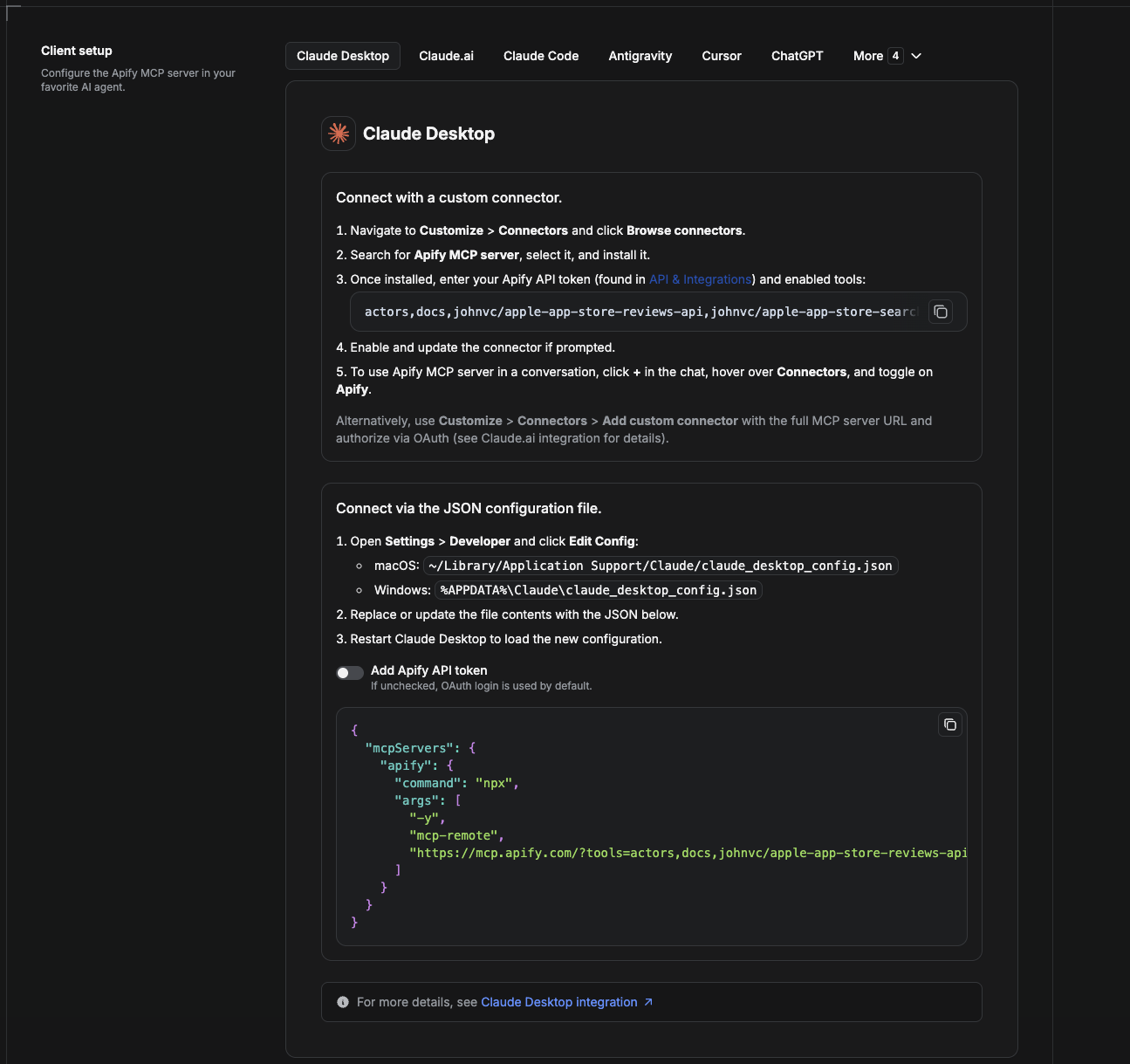
Cowork is the desktop app's automation mode. To give it the Baidu API as a tool, add the Apify MCP server as a connector.
- Open the Claude desktop app and go to Settings → Connectors (or Settings → Developer → Edit Config to edit
claude_desktop_config.jsondirectly).- macOS:
~/Library/Application Support/Claude/claude_desktop_config.json - Windows:
%APPDATA%\Claude\claude_desktop_config.json
- macOS:
- Add the Apify MCP server, preloaded with only this Actor:
{
  "mcpServers": {
    "apify": {
      "command": "npx",
      "args": [
        "-y",
        "mcp-remote",
        "https://mcp.apify.com/?tools=actors,docs,johnvc/Baidu-Search-Scraper"
      ]
    }
  }
}
- Restart the app. When Cowork first calls the tool, complete the OAuth prompt in your browser, or add your Apify API token in the connector settings to skip OAuth.
- In a Cowork chat, confirm the tool is available and ask it to run the Baidu API.
Download the desktop app and start a free trial: https://claude.ai/referral/uIlpa7nPLg More help: https://docs.apify.com/platform/integrations/claude-desktop
Install in Claude Code
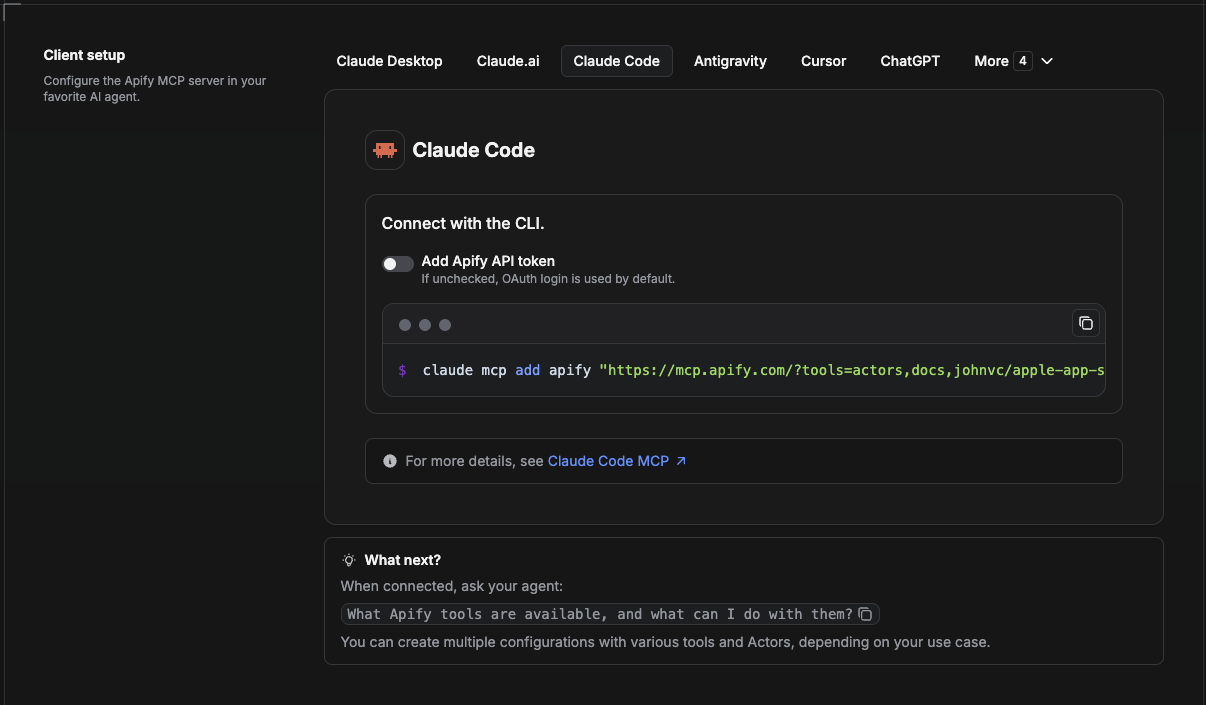
Claude Code is the command-line tool. Add the Actor's MCP server with one command:
claude mcp add --transport http apify \
  "https://mcp.apify.com/?tools=actors,docs,johnvc/Baidu-Search-Scraper"
To use a token instead of browser OAuth:
claude mcp add --transport http apify \
  "https://mcp.apify.com/?tools=actors,docs,johnvc/Baidu-Search-Scraper" \
  --header "Authorization: Bearer YOUR_APIFY_TOKEN"
Then verify with claude mcp list, or run /mcp inside a session. Ask Claude Code to call the Baidu API.
Try Claude Code free: https://claude.ai/referral/uIlpa7nPLg Claude Code MCP docs: https://code.claude.com/docs/en/mcp
Install in Claude (website)
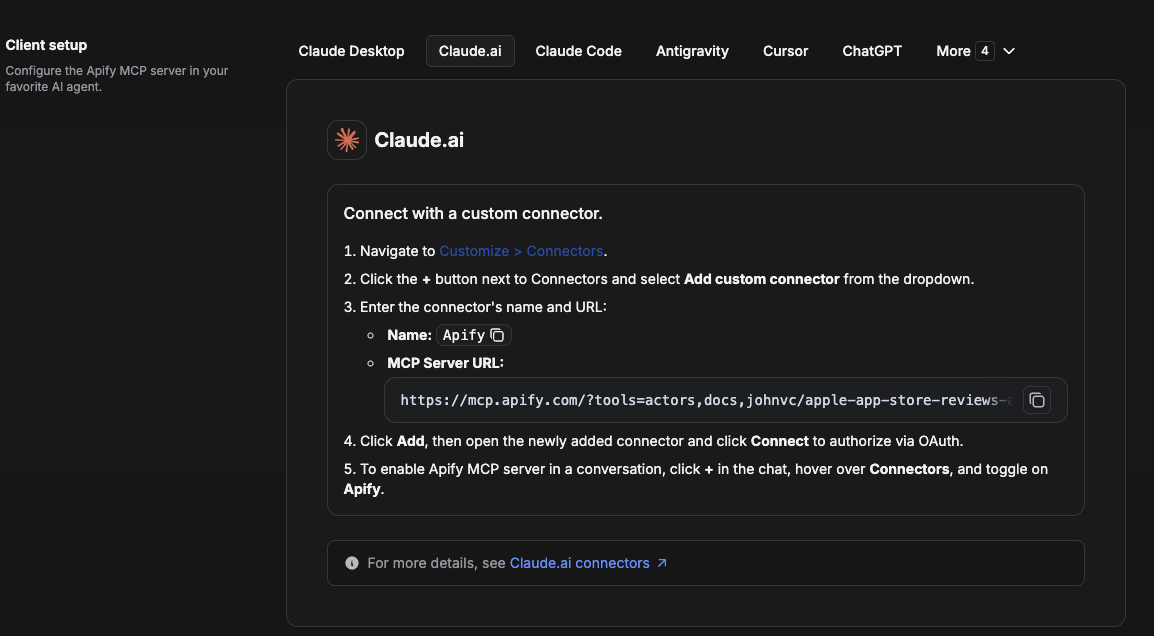
On claude.ai you add Apify as a connector, then enable just this Actor's tool.
- Go to Settings → Connectors → Browse connectors and search for Apify MCP server. Install it (enable or update if prompted).
- When connecting, authenticate with your Apify API token, and enable the tool
johnvc/Baidu-Search-Scraper. - In any chat, open + → Connectors and turn on Apify.
- Alternatively, choose Add custom connector and paste the full MCP URL
https://mcp.apify.com/?tools=actors,docs,johnvc/Baidu-Search-Scraper, using OAuth when prompted. - Ask Claude to run the Baidu API.
Open Claude on the web: https://claude.ai/referral/uIlpa7nPLg
Install in Cursor
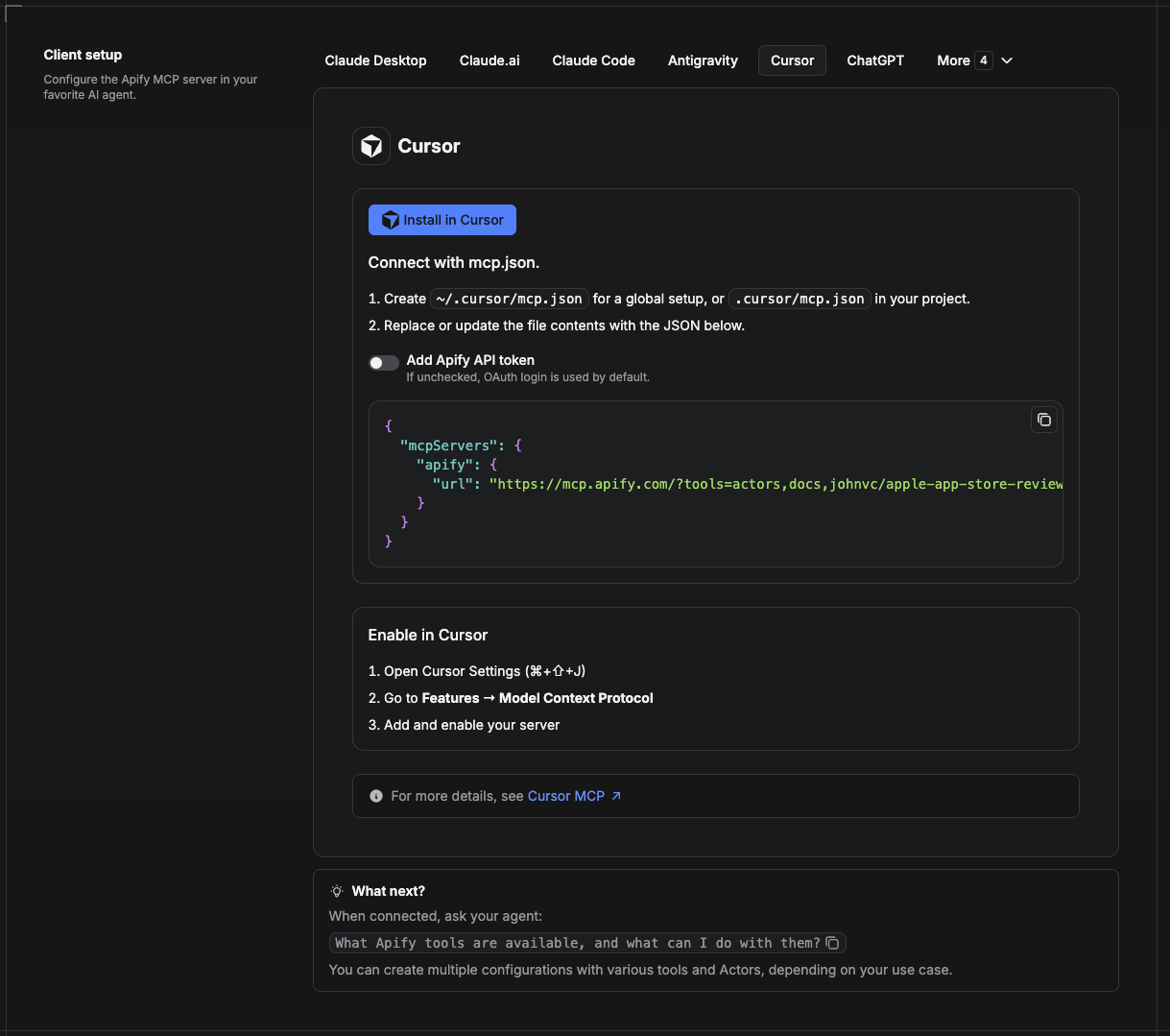
Cursor reads MCP servers from a project file at .cursor/mcp.json.
- In your project, create
.cursor/mcp.json:
{
  "mcpServers": {
    "apify": {
      "url": "https://mcp.apify.com/?tools=actors,docs,johnvc/Baidu-Search-Scraper"
    }
  }
}
- If you prefer token auth over browser OAuth, add a header:
{
  "mcpServers": {
    "apify": {
      "url": "https://mcp.apify.com/?tools=actors,docs,johnvc/Baidu-Search-Scraper",
      "headers": { "Authorization": "Bearer YOUR_APIFY_TOKEN" }
    }
  }
}
- Open Cursor → Settings → MCP and confirm the apify server is connected (green dot).
- In Composer or Chat, ask Cursor to call the Baidu API.
New to Cursor? Get it here: https://cursor.com/referral?code=XQP4VBLI3NNX
Install in ChatGPT
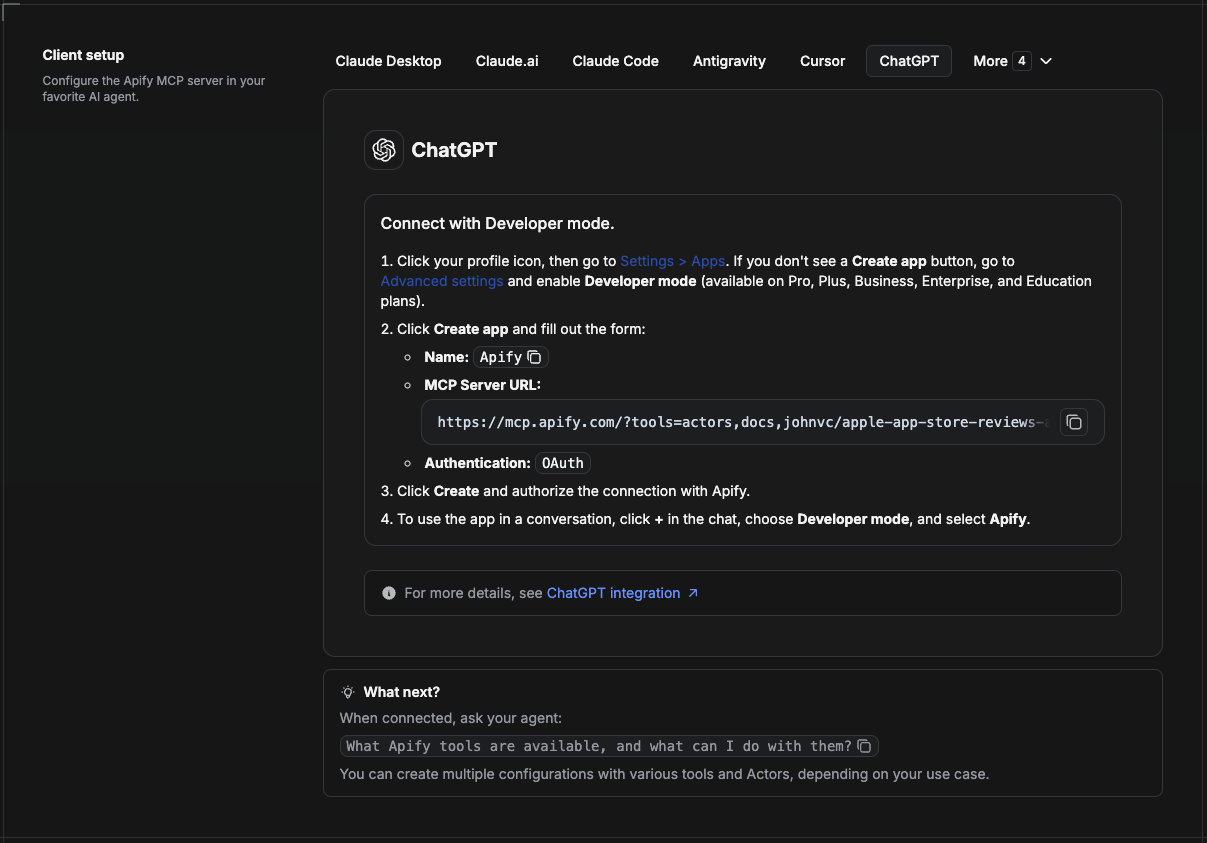
ChatGPT connects to the Apify MCP server through Developer mode (available on ChatGPT Pro, Plus, Business, Enterprise, and Education plans).
- Click your profile icon, then go to Settings > Apps. If you do not see a Create app button, open Advanced settings and enable Developer mode.
- Click Create app and fill out the form:
- Name: Apify
- MCP Server URL:
https://mcp.apify.com/?tools=actors,docs,johnvc/Baidu-Search-Scraper - Authentication: OAuth
- Click Create and authorize the connection with Apify.
- To use the app in a conversation, click + in the chat, choose Developer mode, and select Apify.
More help: https://docs.apify.com/platform/integrations/mcp
Use the Baidu API to power your search and SEO workflows with reliable, structured results.
Featured Tasks
Ready-to-run examples on the Apify Store.
Last Updated: 2026.09.07