Listed from the MCP registry; nobody on Odel publishes it.
Is this yours? Claim it
Google Lens
Google Lens reverse image and visual product search, with similar and exact matches, hosted MCP.
One address for any MCP client. Your key stays in your Odel vault.
What it does
- Reads
- Writes
- High impact
At most: only reads or looks up information.
What it costs
FreeOdel charges nothing per call. The publisher may charge for its own service.
What it asks for at sign-in
| Access to | Read | Change |
|---|---|---|
| Full api access | Not stated: full_api_access | |
From the sign-in at console-backend.apify.com, as the endpoint publishes it. You approve it there.
Tools
None listed · checked 17 Nov 2026Odel could not list its tools without signing in.
🔍 Google Lens API: reverse image search from Python and MCP
Actor: johnvc/google-lens-api · Input schema
This repo shows two ways to use the Google Lens API on Apify: a Python quick start and MCP installs for five AI clients. Send an image straight from your computer, base64 from code, or any public image URL, and get back visually similar results, shoppable product matches with prices, or every page carrying the exact same image, which is the bulk reverse image search photographers use for attribution checks. Most reverse image tools demand a public URL; this one does not.
Video Walkthrough
Text walkthrough
The google lens api takes an image (a local file via image_base64 or the console upload field, or a public image_url) plus a search_type. visual_matches is the general reverse image search and returns about 59 rows per lookup with title, source, url, thumbnail and the full image link. products returns shoppable listings with price, currency and inStock. exact_matches returns up to 400 pages carrying the identical file, which powers the stolen-photo check recipe in this repo. Exact-match coverage varies run to run at the source, so an empty result finishes clean rather than erroring; retry or switch type.
Quick Start
You need Python 3.11+ and a free Apify API key: sign up at apify.com, then copy your token from Console Settings.
git clone https://github.com/johnisanerd/Apify-Google-Lens-API.git
cd Apify-Google-Lens-API
uv sync
cp .env.example .env   # then paste your APIFY_API_TOKEN
uv run python google-lens-api-example.py
Run a specific recipe:
uv run python google-lens-api-example.py --example stolen_check
Search by a local file, no public URL needed
The repo bundles sample-image.jpg, so this works out of the box:
uv run python google-lens-api-example.py --example upload
uv run python google-lens-api-example.py --example upload --image path/to/your/photo.jpg
Under the hood the file is base64-encoded and sent as image_base64; the API stages it privately behind a signed link and runs the lookup. Batch up to 10 images per run by passing more entries (about 6 MB of images per run on the base64 path; the console's Upload images field takes files up to 20 MB each, 30 MB per run).
import base64
from pathlib import Path

encoded = base64.b64encode(Path("photo.jpg").read_bytes()).decode()
run_input = {"image_base64": [encoded], "search_type": "visual_matches", "max_results": 3}
Why use this API
- Upload local files or send base64, no public URL needed, up to 10 images per run
- Three search types behind one input: visual matches, products, exact matches
- Real destination URLs with source site names for every match
- Product matches carry price, currency and stock where the retailer publishes them
- Up to 400 exact-match rows per lookup for attribution and licensing sweeps
- Country and language targeting when you need regional results
Recipes
The example script ships ready-made recipes that mirror this API's main use cases:
- Search by a local file (
--example upload): Base64-encodes an image from your disk and looks it up, no public URL needed. - Check if a photo is being reused (
--example stolen_check): Runs exact matches over one image and lists every page carrying it. - Visual product search (
--example product_match): Turns a product photo into shoppable listings with prices.
Schedule tip: save any of these inputs as a task in the Apify Console and attach a schedule. A daily or weekly run turns a one-off pull into a pipeline with zero manual work.
Usage Examples
Basic input:
{
  "image_url": "https://i.imgur.com/HBrB8p0.png",
  "search_type": "visual_matches",
  "max_results": 10
}
Advanced input:
{
  "image_url": "https://i.imgur.com/HBrB8p0.png",
  "search_type": "exact_matches",
  "max_results": 200,
  "country": "us"
}
Input Parameters
| Parameter | Type | Required | Default | Description |
|---|---|---|---|---|
image_url | string | yes | none | REQUIRED. |
search_type | string | no | "visual_matches" | What kind of matches to return. |
query | string | no | none | Optional. |
max_results | integer | no | 50 | How many matches to return. |
country | string | no | none | Optional two letter country code such as us, gb or de. |
language | string | no | none | Optional two letter language code such as en, es or fr. |
Output Format
One row from a real run:
{
  "resultType": "match",
  "searchType": "visual_matches",
  "position": 1,
  "title": "File:Danny DeVito by Gage Skidmore.jpg - Wikimedia Commons",
  "source": "Wikimedia Commons",
  "url": "https://commons.wikimedia.org/wiki/File:Danny_DeVito_by_Gage_Skidmore.jpg",
  "thumbnail": "https://encrypted-tbn2.gstatic.com/images?q=tbn:ANd9GcR0rTF6u7bB7aTW",
  "image": "https://upload.wikimedia.org/wikipedia/commons/thumb/2/21/Danny_DeVito.jpg",
  "imageWidth": 1280,
  "imageHeight": 1024
}
n8n integration
Available as an n8n community node, n8n-nodes-google-lens-api. In n8n: Settings, Community Nodes, install n8n-nodes-google-lens-api, then use it in any workflow (it also works as an AI Agent tool).
🤖 Ask an AI assistant about this Actor
Open a ready-to-send prompt about the Google Lens API in the AI of your choice:
- 💬 ChatGPT
- 🧠 Claude
- 🔍 Perplexity
- 🅒 Copilot
People also search for
Is this a reverse image search API with a free tier?
Yes: pay per result on Apify, and an Apify free account includes monthly platform credit, so small lookups cost nothing out of pocket.
How do I reverse image search in Python?
Run the quick start here: uv sync, set your token, pass an image URL. Three lines of client code, JSON back.
Can I do a bulk reverse image search?
Loop the client over a URL list, or point an AI agent at the MCP server below and hand it the list. Each image is one lookup.
Why is the image field empty on exact matches?
The source returns only a thumbnail plus pixel dimensions for exact matches. Visual and product matches carry the full image link.
Install in Claude Cowork Desktop
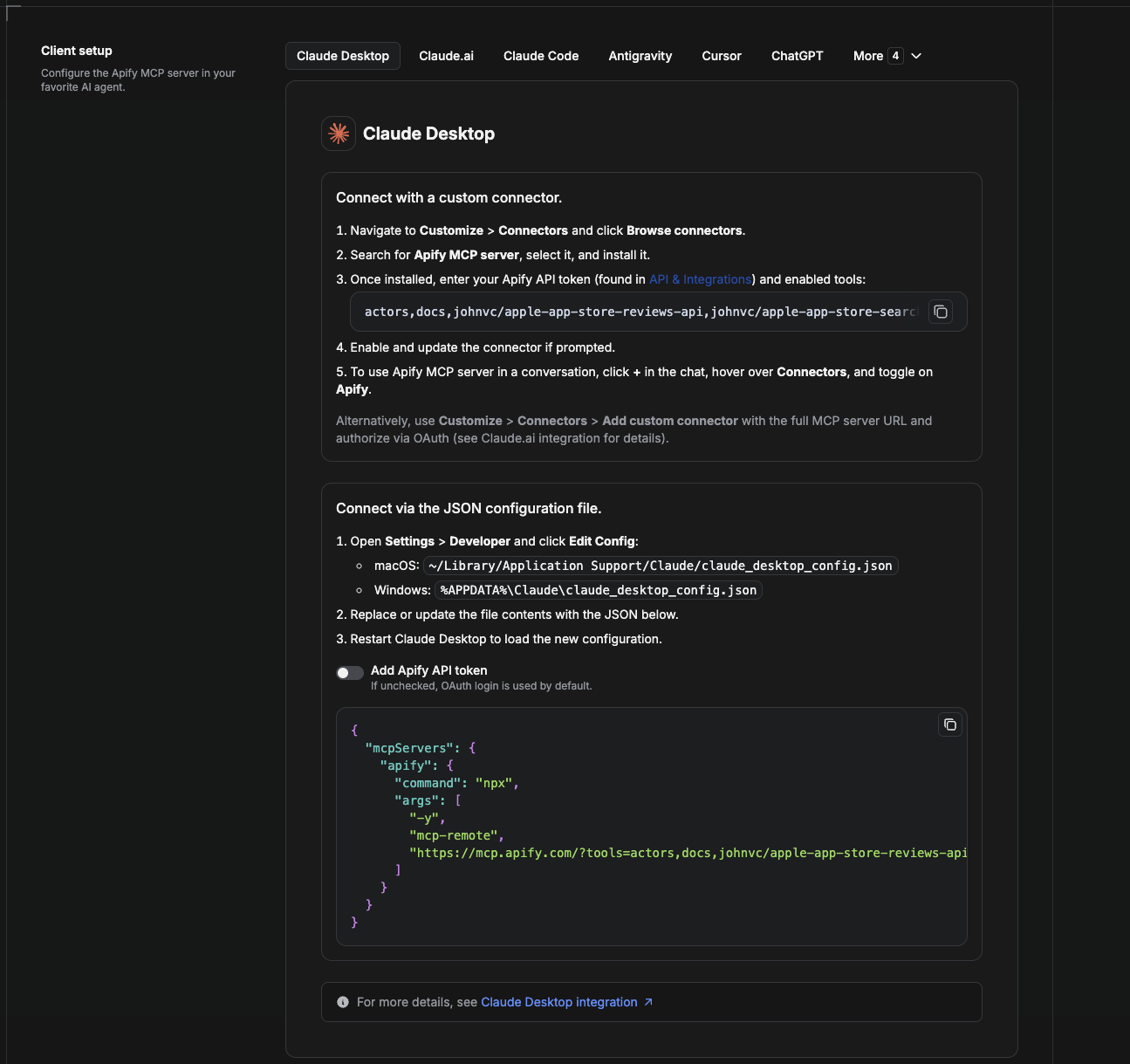
Cowork is the desktop app's automation mode. To give it the Google Lens API as a tool, add the Apify MCP server as a connector.
- Open the Claude desktop app and go to Settings -> Connectors (or Settings -> Developer -> Edit Config to edit
claude_desktop_config.jsondirectly).- macOS:
~/Library/Application Support/Claude/claude_desktop_config.json - Windows:
%APPDATA%\Claude\claude_desktop_config.json
- macOS:
- Add the Apify MCP server, preloaded with only this Actor:
{
  "mcpServers": {
    "apify": {
      "command": "npx",
      "args": [
        "-y",
        "mcp-remote",
        "https://mcp.apify.com/?tools=actors,docs,johnvc/google-lens-api"
      ]
    }
  }
}
- Restart the app. When Cowork first calls the tool, complete the OAuth prompt in your browser, or add your Apify API token in the connector settings to skip OAuth.
- In a Cowork chat, confirm the tool is available and ask it to run the Google Lens API.
Download the desktop app and start a free trial: https://claude.ai/referral/uIlpa7nPLg More help: https://docs.apify.com/platform/integrations/claude-desktop
Install in Claude Code
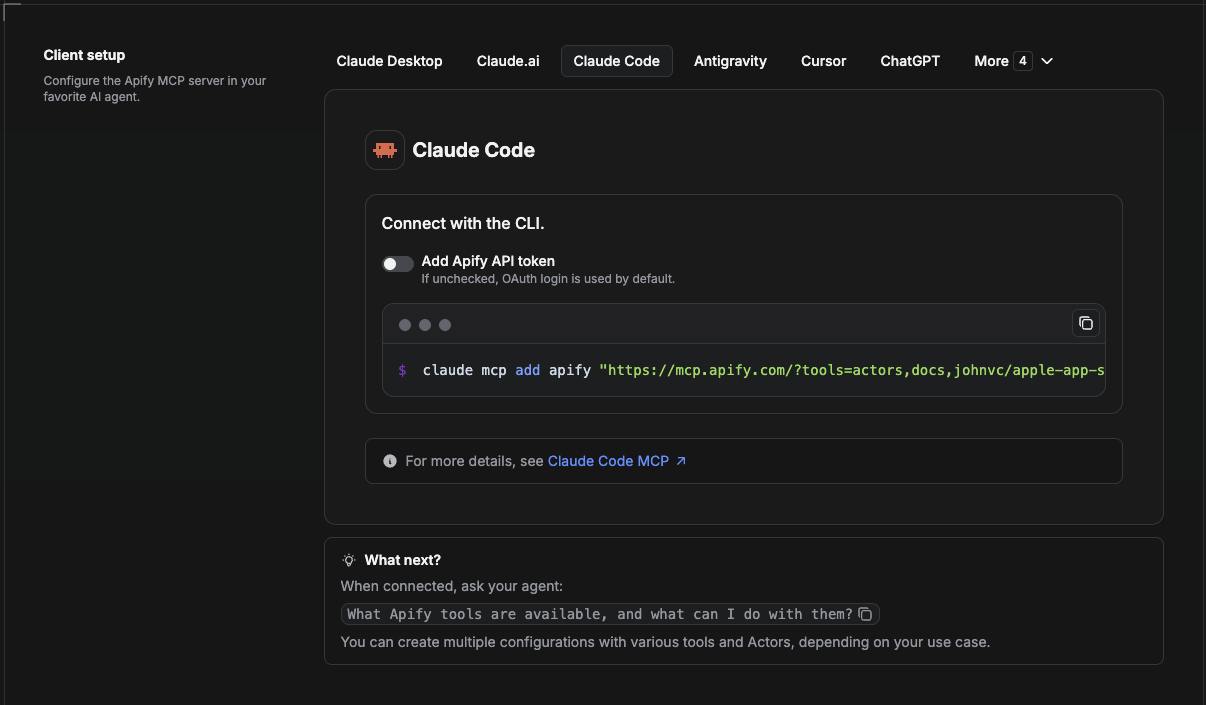
Claude Code is the command-line tool. Add the Actor's MCP server with one command:
claude mcp add --transport http apify \
  "https://mcp.apify.com/?tools=actors,docs,johnvc/google-lens-api"
To use a token instead of browser OAuth:
claude mcp add --transport http apify \
  "https://mcp.apify.com/?tools=actors,docs,johnvc/google-lens-api" \
  --header "Authorization: Bearer YOUR_APIFY_TOKEN"
Then verify with claude mcp list, or run /mcp inside a session. Ask Claude Code to call the Google Lens API.
Try Claude Code free: https://claude.ai/referral/uIlpa7nPLg Claude Code MCP docs: https://code.claude.com/docs/en/mcp
Install in Claude (website)
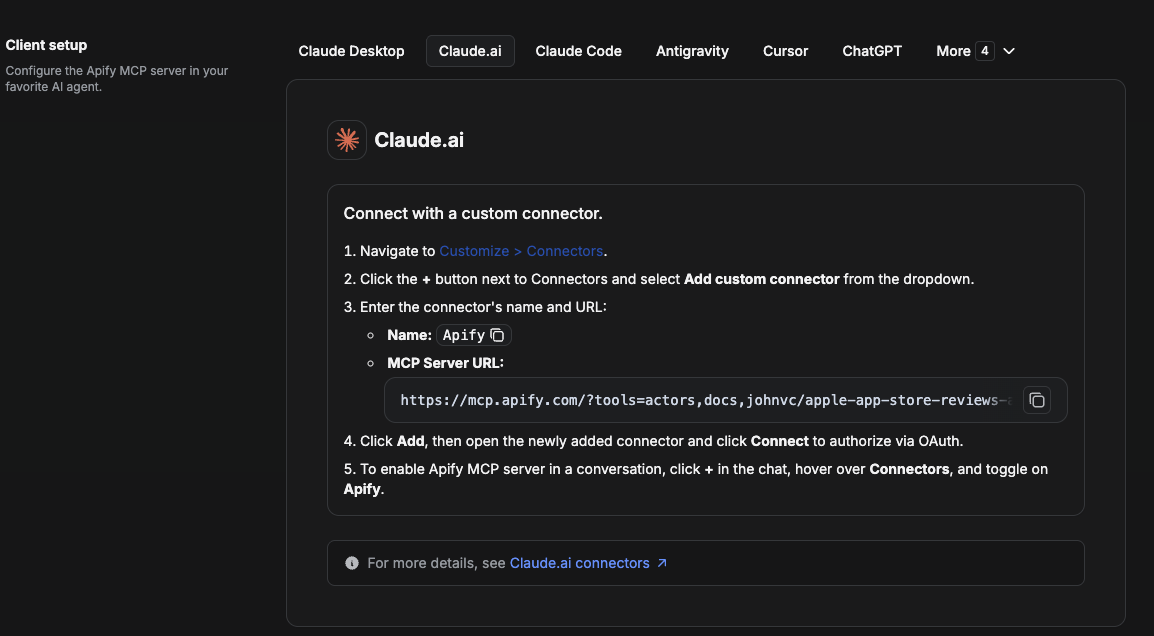
On claude.ai you add Apify as a connector, then enable just this Actor's tool.
- Go to Settings -> Connectors -> Browse connectors and search for Apify MCP server. Install it (enable or update if prompted).
- When connecting, authenticate with your Apify API token, and enable the tool
johnvc/google-lens-api. - In any chat, open + -> Connectors and turn on Apify.
- Alternatively, choose Add custom connector and paste the full MCP URL
https://mcp.apify.com/?tools=actors,docs,johnvc/google-lens-api, using OAuth when prompted. - Ask Claude to run the Google Lens API.
Open Claude on the web: https://claude.ai
Install in Cursor
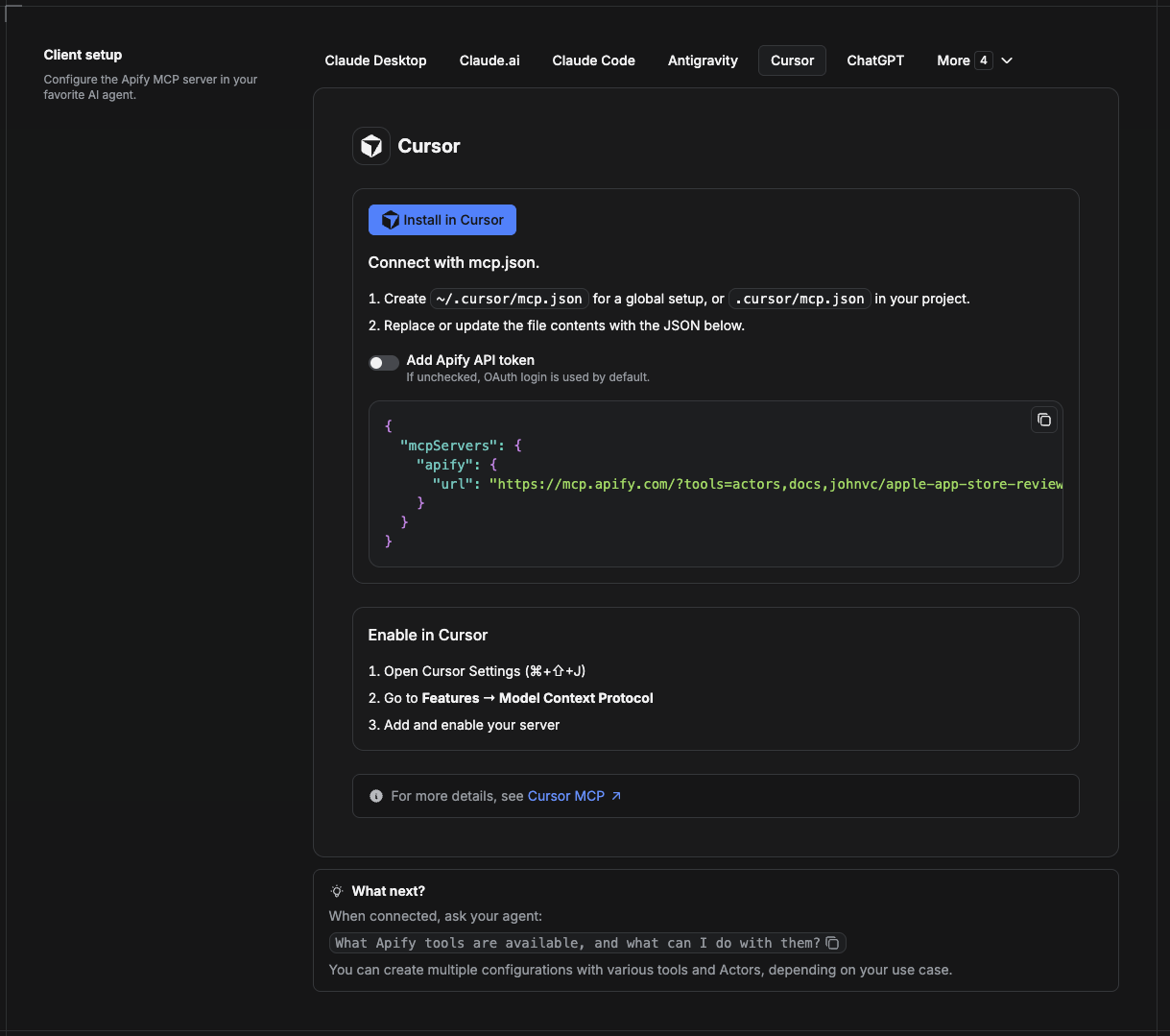
Cursor reads MCP servers from a project file at .cursor/mcp.json.
- In your project, create
.cursor/mcp.json:
{
  "mcpServers": {
    "apify": {
      "url": "https://mcp.apify.com/?tools=actors,docs,johnvc/google-lens-api"
    }
  }
}
- If you prefer token auth over browser OAuth, add a header:
{
  "mcpServers": {
    "apify": {
      "url": "https://mcp.apify.com/?tools=actors,docs,johnvc/google-lens-api",
      "headers": { "Authorization": "Bearer YOUR_APIFY_TOKEN" }
    }
  }
}
- Open Cursor -> Settings -> MCP and confirm the apify server is connected (green dot).
- In Composer or Chat, ask Cursor to call the Google Lens API.
New to Cursor? Get it here: https://cursor.com/referral?code=XQP4VBLI3NNX
Install in ChatGPT
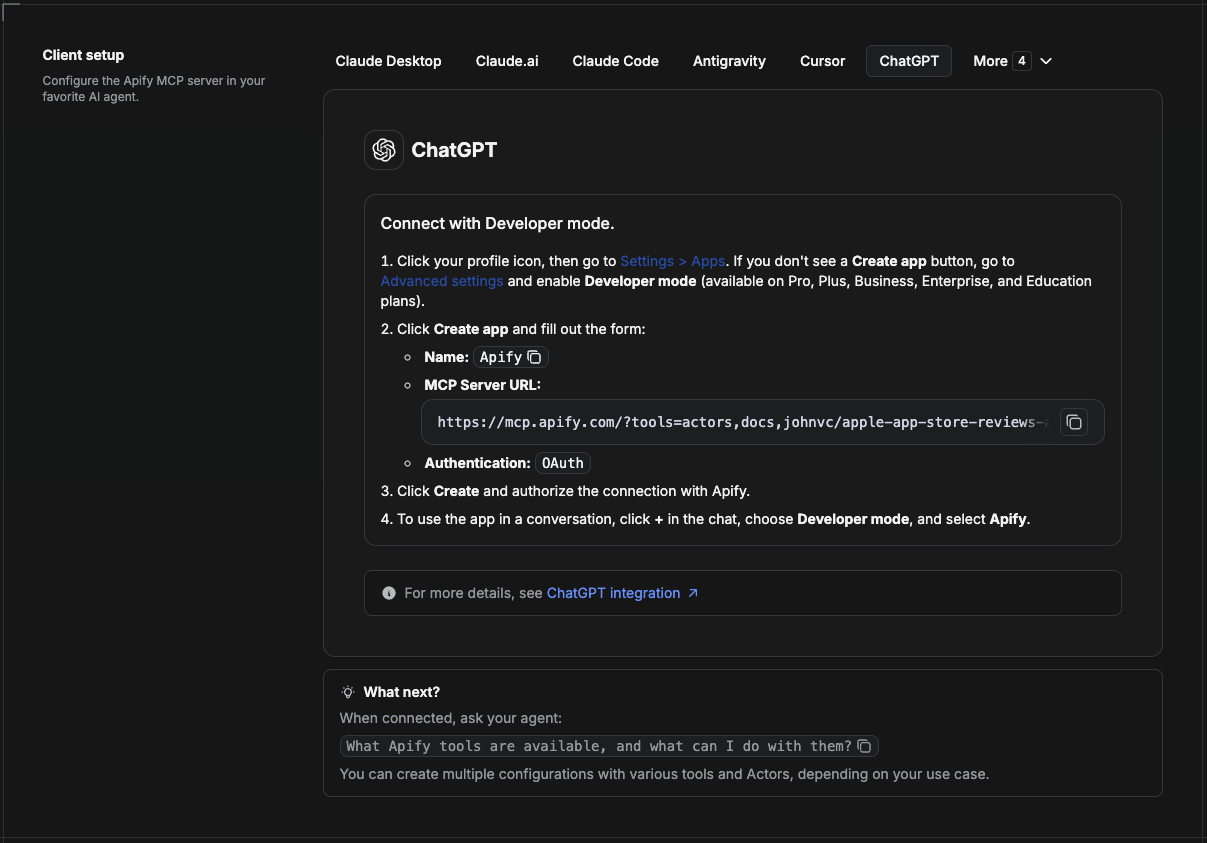
ChatGPT connects to the Apify MCP server through Developer mode (available on ChatGPT Pro, Plus, Business, Enterprise, and Education plans).
- Click your profile icon, then go to Settings > Apps. If you do not see a Create app button, open Advanced settings and enable Developer mode.
- Click Create app and fill out the form:
- Name: Apify
- MCP Server URL:
https://mcp.apify.com/?tools=actors,docs,johnvc/google-lens-api - Authentication: OAuth
- Click Create and authorize the connection with Apify.
- To use the app in a conversation, click + in the chat, choose Developer mode, and select Apify.
More help: https://docs.apify.com/platform/integrations/mcp
Made with care by johnvc on Apify. This example repo is part of Alpha OSINT, toolset of financial and operations data sources and APIs.
Last Updated: 2026.11.15