ViperMesh for Blender
Free Blender MCP addon for faster AI scene edits, fewer tokens and built-in scene checks.
Runs on your machine from its package; the steps are below.
What it does
- Reads
- Writes
- High impact
At most: moves money, runs code or commands, deletes data, or sends messages for you.
What it costs
FreeOdel charges nothing per call. The publisher may charge for its own service.
Runs locally over stdio
This server isn't hosted — your MCP client launches it from a package registry. Use one of the commands below, or drop the config into your client (e.g. Claude Desktop).
Distributed as an MCP bundle (`https://github.com/Ker102/vipermesh-blender/releases/download/v1.3.0/vipermesh-blender-1.3.0.mcpb`) — download it and import the bundle in your MCP client.

ViperMesh for Blender



AI assistance for Blender, with less code and less waiting.
Designed for faster scene edits, fewer AI tokens and better-checked results.


ViperMesh for Blender is a free, open-source addon that lets a compatible AI assistant work inside your Blender scene. It is for Blender artists, hobbyists and game creators who want help making and editing 3D scenes, not another coding project.
The goal: faster AI-assisted work, fewer AI tokens and better-checked results. Your assistant gets ready-to-use Blender actions instead of having to write new Python code for many common edits. You keep working in Blender and decide what you want the assistant to help with.
Why ViperMesh for Blender?
| What matters to you | How ViperMesh helps |
|---|---|
| Less AI usage | Reusable actions reduce the Blender code the assistant needs to generate for covered tasks. |
| Less waiting | The connection stays open, and related actions can run together instead of repeating setup for each step. |
| Better-checked scenes | Built-in checks help identify floating objects, wrong orientations and clearance problems; the assistant can inspect images and repair mistakes. |
| Easier for your assistant | Discoverable tools and concise guidance explain what actions are available and how to use them. |
| Room for custom work | The assistant can still write Python when your request needs something the ready-made tools do not cover. |
AI tokens are the units of text a model reads and writes. Generating less code can reduce AI usage, but total tokens, cost and time also depend on your model and the task. Scene checks help with correctness; they do not guarantee a beautiful or error-free result.
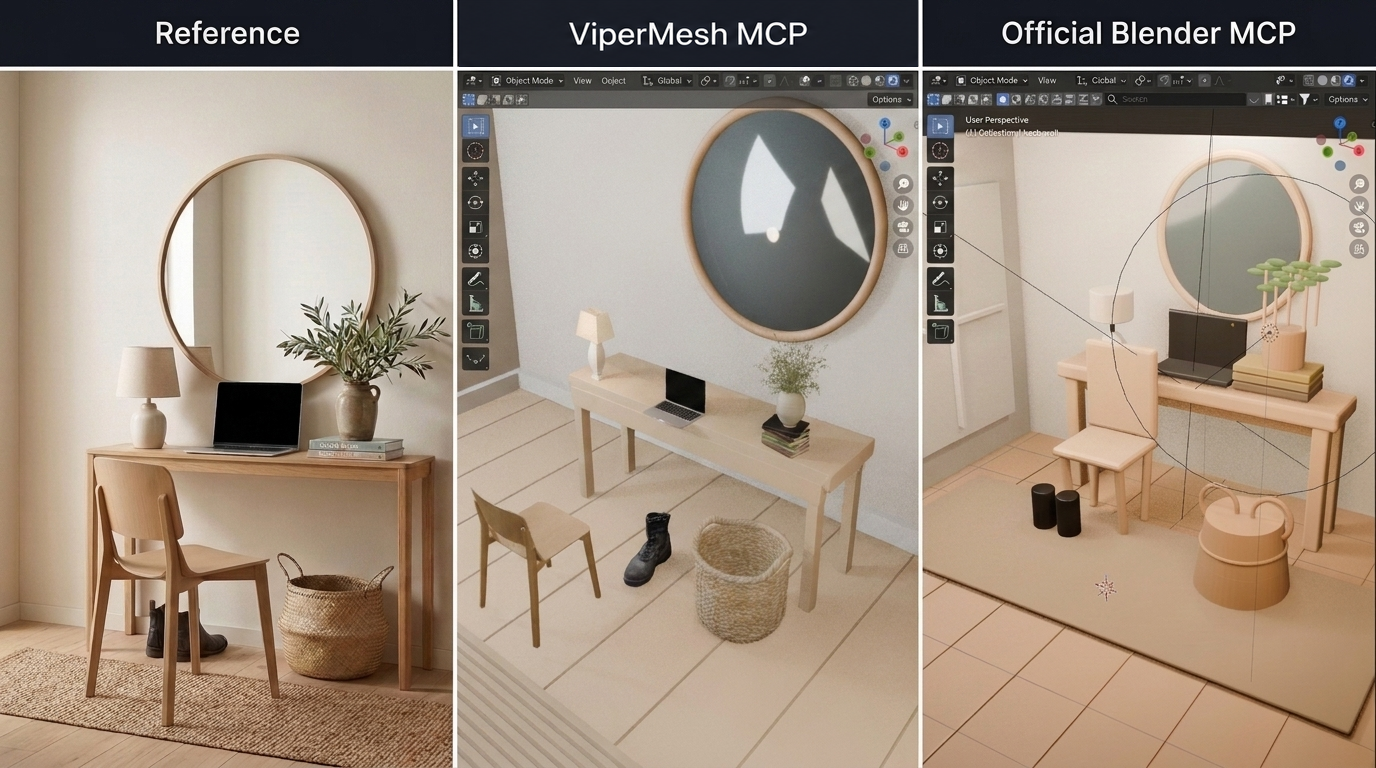
One Reference, Two Blender Workflows

One historical image-reconstruction test using the ViperMesh Blender MCP harness and available assets. Only the centre heading was relabelled; the reference and both scene screenshots are unchanged. This is one example, not a guarantee of every result. The public addon does not bundle private Studio asset libraries.
Read the Blender MCP case study, Part One | Open the full-size comparison | Image integrity record
What Can It Help With?
- Build, move, duplicate and arrange objects in a scene.
- Soften edges, adjust materials, set cameras and change lighting.
- Check whether objects sit on their supports or leave enough space.
- Assist with mesh cleanup, retopology, UV preparation, rigging and weights.
- Work with animation settings, prepare exports and inspect results.
For example, you could ask your assistant:
Move the basket under the right side of the table, without intersecting its legs.
Soften the sharp edges on this furniture, keeping its overall shape.
Check this scene for unsupported objects, then show me what needs fixing.
These are examples of requests, not prebuilt scene templates. You do not need to write Blender Python yourself for the operations the tools cover.
How Is It Different From The Original BlenderMCP?
ViperMesh builds on the original BlenderMCP project by Siddharth Ahuja, now named MCP for Blender. The main difference is its emphasis on a broad set of ready-made editing actions, reusable workflows and scene checks, rather than relying on newly generated Python for common edits.
Both projects can inspect scenes and run custom Python. The original project also offers asset and generation integrations. ViperMesh's aim is to make everyday scene operations more token-efficient, faster, simpler for assistants to use and easier to validate. This is not a claim that it wins every task or that the public connector includes every feature of ViperMesh Studio.
Requirements
- Blender 5.2 for the currently tested release target
- Node.js 20 or newer
- An MCP-compatible client that supports stdio servers
MCP, short for Model Context Protocol, is a connection standard that lets an AI assistant use tools in another application. You need an AI app that supports these connections; installing the addon alone does not add an AI model to Blender.
Install
1. Install the Blender addon
Download the versioned addon .py or addon .zip from the
latest release.
In Blender:
- Open Edit > Preferences > Add-ons.
- Choose Install from Disk and select the downloaded Python file.
- Enable ViperMesh for Blender.
- Open the 3D Viewport sidebar, select ViperMesh, and click Start Local Bridge.
Keep the bridge running for the complete agent session.
2. Install the MCP server
Packaged option: Download the
v1.3.0 MCPB bundle
and import it into a client that supports local MCPB extensions. It contains
the Node server and its dependencies, so you do not need to clone or build the
repository. Node.js and the separately enabled Blender addon are still required.
The connector is also listed on Smithery and in the official MCP Registry. These listings distribute the local connector, not a hosted Blender service. See distribution and bundle setup for the checksum, manual extraction option, and current validation limits.
Source option: Until the npm package is published, clone and build it:
git clone https://github.com/Ker102/vipermesh-blender.git
cd vipermesh-blender
npm install
npm run build
3. Connect your AI assistant
When using the MCPB import, the client reads its launch configuration from the bundle. For the source option, use the built entry point from an absolute path:
{
  "mcpServers": {
    "vipermesh-blender": {
      "command": "node",
      "args": [
        "C:/absolute/path/to/vipermesh-blender/dist/public-portable-blender-mcp.js"
      ]
    }
  }
}
Start this command once through the MCP client. Do not invoke npm, npx, or
tsx again for each Blender operation. See MCP client setup
for Codex, JSON-configured clients, compatibility, and the optional Docker MCP
Toolkit route.
Technical Details
The sections below are for setting up or developing an AI connection. Blender users can start with the installation steps and the example requests above.
Connection Model
MCP-compatible AI assistant
        |
        | stdio, one long-lived process
        v
ViperMesh MCP server
        |
        | serialized loopback connection
        v
ViperMesh Blender addon (127.0.0.1:9876)
        |
        v
Blender scene
The MCP server opens no network listener. The Blender addon listens on loopback by default and reports Stopped, Ready, Agent connected, or Error in the ViperMesh sidebar.
First Agent Calls
- Call
bootstrap_vipermesh_session. - Inspect the scene with
call_blender_tool(name="get_scene_info"). - Search task guidance with
search_3d_guidance. - Discover only the relevant capabilities with
list_blender_tools. - Build, inspect and repair, then finalize and save.
The public MCP surface includes:
bootstrap_vipermesh_sessioncheck_blender_connectionlist_blender_toolscall_blender_toolcall_blender_tool_batchrun_blender_scene_stageget_blender_agent_contextsearch_3d_guidanceget_3d_guidance_document
Read the complete connector manual for request
shapes, batching rules, staged workflows, local tool skills, and
troubleshooting. The repository also ships an installable
using-vipermesh-blender agent skill.
Security
This connector is intended for a trusted local workstation. execute_code
can run arbitrary Python in Blender. Only connect trusted MCP clients, keep the
bridge on loopback, and review high-impact or destructive operations.
See SECURITY.md for the trust boundary and private vulnerability reporting process.
Public Connector Scope
This repository contains the open-source Blender addon, portable MCP server, portable public tool skills, and connector tests. It does not include the ViperMesh application, authentication, billing, private prompts, private RAG data, cloud model routing, private assets, raw benchmark traces, or private evaluation datasets. The illustrated comparison is separately provided public evidence, not a bundled asset library.
The connector does not bundle a commercial 3D generation provider. Neural generation can be added later through provider-neutral authenticated services without embedding third-party credentials in Blender.
Frequently Asked Questions
Do I need a paid ViperMesh account?
No. The public addon and local connection are free to use without a ViperMesh account. Your AI app or model provider may charge separately. The addon does not include free AI model access.
Do I need to be a programmer?
You do not need to write Python for the covered Blender edits. The initial setup still involves installing the addon and connecting a compatible AI app. Use the MCPB bundle in clients that support it, or build from source using the provided commands. The separately enabled Blender bridge and client setup mean this is not a one-click install for every environment.
Does ViperMesh replace execute_code?
No. It reduces unnecessary generated Blender Python by providing structured
operations, but keeps execute_code for custom geometry, procedural effects,
unusual node graphs, and uncovered workflows.
Why must the MCP process stay running?
The process retains a serialized connection to Blender. Relaunching it for every call adds avoidable startup, transport, and agent-tool overhead.
Does it require Docker?
No. Local stdio-capable MCP clients launch the Node server directly. Docker MCP Toolkit is an optional packaging and gateway route, and is not yet a supported ViperMesh installation path because host-to-Blender loopback connectivity still requires cross-platform validation.
Does the public connector require ViperMesh cloud authentication?
No. The public addon and local MCP server work without ViperMesh authentication. Future hosted models and proprietary orchestration are separate product capabilities.
Can it use installed Blender addons?
The connector can inspect installed addons and supports trusted local automation. Unknown addon operations should be reviewed before being exposed as callable agent capabilities.
Development
npm install
npm run check
python -m py_compile addon/vipermesh-addon.py
See CONTRIBUTING.md before opening a pull request.
License and Attribution
ViperMesh for Blender is released under the MIT License. It includes work derived from BlenderMCP by Siddharth Ahuja. See NOTICE.md for attribution and trademark notices.