L10n.dev - AI Localization Agent
MCP Server that turns your AI agent into a localization expert with token-efficient i18n translation
Runs on your machine from its package; the steps are below.
What it does
- Reads
- Writes
- High impact
At most: creates or changes data: records, files, settings.
What it costs
FreeOdel charges nothing per call. The publisher may charge for its own service.
Runs locally over stdio
This server isn't hosted — your MCP client launches it from a package registry. Use one of the commands below, or drop the config into your client (e.g. Claude Desktop).
Run
npx -y ai-l10n-mcp
MCP client config
{
  "mcpServers": {
    "l10n-dev-ai-localization-agent": {
      "command": "npx",
      "args": [
        "-y",
        "ai-l10n-mcp"
      ]
    }
  }
}ai-l10n


AI-powered translation for app localization. Automatically translate your i18n files to 165 languages using AI. Supports JSON, JSONC, Flutter ARB, YAML, PO, XLIFF, and all other text-based localization formats with intelligent project structure detection.
Powered by l10n.dev
Features
One command turns your source file into 165 languages — from the CLI, an npm script, your CI pipeline, or your AI agent. No pasting files into a chat window, no broken placeholders, no re-translating everything because one string changed.
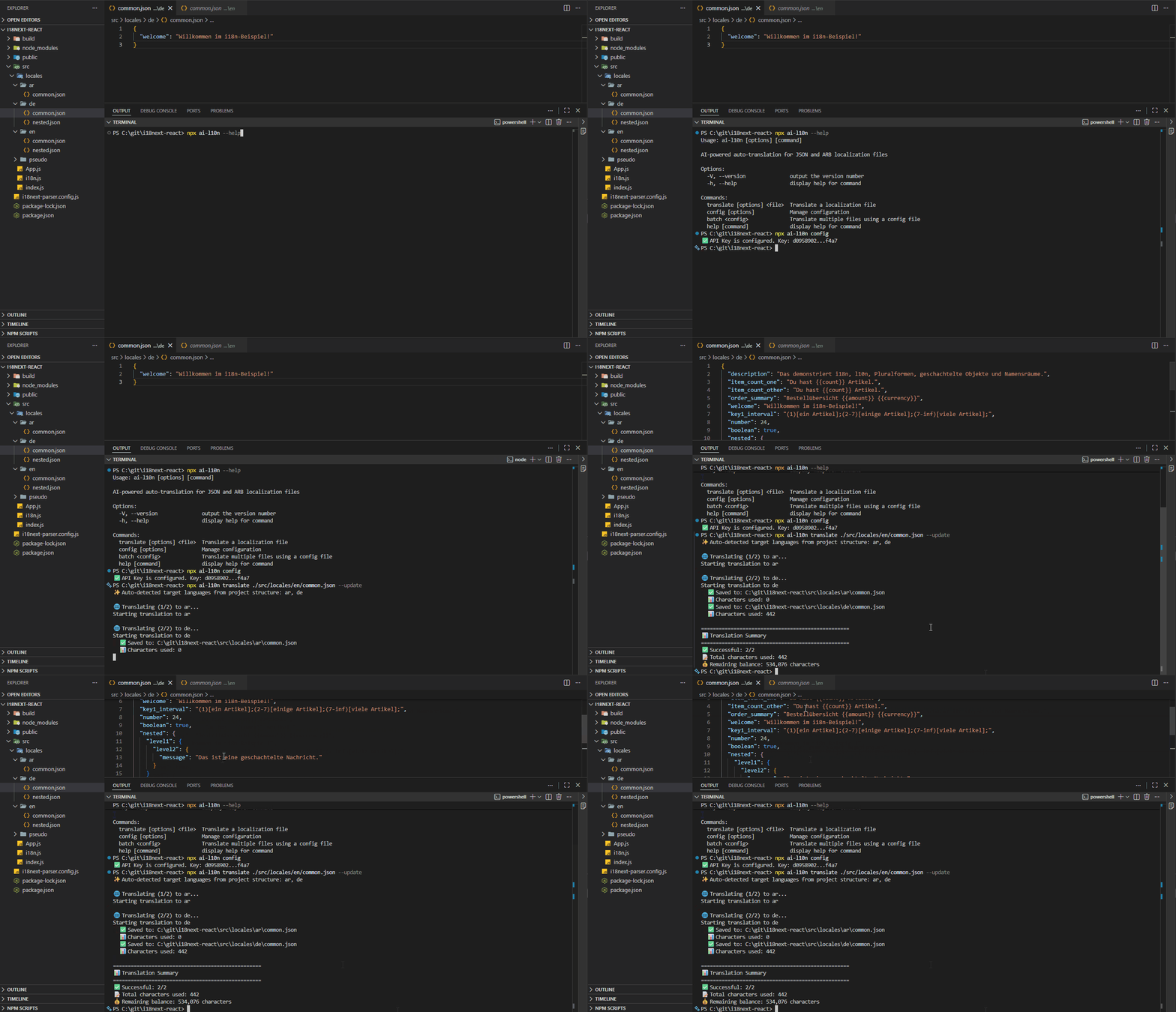
npx ai-l10n translate ./locales/en.json --update
Translate
- 🤖 165 languages — context-aware AI translation, not word-by-word machine output
- 🎯 Any text-based format — JSON, JSONC, Flutter ARB, Shopify themes, YAML, PO (gettext), XLIFF, and more (full list)
- 📁 Zero setup — target languages are auto-detected from your file and folder layout
- 🔄 Incremental by default —
--updatetranslates only new and changed strings and leaves the rest untouched
Quality you can ship
- 🛠️ Nothing breaks — placeholders, HTML tags, and formatting are preserved; dates and numbers are localized; proper names, URLs, and technical terms are left alone (how it works)
- 🌐 Correct plural forms — every i18next suffix is generated, including complex rules in Russian, Arabic, and Polish
- 🔒 Type-safe JSON — numbers stay numbers, booleans stay booleans, null stays null
- 📚 Glossary & terminology — lock brand, legal, and product terms so the AI can't pick a synonym
- ✍️ Linguistic instructions — set tone and style once, e.g.
--instruction "Use formal tone"
Built for automation
- ⚙️ Runs anywhere — CLI, SDK, npm scripts, GitHub Action, GitLab CI, Jenkins, and MCP for AI agents
- 🕵️ Self-checking — detects lost placeholders and retries; splits large files into chunks while keeping context, avoiding the silent content loss you get pasting strings into Claude or GPT
- 🔍 Content filtering — filtered strings are saved to a separate file for review instead of failing the run
- 📊 Usage tracking — monitor character usage and balance; 10,000 characters free every month, pay-as-you-go after that
Installation
For CLI + Programmatic (SDK)
npm install ai-l10n
For AI Agents (MCP Server)
Use the ai-l10n-mcp package to connect AI agents (Claude Desktop, Cursor, Windsurf, GitHub Copilot, OpenAI Codex) directly to l10n.dev. See the MCP server README for configuration instructions.
{
  "mcpServers": {
    "l10n": {
      "command": "npx",
      "args": ["-y", "ai-l10n-mcp"]
    }
  }
}
For SDK Only
npm install ai-l10n-sdk
Getting Started
1. Get Your API Key
Get your free API key from l10n.dev/ws/keys
2. Configure API Key
You can provide your API key in three ways:
Option A: Save it globally
npx ai-l10n config --api-key YOUR_API_KEY
Option B: Use environment variable
export L10N_API_KEY=your_api_key_here
Option C: Pass it directly in code or CLI
npx ai-l10n translate path/to/file.json --api-key YOUR_API_KEY
3. Translate Your Files
Basic Translation
# Auto-detect target languages from project structure
npx ai-l10n translate path/to/en.json

# Specify target languages
npx ai-l10n translate path/to/en.json --languages es,fr,de

# Update existing files with only new translations
npx ai-l10n translate path/to/en.json --update
Advanced Options
npx ai-l10n translate ./locales/en.json \
  --languages es,fr,de \
  --plural \                    # Generate plural forms (adds suffixes, e.g., for i18next)
  --shorten \                   # Use shortening
  --no-contractions \           # Don't use contractions (e.g., "don't" vs "do not")
  --update \                    # Update existing files (translates only new and changed strings)
  --replace \                   # Replace existing files (rewrites file with new translations, overwise it adds a copy number e.g., `es (1).json`)
  --glossary \                  # Generate and save glossary for future translations
  --instruction "Be formal" \   # Control the overall style, tone, and translation behavior
  --language-regex "^emails\.(?<language>[\w-]+)\.json$" \  # Locate the language code in file names
  --verbose                     # Detailed logging
Batch Translation
Create a config file translate-config.json:
[
  {
    "sourceFile": "./locales/en/common.json",
    "targetLanguages": ["pl", "ru", "ar"],
    "generatePluralForms": true,
    "translateOnlyNewStrings": true
  },
  {
    "sourceFile": "./locales/en/admin.json",
    "targetLanguages": ["pl", "ru", "ar", "de"],
    "replace": true
  }
]
Run batch translation:
npx ai-l10n batch translate-config.json
Configuration Management
# View current API key status
npx ai-l10n config

# Set API key
npx ai-l10n config --api-key YOUR_API_KEY

# Clear API key
npx ai-l10n config --clear
Programmatic Usage
import { AiTranslator } from 'ai-l10n';

const translator = new AiTranslator();

const result = await translator.translate({
  sourceFile: './locales/en.json',
  targetLanguages: ['es', 'fr', 'de'],
});
📚 See the ai-l10n-sdk README for:
- Complete API documentation and TypeScript interfaces
- Advanced usage examples
- Custom logger integration
- Error handling and type definitions
NPM Scripts Integration
Add scripts to your package.json:
{
  "scripts": {
    "translate": "ai-l10n translate ./locales/en.json",
    "translate:update": "ai-l10n translate ./locales/en.json --update",
    "translate:replace": "ai-l10n translate ./locales/en.json --replace",
    "translate:all": "ai-l10n batch translate-config.json"
  }
}
Then run:
npm run translate
npm run translate:update
npm run translate:replace
npm run translate:all
CI/CD Integration
GitHub Actions
ai-l10n provides a ready-to-use GitHub Action for automated translations. The action uses the batch command with a config file for flexible, multi-file translation workflows.
Quick Setup:
- Create a translation config file
ai-l10n.config.jsonin your repository root:
[
  {
    "sourceFile": "./locales/en/common.json",
    "targetLanguages": ["es", "fr", "de"],
    "translateOnlyNewStrings": true
  }
]
- Add the workflow file:
name: Auto-translate i18n files

on:
  push:
    branches:
      - main
    paths:
      - 'locales/en.json'
      - 'locales/en/**'
      - 'ai-l10n.config.json'

permissions:
  contents: write

jobs:
  translate:
    runs-on: ubuntu-latest
    steps:
      - uses: actions/checkout@v4

      - uses: l10n-dev/ai-l10n@v1
        with:
          api-key: ${{ secrets.L10N_API_KEY }}
          config-file: 'ai-l10n.config.json'
          pull-request: false
Action Inputs:
| Input | Description | Default | Required |
|---|---|---|---|
version | L10n.dev CLI version | latest | No |
api-key | L10n.dev Platform API Key | - | No (can use L10N_API_KEY env var) |
github-token | GitHub token for PR creation (optional if repo setting enabled) | github.token | No |
config-file | Path to translation config file | ai-l10n.config.json | No |
pull-request | Create PR instead of direct commit | false | No |
commit-message | Commit message | feat: update translations via L10n.dev | No |
pull-request-title | Pull request title | feat: update translations via L10n.dev | No |
commit-author-name | Git commit author name | L10n.dev | No |
commit-author-email | Git commit author email | support@l10n.dev | No |
process-own-commits | Process commits made by this action | false | No |
working-directory | Working directory (for monorepos) | . | No |
skip-setup-node | Skip Node.js setup if already installed | false | No |
ℹ️ Note on Pull Requests: To use
pull-request: true, you have two options:
- Enable repository setting (recommended): Go to Settings > Actions > General and enable "Allow GitHub Actions to create and approve pull requests"
- Use Personal Access Token: Provide a PAT with
reposcope viagithub-tokeninput
📚 More Examples:
- Pull Request workflow - Creates PR for review (recommended for main/master)
- Direct Commit workflow - Commits directly (for feature branches)
- Manual Trigger workflow - Run manually with custom inputs
GitLab CI
translate:
  stage: build
  script:
    - npm install
    - npx ai-l10n translate ./locales/en.json --update
  only:
    changes:
      - locales/en.json
  variables:
    L10N_API_KEY: $L10N_API_KEY
Jenkins
pipeline {
  agent any

  environment {
    L10N_API_KEY = credentials('l10n-api-key')
  }

  stages {
    stage('Translate') {
      steps {
        sh 'npm install'
        sh 'npx ai-l10n translate ./locales/en.json --update'
      }
    }
  }
}
Project Structure
ai-l10n automatically detects your project structure and generates translations accordingly.
Folder-Based Structure
locales/
  en/
    common.json
    errors.json
  es/                  # Auto-detected
    common.json
    errors.json
  zh-Hans-CN/          # Auto-detected
    common.json
File-Based Structure (JSON)
locales/
  en.json              # Source
  es.json              # Auto-detected
  fr-FR.json           # Auto-detected
  zh-Hans-CN.json      # Auto-detected
File-Based Structure (Flutter ARB)
lib/l10n/
  app_en.arb           # Source
  app_es.arb           # Auto-detected
  app_fr_FR.arb        # Auto-detected
  app_zh_Hans_CN.arb   # Auto-detected
Language Code Inside the File Name
The language code may also sit next to other parts of the file name. Files following the same naming pattern are detected, and target files keep that pattern:
locales/
  emails.en.json       # Source                -> emails.ru-RU.json
  emails.es.json       # Auto-detected
  en-US.common.json    # Source                -> ja.common.json
  emails-en.json       # Source                -> emails-fr.json
  common.en-Latn-US.yml
  messages_en_US.properties  # Source          -> messages_ru_RU.properties
Every part of the code is validated against the known ISO language, script and region
codes, so ordinary file names such as strings.min.json or config.dev.json are not
mistaken for localization files. For naming conventions that are not recognized, describe
them with languageCodeRegex (--language-regex on the CLI):
ai-l10n translate locales/emails.en.json -l ru-RU \
  --language-regex "^emails\.(?<language>[\w-]+)\.json$"
The pattern must contain a (?<language>...) group; the text before and after it is reused
to find files of other languages and to build target file names.
Configuration Options
| Option | Type | Default | Description |
|---|---|---|---|
sourceFile | string | required | Path to source file. Supports JSON, JSONC, ARB, YAML, PO, XLIFF, and all other text-based formats. See the full supported formats list |
targetLanguages | string[] | auto-detect | Target language codes (e.g., ["es", "fr", "de"]) |
apiKey | string | env/stored | API key for l10n.dev |
generatePluralForms | boolean | false | Generate plural forms with suffixes (e.g., for i18next). Don't use for strict source-to-target mapping |
useShortening | boolean | false | Use shortening in translations |
useContractions | boolean | true | Use contractions in translations (using contractions makes the translation less formal) |
translateMetadata | boolean | false | Translate metadata along with UI strings. For example, in Flutter ARB files, metadata entries like @key contain descriptions that can also be translated. Disabling this option ensures that metadata remains unchanged in the target files |
saveFilteredStrings | boolean | true | Save filtered strings (i18n JSON format with source strings excluded due to content policy violations) to a separate .filtered file |
translateOnlyNewStrings | boolean | false | Update existing files with only new/changed translations. When true, we store hashes of source strings (without text itself), so the system can detect which strings are new vs. old based on the presence of their hashes. |
replace | boolean | false | Replace existing files with new translations, overwise if the target file already exists it adds a copy number (e.g., es (1).json) |
verbose | boolean | false | Enable detailed logging |
sourceLanguageCode | string | null | auto-detect | BCP-47 source language code (e.g., "en", "en-US"). Auto-detected from the file path when not set |
languageCodeRegex | string | auto-detect | Regex locating the language code in file names, e.g. "^emails\\.(?<language>[\\w-]+)\\.json$". Must contain a (?<language>...) group; the text around it is reused for target file names. Only needed when the naming convention is not detected automatically. CLI: --language-regex |
generateGlossary | boolean | false | Generate and save a glossary from source and translated content for this language pair. Balance debited upfront for full source content. See Translation Glossary |
glossary | GlossaryEntry[] | null | use active | Override the active glossary: null/omit = use active, [] = disable, entries = replace for this request |
instruction | string | null | use active | Override the active linquistic instruction: null/omit = use active, = disable, string = replace for this request |
terminology | TerminologyEntry[] | none | Terms for consistent translation — synonyms are replaced with the preferred term |
Content Filtering
The service uses automated content filtering systems configured at moderate sensitivity levels to balance safety with service availability. When content is filtered:
- Filtered strings are saved in i18n JSON format to a
.filteredfile (ifsaveFilteredStringsis enabled) - Content filtering operates automatically and does not constitute editorial control over your content
If strings are filtered, you'll see:
⚠️ Some strings were excluded due to content policy violations
ℹ️ View content policy at: https://l10n.dev/terms-of-service#content-policy
📝 Filtered strings saved to: path/to/file.filtered.json
Translation Glossary
A translation glossary maps specific source-language terms to approved target-language equivalents, ensuring the AI uses your exact terminology instead of valid-but-unintended synonyms. Glossaries are especially valuable for brand names, legal terms, clinical vocabulary, and product-specific concepts.
AI Glossary Generation (--glossary / generateGlossary)
Use --glossary (CLI) or generateGlossary: true (config) to automatically build a glossary from the source and translated target content, then save it as the active glossary for this source/target language pair:
npx ai-l10n translate ./locales/en.json --languages de,fr --glossary
Once saved, the glossary is applied automatically on all future translations for the same language pair. Manage your saved glossaries at l10n.dev/ws/translation-glossary.
Balance note: When
--glossaryis enabled, your balance is debited for the full source content upfront — even when--updateis on. When disabled (default), a temporary internal glossary is generated automatically at no extra cost only for large files that exceed the AI chunk size.
Manual Glossary Override (glossary)
Supply your own term mappings via glossary in TranslationConfig (programmatic / batch config):
{
  "sourceFile": "./locales/en.json",
  "targetLanguages": ["de"],
  "glossary": [
    { "sourceTerm": "Settings", "targetTerm": "Einstellungen" },
    { "sourceTerm": "bank", "targetTerm": "Bank", "context": "financial institution" }
  ]
}
- Omit or
null: use the active saved glossary for this language pair - Empty array
[]: disable glossary entirely for this request - One or more entries: replace the active glossary for this request only
Terminology
Use terminology to enforce consistent terms across translations. List synonyms that should be replaced by the preferred term:
{
  "sourceFile": "./locales/en.json",
  "targetLanguages": ["de", "fr"],
  "terminology": [
    { "term": "Settings", "synonyms": ["Preferences", "Options"] },
    { "term": "Dashboard" }
  ]
}
Linguistic Instructions
Use instruction to set a Linguistic Instruction, it let you guide AI, for example:
- 📝 "Use formal tone"
- 📝 "Do not translate product names"
- 📝 "Use active voice"
Unlike glossaries that control specific terms, Linguistic Instructions control the overall style, tone, and translation behavior. Combined with AI Glossaries, they give much more control over localization quality and brand consistency.
npx ai-l10n translate ./locales/en.json --languages de,fr --instruction "Use formal tone"
If not set it applies saved active linguistic Instruction.
Manage your saved linguistic Instructions at l10n.dev/ws/linguistic-instructions.
Managing Glossaries via CLI
Use the glossary command group to manage your translation glossaries directly from the terminal.
Glossary commands
# List all glossaries
npx ai-l10n glossary list

# Create a glossary (active by default)
npx ai-l10n glossary create --source en --target de --name "My German Glossary"

# Show glossary details
npx ai-l10n glossary get 1

# Activate or rename a glossary
npx ai-l10n glossary update 1 --activate
npx ai-l10n glossary update 1 --name "Updated Name" --deactivate

# Delete a glossary (and all its entries)
npx ai-l10n glossary delete 1
Glossary entry commands
# List all term mappings in a glossary
npx ai-l10n glossary entries 1

# Add a term mapping
npx ai-l10n glossary add-entry 1 --source "settings" --target "Einstellungen"
npx ai-l10n glossary add-entry 1 --source "bank" --target "Bank" --context "financial institution"

# Update a term mapping
npx ai-l10n glossary update-entry 1 42 --source "settings" --target "Einstellungen"

# Remove a term mapping
npx ai-l10n glossary delete-entry 1 42
Managing Linguistic Instructions via CLI
Use the instruction command group to manage linguistic instructions.
# List all instructions
npx ai-l10n instruction list

# Create an instruction (active by default)
npx ai-l10n instruction create --source en --target de --text "Use formal tone (Sie, not du)"

# Show instruction details
npx ai-l10n instruction get 1

# Update an instruction
npx ai-l10n instruction update 1 --text "Use formal tone" --activate

# Delete an instruction
npx ai-l10n instruction delete 1
Language Support
l10n.dev supports 165 languages with varying proficiency levels:
- Strong (12 languages): English, Spanish, French, German, Chinese, Russian, Portuguese, Italian, Japanese, Korean, Arabic, Hindi
- High (53 languages): Most European and Asian languages including Dutch, Swedish, Polish, Turkish, Vietnamese, Thai, and more
- Moderate (100 languages): Wide range of world languages
Language Codes
Use standard language codes (BCP-47 with optional script and region):
- Simple:
es,fr,de,ja,zh - With region:
en-US,en-GB,pt-BR,zh-CN - With script:
zh-Hans,zh-Hant - Full format:
zh-Hans-CN
For ARB files, use underscores: en_US, zh_Hans_CN
Troubleshooting
API Key Issues
# Check if API key is configured
npx ai-l10n config

# Set new API key
npx ai-l10n config --api-key YOUR_API_KEY

# Or use environment variable
export L10N_API_KEY=your_api_key_here
No Languages Detected
Auto-detection covers language-code folders (locales/en/common.json), language-code file
names (locales/en.json, app_en.arb) and language codes inside file names
(locales/emails.en.json). If your file names embed the code differently, describe the
pattern:
npx ai-l10n translate ./locales/emails.en.json \
  --language-regex "^emails\.(?<language>[\w-]+)\.json$"
Otherwise, specify languages explicitly:
npx ai-l10n translate ./locales/en.json --languages es,fr,de
Insufficient Balance
Purchase more characters at l10n.dev/#pricing
Related Projects
- VS Code Extension - Translate directly in VS Code
Support
- 📧 Email: support@l10n.dev
- 🐛 Issues: GitHub Issues
- 📚 API Documentation: api.l10n.dev/doc
- 🌐 Website: l10n.dev
Pricing
- Free Characters: 10,000 characters free every month
- Pay-as-you-go: Affordable character-based pricing with no subscription required
- Current Pricing: Visit l10n.dev/#pricing for up-to-date rates
Privacy & Security
- Secure API Keys: Stored securely in your home directory (~/.ai-l10n/config.json) or via environment variables
- No Data Storage: Source code and translations are not stored on our servers beyond processing time
- Encrypted Communication: All communication with l10n.dev API uses HTTPS encryption
- Privacy First: Built by developers for developers with privacy, reliability, and quality as top priorities
💡 Tip for Large-Files Translation:
This npm package translates files in real-time via the Translate API and does not store your translations on our servers. For very large files, translation may take several minutes.
On the I18N File Translation page, you can:
- Securely create translation jobs for batch processing
- Set custom terminology for consistent translations
- Monitor progress in real-time
- Download files when complete with full control (delete anytime)
Important: Working with Arrays in JSON
⚠️ When using "Translate Only New Strings": If your JSON contains arrays (not just objects), ensure array indexes in your target file match those in the source file. When adding new strings, always append them to the end of the array.
Example:
// ✅ CORRECT: New items added at the end
// source.json
["Apple", "Banana", "Orange"]

// target.json (existing)
["Manzana", "Plátano"]

// After translation (new item appended)
["Manzana", "Plátano", "Naranja"]

// ❌ INCORRECT: Items inserted in the middle
// This will cause misalignment!
["Apple", "Cherry", "Banana", "Orange"]
For object-based JSON structures (recommended for i18n), this is not a concern as translations are matched by key names.
License
MIT
Credits
Powered by l10n.dev - AI-powered localization service