Listed from the MCP registry; nobody on Odel publishes it.

StupidMirror
Control iPhone and Android devices, simulators and emulators through the StupidMirror Mac app.
Runs on your machine from its package; the steps are below.
What it does
- Reads
- Writes
- High impact
At most: moves money, runs code or commands, deletes data, or sends messages for you.
What it costs
FreeOdel charges nothing per call. The publisher may charge for its own service.
Runs locally over stdio
This server isn't hosted — your MCP client launches it from a package registry. Use one of the commands below, or drop the config into your client (e.g. Claude Desktop).
Run
npx -y stupidmirror-mcp
MCP client config
{
  "mcpServers": {
    "stupidmirror": {
      "command": "npx",
      "args": [
        "-y",
        "stupidmirror-mcp"
      ]
    }
  }
}

StupidMirror
Your phone, on your Mac. Your agent, on your phone.
Bring real iPhone and Android screens into Codex. Mirror, control, and test devices with your AI agent.




Download · Website · Codex integration · MCP setup · Changelog · 简体中文
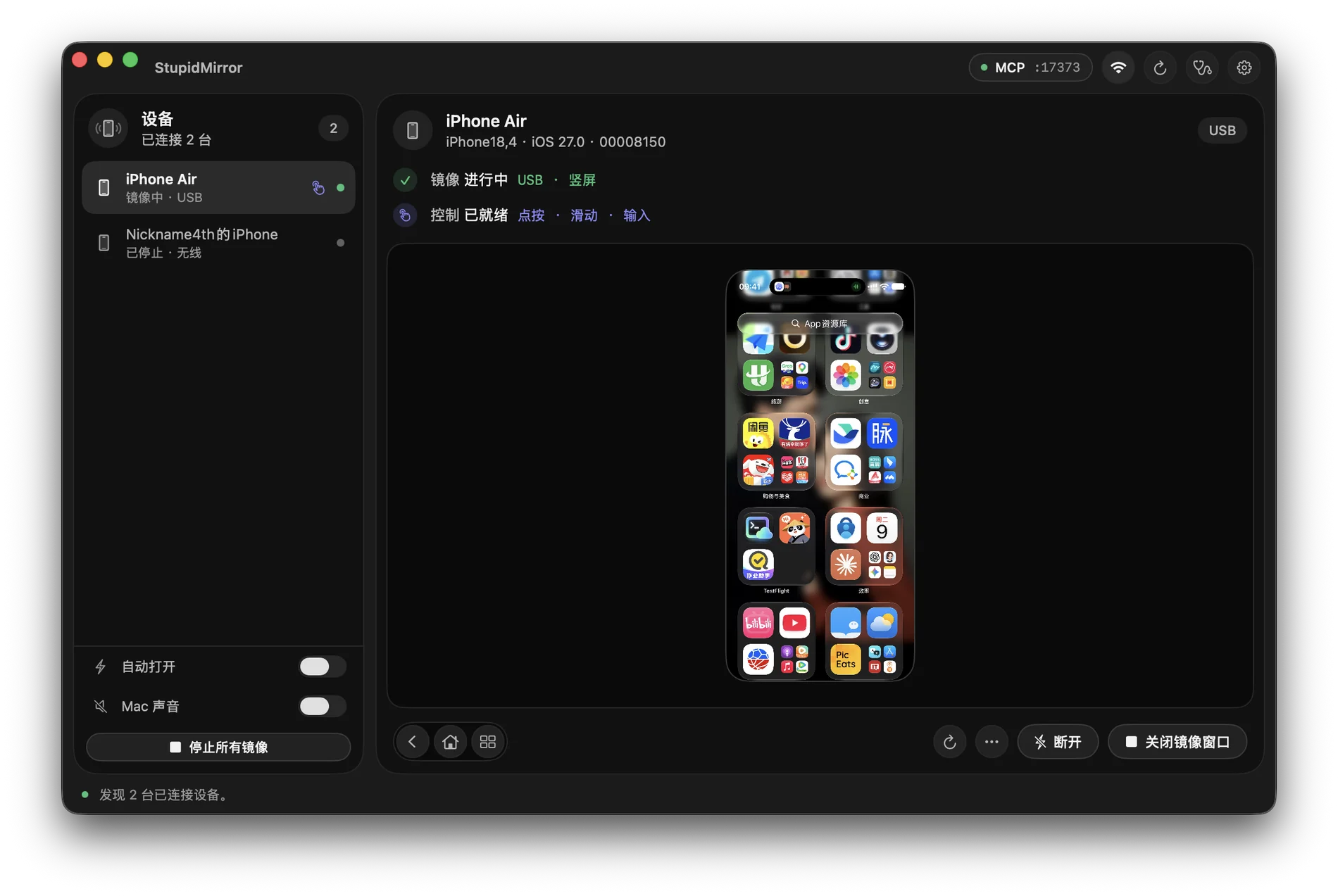
StupidMirror brings real mobile devices into a native macOS workspace. View an iPhone over USB or Wi-Fi, mirror an Android device through ADB, and interact with either through an explicit control session.
The same workspace is available to AI agents over MCP: observe the current screen, locate a target with local OCR or native accessibility, act on the device, and inspect the result. Watch the phone inside Codex with the bundled plugin, or use the native Mac mirror.
One device can be mirrored and controlled without signing in. Simultaneous devices are included in the iTool yearly membership (¥99/year, all iTool products) and need sign-in. The source is available under PolyForm Noncommercial; commercial use requires separate authorization. License details.
Built for Codex
StupidMirror includes a Codex plugin that lets your agent see and operate a real iPhone or Android device, with the live phone screen right inside your Codex chat. Use it to inspect mobile UI, walk through app flows, reproduce bugs, and verify changes on a connected device.
- Watch the phone inside Codex. The embedded panel streams the live screen over local WebRTC, with device selection, pause/resume, and screenshot copying.
- Ask Codex to act and verify. Read screen content, locate controls, tap, swipe, and enter text through MCP, then inspect the result on the device.
- Point out exactly what you mean. Freeze a frame, mark regions, and send the annotated screenshot with your instructions in hosts that support image messages. You can also enable manual control to tap and drag the preview.
To get started, install StupidMirror and complete device setup, then click Settings → MCP Automation → Connect Codex. Open a new Codex chat, select StupidMirror, and ask:
Use StupidMirror to show my phone screen inside Codex and read the current page without tapping anything.
The app installs its bundled plugin through the Codex desktop app's CLI; no repository clone, separate Python / Node.js installation, or token copying is needed. See Codex setup for the full steps and the plugin guide for controls and troubleshooting.
What makes it useful
- A native place for your devices. Menu bar access, a device dashboard, live thumbnails, and independent mirror windows built with SwiftUI and AppKit.
- Real devices and simulators. iPhone H.264 video over USB or Wi-Fi, Android H.264/audio through a pinned scrcpy server, and booted iOS Simulators and Android emulators on this Mac.
- Control when you ask for it. iOS prefers live system HID touch, with WebDriverAgent for compatibility and semantic automation; Android uses Appium. Tap, drag, hold, type, press device buttons, and switch apps. Opening a USB or Android mirror does not start a control session.
- An agent can see what it is doing. Live frames, Apple Vision OCR, optional accessibility trees, semantic targeting, waits, and assertions share the same device workspace.
- Automation stays visible. Agent taps, swipe paths, and selected targets appear on the Mac mirror. These overlays do not alter the phone screen or encoded video.
- Bring your own AI client. One-click setup for Codex and Claude Code, each installing its plugin and MCP tools; a connection guide covers other MCP clients. StupidMirror itself needs no model API key and runs no embedded model.
Start with one device
Download the macOS app from GitHub Releases, move it to Applications, and open it. StupidMirror runs as a menu bar utility and shows a Dock icon while its windows are open. From 0.3.7 it checks for signed updates itself (Check for Updates… in the menu bar or Settings); Open at login is in Settings > Startup & Updates.
In 0.8.7, official iTool accounts use the iTool Auth proxy for email sign-in and session renewal. Quitting also completes simulator screen-agent cleanup when normal shutdown times out.
| Connection | Prepare | Video and audio |
|---|---|---|
| iPhone · USB | Complete Set Up This iPhone once over USB; trust this Mac and enable Developer Mode | Video-only H.264 / SRT from the signed runner; audio stays on the phone unless Mac playback is enabled |
| iPhone · Wi-Fi | Complete Set Up This iPhone once over USB (it turns on the phone's Wi-Fi connections); keep both devices on the same LAN | The same H.264 / SRT video through a CoreDevice tunnel; audio stays on the phone |
| Android · ADB | Android 11+; install Android SDK Platform-Tools on the Mac; enable USB debugging and approve the Mac's key | H.264 video and optional device audio from scrcpy |
| iOS Simulator | Xcode; boot the simulator | The screen agent is built once for the simulator (no signing) and streams its screen; all of its ports listen on this Mac only |
| Android emulator | Same as Android · ADB; start the emulator | Same as Android · ADB; listed by its AVD name |
Simulators and emulators appear automatically while they are booted and count toward the simultaneous device limit like real devices. They are not mirrored automatically, so a simulator you are running UI tests on is left alone until you open it.
iPad mirrors include 13 native frames covering 43 device profiles across iPad Pro, Air, mini, and models with a Home button. Frames match the hardware model or simulator type, including renamed devices, and rotate with the screen. The bundled iPad artwork does not require local Xcode resources.
Choose Shut Down Simulator on a simulator's device card or from the menu bar, then confirm to close that iOS Simulator or Android emulator. The action targets only the selected simulator and keeps its installed apps and saved data.
With a compatible Xcode runtime, iPhone Duo simulators expose Closed, Partially Open, and Open posture controls. These change the simulator’s actual hinge and active display; the native mirror and Codex panel follow the confirmed state. The 3D device shell uses resources from the selected local Xcode installation when available.
macOS 15+ is required. Device compatibility can depend on OS versions, trust state, and the available automation runtime. The project remains experimental.
iPhone over USB
- Connect the iPhone, unlock it, and accept Trust This Computer.
- Open Set Up This iPhone, enable Developer Mode, and let the guide sign and install the screen runner using an Apple Development identity on this Mac.
- Select the discovered device and open its mirror. Video does not require Camera permission.
USB and Wi-Fi both use the WDA/XCTest runner to supply video-only H.264 over SRT, decoded by VideoToolbox on the Mac. USB video therefore needs the runner prepared once, just like wireless video.
Play Device Audio on Mac is off by default, leaving audio on the iPhone. Enabling it opens a separate USB audio input and requires both Camera and Microphone permission; turning it off releases that input. These permissions are for optional USB audio, not the video stream. Wireless sessions keep audio on the phone.
Known limitation: changing USB audio playback can re-enumerate the phone’s USB network interface and briefly interrupt mirroring while the tunnel reconnects. The audio switch is not seamless.
iPhone over Wi-Fi
Open Set Up This iPhone while the phone is connected over USB. The guide checks the device and Apple Development signing identity, builds and installs the screen runner, test-launches it, and enables Wi-Fi connections on the phone (the same switch as Xcode's "Connect via network") before you unplug.
Later sessions reach the phone through the bundled smtunnel sidecar: it opens Apple's CoreDevice tunnel over the local network with an in-process network stack and starts the runner through testmanagerd, so no Xcode launcher, administrator password, Local Network prompt, or tap on the phone is involved. Like USB video, wireless mirroring does not require Camera permission or a ReplayKit Broadcast Extension. Both use the signed device-side runner and require Developer Mode on the phone; video setup does not itself enable a control session.
The app finds the phone over the same path: once usbmuxd lists it on the network, it shows as connected and can be started from the app or through MCP. Plugging the cable in while a wireless mirror or control session is in use keeps that session on Wi-Fi.
Capture, encoding, transmission, and decoding keep bounded in-flight buffers to limit memory growth and accumulated delay. When video falls behind, it recovers from a new keyframe instead of replaying an ever-growing frame queue. HID touch uses a separate input channel from the video runner.
Android
Install adb, enable USB debugging, connect the device, and approve this Mac on the phone. Select the discovered device to start mirroring. Video and audio work independently of the optional Appium control connection.
Android previews use a rounded device shell with a slim metallic rim and side keys in the dashboard, mirror window, and AI client previews.
Device control
Click Connect Control to start control. Refresh Thumbnail and Remove Device are directly available beside it; removing a device asks for confirmation.
| Platform | Preferred touch backend | Preparation |
|---|---|---|
| Physical iPhone · iOS 27+ | System HID over USB or Wi-Fi | Compatible Xcode installed; phone paired with this Mac, Developer Mode enabled, and screen unlocked |
| iOS Simulator | Simulator system HID, with WDA compatibility | Compatible Xcode runtime; simulator booted; the agent needs no signing |
| Physical iPhone · other iOS versions, or HID unavailable | WebDriverAgent / XCTest compatibility control | Run Set Up This iPhone once over USB: trust the Mac, enable Developer Mode, and sign and install the runner with an Apple Development identity |
| Android | Appium + UiAutomator2 (the release bundles the Node/Appium runtime for this) | Installs Appium settings/server helper APKs when needed |
HID is selected automatically when available. The HID badge beside the ready control state identifies an active live-touch connection. Single-finger presses, movement, and releases are sent as they happen: hold the left mouse button to drag or long-press, and start native system gestures at the screen edge. A stationary touch remains held until release. Default touchscreen mode does not map right click to a long press. The native mirror, Codex preview, and MCP coordinate gestures share the same touch backend. Static or stopped dashboard previews do not accept device input; open the live mirror before interacting.
When the device exposes the native gesture service, the Mac mirror forwards trackpad scrolling, magnification, and rotation as system gesture events. Mouse-wheel and momentum events are also forwarded individually. If that service is unavailable, the compatible gesture path remains available. Programmatic pinch/rotate calls that specify a center still use WDA to preserve that center; native trackpad gestures and these automation calls have different contracts.
If HID cannot connect, control automatically uses the WDA compatibility path. That path records a mouse gesture and replays it after release; it cannot follow the finger live. An interrupted gesture is not replayed through another backend. HID touch itself does not install or launch WDA, but iPhone video over either USB or Wi-Fi needs the signed runner. Text entry, hardware-style buttons, app actions, native accessibility automation, and the centered pinch/rotate calls also prepare WDA when needed; on physical iPhones these capabilities require the setup above.
Double click performs a double tap. The app follows the system light or dark appearance; Settings → Interface (and the menu bar) can pin either. Advanced settings support a custom Appium endpoint for Android; the default is http://127.0.0.1:4723.
Connect an AI agent
Codex plugin: connect from the app
-
Install a build that includes the Codex plugin in Applications and open StupidMirror. For iPhone video over USB or Wi-Fi, or WDA capabilities, connect by USB and complete the app's iPhone setup guide. System HID touch uses the pairing, Xcode, and Developer Mode requirements described above. Android needs USB debugging and authorization for this Mac.
-
Open Settings → MCP Automation and click Connect Codex. The app enables local MCP and installs its bundled plugin using the Codex / ChatGPT desktop app's CLI. No repository clone, Python / Node.js install, token copying or manual configuration is required.
-
Start a new Codex chat, choose StupidMirror, and send:
Use StupidMirror to show my phone screen inside Codex and read the current page without tapping anything.
-
Codex starts StupidMirror in the background when needed. The live screen uses local WebRTC inside the Codex plugin panel, with device selection, refresh, pause/resume, Home and screenshot-copy controls. No native mirror window opens automatically. Keep the phone connected and unlocked.
Interaction and annotation: Enable 操作 to connect device control, then tap, hold, or drag the preview. It uses the same preferred HID touch and compatibility fallback as the native mirror. AI actions continue to use the existing MCP tools. 标注 freezes the displayed frame. Drag empty space to draw regions, drag inside a box to move it, or drag its edges and corners to resize. The compact composer stays below the image and supports deletion and undo. Send just the marked screenshot and your note with ⌘ Enter (or Ctrl Enter); plain Enter inserts a newline. Drawing annotations never sends gestures to the phone.
Browser wheel input also reaches the shared gesture backend. Browser events do not expose all of macOS’s native phase and acceleration information, so their behavior is not identical to the native Mac mirror.
Video uses encrypted local WebRTC without a cloud relay. Hosts without a WebRTC API use native-resolution PNG; WebRTC failures show a reason and a retry button instead of silently switching to screenshots; annotation delivery requires the host’s image-message capability.
Installation errors appear in the app and can be retried. Reconnect the plugin or start a new chat if tools have not loaded. StupidMirror 0.3.1 fixes the -32603 initialization error caused by experimental client capabilities; restarting Codex does not fix that error in older builds. The embedded panel is named StupidMirror. Verify installation, discovery and control separately: list_devices, then observe_screen, then an authorized action followed by observation.
After updating StupidMirror, click Update or reinstall plugin (shown as Connect Codex after reopening settings) to refresh the installed copy. Developers can also run bash scripts/install-codex-plugin.sh with a compatible Codex CLI, after building with bash scripts/build-app.sh and installing the resulting app.
The plugin reuses the app's device engine and automatically reads port and token changes. While MCP is enabled, the app maintains ~/Library/Application Support/StupidMirror/MCP/connection.json with directory permissions 0700 and file permissions 0600, removing it when the service stops. Never include this credential file in plugin packages or chat messages.
The installer migrates an existing manual stupidmirror MCP entry only when its URL matches this app's current endpoint, retaining a private local recovery copy. Other MCP entries are untouched; a conflicting connection produces an actionable error.
Claude Code: connect from the app
In Settings → MCP Automation, click Connect Claude Code, beside the Codex card. One click registers the MCP server and installs the StupidMirror plugin (setup and device-use skills) for your user account; parts that are already in place are skipped. Then start a new Claude Code session, in the terminal or in the Claude desktop app's Code tab, and ask:
Use StupidMirror to list my devices and read the current screen without tapping anything.
The MCP entry runs the app's signed helper over stdio, so no token is written to Claude Code's configuration and port or token changes need no reconnection. An older stupidmirror HTTP entry for this app's endpoint is replaced; an unrelated entry with that name is kept. The plugin is read in place from the installed app, and StupidMirror refreshes Claude Code's copy after an app update. Claude Code shows no embedded panel, so in the Claude desktop app Claude opens a live viewer before its first device step, without being asked (the plugin's hook enforces this): it calls open_viewer and, in the Claude desktop app's Code tab, opens the local viewer in the Browser pane itself (it adds a stupidmirror-viewer entry to the project's .claude/launch.json that starts the app's helper as a small placeholder page on port 17374, then sends the pane to the viewer link); in the terminal it gives you the link. The viewer opens on the device Claude is working with and follows it when Claude switches devices, so there is nothing to pick. It has the same live video, refresh and manual control as the Codex panel. The link works once and expires after 10 minutes unused. Only local sessions can reach the app.
Manual MCP setup / other clients
Expand Advanced connection settings · Other AI clients:
- Open Settings → MCP and enable the local MCP server.
- Choose Codex or Claude Code in the connection guide; other MCP clients take the same endpoint and bearer header.
- Copy the generated configuration or command into that client. It includes the endpoint, bearer authentication, and setup timeout.
- Keep StupidMirror open and ask the agent to call
list_devices.
The server listens only on http://127.0.0.1:<port>/mcp. Rotating the bearer token invalidates the previous credential. First-time control setup can be slow, so the guide configures a 240-second tool timeout.
Try an instruction such as:
List my connected devices, start mirroring my iPhone, and highlight the visible clickable elements without tapping them.
Observe → act → verify
| Step | Tools | Behavior |
|---|---|---|
| Connect | list_devices, show_screen, connect_control | Discover the target and prepare the required sessions |
| Observe | observe_screen, find_any_element | Read a live frame; use local OCR and request accessibility only when needed |
| Act | tap_text, tap_element, replace_text, swipe | Target observed content or an explicit gesture |
| Verify | wait_for, assert_screen, observe_screen | Check the resulting state |
| Guide | highlight_clickable_elements, highlight_elements, clear_highlights | Draw targets on the Mac mirror without sending input |
| Apps | list_apps, install_app, uninstall_app, open_url, activate_app, terminate_app | Install a build (.app/.ipa/.apk), open a deep link, launch or stop an app |
| Simulator posture | set_device_posture | Change a supported foldable simulator’s actual hinge and active display |
| Record | start_recording, stop_recording | Save the live mirror as an .mp4 in ~/Movies/StupidMirror (up to 10 minutes) |
Targeting and text-input details for agent authors
- Pass
device_idwhen more than one device is present. tap_textaccepts up to 16 candidate labels. By default it runs one local OCR pass, then at most one shared native hierarchy snapshot if needed.find_any_elementperforms the lookup without tapping.observe_screendefaults to an image plus compact local OCR, without a native hierarchy. Keep the image for visual or ambiguous tasks; passinclude_image=falsefor text-only reads.find_elementandfind_any_elementalso return compact matches. Element IDs and observation IDs remain usable withtap_element;center: [x, y]is a rounded normalized hint, while taps use stored full-precision geometry.- Set
response_format="full"on these tools for the original metadata/bounds/hierarchy format. The format does not change image/accessibility flags: keepinclude_image=truefor visual evidence, orinclude_accessibility=true, include_ocr=falsefor native switch values and control state. - For icons, canvases, or custom controls, request
include_image: true, inspect the screenshot, then use an observed coordinate. - Pass the observation UUID to
tap_elementto reject stale element IDs after the screen changes. - On iOS, accessibility snapshots can disturb focused text fields. After focusing, use
replace_textorclear_textdirectly; usetype_textto append. Replacement and clearing verify the resulting native value. - Vision OCR supports
fastandaccuratemodes, defaults to Chinese and English, and runs on demand outside the capture/encoding path. - Input tools are marked as potentially destructive in MCP metadata because their effect depends on the app currently open on the device.
The tool definitions are the authoritative schema.
Architecture and privacy
iPhone USB / Wi-Fi → WDA/XCTest H.264 / SRT ─┐
Android → ADB / scrcpy ───────────────────────┴→ Capture → native mirror / Vision OCR
                                                   └→ H.264 → local WebRTC → Codex panel
iPhone USB audio → optional separate audio input → Mac playback
Codex → bundled stdio bridge → authenticated localhost MCP → observations/actions
iOS touch / supported native gestures → system HID; compatibility / semantic actions → WDA
Android actions → Appium / UiAutomator2
Capture, playback, and OCR run locally. StupidMirror does not independently upload mirrored content to a model provider. An external AI client can receive screenshots and tool results through MCP; its account, model provider, and data settings determine what happens to that information afterward.
Account sign-in and membership checks contact itool.tech and the configured Supabase service. These requests carry your account token and the product name, not mirrored frames or control input. See the privacy policy and security policy.
Build from source
Use macOS 15+, a Swift 6 toolchain, Go (see the sidecar go.mod files), and Node.js 22+ for widget development:
git clone https://github.com/LiuTianjie/StupidMirror.git
cd StupidMirror
make run
swift build --build-system native # Compile
swift test --build-system native  # Run tests
make app           # Create dist/StupidMirror.app
open dist/StupidMirror.app
Before packaging widget changes, run npm ci --prefix plugins/stupidmirror/ui, then npm run build --prefix plugins/stupidmirror/ui and npm test --prefix plugins/stupidmirror/ui. The generated self-contained HTML is bundled in the app. make app builds both Go sidecars and the stdio bridge.
For a host Appium installation, use make setup-appium and make run-appium. Source execution and packaged apps have separate macOS permission identities; grant permissions to the process you are actually running.
The probe tools help inspect discovery, capture, and WDA readiness. make probe-avfoundation-frame saves a local frame under the git-ignored artifacts/ directory.
Contributing and documentation
Device bugs are most useful with macOS/device OS versions, connection type, reproduction steps, and redacted diagnostics. Changes to capture or control should include real-device verification; a successful Swift build cannot establish device compatibility.
| Document | Scope |
|---|---|
| Contributing | Development setup and pull request expectations |
| Codex plugin guide | Embedded video, manual control, annotation, troubleshooting |
| Architecture notes | Original design and implementation context |
| Research notes | Capture and device-integration research |
| Release process | Signing, notarization, fixed app identity, and artifact upload |
| Changelog | Release history |
| Membership | iTool membership, sign-in, offline use, and legacy licensing infrastructure |
License
StupidMirror is source-available under the PolyForm Noncommercial License 1.0.0. It permits the noncommercial uses described in that license and is not an OSI-approved open-source license. Commercial use requires separate written authorization; see commercial licensing.
The app allows one mirror and one control session without signing in. Simultaneous devices are included in the iTool yearly membership, ¥99/year for all iTool products: sign in with the same iTool account and StupidMirror unlocks them. A monthly membership does not include StupidMirror. Membership and commercial authorization are separate matters.
Third-party components retain their own licenses. See NOTICE.