Listed from the MCP registry; nobody on Odel publishes it.

HA NOVA
Ask about your Home Assistant and change it from an AI chat, with your OK for risky actions.
Runs on your machine from its package; the steps are below.
What it does
- Reads
- Writes
- High impact
At most: moves money, runs code or commands, deletes data, or sends messages for you.
What it costs
FreeOdel charges nothing per call. The publisher may charge for its own service.
Runs locally
This server runs on your machine over stdio, but its source registry didn't list a distribution package. Check the source repository for setup instructions.



hanova.app · the 5-minute tour · Try HA NOVA in 1 minute · on a demo house, in Claude or ChatGPT, no install
Talk to your home. Every change checked.
Connect your AI to Home Assistant. Simple things run right away. Other changes show a preview first. Unlocks, opening a garage door or gate, turning off the alarm, and deletes wait for your OK.
You OK them on the NOVA page in Home Assistant, or with a tap on your iPhone or Android phone.
No phone in Claude or ChatGPT? You type a four-digit code (only at Manage everything with codes on). Dashboard and room changes still ask in a window on your computer.
Works with Claude Code · Claude Desktop · Codex · OpenCode · Google Antigravity · Hermes Agent (preview)
and in Claude (also on your phone) and ChatGPT on the web, on a computer, with the NOVA Relay App
📱 Use it from your phone in the Claude app. ChatGPT works on the web, on a computer. No computer has to run HA NOVA.
See how easy it is
"When I get home, set my main lights to a warm welcome scene": you say one sentence and get a checked automation, plus ideas you might not have thought of.
✦ Three steps to connect
- Run the installer. Copy one command. Setup opens a page in your browser and finds your Home Assistant and your AI apps.
- Sign in with Home Assistant. Sign in as the owner: the first account made when Home Assistant was set up. If needed, setup installs and starts the NOVA Relay App for you. Then this computer connects by itself.
- Choose your safety net, then look around. Unlocks and deletes wait for your OK on your linked phone or the NOVA page; the confirmation window on this computer asks for dashboard and room changes. To add a phone, pick whose phone should confirm on this computer: setup lists the phones Home Assistant tracks for an administrator's person. On a re-run, Use another phone moves it: the old phone OKs the move, then the new phone taps "Allow". If you use Claude Code, its rules are on unless you turn them off: they let Claude Code read HA NOVA's files and make changes you already approved, without asking again. You still confirm every unlock or delete. Then you see your home at a glance: things worth a look (like a low battery or devices without a room) and an automation made for your home, to preview and save. Nothing in your home changes unless you save it.
Signed in, but not as the owner? The page asks the owner to sign in here, or to make a six-digit code for you (details). Over SSH or with --no-browser, setup asks in the terminal instead. No browser here? Then setup shows the NOVA Relay App page (click "Add", then Install and Start; skipped when the App already runs). You pair with a six-digit code: the Home Assistant owner clicks "Connect a device" on the NOVA page in the sidebar, and you type the code. Over SSH, this works well on Linux only. On Windows and macOS, run setup in a terminal on that computer's own screen: over SSH, HA NOVA usually can't save its key.
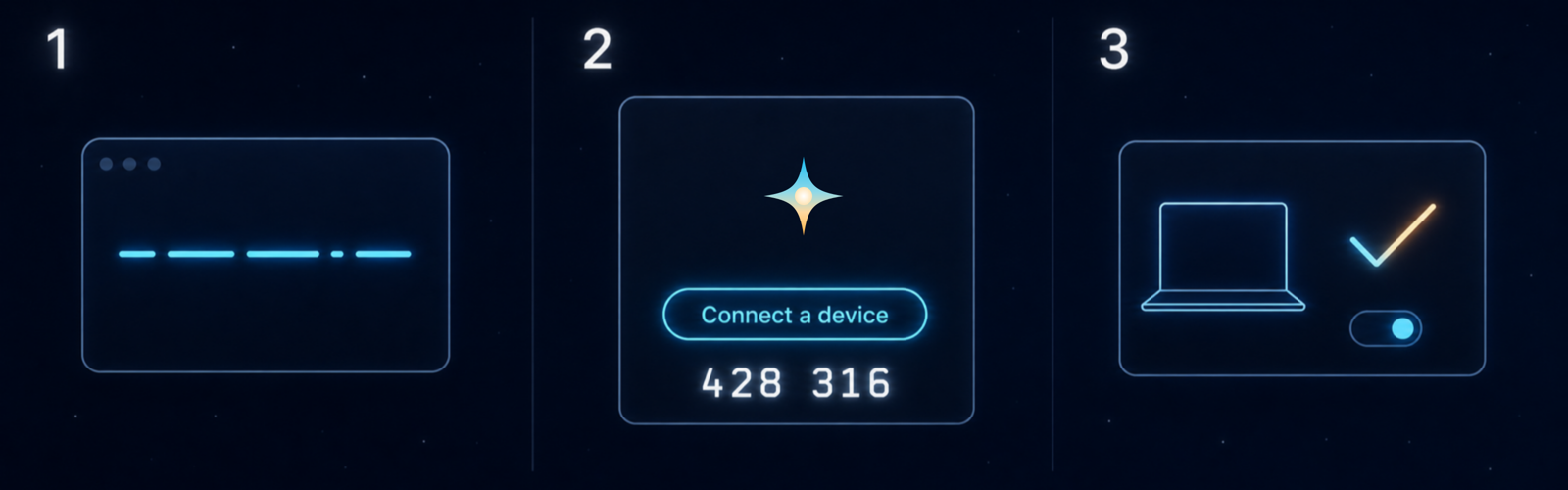
The code works once, for 10 minutes. The sign-in works once too. Each device gets its own connection, and you can cut it off anytime on the NOVA page.
What it does · Is it safe? · Get started · Claude & ChatGPT · Remote access · How it works
Still young, and growing fast. The main steps are tested end to end on macOS, Linux, and Windows, and your feedback still shapes the product. Back up your setup before you let AI change anything. Hit a problem? Open an issue.
💬 What You Can Do
Say what you want. HA NOVA works out the rest.
| You say | What happens |
|---|---|
| "Check my automations for problems" | Checks them against 40+ rules. Finds conflicts, triggers that never fire, and mistakes that are easy to miss |
| "Why didn't my motion light trigger last night?" | Replays what really happened and tells you where it stopped and why |
| "Turn on the porch light at sunset and off at 11 PM" | Builds the automation, shows it to you, and checks it before anything is saved |
| "What happened to my living room temperature overnight?" | Reads the history and sums it up in plain words |
| "Build a dashboard for the living room" | Builds whole dashboards and views, also with custom cards you installed. It lists every view and card that changes and saves a copy first. "Undo that" brings the old one back |
| "Move all kitchen devices to the Kitchen area" | Moves the devices and entities and shows what will change first. Moving a device with a lock, alarm panel, garage door, or gate takes your own confirmation |
| "Turn off the integration I don't use anymore and fix the open repairs" | Turns integrations on or off, renames or removes them, fixes or ignores repairs, and changes users, general settings, and the backup schedule. Shows what changes first. Deletes and sensitive changes take your own confirmation. Turning off a lock's device or integration, or removing the integration or switch it runs on, is refused. A step that asks for a password, PIN, or key finishes in Home Assistant |
| "Why does my MQTT broker App keep restarting?" | On HA OS, checks the App's state, version, and settings, and asks you for the lines that matter from its log page in Home Assistant: HA NOVA doesn't read logs, which can hold passwords. It can also install or remove an App, or change its settings, after your own confirmation. This needs HA NOVA's local connection, not Home Assistant Link |
| "Turn off the kitchen light" | Turns it off right away and checks that it really is off. A room's lights work the same way, up to 30. Everything else in a room, scenes, and riskier actions show a preview first |
| "Unlock the front door" | Shows what will happen, then waits for your OK: a tap on your linked phone, or Approve on the NOVA page in Home Assistant (in Claude and ChatGPT: the linked phone, or a four-digit code at Manage everything with codes on) |
| "What do I have, and where is this sensor used?" | Counts rooms, devices, automations, and integrations itself. Lists the automations, scripts, scenes, groups, helpers, and dashboard cards that use a sensor, and says what it couldn't check. Exact numbers, never a guess |
| "My door sensor died, I paired a new one" | Moves automations, scripts, scenes, dashboards, helpers, and energy sources to the new device in one plan you check first |
| "Turn this Node-RED flow into an automation" | Lists what the rule does, matches each device to a real entity, and builds a Home Assistant automation. HA NOVA tells you how to turn the old flow off, and never deletes it |
| "Check my ESPHome config for the garage sensor" | Explains the device file in plain words. Flags removed settings, pins that can't do what the file asks, and passwords written in the file |
| "Remind me in 20 minutes to check the oven" | Makes a one-time reminder that turns itself off after it runs |
| "Show me all temperature sensors" | Finds entities by name, room, area, or label |
| "What's the average temperature upstairs?" | Works out averages and totals across rooms in one step. Names the sensors it used and any it couldn't read |
Automations and scripts get the full treatment today: a preview, a review, and a check against 40+ rules. Helpers get a preview and a check afterwards. Dashboards get a preview of every changed view and card, a copy before each save, and undo. Device control runs clear everyday actions right away and checks them afterwards. Everything else shows a preview first. Unlocks, opening gates and garage doors, turning off the alarm, deletes, HACS installs and updates, and dashboard resources need your OK.
🛡️ Safe by Design
We built this because we didn't trust AI with our own setup either.
What happens when AI wants to change something:
-
Looks first. Finds your devices, checks your setup, and finds the right names. No guessing.
-
Shows you the change. A clear before-and-after table of what will change, in plain words with names, before anything is saved. The one exception: clear everyday actions run right away, like "turn off the kitchen light", switching a room's lights, pausing music, or adding to a to-do list. HA NOVA checks them afterwards. The HA NOVA program decides which actions count, never the AI. And it sends nothing if anything changed since a preview.
-
You approve it. Unlocking a door, opening a gate or garage door, turning off the alarm, restarting Home Assistant, and deletes need a real confirmation, not just "yes" in the chat. Before a restart, HA NOVA checks your config first. If something is wrong, it says what before you confirm.
- On your linked phone, a notification shows the action's button. Press and hold it on an iPhone, or pull it down on Android, then tap the button. This needs the Home Assistant Companion app.
- On the NOVA page, open NOVA in the Home Assistant sidebar. Under "Waiting for your OK", choose Open, then Approve or Cancel. Any Home Assistant administrator can approve there, except the user the NOVA App signs in as; other administrators find the link "Requests waiting for your OK" when they open NOVA. The OK covers exactly that change, once. Nothing is sent before it, and a request no one answers ends after 3 minutes.
- The window on your computer only waits. It says where to confirm, opens Home Assistant, or cancels; it can't confirm. Dashboard and room changes still ask on the computer: click Confirm (OK on Windows) or Cancel in the window, or type a four-digit code where no window opens.
- About the phone: you can answer on the phone or its Apple Watch without unlocking it. So whoever holds your phone can answer while a request is open, for up to 3 minutes. It works only for that one action. To link or move phone confirmation, you need the unlocked phone. The phone you linked on a computer moves into Home Assistant once: the first time a change needs your OK, it asks whether it should get HA NOVA's confirmations. To link or change a phone, run
ha-nova setup confirm-phone. Itsoffstops only this computer's own asks: the NOVA App keeps asking that phone for this computer's unlocks and deletes. Chat apps keep their own phone: change or stop it on the NOVA page. When setup links the owner's new phone right after the owner signs in, it offers to move chat apps too. It is never moved to the chat. - In Claude and ChatGPT, the linked phone of whoever asked confirms. With no phone, at Manage everything, you get a four-digit one-time code, in the app's own form where it shows one, or else in the chat. In the chat, the AI sees the code too and HA NOVA can't tell who typed it, so it protects less than your phone.
- Deletes: deleting an automation, script, device, integration, blueprint, helper, scene, area, floor, or label waits for the same OK. A dashboard delete asks on the computer. Up to 20 automation and script changes and deletes can share one confirmation. Other batch deletes you checked take one confirmation for the exact list of items.
- Language: confirmations are in German when Home Assistant is set to German, else in English. In a German home, the window's button reads „Bestätigen“ (OK on Windows), a phone link „Erlauben“, and the phone's button names the action, like „Entriegeln“ or „Löschen“.
- Screen control: anything you let control your screen can click that window too. That means computer use, apps you gave Accessibility access, and on Windows and some Linux desktops, other programs. To turn the window off, run
ha-nova setup confirm-window off.
-
Saves a copy first. Before a covered delete or a full replacement of a config, HA NOVA saves a copy of that item. So "gone" has a way back.
-
Saves and checks. Reads the config back to make sure the change stuck.
-
Checks its own work. Looks for mistakes, conflicts, and things that could fail.
-
Offers a safe test. After you save a new or changed automation or script, you get a test plan that fits the risk. It can be a check that changes nothing, or a real run that names every device that will switch before you say go.
-
Offers a way back, in three steps.
- Reply
revertto undo the latest checked update. - Bring back a deleted automation, script, scene, dashboard, or storage helper from its saved copy (a config snapshot), with the same preview and confirmation. "Undo that" right after a delete works, and so does "restore the kitchen automation you deleted yesterday".
- For everything else, use a Home Assistant backup.
revertand saved copies cover only changes made through HA NOVA. HA NOVA can't undo changes made in the Home Assistant UI, by other tools, or by hand in YAML. A saved copy brings back the item itself, not every place that used it. Home Assistant backups cover the whole system. - Reply
The ground rules, always:
- 🔒 The Relay's login stays out of the AI. The App's Home Assistant login stays inside the Relay. Optional Link access uses a separate Home Assistant OAuth authorization in this computer's native credential store. The AI sees neither of them.
- 🙈 Stored codes stay hidden from the AI. A lock or alarm code saved in its settings, the backup password, and the Thread network key reach the AI only as "hidden", also in HA NOVA's saved copies. Camera and image sign-in tokens stay hidden too. Codes written into automations are not hidden.
- 🔑 Each device is paired on its own. The Home Assistant sign-in and the six-digit code work once and run out fast. They create a separate login for each device, over an encrypted connection that trusts only your own Relay. How it works: safety page. This is for App installs. The standalone container uses one shared token instead.
- 🗑️ Cut off a device in two clicks (App installs). Lost a laptop? Retired a computer? On the NOVA page, choose "Revoke…" next to it, then "Revoke this device". Everything else keeps working.
- 📖 Every skill the AI follows is a Markdown file you can read. Chat apps also get a short guide built into the program.
- 🏠 HA NOVA runs no cloud relay, and the program sends no usage data or install counts. Local mode stays between your computer and Home Assistant. Optional Link mode uses your own Home Assistant Link service, and HA NOVA gets none of that traffic.
🚀 Get Started
One command. One setup page. One sign-in. It even finds your Home Assistant for you.
You need: Home Assistant, any install type. HA OS and Supervised get the NOVA Relay App, and setup helps you install it. Container and Core run the same relay as a standalone container: same skills, but no pairing, no NOVA page (only a linked phone confirms), no chat apps, and no Home Assistant Link. It works with a token instead, so skip the steps below and follow that guide from start to end.
macOS / Linux:
curl -fsSL https://raw.githubusercontent.com/markusleben/ha-nova/main/install.sh | bash
Windows (PowerShell):
irm https://raw.githubusercontent.com/markusleben/ha-nova/main/install.ps1 | iex
The installer selects the latest stable release. Run the command for your system.
On a desktop, setup goes on in your browser. The page shows the Home Assistant it found, or asks for its address. It also shows the AI apps on this computer and sets them up for you. On HA OS and Supervised, choose "Sign in and install NOVA" and sign in as the owner. Setup then installs and starts the NOVA Relay App and connects this computer, all with that one sign-in. An old App is updated the same way. If an up-to-date App already runs, the owner still signs in once, to connect this computer. Then choose how you confirm risky changes, and see your home at a glance.
Only use Claude or ChatGPT in the browser? With no AI app on this computer, choose "I use Claude or ChatGPT in the browser" on the setup page. This needs Home Assistant 2026.10 or newer on HA OS or Supervised, and Home Assistant Link with remote access on, or your own HTTPS address (see Use HA NOVA in Claude and ChatGPT). Right after the owner signs in, setup checks the version, HA OS, and that an internet address is set, before it changes anything. If something is missing, the page says what and offers "Set it up, then check again" or "Use HA NOVA on this computer instead" (on Container or Core, only the second). If all is ready, this computer connects, and chat apps come first.
Not the owner? The page asks the owner to sign in. If the owner can't come to this computer, they make a six-digit code in NOVA in Home Assistant ("Connect a device"), and you type it in the terminal. Can't sign in on this computer at all? Choose "Use a six-digit code instead". The owner can make it on any device. On the browser-only path there is no code: the owner signs in here.
In the terminal. Over SSH or with ha-nova setup --no-browser, setup asks in the terminal instead.
Run setup again any time. "Your setup" then shows what is done and what you can still do, each with a button.
- Want to install the App yourself, or no browser sign-in here (for example over SSH)? Setup takes you to the App page and adds the repository for you. Click "Add", then Install and Start.
- After that, or when the App already runs, setup opens your Home Assistant login. Sign in as the owner, and this computer connects by itself.
- Signed in as another Home Assistant user? Setup offers to sign in again or to use a code. Over SSH on Linux, or when the sign-in didn't work, setup asks for a code. The owner opens NOVA in the sidebar (or "Open Web UI" on the App page) and clicks "Connect a device". You type the six-digit code.
- On Windows and macOS, run setup in a terminal on the computer's own screen, not over SSH.
After pairing, setup asks whose phone should confirm on this computer: pick it, then tap "Allow" on that phone (in the terminal, you OK it in the window first, where one opens). To move it later, the old phone OKs first, then the new one taps "Allow". The phone must be signed in to the Home Assistant app as an administrator. Setup ends with a first look at your home.
Try it first? Try HA NOVA in 1 minute on a shared demo house with no real devices. There is nothing to install. In Claude, a free account works. ChatGPT needs a paid plan that lets you add your own plugins. We tested Pro. The free plan can't. On a phone, ChatGPT can only answer. On your computer,
ha-nova tryconnects your AI app to it (the setup page offers it when it finds no Home Assistant), andha-nova try --stopremoves it. Everyone shares one login, and it resets every hour. So never enter real names, passwords, or tokens there. What the demo keeps: privacy page.
Use HA NOVA in Claude and ChatGPT
Ask about your home and change it from Claude (web, desktop, and phone apps) or ChatGPT (web, on a computer; on a phone it can only answer). No computer needs to run HA NOVA.
How easy is it?
- Turn on remote access in Home Assistant Link. Your Home Assistant may still show its old name (see below). Your own HTTPS address works too.
- Flip the switch. In setup, choose Turn on… in "You stay in control". On a re-run, turn on its switch, then click "Done, then sign in". Or open the NOVA page in the Home Assistant sidebar, then Chat apps. Home Assistant restarts once.
- Click "Add to Claude", or paste the address setup shows into ChatGPT. Then sign in to Home Assistant with your own login. No form in Claude? In Claude, open Customize → Connectors, click +, then Add custom connector, and paste the address. On a Claude Team or Enterprise plan, the owner of your Claude plan adds it once for everyone, with "Add for my organization". Then you click Connect next to HA NOVA in Customize → Connectors.
You need:
- Home Assistant 2026.10 or newer on HA OS or Supervised, with an up-to-date NOVA Relay App.
- Home Assistant Link with remote access on, or your own public HTTPS address with a valid certificate, set as Home Assistant's external URL. Self-signed certificates, plain
http://, Tailscale, and local addresses don't work, and setup can't check the certificate for you. Without a Link or HTTPS address, setup says so and shows no switch. - For ChatGPT, a paid plan that lets you add your own plugins.
- Only the Home Assistant owner turns chat apps on. On the NOVA page, the owner picks who else may use them, at Ask only, Use the home, or Manage everything. Each person signs in with their own Home Assistant login. A level never goes above the person's Home Assistant role: only administrators get Manage everything.
What needs your OK: the same rules as on a computer. Everyday actions run right away and are checked afterwards. Unlocks, opening a garage door or gate, turning off the alarm, and deletes wait for a tap on the linked phone of the person who asked. Below Manage everything, deletes and other configuration changes are refused, even with a phone. No phone? At Manage everything, you type a four-digit code in the chat; below it, those changes are refused. The AI can see that code too, so it protects less than your phone. On the NOVA page, turn off "Codes in the chat" to require the phone, or turn on "Chat apps can only read".
Stop Claude from asking before every step. At first, Claude asks before each step. That's Claude, not HA NOVA. In Claude, open Customize → Connectors → HA NOVA. With a linked phone, set every tool to "Always allow": HA NOVA still shows you a preview before bigger changes, and your phone asks before unlocks, the alarm, and deletes. No phone? Set every tool to "Always allow", except "Run a confirmed change": leave it on "Needs approval", so Claude still asks before each bigger change. The setup page and the NOVA page show the same advice. Claude may ask again after an update. Details: Stop Claude from asking before every step.
Good to know:
- Access belongs to your Home Assistant account, not to a device. Anyone who can use your Claude or ChatGPT account can reach your home through it.
- Claude or ChatGPT then holds a Home Assistant sign-in for your account. It works for all of Home Assistant, not only HA NOVA. Turning chat apps off cuts HA NOVA there. To sign Claude or ChatGPT out, open your Home Assistant profile (Security, refresh tokens).
- Turn chat apps off before you remove the NOVA Relay App or go back to an older version.
- At Manage everything, helpers, scenes, dashboards, rooms and names, integrations and Home Assistant's settings, files (with file access on), camera pictures, and on HA OS also Apps work in the chat, with the same preview and confirmation as on a computer. Turn chat apps on or off on the NOVA page or in setup. Only setting up and updating HA NOVA (setup, pairing, updates) and InfluxDB history stay outside the chat. A setup or repair step that asks for a password, PIN, or key finishes in Home Assistant.
Step by step, ChatGPT plans, and what to do if it doesn't connect: Use HA NOVA in Claude and ChatGPT.
Optional remote access with Home Assistant Link (Beta)
Setup keeps Local only as the default we recommend. On the setup page, Link is one switch in "You stay in control". It shows while Link's remote access answers.
Do you have a paid Home Assistant Link plan (formerly Home Assistant Cloud; Nabu Casa), with remote access on? On the setup page, turn on Use this computer away from home: HA NOVA then uses Home Assistant Link when it can't reach your home directly. In the terminal, a first setup also offers Home Assistant Link only, to go remote first. Your Home Assistant may still show the old name in Settings until the new name reaches it. Setup checks your Link address, opens the Home Assistant OAuth sign-in, and saves it in the macOS, Windows, or Linux desktop credential store. HA NOVA runs no additional public tunnel or hosted broker.
Remote access through Link needs Home Assistant OS or Supervised, and a supported desktop to sign in. Did a setup that was already checked get cut off? You can finish over SSH with ha-nova cloud add --remote-resume. Headless, WSL, service, gateway, Container, and Core setups stay local only. Sign in to Link as the Home Assistant owner, and this computer connects with no code (this needs an up-to-date NOVA Relay App). Don't want the owner's login saved on this computer? Sign in to Link as a standard Home Assistant user instead. That only changes which login Link keeps on this computer: the owner still connects it once, in a separate private browser window (setup calls it the "Owner session"), with a six-digit code made there with "Connect a device". Either way, HA NOVA then works the same for anyone who uses this login on this computer. There is no separate sign-in per person.
Already installed locally? Run ha-nova cloud add, or run ha-nova setup again for the same choice.
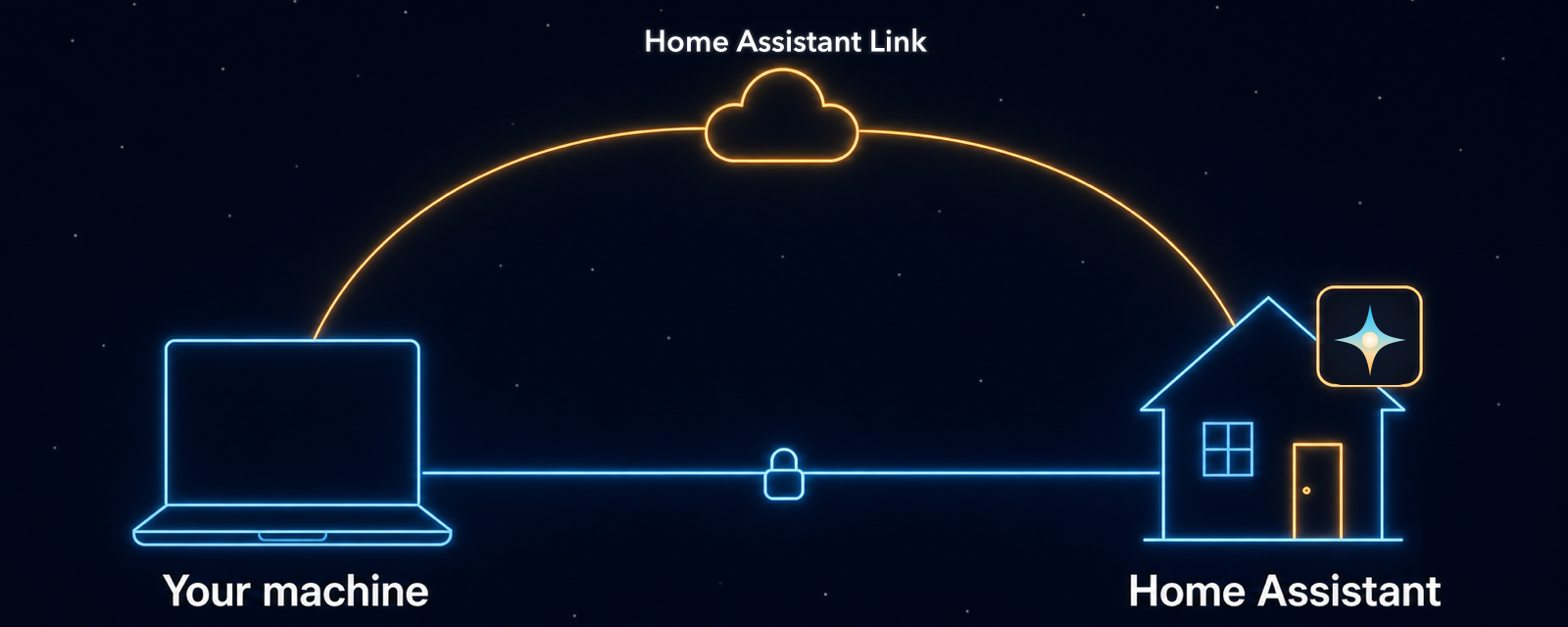
Local stays first: the CLI uses the direct connection and falls back to your Home Assistant Link remote access only when it has to. No switching addresses by hand.
Once setup is done, try: "Show me all my automations."
More than one Home Assistant? Add each one with
ha-nova pair --server <name> --relay-url http://<ha-host>:8791. Each server gets its own profile and its own login. To pick one, add--server <name>to a command. This works in every shell, PowerShell too. Manage them withha-nova server list|default|rename|remove. (TheHA_NOVA_SERVERenvironment variable still works too.)
Upgrading from an earlier HA NOVA? Update HA NOVA on every computer together with the NOVA App: run
ha-nova updateon each. The NOVA App no longer accepts the old shared key: a computer that still uses it says "Pair this computer again", so runha-nova setuponce on it (a--serviceinstall:ha-nova pair --credential-store=file). With Home Assistant Link saved, remove Link first, then run setup, then add Link again. (The standalone container keeps its token.) On Windows, some older versions ofha-nova updateask for admin rights or fail. If yours does, update once with the Windows install command above.
Platform notes
macOS: tested end to end on real Macs.
Linux: tested end to end, also without a desktop (servers, containers, LXC, SSH). With no desktop keyring, the device login is saved in a private file instead. A standalone relay (relay token, no device pairing) on such a machine uses ha-nova setup --service <client> (Codex, OpenCode, Hermes Agent).
Windows: tested end to end on a real Windows 11 PC. Only x64 builds. On Windows 11 on ARM, install from the x64 PowerShell (the installer shows the steps).
- Claude Code is the most tested AI app on Windows today
- Google Antigravity has basic testing
- Codex and OpenCode are still early
- What you need first: Claude Code: install Git for Windows too, so HA NOVA's start-up step runs; Google Antigravity Desktop or CLI must be installed
- See .claude/INSTALL.md and .antigravity/INSTALL.md
Don't download the
ha-nova-installer-bundle-*.tar.gz/.zipfiles yourself. The installer uses them in the background. Always use the one-line command orha-nova update.
CLI commands & legacy uninstall
| Command | What it does |
|---|---|
ha-nova check-update | Check for a newer version. It also says when the NOVA App in Home Assistant needs an update |
ha-nova update | Update to the latest release |
ha-nova setup | Opens the setup page: what is set up, and your switches. --no-browser keeps it in the terminal |
ha-nova try | Connect your AI app to the shared demo house; --stop removes it |
ha-nova chat-apps on | Turn on HA NOVA in Claude and ChatGPT (owner sign-in; Home Assistant restarts once). status shows the address, off turns them off |
ha-nova pair | Pair this computer again with a new six-digit code |
ha-nova doctor | Find connection and setup problems |
ha-nova setup confirm-window off | Turn the confirmation window off (you confirm that in the window). on turns it back on |
ha-nova setup confirm-phone | Link one phone for confirmations (pick it, OK it in the window where one opens, then tap "Allow" on it; picking another phone moves it: the old phone OKs, then the new one taps "Allow"). off turns it off on this computer only, after your OK in the window; the NOVA App keeps asking that phone for this computer's unlocks and deletes |
ha-nova uninstall | Asks one question: remove HA NOVA from this computer (skills, settings, and its pairing), remove it but keep the pairing for a reinstall, or cancel. On the last computer that uses the NOVA Relay App, it can remove the App too, when no pairing is under way, chat apps are off, and no Home Assistant Link is saved here, after the owner signs in (this needs an up-to-date NOVA Relay App). --yes keeps the pairing |
ha-nova uninstall --purge | Remove the program, settings, and saved logins. A few tiny local marker files stay, so an old process can't bring the install back |
Coming from an old install, from before the Go version?
- macOS / Linux:
curl -fsSL https://raw.githubusercontent.com/markusleben/ha-nova/main/scripts/legacy-uninstall.sh | bash - Windows:
irm https://raw.githubusercontent.com/markusleben/ha-nova/main/scripts/legacy-uninstall.ps1 | iex
Not a terminal person? Setup is one command to copy and paste, then a page in your browser. After that, Claude Desktop (its Code tab; on a Mac, the app alone is enough), Codex in the ChatGPT desktop app (on a Mac), and Google Antigravity Desktop give you the same skills in an app window. Pairing another computer is one more sign-in (or one six-digit code). Or skip the computer: with chat apps on, ask from Claude or ChatGPT.
⚙️ How It Works
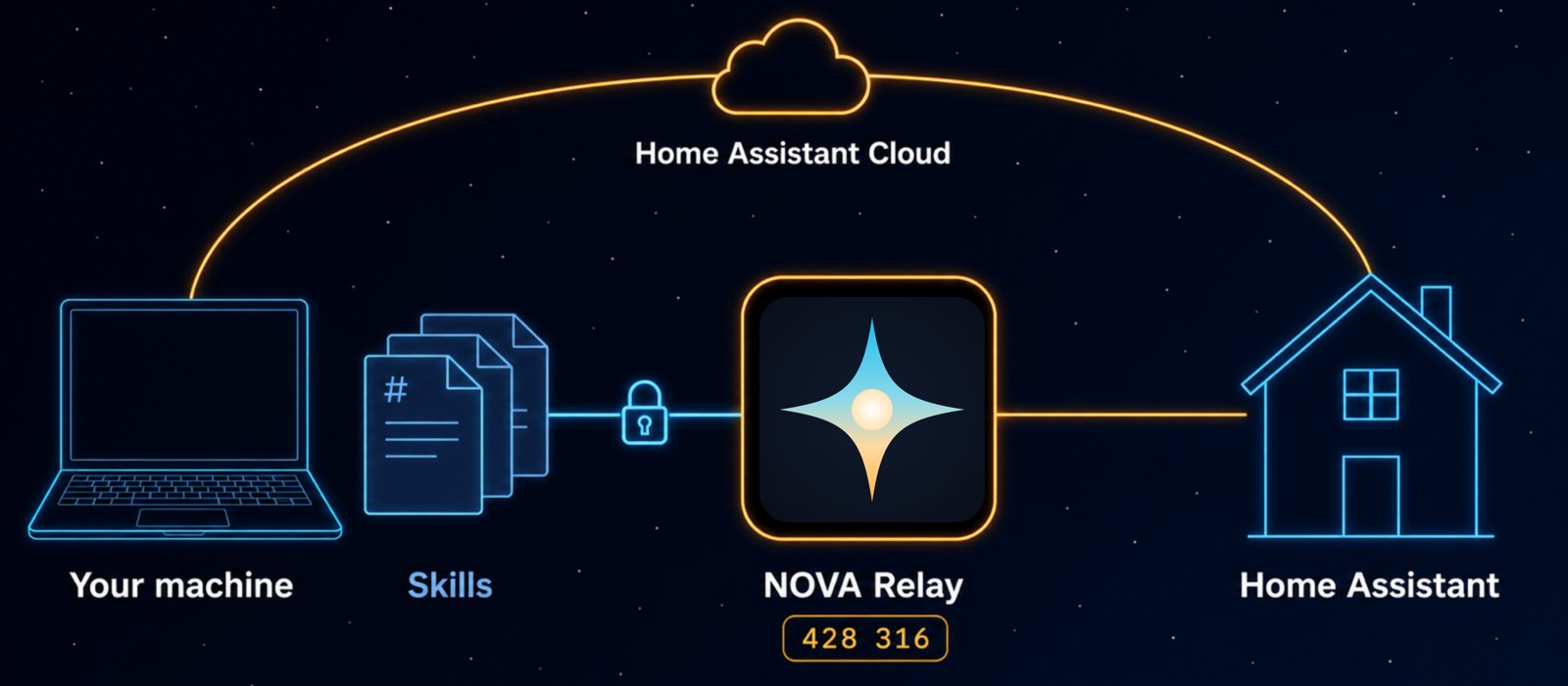
Skills live on your computer as plain Markdown files. They are the AI's playbook: what to check, what to show you first, and what to check after a change. You can open them, read them, and even edit them.
The Relay lives on your Home Assistant server. In daily use, it is the only part that talks to Home Assistant directly, and its Home Assistant login stays inside it. Optional Link mode lets the CLI connect through Home Assistant Link, with an OAuth sign-in kept in your desktop's secure storage. Neither login ever goes into a prompt. Each paired device still reaches the Relay with its own encrypted login. The NOVA page is where you connect or remove devices.
Most new HA NOVA features are skill updates: text files on your computer. The NOVA Relay App changes when a feature needs something new from Home Assistant, and for chat apps, which run inside it. All the know-how stays in the skills.
Because the Relay sits right next to Home Assistant, it can do things a remote program can't. For example, before a covered delete (automations, scripts, scenes, dashboards, and storage helpers), it saves a copy in the NOVA Relay App, so you can bring it back with the same preview and confirmation. HA NOVA also saves a copy of an automation or script before it updates it, so one word undoes the latest checked update. Where no copy exists, a Home Assistant backup is the way back.
Every safety promise above is backed by a file and a test. The safety page shows what enforces and checks each one.
🧩 Skills
34 task skills plus the HA NOVA context skill. Each one is a Markdown file you can read and edit.
- ✏️ Build & change: automations & scripts, helpers, scenes, dashboards, areas & labels, device control, device replacement, rule migration, YAML-only config, ESPHome configs
- 🔍 Understand & fix: config reading, a map of your whole home, 40+ rule checks, finding out why something failed, history & stats, entity search, system health
- 🧰 Run & maintain: backups, updates, HACS packages, recorder & statistics repair, energy, MQTT, InfluxDB history, integration setup
- 🏠 Everyday: media & speakers, notifications, cameras, voice assistants, to-dos, calendars
- 🛟 Admin & safety net: persons, zones, users & general settings (owner-guarded), a fallback for advanced tasks, onboarding & troubleshooting
The full list — all 34 skills
| Skill | What it does |
|---|---|
| ✏️ write | Build and change automations and scripts, with a full preview and safety checks; import and use blueprints |
| 📖 read | Show your automation and script configs as they really are |
| 🔍 review | Check your setup for mistakes, conflicts, and weak spots |
| 🧱 dashboard | Build and change dashboards, views, and cards (installed custom cards too), find broken cards, and manage Lovelace resources, with a copy before each save |
| 🎬 scene | Create and manage scenes, including "save this room as a scene" |
| 🗂️ organize | Manage areas, floors, labels, and entity details like icons, units, and how a value shows; delete a device |
| 🕒 history | Look up history, logbook timelines, and long-term stats |
| 🏠 health | Sum up Home Assistant status, repairs, integrations, system health, unavailable entities, and low batteries; fix or ignore repairs |
| 📅 calendar | Read calendars and events in a time window; create, change, and delete events |
| ✅ todo | Manage to-do and shopping-list items, create Local To-do lists |
| 💾 backup | Check backups and create them, also as a safety net before risky changes; set the automatic schedule |
| ⬆️ updates | See waiting updates, read release notes, and install them with safety checks; on HA OS, install, remove, and set up Apps (over the local connection) |
| 📦 hacs | Browse, install, pin, update, and remove HACS packages, with previews and a required backup before you switch to a replacement integration |
| ⚡ energy | Look at use, solar, battery, and cost per device; manage Energy dashboard sources |
| 🧹 maintenance | Repair and import statistics, clear out recorder history, and clean up dead entities, with strict safety checks |
| 🎛️ service-call | Control lights, climate, covers, switches, and media players |
| 🔎 entity-discovery | Find entities by name, room, area, or label |
| 🗺️ home-map | Your whole home with exact numbers: rooms, devices, automations, integrations, where an entity is used, and the first look after pairing |
| 🔁 device | Replace a dead device or a new phone and move everything that used it in one plan you check first; add or retire a device |
| 🚚 migrate | Turn Node-RED, Homey, SmartThings, Hubitat, or openHAB rules and old automation YAML into Home Assistant automations |
| 📟 esphome | Explain, check, and edit ESPHome device configs; check the device's entities after an install |
| 🧩 helper | Create and manage helpers: counters, timers, template sensors, and more |
| 🩺 diagnose | Find out why something failed: "why didn't my automation run?" |
| 🎵 media | Control media players, browse libraries, group speakers, send spoken announcements |
| 📣 notify | Send notifications to your phone, manage persistent notifications |
| 📷 camera | Look at the current camera picture, get stream URLs, record |
| 📡 mqtt | Listen to MQTT topics, look at discovery, publish with safety checks |
| 🗣️ assist | Test what your voice assistant understands, manage pipelines and what it can reach |
| 👥 admin | Manage persons, zones, tags, user accounts, general settings, Labs, and analytics, with strict owner guards |
| 🔌 integration-setup | Add new integrations, find sign-in renewals Home Assistant is waiting for, and turn integrations on or off, rename, or remove them. Passwords and sign-ins happen in Home Assistant, never in the chat |
| 📝 yaml-config | Edit YAML-only config (template, REST, and command-line sensors, packages, themes) with file access you turn on; list and delete the pictures and videos in your www folder, with a copy kept for 30 days |
| 📊 external-sources | Read old history from InfluxDB that Home Assistant already removed |
| 🛡️ fallback | Safety net for advanced tasks |
| 🚀 onboarding | Find and fix setup and connection problems |
Want to add a new skill? → CONTRIBUTING.md
The skills know which NOVA Relay version they need (see version.json). If your App is older, they warn you. Update it in Home Assistant under Settings > Apps > NOVA Relay.
🖥️ Supported Clients
| Client | Type |
|---|---|
| Claude Code | Terminal |
| Claude Desktop (Code tab) | Desktop app |
| Codex | Terminal / IDE extension / Desktop app |
| OpenCode | Terminal |
| Google Antigravity | Desktop app / Terminal |
| Hermes Agent (preview) | Terminal |
Claude and ChatGPT chat apps (Claude on the web, desktop, and phone; ChatGPT on the web, on a computer) connect through the NOVA Relay App, not a computer: see Use HA NOVA in Claude and ChatGPT.
Another AI app? Any app on this computer that can start an MCP server can use HA NOVA too: "Your setup" shows what to paste.
Google Antigravity is the current Google client path.
ha-nova setup geminiremains a legacy alias for existing Gemini-era installs.
Hermes is in preview. The Linux desktop route (GNOME Keyring) is tested by the maintainer. macOS and Windows-via-WSL2 are experimental, and native Windows isn't supported. Details: .hermes/INSTALL.md.
🤝 Contributing
This is the best time to get involved.
- Write a skill: add a new workflow in Markdown, no server code needed
- Test on your setup: odd cases from real homes make everything better
- Improve docs: make HA NOVA clearer for the next person
- Pick an open issue, especially if you want a workflow to get full support
📖 The Story
I spent over a year building an 88K-line MCP server for Home Assistant. I kept adding features and never released it.
Then I saw that the design was the problem. Instead of burying Home Assistant know-how in a huge server, I could keep the server small and write the workflows as plain text: easy to read, easy to edit, and much easier to grow with other people.
HA NOVA is what came out of that. Here's an early demo from the MCP days.
📄 License
🙏 Acknowledgments
Safety-rule ideas inspired by HALMark by Nathan Curtis. Automation patterns, helper guidance, and device-control patterns adapted from homeassistant-ai/skills by Sergey Kadentsev (@sergeykad) and Julien Lapointe (@julienld).