Listed from the MCP registry; nobody on Odel publishes it.

MTScraper
Free local crawler: any site, JavaScript pages and linked PDFs, into clean text.
Runs on your machine from its package; the steps are below.
What it does
- Reads
- Writes
- High impact
At most: creates or changes data: records, files, settings.
What it costs
FreeOdel charges nothing per call. The publisher may charge for its own service.
Runs locally over stdio
This server isn't hosted — your MCP client launches it from a package registry. Use one of the commands below, or drop the config into your client (e.g. Claude Desktop).
Run
npx -y mtscraper
MCP client config
{
  "mcpServers": {
    "mtscraper": {
      "command": "npx",
      "args": [
        "-y",
        "mtscraper"
      ]
    }
  }
}


Free website crawler for AI coding agents, by MazTech.
Ask your agent to "scrape example.com". MTScraper crawls the site, follows its internal links, and saves each page's clean main text (no menus or footers) to JSONL or CSV. Linked PDFs are read too, text and tables. Then your agent works with the data for you.
Free, open source, no credits, no page caps, no API key, runs on your PC.
- Clean text: main content only, extracted with Mozilla Readability
- Markdown when you want it: headings, lists, links and tables kept (
--format markdown) - One page now:
readhands back a single page's content without saving anything - Look before you crawl:
maplists a site's pages from its sitemap without downloading them - Linked PDFs: text and tables extracted by default (
--no-pdfto skip) - JavaScript sites: optional headless Chromium rendering (
--js) - One-page apps: clicks through tabs and buttons and saves every view (
--click) - Resumable: stop a big crawl and pick it up later (
--resume) - Polite: obeys robots.txt and stays on the target domain
- One record format for everything:
url,title,view,type,text,tables - Node.js only, nothing to install: runs through
npx
Why MTScraper
- Runs on your machine. Pages and PDFs are never uploaded anywhere.
- No account, no API key, no per-page credits. A crawl of 5 pages or 5,000 costs the same: nothing.
- One record format for HTML pages and PDFs, so the data is ready for a database, a spreadsheet or an embedding index without cleanup.
- Works inside the agents people already use. Claude Code, Codex, Gemini CLI, Cursor and Copilot pick it up as a skill or an MCP server.
- Polite by default: robots.txt obeyed, four requests at a time, stays on the target domain.
- A few hundred lines of plain JavaScript you can read in one sitting.
How it works
- The start URLs go into a Crawlee crawler: robots.txt is checked, links on the same domain are followed, failed requests are retried, and at most four requests run at once.
- Each HTML page goes through Mozilla Readability, which keeps the main content and drops menus, footers and ads.
- Each linked PDF is downloaded and read with pdf.js. Lines are rebuilt from the text positions, and lines whose cells line up become tables.
- Every page becomes one record with the same six fields, appended to a JSONL or CSV file as it arrives.
- With
--js, pages are rendered in headless Chromium first. With--click, each matching tab or button is clicked and every new view is saved as its own record. - With
--format markdown, the main content is turned into Markdown instead of plain text, and PDF tables become Markdown tables. readis the same crawler limited to one page, with the result handed back instead of written to a file.mapreads the site's sitemap (found through robots.txt, or at/sitemap.xml), or else the links on the start page, and downloads nothing else.- With
--mcp, all of this is exposed as three MCP tools,crawl,readandmap, over stdio.
Requirements
- Node.js 20 or newer
- An AI agent that can run skills or MCP servers (see Install), or just a terminal
- Chromium, once, only for
--js,--clickandbuttons:npx -y github:mazprotech/mtscraper setup
Install / where it works
MTScraper reaches your agent in two ways, and both run the same tool through npx -y github:mazprotech/mtscraper:
- Skill: a folder (
skills/mtscraper) with instructions the agent reads. The agent runs the CLI itself. - MCP server: your app starts
npx -y github:mazprotech/mtscraper --mcpand gets three tools:crawl,readandmap.
To copy the skill folder, clone the repo once and copy skills/mtscraper into the skills folder listed for your tool below (~ is your home folder; in PowerShell use $HOME).
git clone https://github.com/mazprotech/mtscraper.git
mkdir -p ~/.claude/skills && cp -r mtscraper/skills/mtscraper ~/.claude/skills/    # example: Claude Code
git clone https://github.com/mazprotech/mtscraper.git
New-Item -ItemType Directory -Force "$HOME\.claude\skills" | Out-Null              # example: Claude Code
Copy-Item -Recurse -Force mtscraper\skills\mtscraper "$HOME\.claude\skills\"
Every MCP client needs the same values: command npx, arguments -y github:mazprotech/mtscraper --mcp. In the clients that use an mcpServers JSON file it looks like this:
{
  "mcpServers": {
    "mtscraper": {
      "command": "npx",
      "args": ["-y", "github:mazprotech/mtscraper", "--mcp"]
    }
  }
}
Claude Code
Plugin (recommended). Inside Claude Code, run:
/plugin marketplace add mazprotech/mtscraper
/plugin install mtscraper@maztech
Or copy the skill folder to ~/.claude/skills/ (all projects) or .claude/skills/ (one project). Restart Claude Code, or run /reload-plugins after a plugin install.
Claude Desktop
MCP only. Open Settings, Developer, Edit Config, or edit the file directly:
- macOS:
~/Library/Application Support/Claude/claude_desktop_config.json - Windows:
%APPDATA%\Claude\claude_desktop_config.json
Add the mcpServers block above (merge it with any servers you already have), then fully quit and restart Claude Desktop.
OpenAI Codex (the "ChatGPT" option)
"Works with ChatGPT" here means Codex: the Codex CLI, the Codex IDE extension and the ChatGPT desktop app. The ChatGPT chat app in the browser or on your phone cannot run local tools, so it cannot use MTScraper.
- Skill: copy the folder to
~/.agents/skills/(all projects) or.agents/skills/(one repo). - MCP:
codex mcp add mtscraper -- npx -y github:mazprotech/mtscraper --mcp. This writes~/.codex/config.toml, which the CLI, IDE extension and desktop app share. Or add it by hand:toml[mcp_servers.mtscraper] command = "npx" args = ["-y", "github:mazprotech/mtscraper", "--mcp"]
Gemini CLI
- Skill: copy the folder to
~/.gemini/skills/(or~/.agents/skills/), or to.gemini/skills/(or.agents/skills/) in a project. - MCP: add the
mcpServersblock above to~/.gemini/settings.json(all projects) or.gemini/settings.json(one project).
Cursor
- Skill: copy the folder to
~/.cursor/skills/(or~/.agents/skills/), or to.cursor/skills/(or.agents/skills/) in a project. - MCP: add the
mcpServersblock above to~/.cursor/mcp.json(all projects) or.cursor/mcp.json(one project).
GitHub Copilot CLI
- Skill: copy the folder to
~/.copilot/skills(or~/.agents/skills), or to.github/skills,.claude/skillsor.agents/skillsin a repo. - MCP:
copilot mcp add mtscraper -- npx -y github:mazprotech/mtscraper --mcp. This writes~/.copilot/mcp-config.json.
VS Code
- Skill: copy the folder to
~/.copilot/skills/,~/.claude/skills/or~/.agents/skills/, or to.github/skills/,.claude/skills/or.agents/skills/in a project. - MCP: create
.vscode/mcp.jsonin your workspace. VS Code usesserversinstead ofmcpServers:json{ "servers": { "mtscraper": { "type": "stdio", "command": "npx", "args": ["-y", "github:mazprotech/mtscraper", "--mcp"] } } }
Windsurf
See Windsurf's docs for where skills and MCP servers are configured. Use the command and arguments above for the MCP server.
Any other MCP client
Register a stdio server with command npx and arguments -y github:mazprotech/mtscraper --mcp, in whatever format that client uses. See your client's docs.
Restart the app after installing so it picks up the skill or server.
Use
Just ask your agent in plain language:
- "Scrape the docs at example.com/docs, max 100 pages"
- "Pull every blog post from site.com into a CSV"
- "Crawl this competitor's site and summarize their services"
- "Get the price tables out of the PDFs on example.com/downloads"
- "Read this page and summarize it: example.com/pricing"
- "How many pages does example.com have? List them first"
With the skill, crawl results are saved to a scraped/ folder in your current project. With the MCP server:
| Tool | Inputs | Gives back |
|---|---|---|
crawl | url, max_pages (default 50), follow, js, click, pdf, format (text default, or markdown) | The records inline (up to about 200,000 characters) and the path of a JSONL file that holds everything |
read | url, format (markdown default, or text), js | One page's title, address and clean content, in the reply. No file is saved |
map | url, max_pages (default 50) | The list of the site's page addresses, where it came from (sitemap or links), and whether the list was cut at max_pages |
All three obey robots.txt. read says so when robots.txt refuses a page.
Run it yourself
No agent needed:
npx -y github:mazprotech/mtscraper https://example.com --max-pages 200
npx -y github:mazprotech/mtscraper https://example.com -o pages.csv
npx -y github:mazprotech/mtscraper https://spa.example.com --js
npx -y github:mazprotech/mtscraper https://example.com/docs --format markdown
npx -y github:mazprotech/mtscraper read https://example.com/pricing
npx -y github:mazprotech/mtscraper map https://example.com -n 200
read prints one page's content (Markdown unless --format text) and saves nothing. map prints one page address per line, and a summary such as found 120 pages (from sitemap).
One-page app with tabs (needs Chromium, see Requirements). List the clickable elements first to pick a selector, then click only the view-switching ones:
npx -y github:mazprotech/mtscraper buttons https://app.example.com
npx -y github:mazprotech/mtscraper https://app.example.com --click "[role=tab]" --max-pages 1 -o views.jsonl
Options
mtscraper <url> [url...] [options]
mtscraper read <url>         print one page's clean content; saves nothing
mtscraper map <url>          list a site's pages without downloading them
mtscraper buttons <url>      list clickable elements, to pick a --click selector
mtscraper setup              install the Chromium build that --js, --click and buttons need
mtscraper --mcp              run as an MCP server over stdio (tools: crawl, read, map)
| Option | Meaning |
|---|---|
-o, --out <file> | Output .jsonl or .csv (default scraped/<host>.jsonl; appends if the file exists) |
-n, --max-pages <N> | Stop after N pages (default 1000, 0 = no cap). PDFs count as pages. Also caps how many pages map lists |
--format <f> | text or markdown (keeps headings, lists, links and tables). Default text; read defaults to markdown |
-f, --follow <text> | Only follow links whose URL contains this text, e.g. /blog/ (in Git Bash on Windows, run with MSYS_NO_PATHCONV=1 so /blog/ is not rewritten as a path) |
--js | Render pages in headless Chromium for JavaScript sites (5-10x slower) |
--click <selector> | Click each matching button or tab and save every view (implies --js) |
--wait <ms> | Wait after each click for the view to update (default 1500) |
--no-pdf | Skip linked PDFs (by default their text and tables are extracted too) |
--resume <name> | Resumable: re-run the same command with the same name after Ctrl+C |
-q, --quiet | Only print the summary |
-h, --help | Show the help |
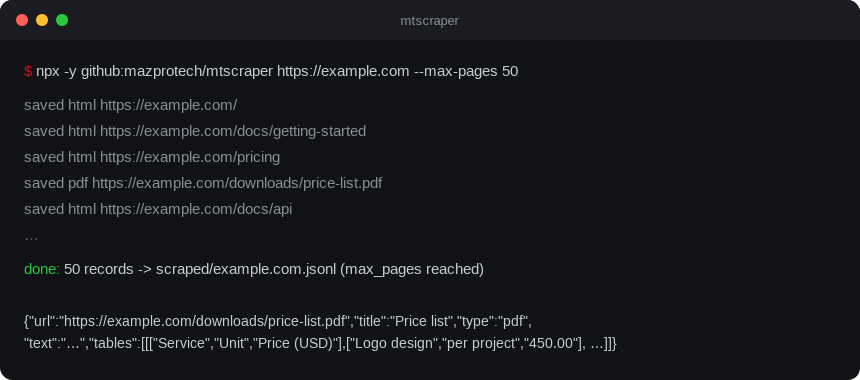
When the run ends it prints a summary line: done: N records -> file (finished), or max_pages reached, plus the number of failed pages if any.
Examples
examples/sample.jsonl: five pages crawled from quotes.toscrape.com, a site built for scraping practice. Reproduce it with:bashnpx -y github:mazprotech/mtscraper https://quotes.toscrape.com/ -n 5 -o examples/sample.jsonlexamples/price-list.pdfandexamples/price-list.jsonl: a small brochure-style PDF with a price table, and the record MTScraper extracts from it, tables included. Both are generated bynode examples/make-price-list.mjs.
Output
One record per page, with the same fields every time:
| Field | Meaning |
|---|---|
url | Page address |
title | Page title (for PDFs: the document title, or the file name) |
view | Label of the clicked tab or button; empty for normal pages |
type | "html" or "pdf" |
text | Main text of the page (boilerplate stripped). Markdown instead of plain text with --format markdown |
tables | PDF tables: a list of tables, each a list of rows (header row first) of strings. Always [] for HTML |
JSONL (default) has one JSON object per line. With -o file.csv the columns are the same, and tables is JSON-encoded inside its cell.
{"url":"https://example.com/docs/intro","title":"Intro","view":"","type":"html","text":"Welcome to the docs...","tables":[]}
{"url":"https://example.com/prices.pdf","title":"Price list","view":"","type":"pdf","text":"Price list\nValid for 2026.\nItem | Price\nWidget | 9.99\nGadget | 24.50","tables":[[["Item","Price"],["Widget","9.99"],["Gadget","24.50"]]]}
PDFs
Linked PDFs on the same domain are downloaded and extracted by default with pdf.js. --no-pdf skips them. They count toward --max-pages.
Table detection is a heuristic: a table is 2 or more consecutive lines whose cells line up. Text from the PDF is always kept, and lines with several cells show them separated by |. With --format markdown, each detected table becomes a Markdown table in text. Wrapped cells and merged headers are not handled as tables, and scanned (image-only) PDFs are not handled at all (no OCR). Check important numbers against the source.
Safety
- Click mode lowers the risk of changing anything, but cannot guarantee it. It blocks every non-GET request (form posts, API writes), skips buttons labelled delete, logout, buy, submit and similar, and skips buttons inside forms. A plain link can still trigger a GET that logs you out or deletes something. Never use click mode on a site where you are logged in.
- Obeys robots.txt. No logins, no CAPTCHA solving, no proxies.
- Prompt-injection aware: the skill tells the agent to treat scraped text as data, never to follow instructions found inside web pages, and to quote URLs and selectors in shell commands.
- Runs on your machine. The only network traffic is requests to the site you scrape, plus
npxfetching MTScraper from GitHub.
Limits
- Default cap is 1000 pages per run; raise it or remove it with
--max-pages --max-pages 1fetches exactly one page. With larger caps, a few pages that were already downloading when the cap was reached may still be fetched, but they are not saved- No logins, CAPTCHA solving or proxy rotation
- Sites with heavy bot protection may still block it
- Click mode doesn't open nested menus (buttons that only appear after another click)
- PDF table detection is a heuristic, see PDFs
- Clicked views (
--click) are always plain text, even with--format markdown: they come from the browser's visible text maplists only what the sitemap or the start page's links show; it does not follow links further
Updating
npx -y github:mazprotech/mtscraper fetches the newest commit of this repo, so the tool itself is always up to date. Nothing to do.
The skill text is a separate copy. Claude Code plugin users refresh it with /plugin marketplace update maztech (or claude plugin update mtscraper@maztech in a terminal); a new plugin copy arrives when the plugin version changes. If you copied the skill folder by hand, pull the repo and copy it again.
Development
git clone https://github.com/mazprotech/mtscraper.git
cd mtscraper
npm install
npm test
npm test serves a few pages locally and checks the page cap, link following, robots.txt, the --follow filter, PDF table extraction, Markdown output, read, map (with and without a sitemap), click mode safety and an MCP round trip of all three tools. The PDF, --js and --click tests need Chromium and are skipped without it. GitHub Actions runs the same suite on every push and pull request.
See CONTRIBUTING.md for how to add a change, CHANGELOG.md for what changed, and SECURITY.md for reporting problems.
Responsible use
Respect each site's terms of service and robots.txt, and don't collect personal data about private individuals.
License
MIT © MazTech