Listed from the MCP registry; nobody on Odel publishes it.
MediaHarvest
Read video transcripts, see every format, and download video or audio from YouTube and more.
Runs on your machine from its package; the steps are below.
What it does
- Reads
- Writes
- High impact
At most: creates or changes data: records, files, settings.
What it costs
FreeOdel charges nothing per call. The publisher may charge for its own service.
Runs locally over stdio
This server isn't hosted — your MCP client launches it from a package registry. Use one of the commands below, or drop the config into your client (e.g. Claude Desktop).
Run
docker run -i --rm ghcr.io/mohanvishe/mediaharvest:1.1.1
MCP client config
{
  "mcpServers": {
    "mediaharvest": {
      "command": "docker",
      "args": [
        "run",
        "-i",
        "--rm",
        "ghcr.io/mohanvishe/mediaharvest:1.1.1"
      ]
    }
  }
}
MediaHarvest
Paste a link, see every format the video offers, and save the video or music in the quality and size you choose. It runs on your own computer, in Docker, and as a small app on Android phones. AI assistants can use it too: its built-in MCP server lets Claude, Cursor or VS Code read what a video says and save files for you.
What it does
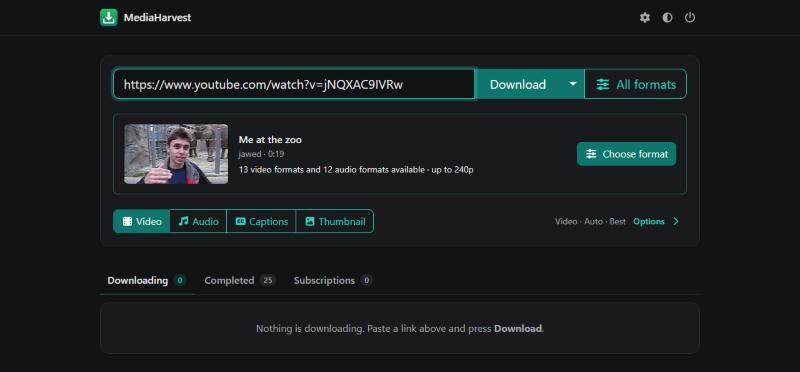
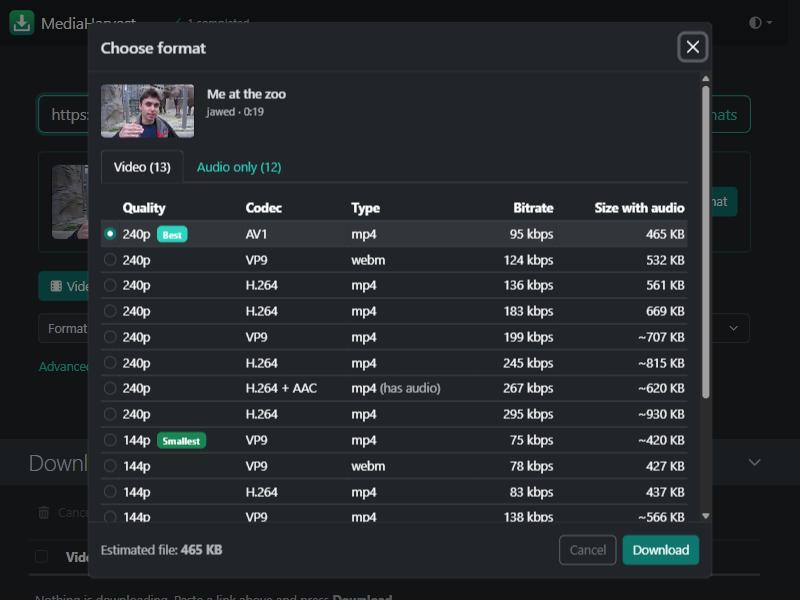
Any link, every option. Paste a link and MediaHarvest shows what it is and how many formats it has. All formats lists every stream with its file size and details (resolution, frame rate, HDR, codec and bitrate), and marks the best and the smallest. Or just press Download with your usual settings. YouTube and more than a thousand other sites work. The downloading is done by yt-dlp.
Works with AI assistants. MediaHarvest is also an
MCP server, the standard way AI assistants
use tools. Connect Claude, Cursor, VS Code or any other MCP client to
http://localhost:8081/mcp, then ask in plain words:
"Summarise this talk", "turn this cooking video into a recipe", "save
this as MP3". The assistant gets the video's transcript as text without
downloading anything, checks which formats a link has, starts downloads and
follows them. Setup for each assistant: docs/MCP.md. It is
listed in the official MCP Registry
as io.github.MohanVishe/mediaharvest.
Music that sounds right and stays small.
- Original keeps the audio exactly as the site serves it: the best quality and usually the smallest file.
- Need it smaller? Opus 128/96/64 kbps, M4A 192/128/96 kbps or MP3 320/192/128 kbps really re-encode to that size. A source already below the size you pick is kept as is.
- The thumbnail is embedded as cover art, with title and artist tags.
- Optional lyrics from LRCLIB, written into the file, plus a
timed
.lrcfile when available.
Video, including very long ones.
- Subtitles: English by default (written ones, or YouTube's automatic ones when
there are none), English plus other languages, or none. They're embedded as
switchable tracks and saved beside the video as
.srt. - No length or size limit. A download that stops (the network drops, or YouTube's video link expires, which it does after about 6 hours) carries on by itself from where it stopped, with a fresh link. So does one cut off by a restart. Each failed try waits longer, from 15 seconds up to 5 minutes. After 10 tries in a row with no progress it shows as failed, and Retry still continues from the partial file.
- Disk space is checked before a download starts, counting the room needed to merge video and audio (about twice the final size).
Smaller videos, if you want them. Pick a Compress level and the video is re-encoded after it downloads, on your own computer, with open-source tools (ffmpeg). You can also compress a finished video later from Completed. Tested on a 138-hour YouTube video (51.3 GB at 720p):
| Level | Size | How it looks | Plays on |
|---|---|---|---|
| Light | 24% smaller | the same to the eye | current phones, computers, browsers |
| Medium | 51% smaller | very close, fine detail a little softer | current phones, computers, browsers |
| Strong | 64% smaller | 480p, for talks and audiobooks | current phones, computers, browsers |
| Any device | about 20% smaller | close to the original | every TV, phone and computer (MP4) |
Add a Resolution limit (1080p down to 360p) to make it smaller still. Subtitle tracks, every sound track and chapters are kept. Any device uses an NVIDIA graphics card when there is one. The other levels take about 4 minutes per hour of video on a 12-core computer. If a video wouldn't get at least 5% smaller, the original is kept. Details: Making videos smaller.
Your folders, your rules. The gear at the top opens Settings: where videos, music and the files of unfinished downloads go, whether removing a download from the list deletes its file, whether compressing keeps the original too, when the Completed list clears itself, and whether parts of cancelled downloads are kept so they can continue later.
And more: whole playlists and channels, subscriptions that fetch new uploads, clips by start and end time, sponsor-segment removal, splitting by chapters, captions or thumbnails on their own.
Guides
| Guide | For |
|---|---|
| Features | Every option on the page, explained simply, with which to pick |
| AI assistants (MCP) | Connect Claude, Cursor or VS Code, and what each tool does |
| How it works | What happens from link to file, how compression works, and which code does what |
| Configuration | Settings for whoever runs it: folders, file names, ports, the graphics card |
Install
You need Docker (on Windows and Mac: Docker Desktop, started). MediaHarvest then opens at http://localhost:8081.
Windows (PowerShell):
irm https://raw.githubusercontent.com/MohanVishe/mediaharvest/main/install.ps1 | iex
Linux, macOS, WSL:
curl -fsSL https://raw.githubusercontent.com/MohanVishe/mediaharvest/main/install.sh | sh
The installer makes one folder (MediaHarvest in your user folder) with the
settings, starts MediaHarvest and saves files to Downloads/MediaHarvest. Run it
again any time to update.
On Windows it also puts a MediaHarvest shortcut on the desktop. The shortcut starts Docker Desktop and MediaHarvest and opens the page. The power button at the top of the page closes MediaHarvest, and Docker Desktop too when nothing else is running in it. Downloads that were still running continue the next time you open it. You can read both scripts before running them: install.ps1, install.sh.
Docker Compose, from a clone of this repository:
cp .env.example .env     # optional: download folder, port
docker compose up -d     # add --build to build from source
docker run:
docker run -d --name mediaharvest --restart unless-stopped \
  -p 127.0.0.1:8081:8081 -v "$HOME/Downloads/MediaHarvest:/downloads" \
  ghcr.io/mohanvishe/mediaharvest:latest
Images are built for amd64 and arm64. latest follows main, and every build
also gets a dated tag to pin.
NVIDIA graphics card? The installers find it and let MediaHarvest use it to compress. With Docker Compose, add docker-compose.gpu.yml (its first lines say how).
Android phone
The app runs everything on the phone itself: no computer, account or server.
It has the essentials of the web page: video in Best, 1080p, 720p or 480p, or
music as M4A or MP3, saved to Download/MediaHarvest.
-
On the phone, open the latest release and download one file:
File For MediaHarvest-…-arm64-v8a-release.apkMost phones. Pick this one if unsure. MediaHarvest-…-armeabi-v7a-release.apkOlder or low-cost phones. MediaHarvest-…-x86_64-release.apkChromebooks and emulators. -
Open the file. Android asks once to allow installs from your browser. Allow it, then tap Install.
-
In YouTube or your browser, tap Share and pick MediaHarvest, or paste a link in the app. Tap Download.
It needs Android 10 or newer. The file is 50 to 60 MB. Installed, the app takes about 110 MB, and about 150 MB more once the first download unpacks Python and FFmpeg. Sites change often: when downloads start failing, tap ⋯ → Update download engine to fetch the newest yt-dlp. To update the app, install the newer file over it. Your list stays.
Update, stop, remove
In the install folder (or the repository):
| Update | docker compose pull && docker compose up -d |
| Stop | The power button on the page (Windows, opened with the shortcut), or docker compose down |
| Remove | docker compose down --rmi all, then delete the folder |
A new image is published after every yt-dlp release, so updating also keeps sites working.
Use it
- Paste a link. A card shows the video and how many formats it has.
- Pick Video, Audio, Captions or Thumbnail. The line beside them says what you'll get, for example Video · MP4 · 1080p. Click Options to change it. Then press Download, or open All formats to choose the exact stream.
- Watch it in the Downloading tab: the line under the picture fills up as it downloads. If the connection drops or the link expires, it waits and carries on by itself.
- Finished files appear in the Completed tab. Click one to save it to the device you're using. They're also in the download folder. Point at a row for its buttons: save, make smaller, and ⋯ for the rest.
Every option is explained in docs/FEATURES.md.
Which audio format? Keep Original unless a player can't open it. For an older car stereo or iPod, pick MP3. For Apple devices, M4A. To save space, pick Opus at 96 kbps: a smaller file that still sounds clean for music. The picker shows the size each choice will have before you download.
As an app: in Chrome or Edge, use Install MediaHarvest in the address bar. It then opens in its own window, like a desktop app.
From your phone or another computer: MediaHarvest has no login, so it only
answers on the computer it runs on. To reach it from other devices, put a
reverse proxy with a login and HTTPS in front of it (for example Caddy or
Nginx; examples),
then publish the port on your network address instead of 127.0.0.1. On Android,
once it's installed as an app over HTTPS, you can share a link straight to it from
the YouTube app.
Every setting (download folders, file names, yt-dlp options, HTTPS) is in docs/CONFIGURATION.md.
How it works
flowchart LR
    A[Paste a link] --> B[Preview and formats]
    B --> C[Choose]
    C --> D[Download with yt-dlp]
    D -->|stopped| D
    D --> E[Join with ffmpeg]
    E --> F[Compress, if chosen]
    F --> G[Completed and your folder]
The web page (ui/) sends your choice to a small Python server (app/). The
server runs yt-dlp to download and
ffmpeg to join, convert and compress, and keeps the page
updated live. AI assistants reach the same server through its MCP endpoint
(app/mcp_server.py). A download that stops starts again from where it was. Every
step, and which file does it, is explained without jargon in
docs/HOW-IT-WORKS.md.
Security and privacy
- This computer only by default, as above.
- No tracking, no accounts. The only outside connections are to the site you download from, and to LRCLIB when you turn lyrics on (it receives the artist, title and length).
- Verified image. Every binary the image downloads is pinned to one version and checked against its SHA-256, and CI scans for known vulnerabilities.
- Cookies are a signed-in session. Upload them only when a video needs them, and use a separate account.
- Keep per-download yt-dlp options off (the default): they can run commands.
- The MCP server has the same checks as the page, cannot reach the yt-dlp options, and refuses requests from web pages, so a site you visit can't use it.
- The Android app asks for internet and notifications only, no storage,
contacts, location or account access. It connects to the sites you download
from, and to GitHub only when you tap Update download engine. Nothing is
backed up or copied to other devices, it reads the clipboard only when you
tap Paste, and it accepts only
http(s)links.
Details and how to report a problem: SECURITY.md.
Develop
Everything builds and runs in Docker, through the dev container. See CONTRIBUTING.md.
Legal
Download only what you have the right to. Some sites' terms forbid downloading except through their own apps. Downloaded music is for personal use.
License
AGPL-3.0. MediaHarvest is based on MeTube (AGPL-3.0). See NOTICE.