Stats Compass
50+ pandas-powered tools for data loading, cleaning, visualization, and ML workflows
One address for any MCP client. You sign in at mcp.statscompass.io once, after adding it.
What it does
- Reads
- Writes
- High impact
At most: only reads or looks up information.
What it costs
FreeOdel charges nothing per call. The publisher may charge for its own service.
Tools
None listed · checked 11 Oct 2026Odel could not list its tools without signing in.




Quick Start
pip install stats-compass-mcp
Claude Desktop
stats-compass-mcp install --client claude
VS Code (GitHub Copilot)
stats-compass-mcp install --client vscode
Claude Code (CLI)
claude mcp add stats-compass -- uvx stats-compass-mcp run
Note: The first connection may fail while
uvxdownloads the package. If this happens, disable and re-enable Stats Compass in your MCP settings — subsequent connections will be instant.
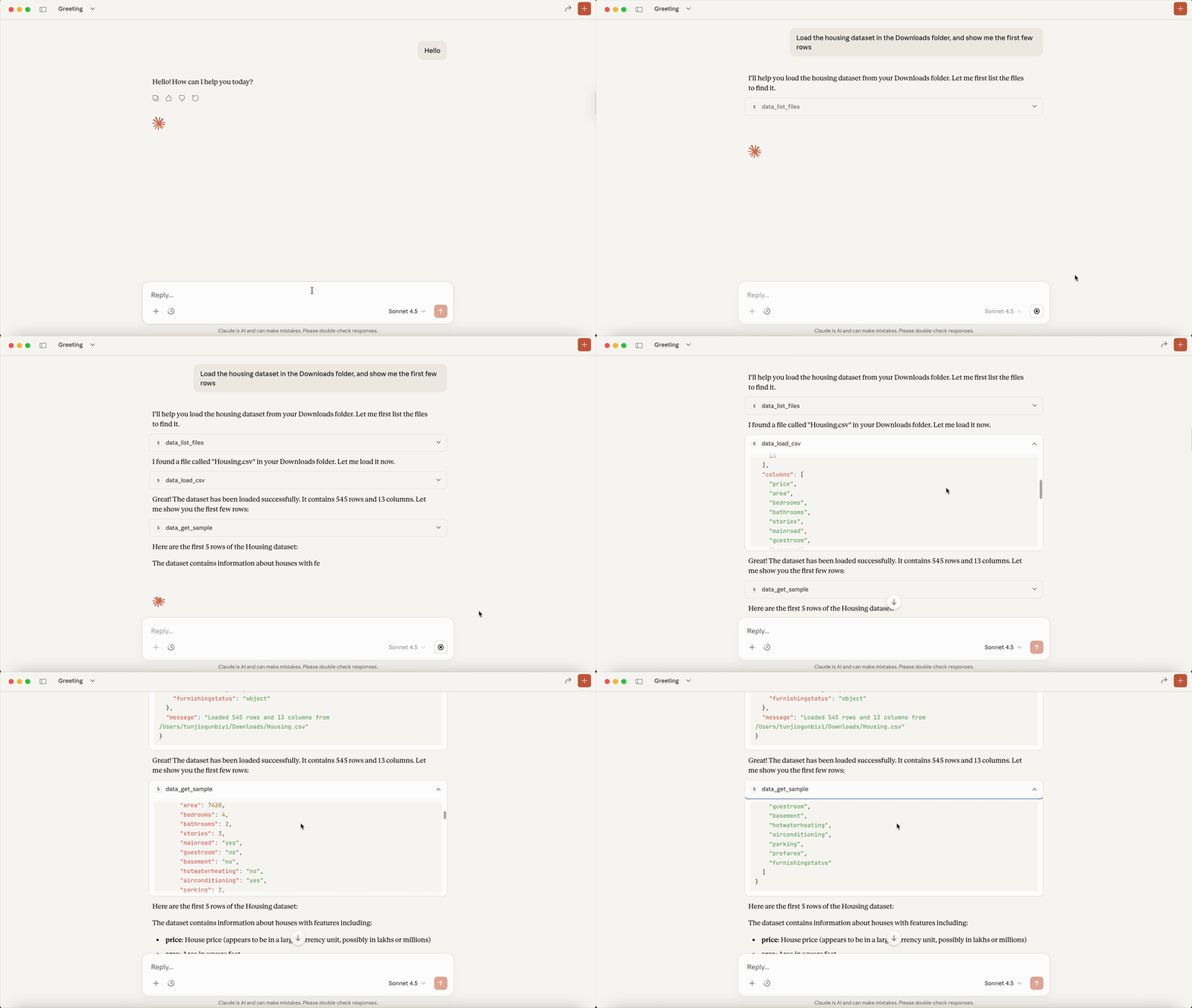
Restart your client and start asking questions about your data.
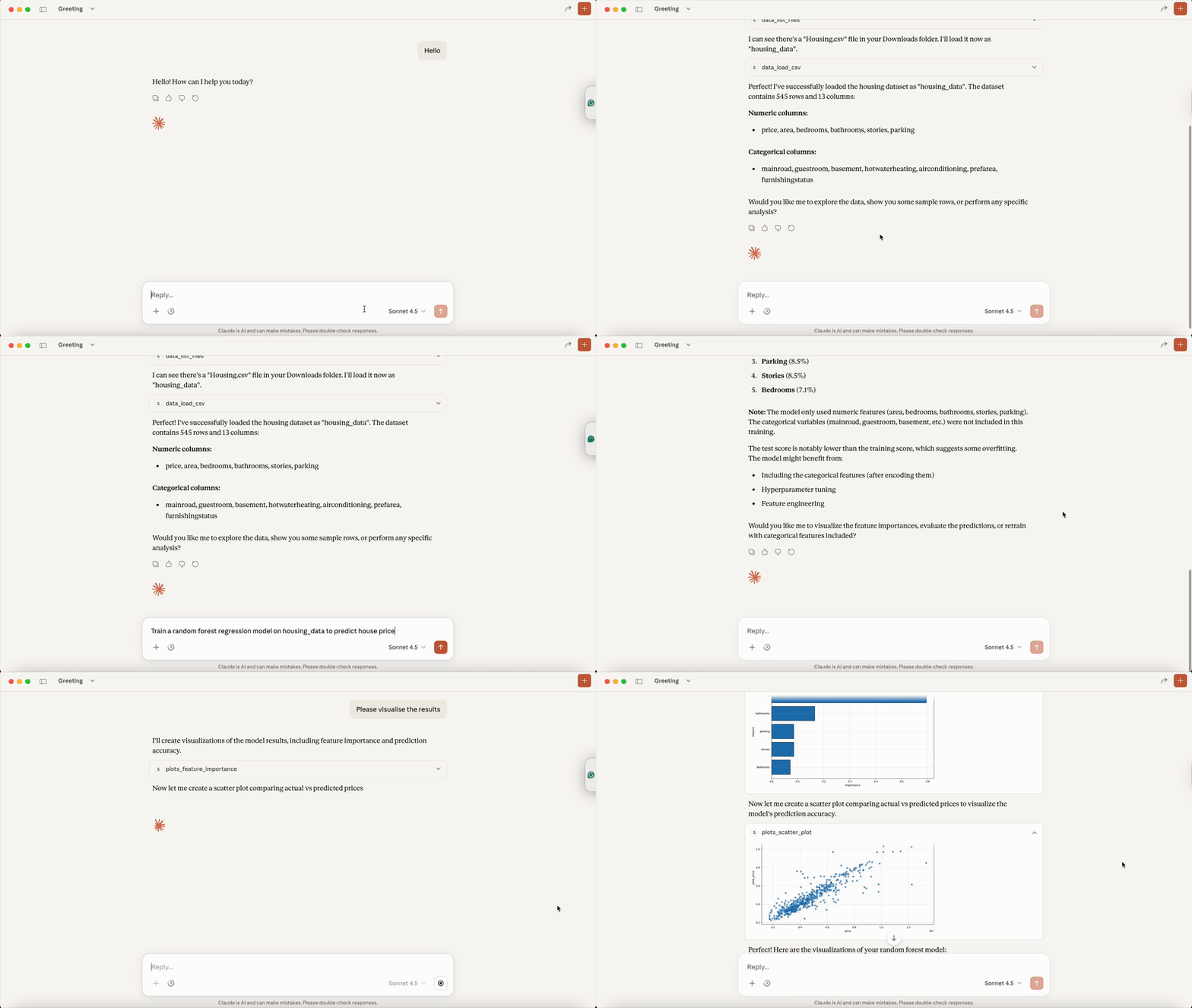
What Can It Do?
| Category | Examples |
|---|---|
| Data Loading | Load CSV/Excel, sample datasets, list DataFrames |
| Cleaning | Drop nulls, impute, dedupe, handle outliers |
| Transforms | Filter, groupby, pivot, encode, add columns |
| EDA | Describe, correlations, hypothesis tests, data quality |
| Visualization | Histograms, scatter, bar, ROC curves, confusion matrix |
| ML Workflows | Classification, regression, time series forecasting |
Run stats-compass-mcp list-tools to see all available tools.
How to Prompt
Start your message with "Use stats compass to..." — this tells the AI to use the Stats Compass tools instead of trying to write code or use other methods.
Use stats compass to load ~/Downloads/sales.csv and run EDA on it
Use stats compass to find my CSV files in Downloads
Use stats compass to clean the dataset and handle missing values
Use stats compass to create a histogram of the price column
Use stats compass to test if there's a significant difference in scores between group A and B
Use stats compass to train a classification model to predict churn
Tip: Without this prefix, some AI clients may try to write Python code or use shell commands instead of the Stats Compass tools — especially for tasks like finding files on your machine.
Loading Files
Local mode: Start with "Use stats compass to load..." and provide the file path or folder.
Use stats compass to load the CSV at ~/Downloads/sales.csv
Use stats compass to find my data files in ~/Documents
Remote/HTTP mode: Use the upload feature (see below).
Remote Server Mode
For Docker deployments or multi-client setups:
stats-compass-mcp serve --port 8000
serve binds 127.0.0.1 by default. To accept connections from other machines,
set a bearer token of at least 16 characters and bind a public address:
export STATS_COMPASS_AUTH_TOKEN="$(openssl rand -hex 24)"
export STATS_COMPASS_SECRET_KEY="$(openssl rand -hex 32)"   # encrypts upload/download links
stats-compass-mcp serve --host 0.0.0.0 --port 8000
Clients send Authorization: Bearer <token>. Without a token the server refuses
a public address; --no-auth overrides that, with a warning, for a network you
trust. Each session reads only its own uploads and writes only its own exports.
Upload and download links carry an encrypted token that expires (downloads after
24 hours, STATS_COMPASS_DOWNLOAD_TTL_SECONDS), never the session id.
File Uploads
When running remotely, users can upload files via browser:
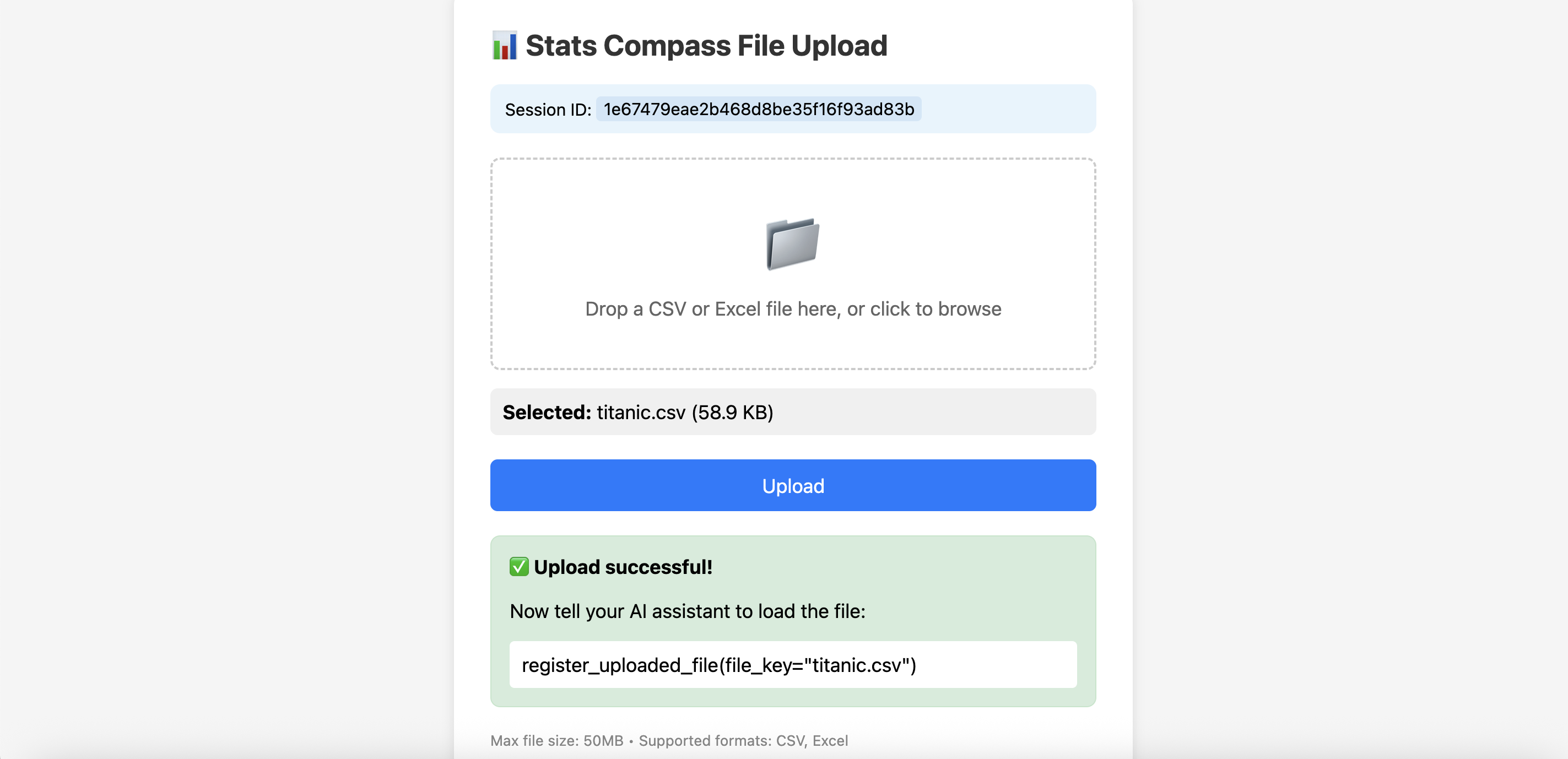
You: I want to upload a file
AI: Open this link to upload: http://localhost:8000/upload?session_id=abc123

[Upload in browser]

You: I uploaded sales.csv
AI: ✅ Loaded sales.csv (1,000 rows × 8 columns)
Downloading Results
Export DataFrames, plots, and trained models:
You: Save the cleaned data as a CSV
AI: ✅ Saved. Download: http://localhost:8000/exports/.../cleaned_data.csv
Connect Clients to Remote Server
VS Code (native HTTP support):
{
  "servers": {
    "stats-compass": { "url": "http://localhost:8000/mcp" }
  }
}
Claude Desktop (via mcp-proxy):
{
  "mcpServers": {
    "stats-compass": {
      "command": "uvx",
      "args": ["mcp-proxy", "--transport", "streamablehttp", "http://localhost:8000/mcp"]
    }
  }
}
Docker
docker run -p 8000:8000 -e STATS_COMPASS_SERVER_URL=https://your-domain.com stats-compass-mcp
Client Compatibility
| Client | Status |
|---|---|
| Claude Desktop | ✅ Recommended |
| VS Code Copilot | ✅ Supported |
| Claude Code CLI | ✅ Supported |
| Cursor | ✅ Supported |
| GPT / Gemini | ⚠️ Partial |
Configuration
| Variable | Default | Description |
|---|---|---|
STATS_COMPASS_PORT | 8000 | Server port |
STATS_COMPASS_SERVER_URL | http://localhost:8000 | Base URL for upload/download links |
STATS_COMPASS_MAX_UPLOAD_MB | 50 | Max upload size |
Development
See CONTRIBUTING.md for development setup.
🙏 Credits
Landing page template by ArtleSa (u/ArtleSa)
License
MIT