jh-presentation
AI-built HTML presentations: single-file decks with live diagrams, charts, editing and PDF export.
Runs on your machine from its package; the steps are below.
What it does
- Reads
- Writes
- High impact
Not assessed yet.
What it costs
FreeOdel charges nothing per call. The publisher may charge for its own service.
Runs locally over stdio
This server isn't hosted — your MCP client launches it from a package registry. Use one of the commands below, or drop the config into your client (e.g. Claude Desktop).
Run
npx -y jh-presentation
MCP client config
{
  "mcpServers": {
    "jh-presentation": {
      "command": "npx",
      "args": [
        "-y",
        "jh-presentation"
      ]
    }
  }
}

Let AI build your presentations as real web pages. jh-presentation is an MCP server plus a small, dependency-free slide engine. Your AI client (Claude Desktop, Claude Code, VS Code, …) writes the content; jh-presentation turns it into a single self-contained HTML file with live diagrams, step-by-step animation, in-place editing and PDF export — and lets the AI check its own work with layout audits and screenshots.
No API key is needed: the thinking is done by the AI client you already use.
Why HTML instead of PowerPoint?
AI models are far better at writing HTML/CSS/JS than at driving PPTX. That makes things possible that slide tools struggle with:
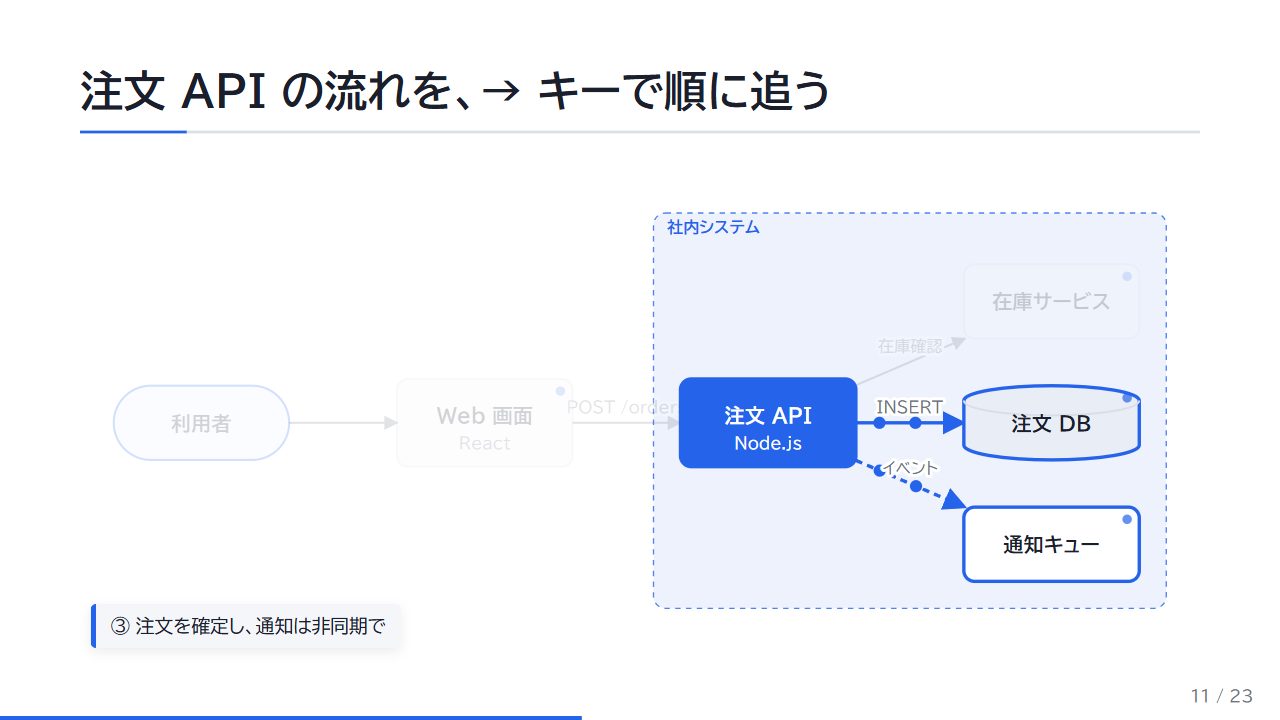
- Diagrams that build up step by step, with data flowing along the arrows
- A system overview you can click to zoom into, revealing the parts inside
- ER diagrams and sequence diagrams generated from data
- Charts that animate, code that highlights line by line, demos that actually run
- Everything in one HTML file that works offline — mail it, put it on a share, present from a browser
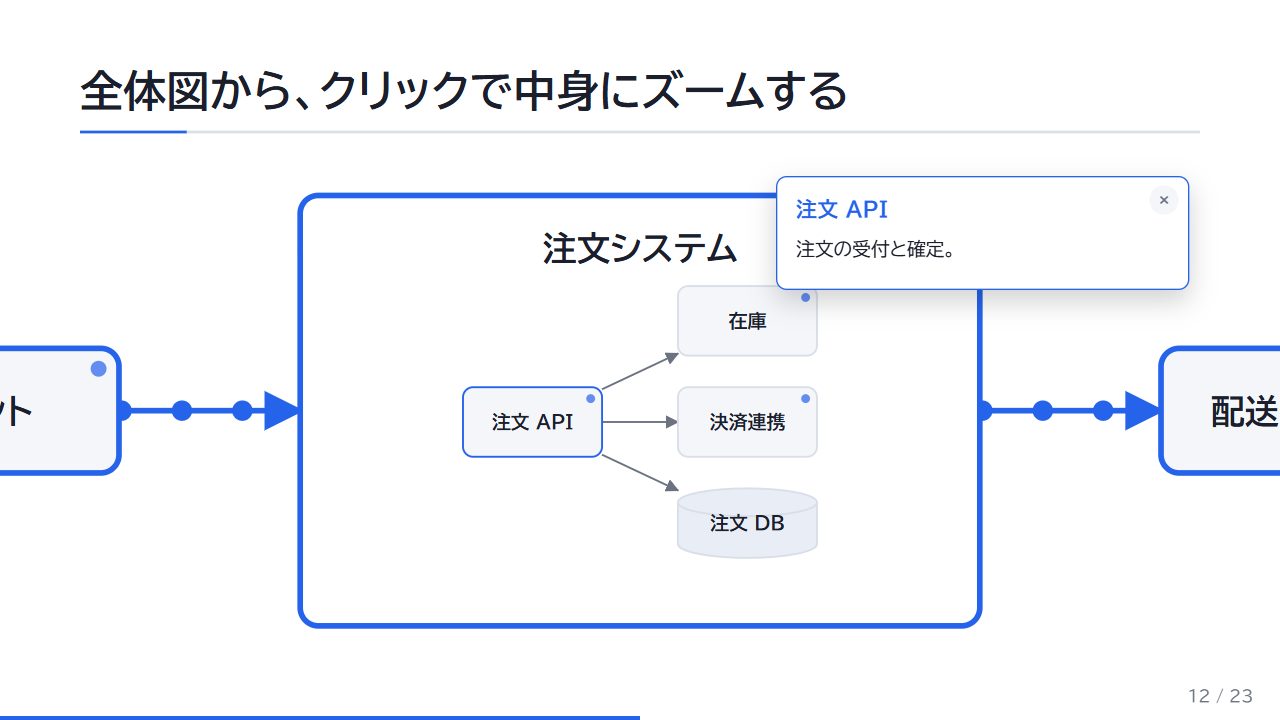 | 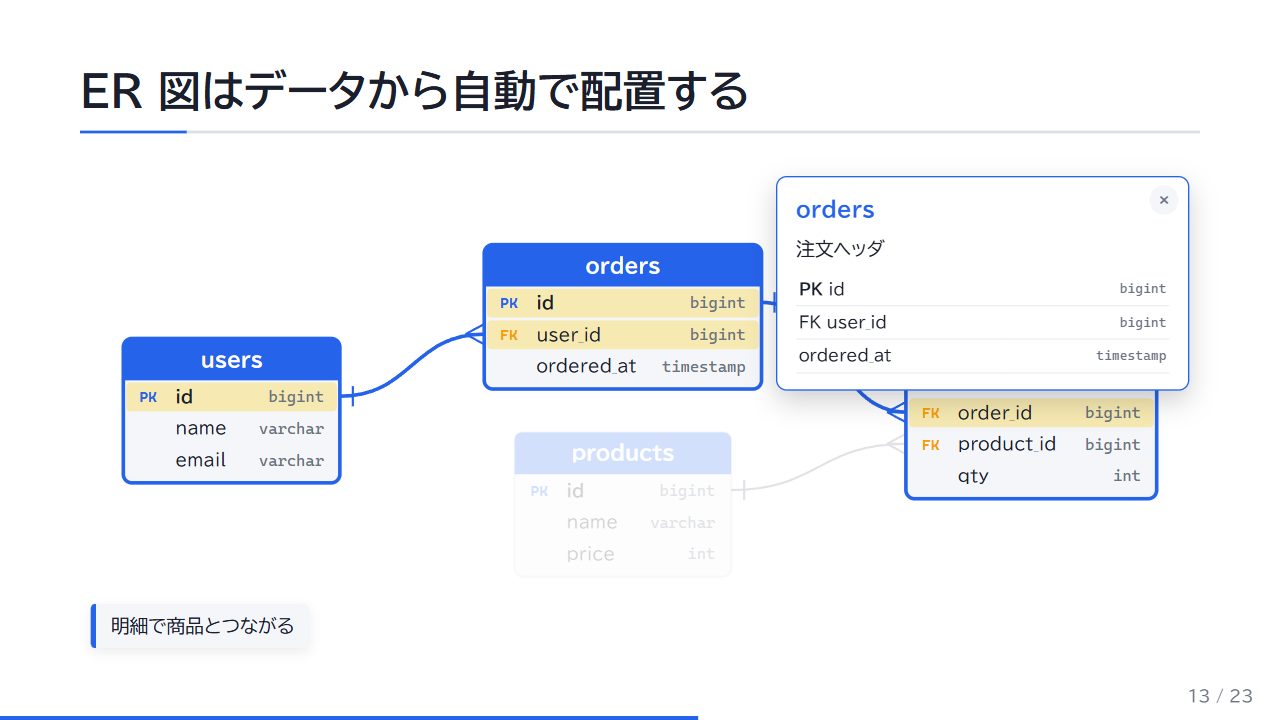 |
| Click a box to zoom into its internals | Click a table to highlight its relations and join keys |
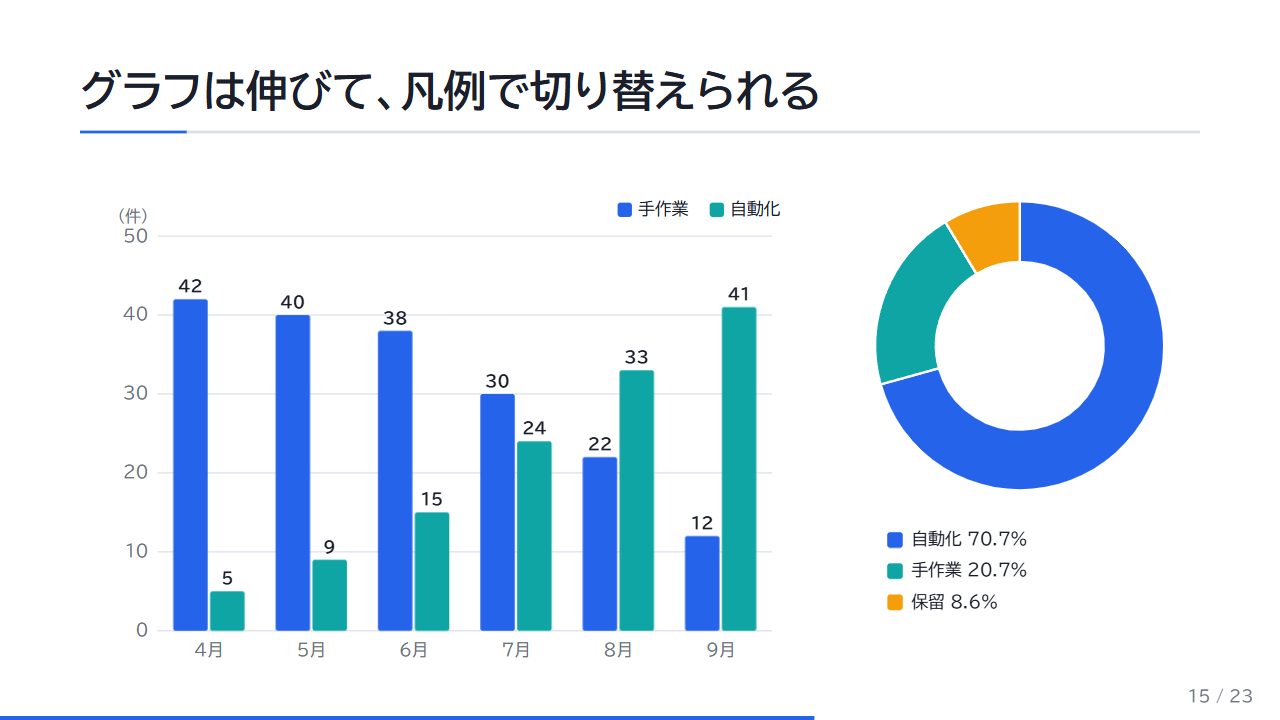 | 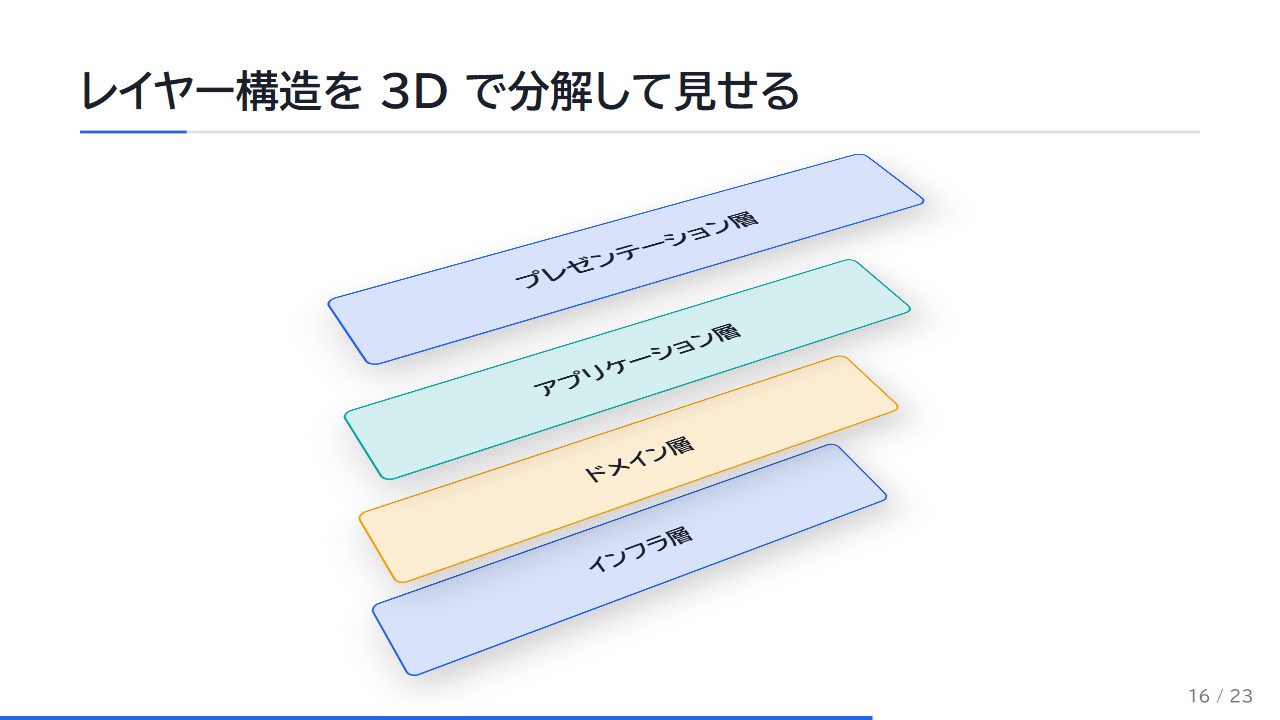 |
| Charts with grow animation and legend toggles | Layered architecture exploded in 3D |
Features
- Single-file decks — engine, theme, brand and images are embedded. No build step, no CDN, works from
file:// - Diagram components (data in, motion out) — flow diagrams / zoom maps, ER diagrams, sequence diagrams, charts (bar, line, pie, donut), 3D layer stacks, before/after sliders, terminal replays. The AI writes JSON; layout, animation, clicks and the static PDF view are handled for you
- Steps — arrow keys reveal content one step at a time; components hook into the same steps
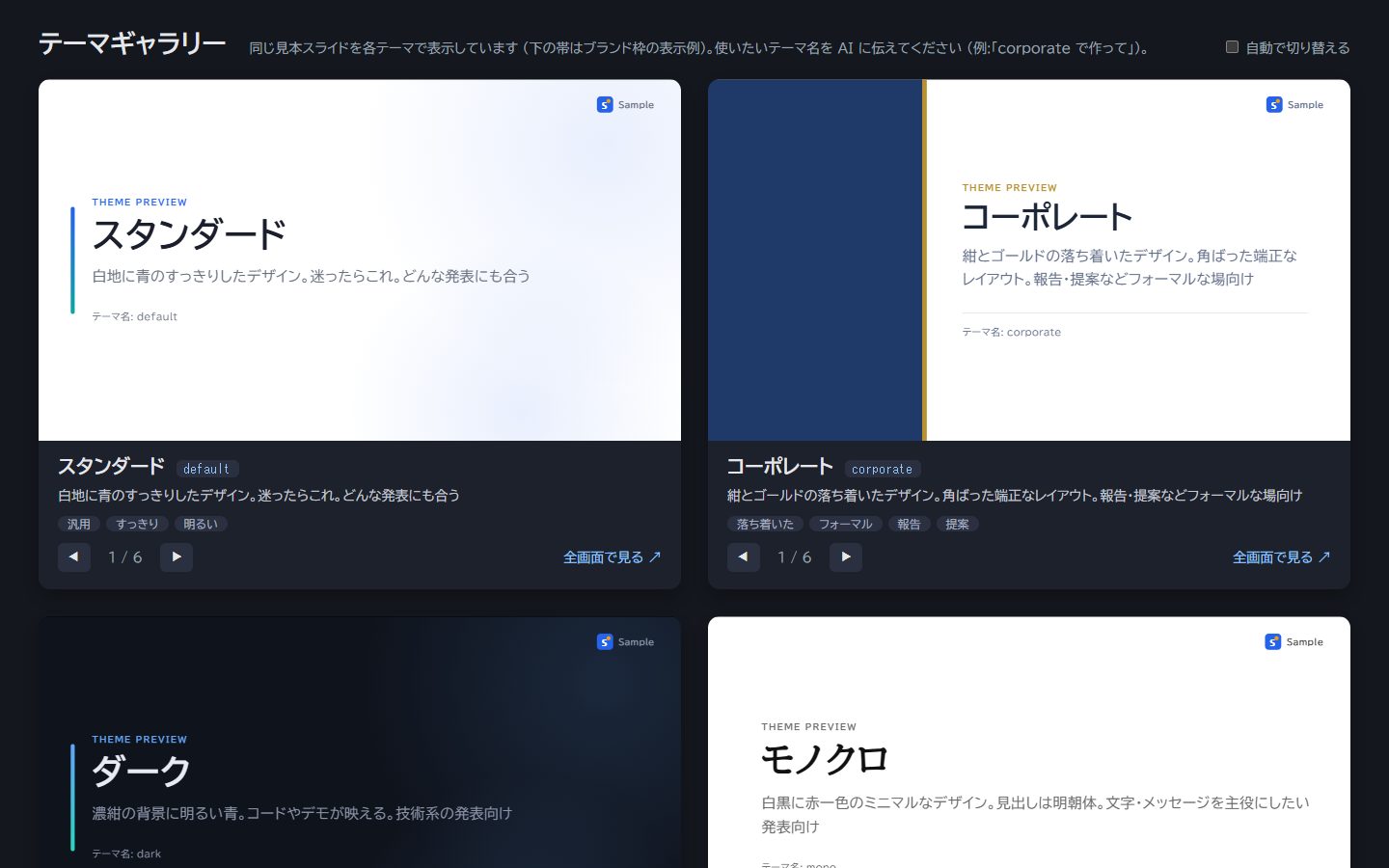
- Themes — five built-in themes (default, dark, corporate, pop, mono), a live theme gallery, and AI-generated custom themes
- Branding — your name, logo and a label (e.g. DRAFT) in a header/footer band
- Self-checking AI —
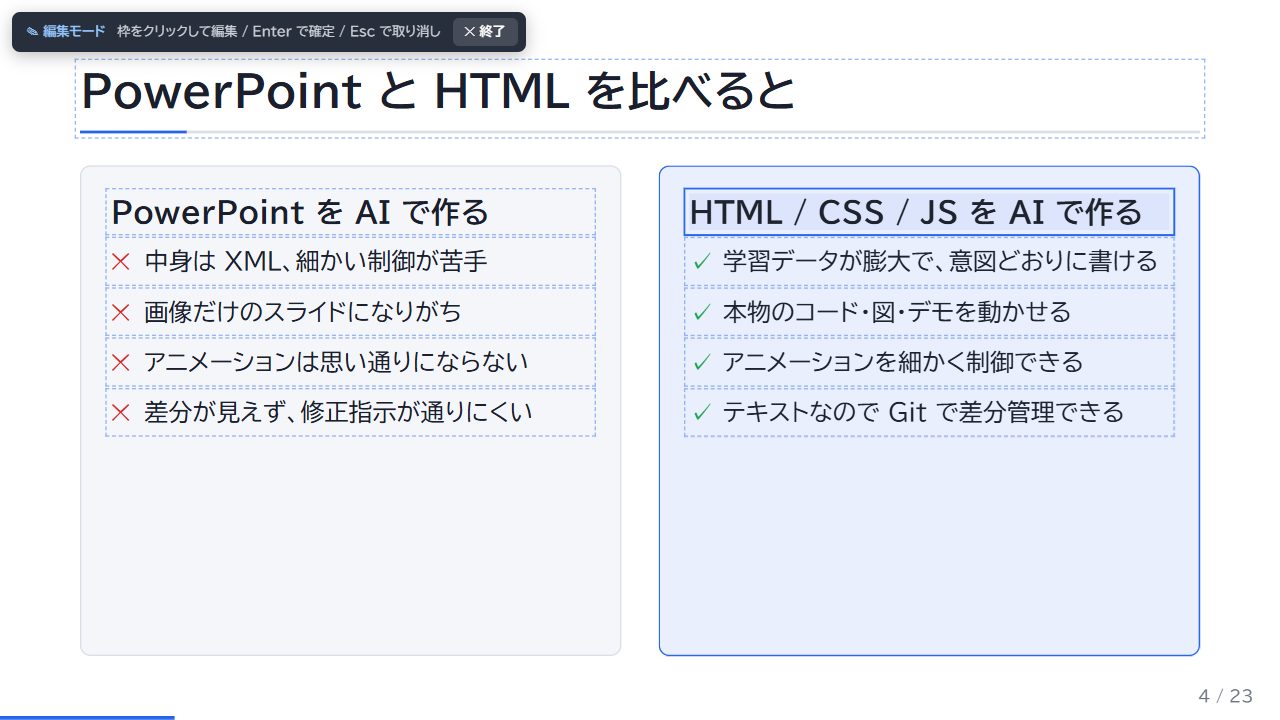
audit_deckdetects overflow, clipping, overlapping text, low contrast, missing images and external requests;screenshot_deckreturns slide images so the AI can look and fix - Edit without AI — double-click any text box to edit it in place, press Ctrl+S to save straight back to the file (only the edited text is replaced)
- Presenting — presenter view with notes, next slide and timer; overview; blackout; fullscreen window
- Safe saving — atomic writes, revision checks against concurrent edits, 20-version history with restore
- Request templates — tech talk, lightning talk, progress report, tech proposal (as MCP prompts)
Requirements
- Node.js 20 or later
- Google Chrome or Microsoft Edge (used for audits, screenshots and PDF export; set
CHROME_PATHif it is installed somewhere unusual)
Quick start
Claude Desktop
Open Settings → Developer → Edit Config and add:
{
  "mcpServers": {
    "jh-presentation": {
      "command": "npx",
      "args": ["-y", "jh-presentation"],
      "env": { "JH_PRESENTATION_HOME": "C:/Users/you/Documents/decks" }
    }
  }
}
Quit Claude Desktop from the tray icon and start it again. Then ask, for example:
Make a 15-minute deck explaining Git branching strategies, with diagrams and step-by-step reveals.
Claude Code
claude mcp add jh-presentation -e JH_PRESENTATION_HOME=~/decks -- npx -y jh-presentation
VS Code (.vscode/mcp.json)
{
  "servers": {
    "jh-presentation": {
      "command": "npx",
      "args": ["-y", "jh-presentation"],
      "env": { "JH_PRESENTATION_HOME": "${userHome}/Documents/decks" }
    }
  }
}
Where decks go, decided per call — no need to change the MCP settings to save somewhere else:
- the
dira tool is given ("make it in this project's slides folder"), - the
decks/folder of the AI client's current workspace (Claude Code, VS Code and other clients that report MCP roots), - the workspace:
JH_PRESENTATION_HOME(default~/jh-presentation) or--workspace <dir>, for clients without one (Claude Desktop).
The workspace also holds the brand, custom themes and request templates shared by every project; a project's own brand/ or themes/ folder wins.
--decks-dir <name> (JH_PRESENTATION_DECKS_DIR) renames decks/, and --no-roots (JH_PRESENTATION_ROOTS=off) always saves to the workspace.
What the AI can do (MCP tools)
| Area | Tools |
|---|---|
| Guide | get_guide — authoring rules, component catalog, workflow |
| Themes | list_themes, open_theme_gallery, preview_themes, get_theme_guide, create_theme |
| Templates | list_templates (also exposed as MCP prompts) |
| Decks | list_decks, create_deck, read_deck, write_deck, replace_slide, add_asset, upgrade_deck, list_history, restore_history, repair_deck |
| Checking | audit_deck, screenshot_deck |
| Output | open_deck (optionally fullscreen), export_deck (PDF) |
Presenting
| Key | Action |
|---|---|
| → / Space / Enter | Next (including steps) |
| ← | Previous |
| S | Presenter view (notes, next slide, timer) |
| E / double-click a box | Edit text in place (Ctrl+S saves, Esc or "✕" exits) |
| O | Overview |
| F | Fullscreen |
| B | Blackout |
| number + Enter | Jump to slide |
| ? | Help |
Do not use the browser's "Save page as…" — it saves the rendered page and breaks the deck. Use Ctrl+S inside the deck. If it happens anyway,
repair_deckrestores it.
Working in this repository
npm install
npm run dev        # http://localhost:4000 — deck list, theme gallery, feature sample
npm test
| Command | Description |
|---|---|
npm run dev | Preview server with live reload (local only, 127.0.0.1) |
npm run new -- <name> "Title" [--theme <t>] [--brand footer] [--fullscreen] | New deck in decks/ |
npm run upgrade [-- <name>] | Re-embed the latest engine, theme and brand |
npm run pdf -- <name> | Export a PDF to dist/ |
npm run repair -- <name> | Repair a deck broken by the browser's "Save page as" |
npm run gallery | Build the theme gallery |
npm run mcp | Start the MCP server (workspace .workspace/) |
The feature sample is examples/sample.html. Rules for AI authors live in CLAUDE.md (Claude Code), AGENTS.md (Codex, Cursor and other agents) and docs/authoring-guide.md; the edit protocol for host applications is in docs/edit-protocol.md.
The authoring guide, templates and tool descriptions are currently written in Japanese. LLMs follow them fine whatever language you chat in, and decks can be in any language.
Security
Everything runs on your machine: no telemetry, no outbound requests, the preview/save server binds to 127.0.0.1 only, and files are written only inside the workspace. Decks contain JavaScript written by your AI client and run in your browser. See SECURITY.md.
License
MIT. Every deck carries the MIT notice for the embedded engine, components and themes in its generated section, so decks can be shared as-is. The content of your slides is yours.
日本語
AI にプレゼンを「Web ページ」として作らせる MCP サーバーです。Claude Desktop・Claude Code・VS Code などの AI クライアントが内容を書き、jh-presentation が1 ファイルの HTML デッキにします。動く図・段階表示・その場での文字編集・PDF 出力に対応し、AI は検査とスクリーンショットで自分の出来を確認して直せます。API キーは不要です (考えるのは普段使っている AI クライアント)。
- 動く図の部品: 関連図・ズームマップ・ER 図・シーケンス図・グラフ・3D 分解図・ビフォー・アフター・ターミナル再生 (AI は JSON を書くだけ)
- テーマ 5 種 + 自作テーマ、名前・ロゴの帯、依頼文テンプレート (技術解説・LT・進捗報告・技術提案)
- 枠をダブルクリックして文字を直し、Ctrl+S で元のファイルに保存 (ブラウザの「名前を付けて保存」は使わない)
- 発表者ビュー・一覧・全画面、保存履歴と復元、壊れたデッキの復旧
使い方 (Claude Desktop)
設定 → 開発者 → 「構成を編集」で次を追加し、タスクトレイから終了して再起動します。
{
  "mcpServers": {
    "jh-presentation": {
      "command": "npx",
      "args": ["-y", "jh-presentation"],
      "env": { "JH_PRESENTATION_HOME": "C:/Users/you/Documents/decks" }
    }
  }
}
あとは「jh-presentation で、Git のブランチ戦略を 15 分で説明するプレゼン資料を、図とステップ表示を多めに作って」のように頼むだけです。 依頼の書き方 (道具の名前を書くべきクライアント・依頼文に入れるとよいこと・直し方) は docs/usage.md にまとめています。 詳しい設定 (Claude Code・VS Code) は mcp/README.md を参照してください。 このリポジトリで AI に作業させる場合のルールは CLAUDE.md (Claude Code) / AGENTS.md (Codex・Cursor など)、スライドの書き方は docs/authoring-guide.md にあります。
ライセンスは MIT です。デッキには埋め込んだエンジン・部品・テーマの MIT 表記が自動で入るので、そのまま配布できます。スライドの内容は作成者のものです。