
mapnetwork-mcp
MCP server for MapNetwork — generate styled map images (PNG / SVG) for any location on Earth, directly from Claude or any MCP-compatible AI assistant.
Features
- Generate maps from a place name, a list of markers, or a walking/driving route
- 11 color themes (white, darkBlue, darkGreen, popArt, lightBlue, lightGreen, beige, magenta, gray, black, brown)
- PNG or SVG output, saved to your Downloads folder
- Slow-to-generate maps are handled automatically —
generate_*tools poll internally, anddownload_mapcan pick up a job later if needed - Re-download a previously generated map in a different theme or format without regenerating
- Open any generated map in the MapNetwork web editor for manual customization
Example Usage
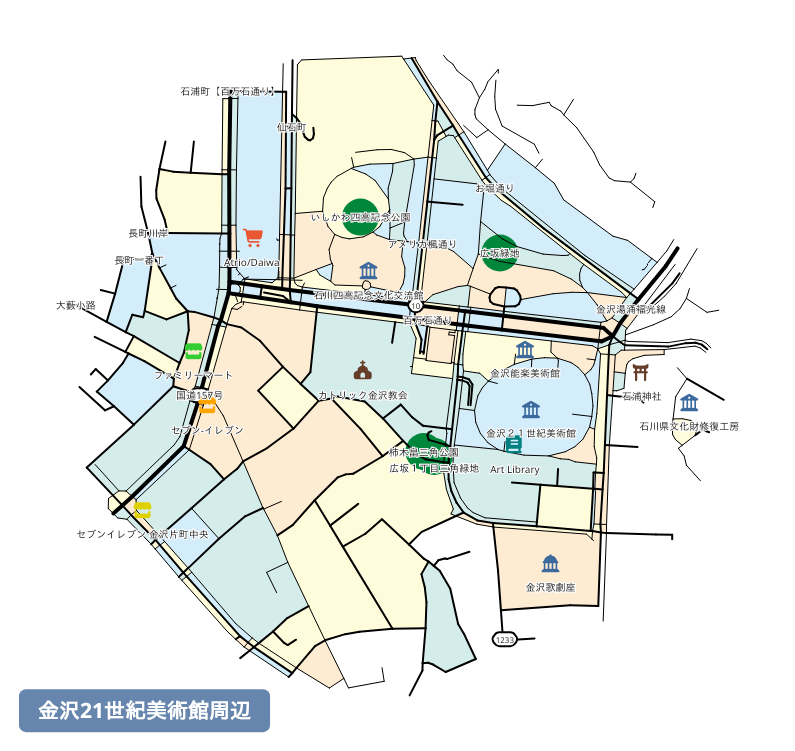
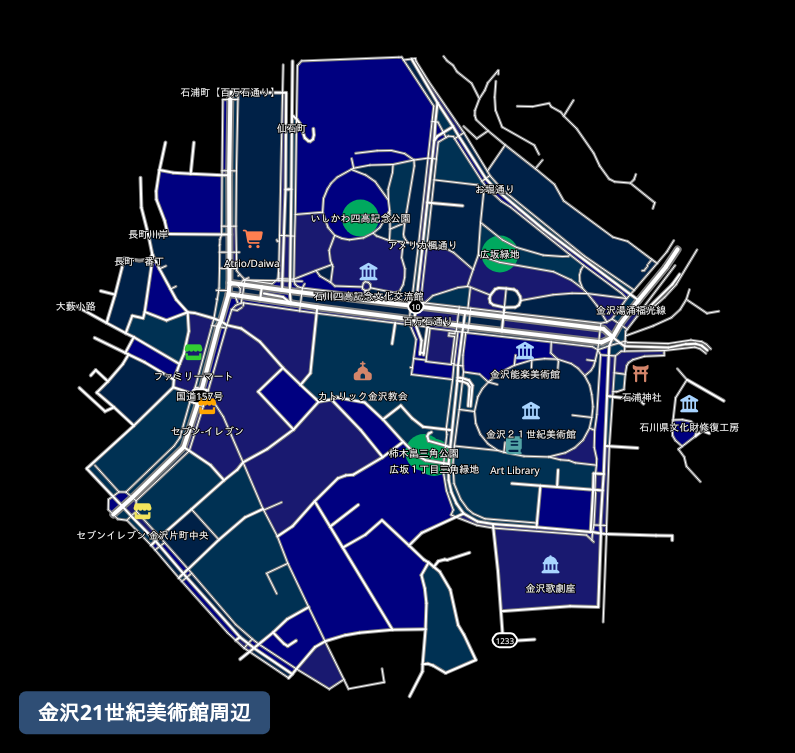
Prompt: "Generate a map around the 21st Century Museum of Contemporary Art, Kanazawa."
Here is the map it generated:
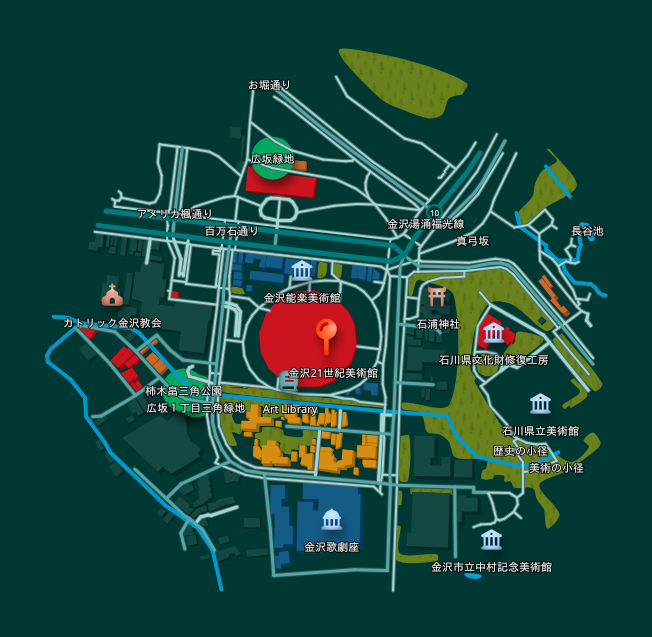
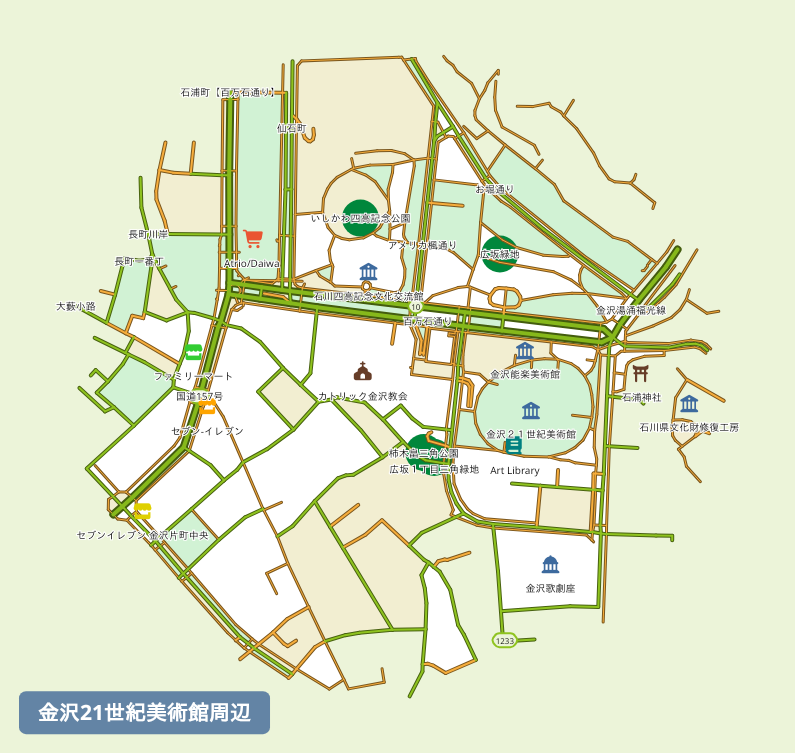
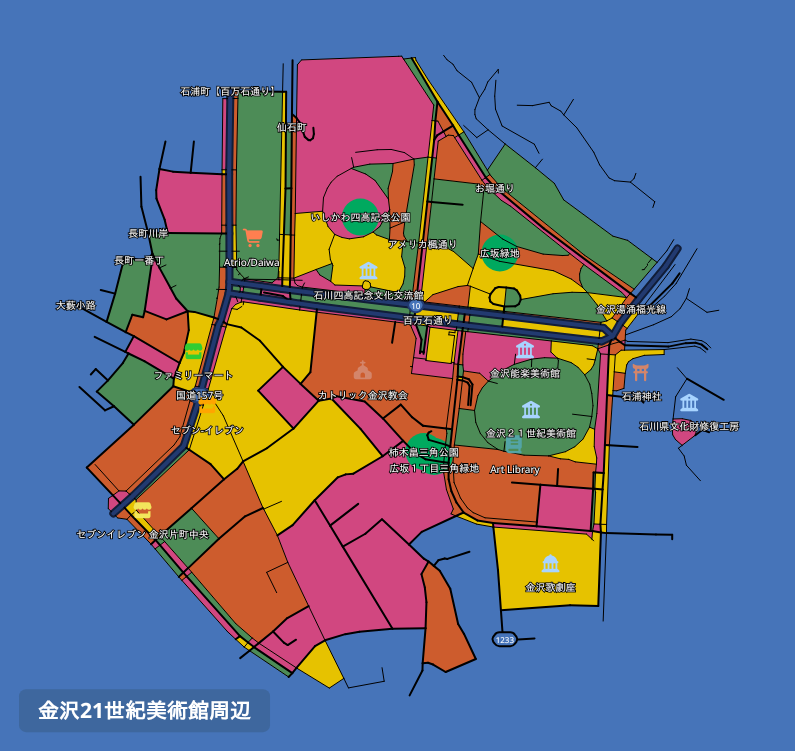
Prompt: "Redownload that map in a few different color themes."
The same map, redownloaded in different color themes:
| Dark Green Style | Light Green Style | Pop Art Style | Black Style |
|---|---|---|---|
 |  |  |  |
Installation
Claude Desktop
Using the .mcpb extension file (recommended)
The easiest way to install is via the .mcpb extension file available on the Releases page.
- Download the latest
.mcpbfile from the Releases page. - Open Claude Desktop and go to Settings → Extensions.
- Drag the downloaded
.mcpbfile onto the Extensions panel to install.
Manual configuration
Add the following to your claude_desktop_config.json:
{
  "mcpServers": {
    "mapnetwork": {
      "command": "uvx",
      "args": ["mapnetwork-mcp"],
      "alwaysAllow": ["generate_map", "generate_markers_map", "generate_route_map", "download_map", "redownload_map"]
    }
  }
}
If you use pip instead of uvx:
pip install mapnetwork-mcp
{
  "mcpServers": {
    "mapnetwork": {
      "command": "mapnetwork-mcp"
    }
  }
}
Remote MCP Server
You can also use MapNetwork through MCP without installing anything, via the remote MCP server:
https://mapnetwork.app/mcp
In Claude, go to Settings → Connectors → Add custom connector and register the URL above.
The key difference from this local server is how you receive the generated map image. Since mapnetwork-mcp runs on your PC, it can save the generated image directly to your Downloads folder. The remote server can't do this — most AI assistants are unable to properly display or save tool-result images within the chat — so instead of image data, it returns a text response with a download link and a link to edit the map at mapnetwork.app. Open the links in a browser to view or save the image, or to edit the map.
Tools
| Tool | Description |
|---|---|
generate_map | Generate a styled map image centered on a single place and save it to Downloads |
generate_markers_map | Generate a map with multiple pinned locations |
generate_route_map | Compute a walking or driving route between two places and generate a map with it overlaid |
download_map | Check a pending generate_* job and download it once ready |
redownload_map | Re-download a previously generated map in a different color theme or format — instant, no regeneration |
Example prompts
Japanese
- "東京タワー周辺の地図を作って"
- "上野駅が最寄りの美術館・博物館を地図にして"
- "赤坂駅から赤坂氷川神社までの徒歩ルートを地図にして"
- "その地図を darkBlue テーマでSVG画像で出し直して"
- "生成した地図の編集用リンクをください"
English
- "Generate a map around Tokyo Tower"
- "Show a map of the museums near Ueno Station"
- "Show a walking route from Akasaka Station to Akasaka Hikawa Shrine on a map"
- "Redownload that map as an SVG in the darkBlue theme"
- "Give me a link to edit the generated map"
Links
- Web UI: https://mapnetwork.app
- Web UI Manual: https://mapnetwork.app/manual
- API docs: https://mapnetwork.app/openapi.json
mcp-name: io.github.toruproject/mapnetwork-mcp