



wago-plc-mcp-server
This MCP server connects Claude and other AI assistants to WAGO PLCs. You ask a question in plain English. The assistant gets the answer from the PLC. You do not need scripts or parameter IDs.
Quick start
You need Claude Desktop and a PLC that your computer can reach on the network.
- Download
wago-plc-mcp-server-<version>.mcpbfrom the latest release. - In Claude Desktop, go to Settings → Extensions.
- Drag the
.mcpbfile onto the window. - In the form, enter the PLC IP address and the WBM password. Then save the form.
- Ask Claude: "List my PLCs".
If the installer does not start on Windows, or if you have many PLCs, see Claude Desktop and Claude Code.
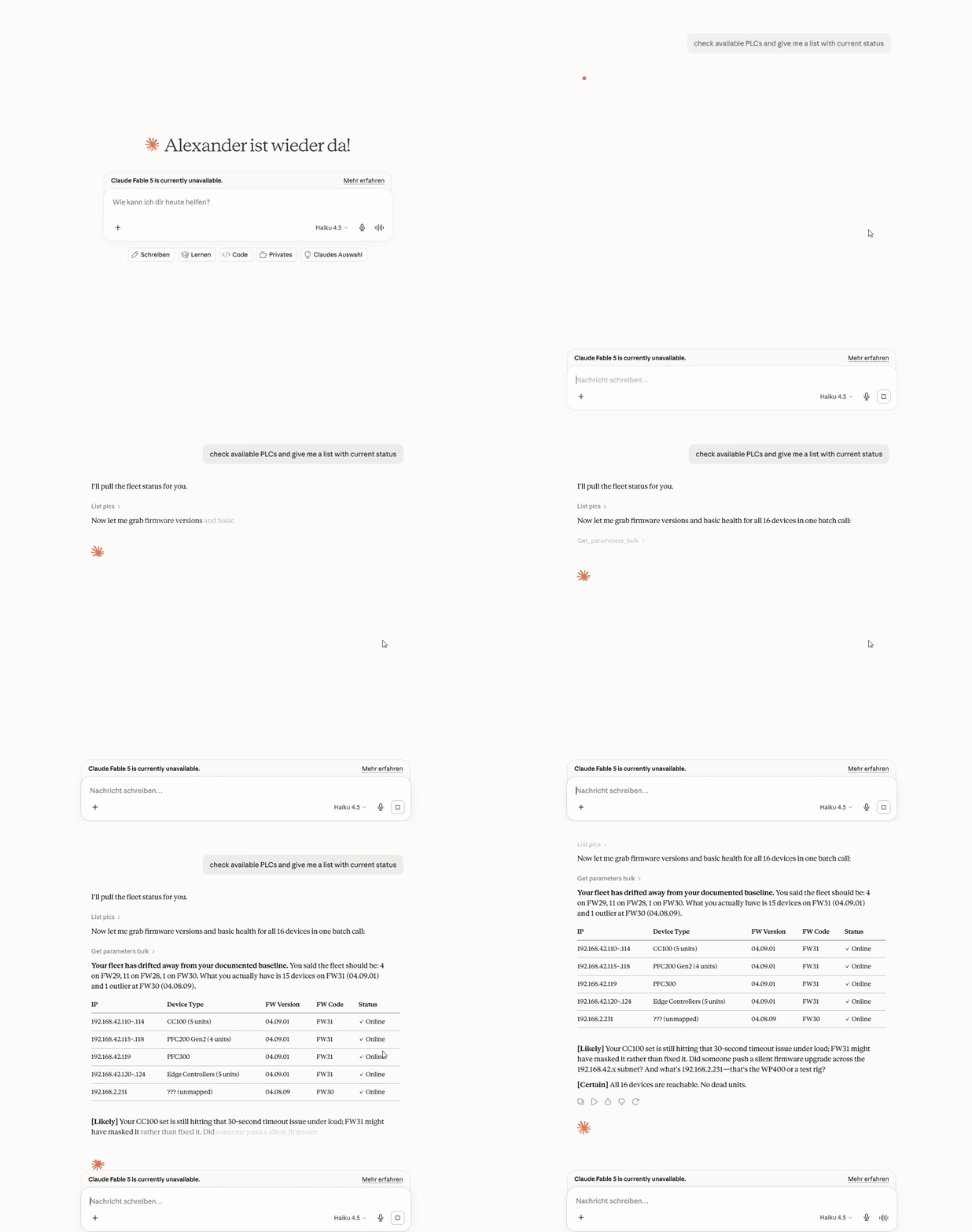
Try these questions
What firmware is running on 192.168.1.10?
Check the NTP status on all PLCs.
Show the diagnostic LED states on all PLCs.
For more examples and screen recordings, see Example questions.
Safe by default
- The server only reads. It refuses all writes until you select Allow writes and method calls.
- The server refuses reboot, factory reset, and firmware methods. An administrator can allow one exact method.
- In GitOps mode, the server refuses file uploads. File uploads do not have a pull-request path yet.
- An audit log records each write, each method call, and each file upload.
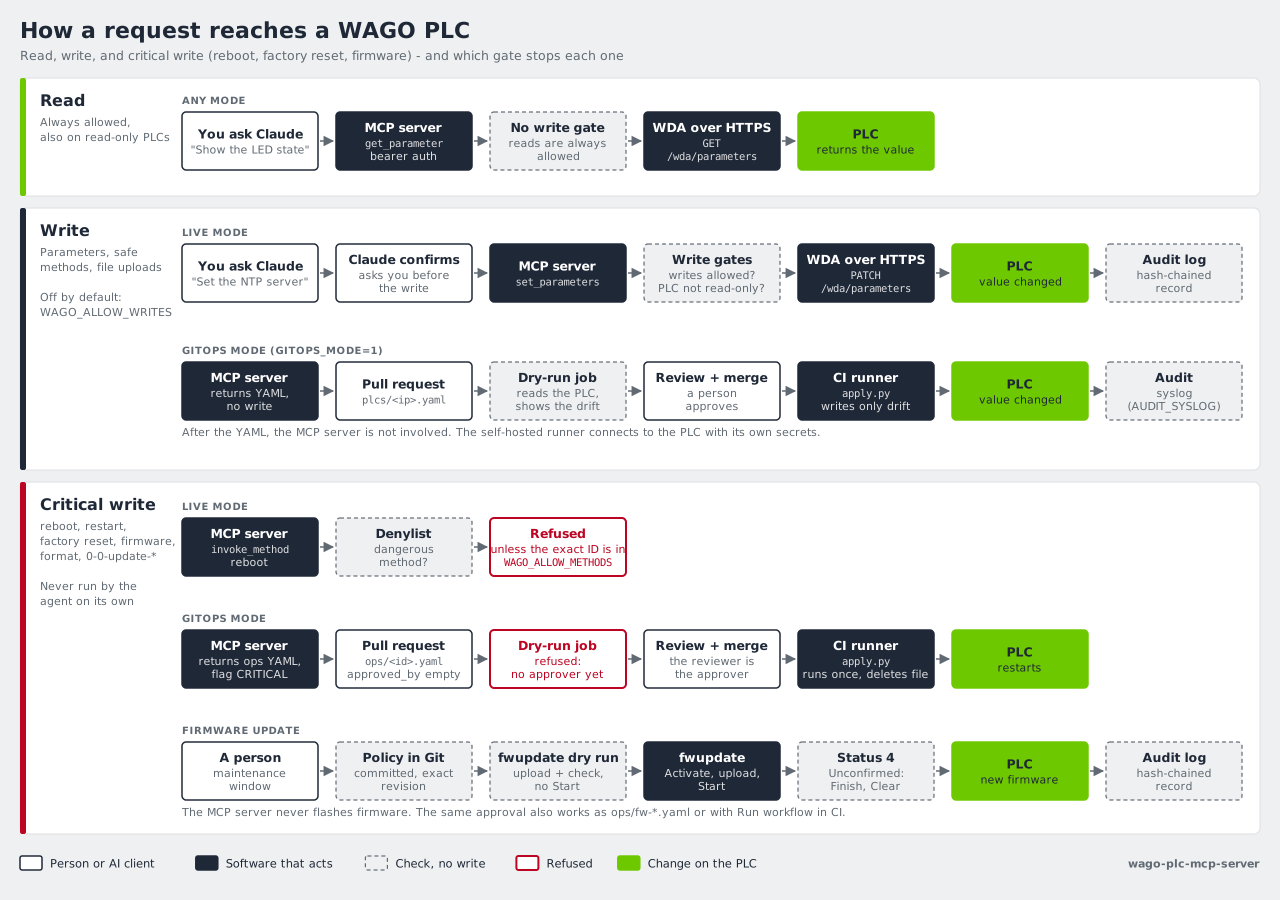
For the full rules, see How it works.
Next steps
| I want to... | Read |
|---|---|
| Connect many PLCs, install the WAGO skill, or watch the demos | Claude Desktop and Claude Code |
| Know what the server does on my PLCs | How it works |
| Run one server for a team | Deployment |
| Review each change in a pull request before it goes to a PLC | GitOps |
| Update firmware | Firmware updates |
| Configure TLS, API keys, and the audit log | Security |
| Find all tools and settings | Reference |
| Find an answer to a common question | FAQ |
Supported devices: CC100, PFC100 G2, PFC200 G2, PFC300, Edge Controller, WP400, and TP600. For the tested firmware versions, see Supported hardware.