Listed from the MCP registry; nobody on Odel publishes it.

BrowserControl
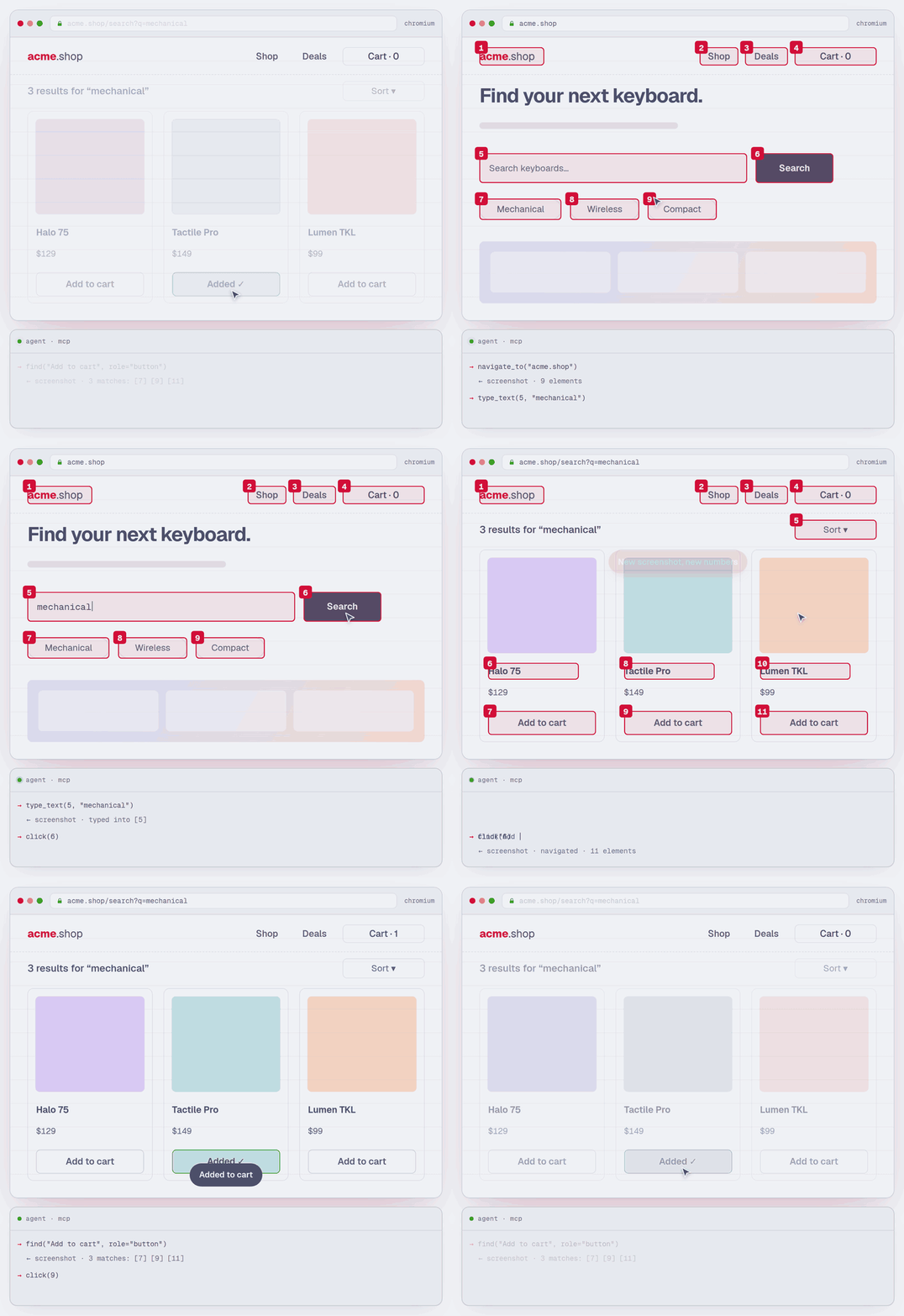
A real browser for AI agents: screenshots with numbered elements, so the agent clicks by number.
Runs on your machine from its package; the steps are below.
What it does
- Reads
- Writes
- High impact
At most: moves money, runs code or commands, deletes data, or sends messages for you.
What it costs
FreeOdel charges nothing per call. The publisher may charge for its own service.
Runs locally over stdio
This server isn't hosted — your MCP client launches it from a package registry. Use one of the commands below, or drop the config into your client (e.g. Claude Desktop).
Run
uvx browsercontrol
MCP client config
{
  "mcpServers": {
    "browsercontrol": {
      "command": "uvx",
      "args": [
        "browsercontrol"
      ]
    }
  }
}

BrowserControl
A real browser for your AI agent. It sees the page and clicks by number.




Documentation · Quickstart · All 79 tools · Recipes · MCP Registry · Español
BrowserControl is an MCP server that lets Claude, Cursor, VS Code, or any other MCP client use a real Chromium browser on your machine.
After every action, the agent gets back a screenshot with a numbered box on every button, link, and field, plus the same list as text. To press the button marked 5, it calls click(5). No CSS selectors, no guessing coordinates.

Install
You need uv. Everything else, including the browser, is set up on first run.
Codex (installs the local MCP server and the BrowserControl skill):
codex plugin marketplace add adityasasidhar/browsercontrol
codex plugin add browsercontrol@browsercontrol
Claude Code (installs the server and a skill that teaches Claude to use it):
/plugin marketplace add adityasasidhar/browsercontrol
/plugin install browsercontrol@browsercontrol
OpenCode 2 (installs the local MCP server and the BrowserControl skill):
opencode plugin add github:adityasasidhar/browsercontrol
VS Code or Cursor: one click.


Anything else: add this to your client's MCP config.
{
  "mcpServers": {
    "browsercontrol": {
      "command": "uvx",
      "args": ["browsercontrol"]
    }
  }
}
Restart your client and you're done. Setup for Claude Desktop, Gemini CLI, Zed, OpenCode, and others is in the client guide.
Try it
Ask your agent something that needs a browser:
Open Hacker News and tell me the top three stories.
Go to my app on localhost:3000, sign up with a test account, and tell me if anything breaks.
Find the cheapest flight from Berlin to Lisbon next Friday and show me the options.
How it works
Each time the agent does something, BrowserControl waits for the page to settle, takes a screenshot, numbers everything you can interact with, and sends back both:
Clicked element 5

Found 23 interactive elements:
  [1] a - Home
  [2] input[search] - Search products
  [3] button - Search
  [4] a - Sign in
  ...
The agent reads the picture to understand the page, then picks a number for its next action. Numbers are rebuilt after every step, so they always match what's on screen right now. If something has moved or gone, the tool says so instead of clicking the wrong thing.
This is called Set of Marks. It works on any site, including ones with messy markup, iframes, and shadow DOM.
What your agent can do
| Browse | Open pages, click, type, scroll, hover, drag, and press keys. find("Checkout") searches the whole page, not just what's visible. |
| Batch | act([...]) runs several steps in one call and returns one screenshot, which saves time and tokens. |
| Fill forms | Pick from dropdowns, tick checkboxes, and upload files. |
| Read and extract | Get a page as Markdown, pull out tables and links, or extract fields into JSON. |
| Use tabs and sessions | Work across several tabs, or open isolated sessions side by side, each with its own cookies. |
| Debug | Read console logs, page errors, and network requests with their headers and bodies. Export a HAR file. |
| Test edge cases | Fake or block API responses, slow the network, go offline, and emulate phones, locations, timezones, and dark mode. |
| Record | Save Playwright traces, and turn what the agent did into a runnable Playwright test. |
See all 79 tools, with every parameter.
Common setups
Run it hidden. The browser opens a visible window by default. To run it headless (servers, CI), set BROWSER_HEADLESS:
"browsercontrol": {
  "command": "uvx",
  "args": ["browsercontrol"],
  "env": { "BROWSER_HEADLESS": "true" }
}
Use your own Chrome. Start Chrome with --remote-debugging-port=9222, then ask the agent to connect to it. It opens its own tab and leaves yours alone. How to set it up.
Share one browser between clients. Run it as an HTTP server, and point your clients at http://127.0.0.1:8000/mcp:
uvx browsercontrol --transport http
uvx browsercontrol --transport http --isolate-clients   # a separate session for each client
Limit where it can go. Allow only certain sites with BROWSER_ALLOWED_DOMAINS (comma-separated; subdomains included). Navigation tools refuse anything else, and always refuse javascript:, file:, data:, and chrome: URLs unless BROWSER_ALLOW_UNSAFE_SCHEMES=true:
"env": { "BROWSER_ALLOWED_DOMAINS": "example.com,docs.python.org" }
Protect the HTTP server. Set BROWSER_AUTH_TOKEN and the server rejects requests without Authorization: Bearer <token>:
BROWSER_AUTH_TOKEN="$(openssl rand -hex 32)" uvx browsercontrol --transport http
Every setting is listed in Configuration.
Good to know
- It runs locally. The browser runs on your machine. Nothing goes through a BrowserControl server.
- Logins are kept. The browser profile lives in
~/.browsercontrol/user_data, so sites you sign in to stay signed in between runs. - It's built for vision models. Every action returns an image. That gives the agent the full picture, but uses more tokens than text-only tools. See how it compares to other approaches.
- The HTTP mode has no authentication unless you set
BROWSER_AUTH_TOKEN. Keep it on127.0.0.1unless you set a token or put something in front of it. - Something not working? Check Troubleshooting, or open an issue.
For agents
The docs are built to be read by agents too: llms.txt indexes every page, llms-full.txt has all of it in one file, and tools.json lists every tool with its parameters. Any docs page is also available as Markdown by adding .md to its address.
Contributing
Bug reports, fixes, and new tools are welcome.
git clone https://github.com/adityasasidhar/browsercontrol && cd browsercontrol
uv sync && uv run playwright install chromium
uv run pytest
The contributing guide covers the checks, adding a tool, and working on the docs. Please also read CONTRIBUTING.md.