Computer Use Turbo
Let any AI agent operate desktop apps on macOS, Windows and Linux, in the background and safely.
Runs on your machine from its package; the steps are below.
What it does
- Reads
- Writes
- High impact
At most: moves money, runs code or commands, deletes data, or sends messages for you.
What it costs
FreeOdel charges nothing per call. The publisher may charge for its own service.
Runs locally over stdio
This server isn't hosted — your MCP client launches it from a package registry. Use one of the commands below, or drop the config into your client (e.g. Claude Desktop).
Run
npx -y computer-use-turbo
MCP client config
{
  "mcpServers": {
    "computer-use-turbo": {
      "command": "npx",
      "args": [
        "-y",
        "computer-use-turbo"
      ]
    }
  }
}
Let any AI agent operate the desktop apps on your computer in the background, safely, with you in control.
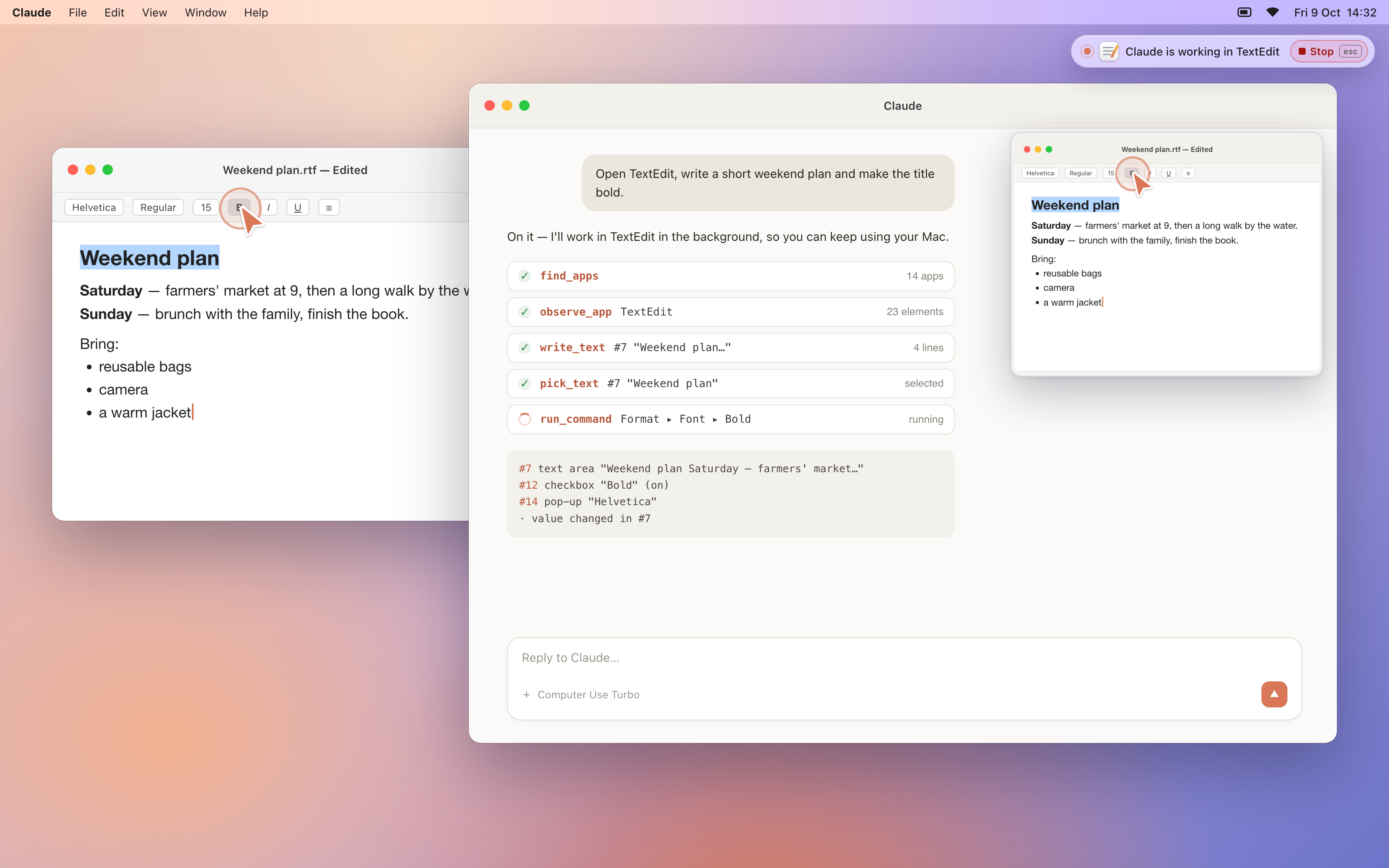
Computer Use Turbo is a cross-platform computer-use toolkit developed by afaaq.io. It gives AI agents a fast, reliable way to see and operate real desktop applications on macOS, Windows and Linux. Instead of guessing from pixels alone, the agent reads each app's accessibility tree as numbered lines, sees a screenshot of the window, and acts on exact elements while you keep using your computer.
It speaks the open Model Context Protocol (MCP), so it works with any MCP-capable agent: desktop assistants, IDE agents, command-line agents and agent SDKs.
Contents
- Installation
- Highlights
- Supported platforms
- Architecture
- Components
- Tools
- Safety and privacy
- Configuration
- Development
- Troubleshooting
- License
Installation
Every platform needs Node.js 20 or later and Git. Installing takes three steps: get the code, build the helper for your system, then connect your agent.
1. Get the code
git clone https://github.com/afaaq-io/ComputerUseTurbo.git
cd ComputerUseTurbo
2. Build and install the helper
macOS
Requirements: macOS 14 or later and Xcode or the Command Line Tools. An Apple Development signing certificate is recommended; without one, macOS forgets the granted permissions after every rebuild.
scripts/build.sh
scripts/install.sh
Then allow Computer Use Turbo in System Settings ▸ Privacy & Security under Accessibility and Screen & System Audio Recording. The installer prints shortcuts to both panes.
Windows
Requirements: Rust with the MSVC toolchain. In PowerShell:
scripts\build.ps1
scripts\install.ps1
The helper is installed to %LOCALAPPDATA%\Programs\ComputerUseTurbo. No permission grants are
needed.
Linux
Requirements: Rust, a desktop session with accessibility (AT-SPI) enabled, and the PipeWire,
xkbcommon and clang development packages (on Debian and Ubuntu: libpipewire-0.3-dev libspa-0.2-dev libxkbcommon-dev clang libclang-dev). Wayland sessions need a desktop portal
with RemoteDesktop and ScreenCast support (GNOME, KDE Plasma, COSMIC).
scripts/build.sh
scripts/install.sh
The helper is installed to ~/.local/bin/computer-use-turbo-helper. On Wayland, the installer
asks you once to allow screen sharing. To enable accessibility on GNOME:
gsettings set org.gnome.desktop.interface toolkit-accessibility true
3. Connect your agent
The MCP server is server/src/server.mjs inside your copy. In the commands below, replace
/path/to/ComputerUseTurbo with the folder you cloned into (pwd prints it).
The server is named turbo because some agent apps reserve names beginning with
"computer-use" for their own built-in tools.
Claude Code
Install the plugin from the afaaq.io marketplace:
claude plugin marketplace add afaaq-io/ComputerUseTurbo
claude plugin install computer-use-turbo@afaaq-io
Or add the server from your copy directly:
claude mcp add --scope user turbo -- node /path/to/ComputerUseTurbo/server/src/server.mjs
Check it with claude mcp list, then start a new Claude Code session.
Codex
codex mcp add turbo -- node /path/to/ComputerUseTurbo/server/src/server.mjs
Or add it to ~/.codex/config.toml by hand:
[mcp_servers.turbo]
command = "node"
args = ["/path/to/ComputerUseTurbo/server/src/server.mjs"]
Any other MCP agent
Desktop assistants, IDE agents and agent SDKs take the standard MCP entry. Print it with the full paths for your machine filled in:
scripts/mcp-config.sh
On Windows, run scripts\mcp-config.ps1. Add the printed entry to your agent's MCP
configuration:
{
  "mcpServers": {
    "turbo": {
      "command": "node",
      "args": ["/path/to/ComputerUseTurbo/server/src/server.mjs"]
    }
  }
}
Restart the agent and try, for example: "Use computer use to open TextEdit, write a short note and make the title bold."
Highlights
- Works with any agent. A standard MCP server over stdio. The agent's name and the app it runs in are detected at runtime; nothing is tied to one vendor.
- Works in the background. The agent operates apps behind your windows and never moves your mouse. A small live preview beside your agent's window shows what it is doing. The few steps that cannot run in the background (a menu-bar menu, a file drag, apps that draw their own interface) briefly bring the app forward only while you are idle and hand the front straight back.
- Built for models. Each app is presented as numbered lines (
#12 button "Save") plus a screenshot. Later observations report only what changed, and what happened in between ("dialog opened", "value changed"). - Fast by design.
find_commandsearches every command in an app's menus andrun_commandruns it without opening a menu.wait_forlistens to the app's own events and returns the moment something happens, instead of polling. - Reaches the whole desktop. Beyond regular apps, the agent can open system panels such as Control Center, Notification Center and Spotlight through their menu-bar status items.
- Safe by default. Password fields are never typed into, password managers need your confirmation, system authentication is protected, and you can stop the agent at any time. Everything else including terminals is available right away; your agent's own permission prompts stay in charge.
Supported platforms
| Platform | Helper | Technology |
|---|---|---|
| macOS 14 and later | helpers/macos (Swift) | Accessibility API, ScreenCaptureKit, CGEvent |
| Windows 10 and 11 | helpers/windows-linux (Rust) | UI Automation, PrintWindow, SendInput |
| Linux (X11 and Wayland) | helpers/windows-linux (Rust) | AT-SPI; XTest on X11; desktop portal, PipeWire and libei on Wayland |
Architecture
 AI agent (any MCP client)
      │   MCP over stdio: find_apps, observe_app, click_at, write_text, …
      ▼
 MCP server  (server/, Node.js — identical on every platform)
      │   JSON-RPC over a local socket (macOS, Linux) or named pipe (Windows)
      ▼
 Platform helper  (owns the OS permissions)
      reads the UI · captures windows · sends input · enforces every safety rule
The helper is the only component that touches your applications and the only place where safety is enforced. The server is a thin translator: it validates arguments, identifies the agent, and turns screenshots into image content.
Components
MCP server — server/
A Node.js MCP server shared by all platforms. It exposes the tools, validates every argument, starts the helper when it is not running, and deletes each screenshot as soon as it has been read.
| File | Purpose |
|---|---|
src/server.mjs | Tool definitions, model-facing instructions, screenshot handling, entry point |
src/helper-client.mjs | JSON-RPC client: handshake, deadlines, reconnects |
src/launcher.mjs | Locates and starts the platform helper |
src/agent.mjs | Agent identity: the client's reported name and the host app |
src/commands.mjs | The saved per-app index of menu commands |
src/framing.mjs, src/errors.mjs, src/log.mjs, src/paths.mjs | Message framing, error codes, logging, per-platform locations |
macOS helper — helpers/macos/
Computer Use Turbo.app, a background app without a Dock icon, built as a Swift package with
two targets:
- TurboCore — pure, testable logic with no UI dependencies: the protocol and framing, the tree model and its text format, element identity, the safety policy, key-chord parsing, and focus rules.
- TurboHelper — the application: socket server, accessibility reader, window capture, input synthesis, menu commands, the password-manager card, the status overlay, the live preview and the agent's on-screen pointer.
Windows and Linux helper — helpers/windows-linux/
A Rust workspace that builds one helper binary for both systems:
- core (
turbo-core) — everything platform-neutral: protocol, error codes, the request pipeline, safety policy, key chords and the tree text format. - helper (
computer-use-turbo-helper) — the Windows layer (UI Automation, Win32), the Linux layer (AT-SPI, X11, Wayland portal and PipeWire), and the password-manager card, overlay and preview drawn with egui.
How each step is carried out:
| Step | Windows | Linux |
|---|---|---|
| Read the UI | UI Automation | AT-SPI 2 over D-Bus |
| Screenshot | PrintWindow (covered windows work) | X11 GetImage; on Wayland, the app's window shared through the desktop portal over PipeWire |
| Click an element | Invoke, Toggle, Selection and Expand patterns | AT-SPI actions |
| Type text | Edit-control insertion or the Value pattern | EditableText insertion at the caret |
| Keys and raw clicks | SendInput with the app briefly in front | XTest on X11; libei input on Wayland |
| Menu commands | The window's menu, WM_COMMAND | The AT-SPI menu bar |
Shared data — shared/
| File | Purpose |
|---|---|
policy.json | The default protected and sensitive app lists for every platform |
design-tokens.json | The light and dark colour palettes of the helper's interface |
Scripts — scripts/
build and install for each platform (.sh for macOS and Linux, .ps1 for Windows), and
mcp-config, which prints the entry to add to your agent's configuration.
Tools
| Tool | Description |
|---|---|
find_apps | Lists the apps the agent can target, running apps first, then system panels |
observe_app | Returns the app's interface as numbered lines plus a screenshot; later calls report only changes |
click_at | Clicks an element by number, or a point on the screenshot |
write_text | Types text, through accessibility where possible |
send_keys | Presses a key or key combination (cmd+s, Return, ctrl+shift+Tab) |
fill_value | Replaces a field's value directly |
pick_text | Selects text inside a field, or places the caret before or after it |
scroll_view | Scrolls at an element or point |
drag_item | Drags between two points on the screenshot |
paste_text | Pastes plain text, Markdown or HTML; your clipboard is restored afterwards |
invoke_action | Runs an element's named accessibility action |
find_command | Searches an app's menu commands and their shortcuts |
run_command | Runs a menu command by its path, in the background |
wait_for | Waits until text appears or disappears, an element changes, a window opens or the app settles |
run_steps | Runs several actions in one call, each fully checked, ending with a fresh observation |
show_preview | Shows or hides the live preview |
access_status | Checks, or requests, the helper's permissions |
finish | Ends the session when the task is complete |
Safety and privacy
All rules are enforced inside the helper, so no agent can bypass them.
- No permission pop-ups — apps, terminals included, are available right away. Your agent's own permission prompts decide what it may do.
- Protected apps — system authentication, system settings, the helper itself and the app or terminal the agent runs in can never be controlled.
- Password managers — the only place Computer Use Turbo asks you: a confirmation card appears once per task before the agent can use a password manager or keychain (including their menu-bar components).
- Password fields — the helper refuses to type into them or read their values.
- No blind clicks — a click or drag by position is refused if the window changed where the agent aimed since its last look and the agent did nothing in between; it looks again first.
- Stop at any time — press Stop on the overlay or Esc. The agent's session ends at once; it asks you in the chat before starting again.
- You stay in charge — if you start using the app the agent is working on, it pauses and waits for you.
- System-wide shortcuts — only shortcuts the operating system itself owns (for example, ⌘Space for Spotlight) are ever pressed outside the target app.
- Screenshots — kept only until the server has read them, and never longer than ten minutes.
- Logs — never contain typed text, field values or clipboard contents.
Configuration
Settings file
Optional settings live in settings.json in the helper's data folder:
| Key | Default | Meaning |
|---|---|---|
focus.borrowFront | true | Allow steps that need the app in front to bring it forward briefly while you are idle |
preview.enabled | true | Show the live preview automatically |
pointer.enabled / pointer.speed | true / 1.0 | The agent's own on-screen pointer |
typing.keyDelayMs | 12 | Pause between typed keys |
A file named allow-protected.txt in the same folder can un-protect apps from the default
policy, one app id per line. The helper itself and the agent's own app always stay protected.
Environment variables
| Variable | Purpose |
|---|---|
CUT_AGENT_NAME | Name shown in the overlay and password-manager card (default: the agent's own name) |
CUT_HELPER_APP | Path of the helper to start |
CUT_SOCKET_PATH | Socket or named pipe to connect to |
CUT_SCREENSHOT_DIR | Directory for screenshots |
CUT_NO_LAUNCH=1 | Never start the helper; only connect to a running one |
CUT_CONNECT_TIMEOUT_MS | How long to keep connecting after starting the helper (default 10000) |
CUT_LOG_LEVEL | error, warn, info (default) or debug |
CUT_POLICY_FILE | Use a different safety policy file |
CUT_SIGN_IDENTITY | Code-signing identity for the macOS build |
File locations
| macOS | Windows | Linux | |
|---|---|---|---|
| Data and settings | ~/Library/Application Support/ComputerUseTurbo/ | %LOCALAPPDATA%\ComputerUseTurbo\ | ~/.local/state/computer-use-turbo/ |
| Screenshots | ~/Library/Caches/ComputerUseTurbo/shots/ | %LOCALAPPDATA%\ComputerUseTurbo\shots\ | ~/.cache/computer-use-turbo/shots/ |
| Log | ~/Library/Logs/ComputerUseTurbo/helper.log | …\ComputerUseTurbo\logs\helper.log | …/computer-use-turbo/logs/helper.log |
Development
Project structure
server/                   MCP server (Node.js, all platforms)
helpers/macos/            macOS helper (Swift package → Computer Use Turbo.app)
helpers/windows-linux/    Windows and Linux helper (Rust workspace)
shared/                   Safety policy and design tokens used by every helper
scripts/                  Build, install and MCP configuration scripts
Running the tests
(cd server && npm test)
(cd helpers/macos && swift test)
(cd helpers/windows-linux && cargo test)
The tests cover the rules that keep users safe — password-field detection, the protected and sensitive app lists, system-wide shortcuts and screenshot file handling — as well as the tree text format, key parsing and the wire protocol.
Troubleshooting
accessMissingor no screenshots (macOS) — allow Computer Use Turbo under Accessibility and Screen & System Audio Recording, then restart the helper:pkill -f "Computer Use Turbo.app/Contents/MacOS/TurboHelper".- Permissions reset after every build (macOS) — the helper was signed ad hoc. Install an
Apple Development certificate (Xcode ▸ Settings ▸ Accounts) or set
CUT_SIGN_IDENTITY. userActive— the step needs the app in front and you were typing or using the mouse. The agent retries a moment later.- No screenshots on Wayland — run
computer-use-turbo-helper --share-screenand approve sharing in the dialog that appears. - Logs — see File locations. The server logs to standard error, which your agent captures.
License
Computer Use Turbo is released under the MIT License.
Copyright © 2026 afaaq.io.