Listed from the MCP registry; nobody on Odel publishes it.

Computer
macOS computer use with the guardrails on: passwords blacked out, writes need consent, all logged.
Runs on your machine from its package; the steps are below.
What it does
- Reads
- Writes
- High impact
At most: moves money, runs code or commands, deletes data, or sends messages for you.
What it costs
FreeOdel charges nothing per call. The publisher may charge for its own service.
Runs locally over stdio
This server isn't hosted — your MCP client launches it from a package registry. Use one of the commands below, or drop the config into your client (e.g. Claude Desktop).
Run
npx -y @agent360/computer-mcp
MCP client config
{
  "mcpServers": {
    "computer": {
      "command": "npx",
      "args": [
        "-y",
        "@agent360/computer-mcp"
      ]
    }
  }
}Computer MCP
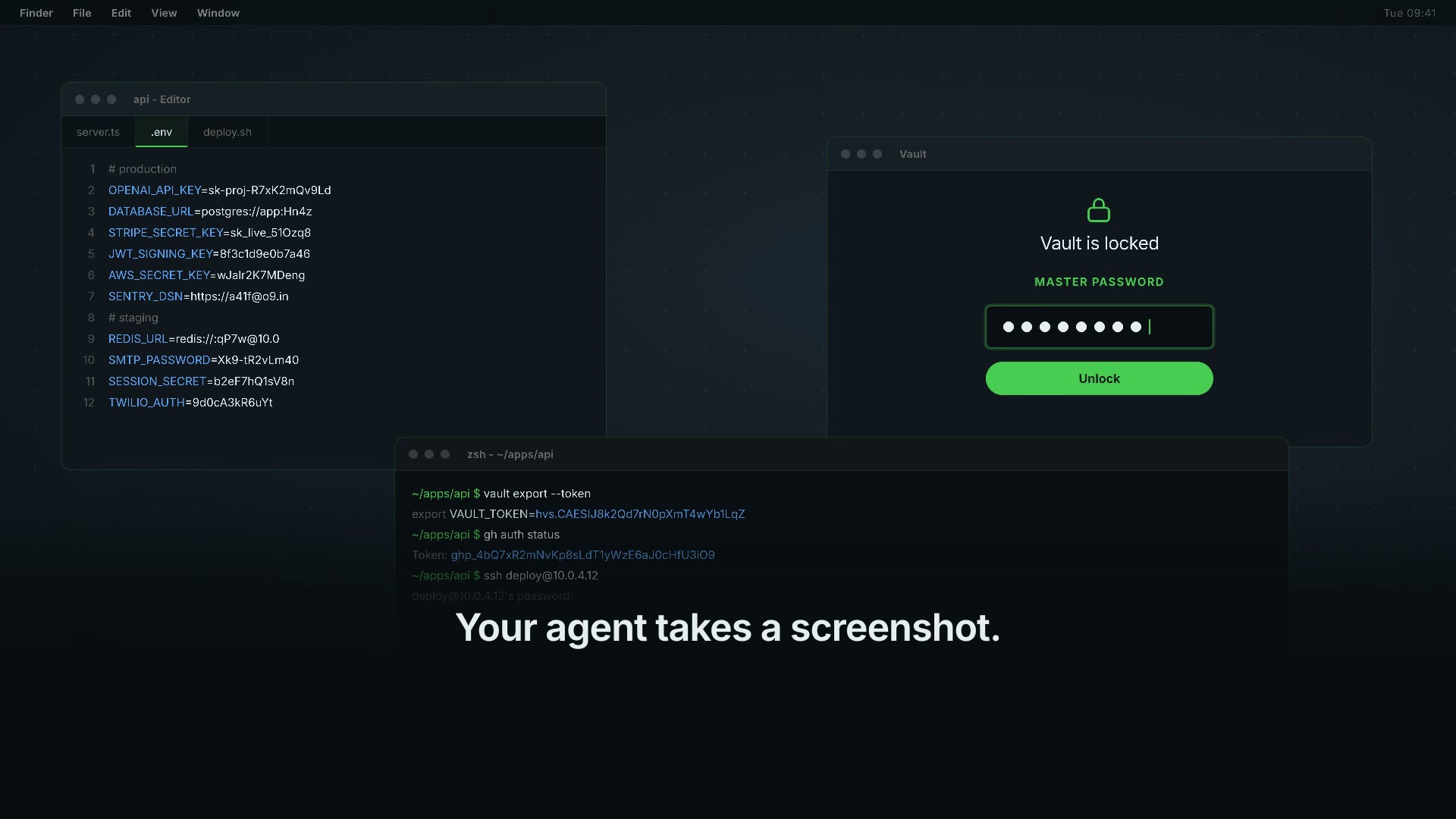
Computer use you can actually leave running.
A macOS computer-use MCP server built for the part everyone skips: what happens in the hours you are not watching.
- It runs in every MCP client, not one app. Claude Code, Cursor, VS Code,
Codex, or your own agent - one
npxline, the same server everywhere. It is not tied to a single vendor's desktop app or plan. - It does not take over your Mac. It presses buttons and fills fields in
windows that stay behind the one you are in, and it leaves your pointer where
you put it. When an app pulls itself to the front as it opens, the front is
handed straight back and the reply says so. In one of 65 measured moments like
it (GitHub's Mac, many agents at once) it could not be, and the reply said that too (
gave_back: false): until you click back, what you type goes to that app. It also leaves the front alone when you clicked, scrolled or pressed a modifier key such as Shift in the last 1.5 seconds - that is taken to be you. - It does not pretend. When something is refused or fails, it says so and says why. The most common complaint about agents driving a computer is that they carry on as if it worked.
- Several can run at once. No session lock, no one-at-a-time limit. Writes to the shared log take a short file lock, so two servers cannot break the chain between them.
- It will not go near your passwords. Keychain, 1Password and five others
are refused in the default mode (in the foreground - while an agent has the screen, or with
CMCP_BACKGROUND=0- they ask every time), and password fields are blacked out while the screenshot is still in memory. A screen recording leaves password managers out, but does not black out password fields. - You can read back what it did. Every call lands in an append-only log, fingerprinted rather than stored in clear.
- Electron apps are not a blind spot. Slack, VS Code, Discord and Notion
build their accessibility tree lazily, so most tools find an empty window.
This one switches the tree on itself before it looks. Measured on a VS Code
fork with two windows open: 0 buttons before, 728 after, same windows,
same moment.
CMCP_INGEN_ELECTRON=1turns it off if you would rather the app did not pay for keeping a tree it otherwise would not build - and it turns off Chrome's switch below too, so Chrome pages are then neither readable nor have their password fields blacked out. - Chrome pages are not a blind spot either. Chrome ignores the Electron
switch - asked for it, it answers that the attribute does not exist - and
has its own: the one a screen reader sets. This server sets that one in
Google Chrome (every channel, Chrome for Testing included) and in Edge,
Brave, Arc, Vivaldi, Opera, Opera GX, Comet, Dia and Chromium (only Google
Chrome is measured; the ids of Opera GX, Comet and Dia are read from Homebrew's
cask data, not from an installed copy). Measured 5 Nov on Chrome 156: a
test page went from 0 page elements to 6, its password field among them
and blacked out; the redaction scan of a heavy everyday Chrome took 0.14 to
0.54 s.
test/chrome-side-live.mjsproves it against a real Chrome.
Honest limits: macOS only. It reads the accessibility tree, so an app that
draws its own controls on a canvas and publishes nothing - some games, some
plotting tools - is still a blind spot. In a browser, Chrome builds a page's
tree in the background the first time it is switched on, which took 3 to 15
seconds in our measurements; until then a search that finds nothing says
tree_building, and that Chrome window is blacked out whole in screenshots,
with the reason in the answer. A page the scan cannot finish - deeper than it
reaches, or a lookup that failed or timed out - is blacked out whole the same way.
A Chrome window that has not been in front since the switch was turned on may
stay unreadable until it is (measured: a page whose window lost focus to a popup
as it loaded was not built in 30 s). Only
Google Chrome is measured. Other Chromium browsers than the ones named above -
Chrome app windows (PWAs) included - are not switched on and not covered, and
Safari and Firefox are not handled. When a browser tool is in the session, let
it do the work inside pages - this server takes over where it is refused (see
the limits below).
No account, no API key, no model inside it. MIT.
npx @agent360/computer-mcp
No Swift needed: the package ships a universal binary for Apple silicon and Intel. It carries the ad-hoc signature macOS needs to run it at all - not a Developer ID signature, and not notarized. Gatekeeper may therefore ask you the first time.
computermcp.dev · Security model
Why
Handing an agent your keyboard, mouse and screen is the most useful thing you
can give it and the least reversible. A screenshot of a working developer's Mac
can contain a password manager mid-unlock, a .env open in the editor, or
customer data. A stray keystroke in a terminal is not a typo - it is a command.
Most desktop-automation MCP servers hand all of that over at once, with no way to say that, but not that. So the careful people don't run them on the machine where the work actually is.
This is the same capability with the dangerous edges answered.
The three gates
1. Passwords never reach the model. Secure text fields and password-manager
windows are painted opaque black on the bitmap in memory, before the PNG is
written. There is no moment where an unredacted picture of your desktop exists
as a file. Native fields expose the role AXSecureTextField; fields in a web
page expose role AXTextField with the subrole AXSecureTextField. Checking
only the role would catch native fields and let every browser password box
through - so both are checked. In a web page the field is only found when the
browser shows its page to the accessibility layer. In Chrome this server switches
that on (above); while a Chrome window's page is not readable yet - the first
seconds after it is switched on, or an empty page - the whole window is blacked
out instead of risking a field it cannot see. Known gaps, not measured: a login
form inside a cross-site frame, or a second step that appears before Chrome has
updated its tree, can be on screen a moment before the field is in the tree. In
a browser it does not switch on (Safari, Firefox, other Chromium browsers, and
any browser with CMCP_INGEN_ELECTRON=1), the field is not painted over; what
it shows is the browser's own dots, unless the page shows the password in plain
text.
2. The dangerous places ask first. By default the agent works without
interrupting you - that is what lets it run while you do something else - and
every write is logged. What never goes through on its own: password managers and
Keychain are refused in the default mode, because the menu bar cannot show what
would be typed (in the foreground - while an agent has the screen, or with
CMCP_BACKGROUND=0 - they ask every single time, even with allow), and that one is not configurable. Terminals and editors, where a keystroke can be a command, ask once
per app per session. Quitting an app, closing a window, switching Space,
and destructive-looking menu items ask every time; an action whose target app
cannot be identified is refused in the default mode. The gate judges the app an action lands in: an
app opened some other way - Spotlight, a shortcut - is guarded by what the
agent then tries to do in it. Want a question before the first write too? Set
CMCP_MODE=ask. If nobody answers, the answer is no.
3. Everything is written down. ~/.local/state/computer-mcp/audit.jsonl,
mode 0600, append-only: every call, its target app, and whether it was allowed
or refused with the reason. Every line carries its call's id, which together
with the server's session id pairs the decision and the outcome of one call,
even with several agents running.
Each line also carries a fingerprint of itself and the line before it, so a
removed or edited line breaks the chain. That is not a signature: whoever can
write the file as you - including an agent with a terminal - can rewrite all of
it. If you need proof against that, copy the log off the machine. If the log cannot be written - a full disk, a
locked file - write actions are refused until it can. Two gaps remain: an action
already under way when the disk fills can lack its outcome line, and typing that
is cut off by the helper's time limit is logged as an error without saying how
many characters arrived. Typed text is stored as a length and a salted
SHA-256 prefix, never in clear - an audit trail full of passwords is its own
breach. The salt is random per run and never written down, because an unsalted
hash of a short password can be guessed offline by whoever holds the log. The
honest cost: two actions can be compared within one run, not across runs.
Here is what that looks like, unedited. In the lines below an agent typed a
sentence into TextEdit behind the window the person was using, asked in the menu
bar to move a file to the Trash and got no answer (the run sets CMCP_ASK_TIMEOUT=1,
so the question ended after a second and is logged as denied; with the default the
call is logged as waiting and the question stays about ten minutes), then was refused
when it tried to type into 1Password. They come from an isolated test run - its own state
folder and stand-ins for the helper and the menu bar icon, so no real screen was
touched and nobody's own log was read - which node scripts/log-uddrag.mjs
repeats. In the presence fields, the idle times come from the stand-in helper
and the icon version from the stand-in icon; the session count comes from the
isolated state, and the surface is derived. Only the box setting was read from
the Mac that made the run. A test checks that every line is byte for byte in
the full log of that run
and that its chain holds.
{"ts":"2026-10-31T22:35:10.230Z","session":"56f00545","call":"02bc741b","tool":"computer_type","tier":"write","args":{"app":{"length":8,"sha256_12":"78743a52a54c","salted":true},"text":{"length":37,"sha256_12":"cdde26c85cca","salted":true}},"target":"com.apple.TextEdit","mode":"allow","asker":"custom","decision":"allowed","asked":false,"reason":"CMCP_MODE=allow","l":1,"kaede":"4fb5f61a6e442962"}
{"ts":"2026-10-31T22:35:10.231Z","session":"56f00545","call":"02bc741b","tool":"computer_type","tier":"write","target":"com.apple.TextEdit","phase":"executing","l":1,"kaede":"13cd03c71bfb3b38"}
{"ts":"2026-10-31T22:35:10.321Z","session":"56f00545","call":"02bc741b","tool":"computer_type","outcome":"ok","effect":"sent","l":1,"kaede":"79696176e8603981"}
{"ts":"2026-10-31T22:35:11.481Z","session":"56f00545","call":"ac33c074","tool":"computer_menu","tier":"write","args":{"app":{"length":6,"sha256_12":"2c65732d0d4e","salted":true},"path":"File > Move to Trash"},"target":"com.apple.finder","mode":"allow","asker":"menubar","presence":{"idle_at_ask":600,"idle_at_end":600,"server":"0.4.1","icon":"0.4.1","box":"on","sessions":1,"surface_derived":"box+menu"},"decision":"denied","asked":true,"reason":"background mode: nobody answered in the menu bar in time","l":1,"kaede":"ad20dddb1195fa7a"}
{"ts":"2026-10-31T22:35:11.578Z","session":"56f00545","call":"5b15b900","tool":"computer_type","tier":"write","args":{"app":{"length":9,"sha256_12":"ac0afc1b1e97","salted":true},"text":{"length":7,"sha256_12":"f0b579393774","salted":true}},"target":"com.1password.1password","mode":"allow","asker":"custom","decision":"denied","asked":false,"reason":"background mode: this would need a dialog, and a dialog takes the screen (a password app can never be approved from the menu bar)","l":1,"kaede":"2332aa9606dd896e"}
Most gates have a test, mutation-checked when it was written: break the code on purpose and the test goes red. Not every rule has one - the CHANGELOG lists the rules without a test of their own and the mutants that survive, and why. See Testing.
Install
# Claude Code
claude mcp add computer -- npx -y @agent360/computer-mcp
Or, inside Claude Code, as a plugin pinned to the version on npm:
/plugin marketplace add Agent360dk/computerMCP
/plugin install computer-mcp@agent360
// Cursor, VS Code, Codex CLI - mcp.json
{
  "mcpServers": {
    "computer": { "command": "npx", "args": ["-y", "@agent360/computer-mcp"] }
  }
}
Then grant two macOS permissions: System Settings → Privacy & Security →
Accessibility, and the same under Screen Recording. Ask your agent to call
computer_permissions and it will tell you what is still missing.
Which app do you grant them to? macOS attributes these to the responsible
process, and which process that is depends on how you launched the server. Run
from a terminal, it is usually the terminal. Run by an MCP client over npx, it
may be the client instead. The honest answer is: grant it to whichever app the
system dialog names, and if no dialog appears, start with the app that launched
the client and check computer_permissions again.
Untested, and we would rather say so: we have not yet measured this from a clean machine with permissions reset, so we cannot tell you with certainty which of the two it will be in your setup. Upgrading is measured for Accessibility (issue #4): the grant belonged to the host app, not to our ad-hoc signed helper - a copy of the helper with a different signature, started from a new path, still had it - so in that setup an upgrade did not send anyone back to System Settings. Screen Recording after an upgrade has not been measured separately. If you see something else, telling us what you saw is a real contribution.
Modes
CMCP_MODE | Behaviour |
|---|---|
readonly | Write tools are not even listed. The agent can look and cannot touch. |
ask | The first write asks in the menu bar icon; if the icon is not running, it is refused in background mode and opens a dialog in the foreground. One yes grants the session. Password managers are refused (in the foreground - while an agent has the screen, or with CMCP_BACKGROUND=0 - they ask every time), terminals and editors ask once per session. |
allow | Default. Writes proceed without asking, still logged. Password managers are still refused (in the foreground - while an agent has the screen, or with CMCP_BACKGROUND=0 - they ask every time), terminals and editors ask once per session, and in background mode anything that would need a dialog waits in the menu bar instead. |
CMCP_ASK_TIMEOUT (seconds, default 60) controls how long a dialog waits before it refuses. A
consent dialog appears only in the foreground, for a question the menu bar icon may never approve or
when the icon is not running; every other consent question waits in the icon (see The menu bar
icon below), and in background mode with no icon running it is refused. computer_ask_user in the foreground is always a dialog. The same number also bounds
a consent question in the icon: at 45 or less it ends that soon, and above 600 it waits that long.
Tools
32 tools: fourteen that look, eighteen that touch. Twenty-five are offered by default, and the agent uses them without asking - the same way a browser tool drives a browser. Two gates survive that, and they are the two that matter:
- Password managers are refused. Keychain, 1Password and five others, in
every mode, even after you have said yes; in the foreground (while an agent has
the screen, or with
CMCP_BACKGROUND=0) they ask every time instead. That is the whole difference between you may work and you may have my passwords. - Anything that deletes or clears asks every time, recognised from the words in the action itself.
Everything else goes straight through and straight into the log.
It runs in the background, and that is the default. Nothing moves your
pointer, brings an app forward or types into the window you are using. Four of
the tools that used to need the screen - computer_type, computer_key,
computer_scroll and computer_click - now take an app, and the event goes
into that app's own queue instead of the global input stream. Measured on a
machine while someone was working on it: the text arrived in the app, the
pointer stayed where they had left it, and the front window did not change.
Every key press, click, scroll and typed string answers with took_screen,
so you never have to take our word for it.
Honest about how far that goes: typing and key presses are measured this
way. Clicks and scrolls are built the same way and are not. A mouse event
carries no window number, so whether an app accepts one it did not see the
pointer arrive at is a question we have not answered yet. Until we have, the
answer says took_screen: false about the screen - not that the click
landed. window and quit now carry it too, measured
the same way - including when the call failed halfway, because a half-done
write that took the screen must not be the one line that stays silent.
press and menu carry it too: an app can bring itself forward in response
(measured: File > New Finder Window did), and when it does, the answer says so
and the front is handed straight back to the app you were in - gave_back
says whether that worked.
set_value, drag, paste and move do not carry the field yet.
computer_launch joins them with background: true: the app starts behind
what you are doing. Many apps bring themselves forward as they start - six of
eight did on a clean Mac - and when one does, the front is handed straight back
and the answer says took_screen, and in gave_back whether that worked. It is a moment, not nothing. Seven are still held back:
move, activate, quit, space, window, drag and paste - until you lend
the screen: computer_request_screen asks you in the box in the corner of your
screen (and in the menu bar), one agent at a time, approved with Touch ID, for at
most 15 minutes. While it has the screen, each step waits while you are using the
keyboard or mouse (a step already running finishes), and Take the screen back now ends the loan at once and stops a step that is still running. That button
stays in the box for as long as the loan lasts - also when the agent is quiet and
when you have switched the box off - and it never asks for Touch ID. If you would rather not be
asked at all, set CMCP_SCREEN_ASK=0 for the server: an agent that needs the screen then gets it
with no question and no Touch ID - at once, or eight seconds after another agent's loan ends, so the
one before has had time to stop. While it waits for its turn, the box offers only Deny: say
nothing, and it gets the screen when it is free. The rest of the loan is the same: one agent at a
time (per menu bar icon), each step waits while you are using the keyboard or mouse, the box shows
who has it with Take the screen back now, and while the loan lasts Esc is your stop key too (when
the icon could register it). Take it back, and that agent is refused the screen for two minutes and
told to stop and tell you in the chat - and its next loan asks you, with Touch ID. No agent gets the
screen without a question for two minutes after you take it back, also if the icon restarts (not
across a restart of the Mac). The switch is the server's own configuration: anything that can set it, or
talk to the icon as you, can borrow the screen - just as CMCP_BACKGROUND=0 already hands over the
foreground. A typo keeps the question; only 0, false, no, off, nej or fra remove it.
Setting CMCP_BACKGROUND locks the screen out entirely. CMCP_BACKGROUND=0
gives you those too - and a typo will not turn it off, only 0, false, no
or off. CMCP_MODE=ask puts one consent question per session in front of the
first write, and CMCP_MODE=readonly leaves you the fourteen that only look.
Both surviving gates are mutation-proved: break them in the source and the refusal turns into a free pass, which is how we know the test can fail.
What you get today, honestly.
npx @agent360/computer-mcpcurrently serves 0.1.0, which has 12 tools. The 32 tools described here are the source: they are built and tested, but not published yet. Building from source takes about thirty-five seconds if you want them now.
Look: computer_pending · computer_screenshot · computer_record · computer_inspect · computer_find ·
computer_wait_for · computer_focused · computer_apps · computer_windows ·
computer_permissions · computer_displays · computer_menus · computer_audit · computer_learning
Touch: computer_request_screen · computer_launch · computer_open · computer_quit · computer_paste · computer_window · computer_space · computer_menu · computer_press · computer_set_value · computer_ask_user ·
computer_click · computer_drag · computer_type · computer_key · computer_scroll ·
computer_move · computer_activate
computer_ask_user is the one that cannot carry a secret. It returns true
or false, never text. The agent puts the cursor in the field, the dialog names
the app and the window it is about to land in - written by the server, not by
the model - and you type on your own keyboard. There is deliberately no route
through this server for a password to reach a model. In background mode there is
no dialog: the question waits in the box in the corner of your screen and under
the menu bar icon, with the whole request, where
it lands, and Take me there - your click brings the app forward, not the agent's.
You do it and choose Done. A Done is a signal, not a consent: it can never
approve anything else.
computer_set_value writes into a field behind another window without
moving your pointer, and refuses on a secure field every time. We removed that
check on purpose once: the modified build wrote into the password box. It is the
only thing standing there.
computer_type refuses the same way, and checks before every character: when a
Tab, a click or the page itself moves the focus into a password field halfway
through, the typing stops there. It also listens to macOS's own password signal
(secure input), which a browser switches on for a password field even when the
accessibility layer only sees the page around it: while it is on, nothing is typed
anywhere. The signal can only add a no - it never turns an unknown field into a
yes. computer_paste judges the field in front the same way before it pastes.
computer_wait_for waits for an element to appear instead of taking
screenshots in a loop. Twenty polls cost one call here and twenty images the
other way.
computer_inspect reads the accessibility tree - roles, titles, values, frames -
so the agent can click a button by knowing where it is instead of guessing from
pixels. computer_find narrows that to the elements matching a role, a title or
a substring. Values of secure fields are never returned, not even to the agent.
Deliberately absent: no shell execution, no arbitrary file access, no URL fetching. Each would be one line of code. A computer-control server with a shell inside it is remote access under a friendlier name. If you want a shell, install a shell MCP server - then you have chosen it, and the choice is visible in your config.
Without taking over your screen
computer_click and computer_type go through the system's own input tap, so
they land wherever the keyboard focus is and they move your real pointer. That
is fine when you are watching. It is not fine when you are working in another
window.
computer_press takes the other route: it fires the element's own
accessibility action. That works while the window is behind another one, and it
moves nothing on your screen. computer_find is how the agent locates the
element to press.
computer_find  { "app": "com.apple.Safari", "role": "AXButton", "contains": "Log in" }
computer_press { "app": "com.apple.Safari", "contains": "Log in" }
Two or more matches is a refusal, not a guess - the agent gets the candidates and has to narrow it down, because pressing the first plausible button is exactly the kind of almost-right action nobody notices afterwards.
The consent question still reaches you (in the menu bar by default), and the apps on the always-ask list
still ask every time. computer_press names its target app, and that name is
what the gate judges - so pressing something in 1Password is refused (in the foreground: asks) even when
1Password is nowhere near the front.
Claude Code's auto mode and the screen tools. Measured on 1 Oct: after the
person lent the screen with Touch ID, Claude Code's auto mode still refused
computer_move as a security weakening. That is the client's own guard, not this
server's, and it is right to be careful. To use the screen tools, run the session
without auto mode and approve each call when Claude Code asks; the lease and the
gates in this server still apply on top.
Several agents at once. Each MCP client starts its own server, so a second
chat is just a second process. They share one audit log, and every line carries
a per-server session mark - set CMCP_CLIENT=<name> and the line carries that
too, so the log answers which conversation clicked. Fifty interleaved writes
from two servers, zero torn lines: test/concurrent.mjs.
Two agents in the same app take turns. Measured on 22 Sep with two real
servers typing into the same window at once: the two texts were interleaved
character by character - 153 switches in 160 characters - and both servers
reported success. There is now a lock per target app, held across processes for
the length of the action. Same measurement after the lock: 1 switch, both texts
whole (test/samtidige-agenter.mjs). Two agents in different apps still run
at the same time; nothing is serialised that does not have to be.
The menu bar icon
While an agent is running, a small icon sits in the menu bar, and while one is working, a small box sits in the top-right corner of your screen. Those two are all this product puts on your screen, and neither ever takes focus.
- The dropdown lists every agent that is running - which client, and what it
is doing right now. Click one to open a live window that follows it. The text
says what it did (
Type 42 characters,Press an element in Finder), never what was typed: the characters are not in the status file, not in the log, and not in the icon. - The box shows what is happening, where you are working. It sits in the top-right corner of the screen with the window you are using - not the one the pointer happens to be on - and follows you when you switch screens. It lists which agents are working, in which app, and what they are doing now. It never takes the keyboard, and disappears half a minute after the work stops. You can switch it off in the icon's menu.
- A question that needs you turns the icon orange. In background mode the server used to refuse anything that needed a human, because a dialog takes the screen. Now it waits for you instead. After about 45 seconds the call answers "has not answered yet" (not a refusal), the question stays in the box for about ten minutes, and the agent tells you in the chat. When it calls again with the same action, your answer is collected: a yes counts once, for exactly that action, and only for about two minutes after you gave it. Nothing happens until you answer. A request for the screen waits up to five minutes instead.
- The box turns orange too, with the whole question. It shows who is asking,
what, where it lands and how long a yes counts - the same lines the server
writes into the menu - with the menu's own buttons:
Allow (Touch ID)andDeny(orDonefor something you do yourself). The buttons wait a second after a new question appears, so a click meant for the last one cannot land on it. For a question longer than 280 characters,Allowis only in the menu, where all of it is shown: you see everything a yes covers before you give it. - Allowing is deliberate. In the menu,
Allow…lives in a submenu, never one click in the main menu; in the box it is a button. Both ask for Touch ID (or your Mac's password) every time. The answer travels back down the same socket connection the question came in on, bound to a one-time number with a deadline. A late answer, a different number, or a yes without your fingerprint is a no. The one exception is the screen loan on a server you set toCMCP_SCREEN_ASK=0, which is lent without a question. - You see the whole action before you allow it. The full text sits in the
submenu, wrapped, right above
Allow…- up to 4,000 characters. Anything longer is not asked at all: a yes has to cover everything you saw. - A message to a real person asks every time. In the chat and mail apps on
its list (WhatsApp, Messages, Slack, Teams, Telegram, Signal, Discord, Mail,
Outlook and others) and in web chats and webmail recognised by the page title
(WhatsApp, Messenger, Slack, Teams, Telegram, Discord, LinkedIn, Instagram,
Facebook, Google Chat, X, Gmail, Outlook and a few more - a chat on any other
site is not recognised), pressing or
clicking Send - in several languages, or a button with no name at all, or the
text inside such a button - and
pressing Return in a chat (Cmd+Return in mail) asks you first, for that one
message. The question shows who it goes to and what it says, read from the
screen by the server: the name above the text field, and the field itself.
If either cannot be read, nothing is sent - you send it yourself. A line break
typed into a chat is refused, because there it sends; in mail it is just a new
line. If the conversation or the text changes after you say yes, nothing is
sent. A button whose name looks like it deletes, clears, removes, resets,
quits, signs out or uninstalls asks every time, and the question names it («Click on screen at 10, 10 - on «Delete» in Finder»);
if it is a different button when the click is about to happen, nothing is
clicked. What it cannot see: apps not on the list, and messages sent by other
tools your client allows, such as browser automation or
osascript. - It tells you where it can be walked around. The gate guards this server's
own calls, not your whole Mac.
computer_permissionslists the rules it recognises in your client that let an agent click, type or send without it - a shell,sudo,osascript, a script interpreter, browser or computer automation - so you can decide whether to keep them. It reads Claude Code's settings; other clients are not read. - Some things can never be approved there: apps on the always-ask list
(password managers), an action whose target app could not be resolved, and an
unredacted screenshot. Those stay refused and show up in
computer_pending. - A banner by default, and never a button in one. A new question shows a
banner, if macOS lets Computer MCP show notifications (you are asked once). A
notification with an
Allowbutton would be a second way to say yes - and an agent can click a notification - so clicking the banner only shows the question in the box, and a yes is still given only there. The banner goes away when the question is answered or expires. Switch it off in the icon's menu. - A sound for each new question. Each new question plays one sound; switch it off in the icon's menu. It does not play again if the same question is sent twice, and not when it expires.
- The icon cannot be touched by an agent. Any write tool aimed at it is refused in every mode, before the gate can even ask. Measured: without that rule, three of three presses reached the helper.
- Stop every agent at once.
Stop all agents nowis in the icon's menu while an agent is connected or has the screen (unless you hid the icon), and in the box while one works.⌃⌥⌘.(Control-Option-Command-period) does the same from any app while the icon runs (it quits ten seconds after the last agent, and when you hide it), and while an agent has the screen,Escdoes too and hands the screen back (the box says so when Esc could be claimed). The menu shows the shortcut only when it works - another app, or macOS's Increase Contrast, can hold the same keys; the menu item and the box always work. Every agent that uses the same state folder stops: nothing waiting is carried out, questions in the box are withdrawn, every "yes for the rest of this session" is withdrawn, a recording stops, and a drag, click or key that was under way is let go. For two minutes anything that writes answers "Stopped" and the agent is told to ask you in the chat; reading still works. A stop is not a lock: after two minutes agents can act again, and it does not reach a tool with its own shell or a server with a different state folder. An agent cannot press the shortcut for you.
If the menu bar is hidden - a full-screen app, or auto-hide - the icon is hidden with it, along with every other status icon on that screen. A question can then sit unnoticed until it expires. That is a real limitation today, not a setting.
What it does not do
- macOS only (14+). No Windows or Linux build, and none planned.
- Only what macOS marks as secure is redacted. A password in a plain text
editor or a token in a terminal buffer is not marked and will not be hidden.
readonlydoes not help here: it still takes screenshots. Close such a window first, or keep screenshots to one app withapp- covering it with another window is not enough, because a capture can leave the covering window out. - Password managers are kept out of the picture itself. In a redacted screenshot - the default - the capture asks macOS to leave every app on the deny list out of the image, so their pixels never exist: hiding, moving or closing one mid-capture cannot leak it. Redaction still runs on top. An unredacted screenshot, which only the person can allow, captures them like any other window. What is left of the gap: a secure field in an ordinary app that moves while the scan runs is painted where it is now, not where it was. A field shows dots, so that reveals its length, not the password. Helper processes a password manager runs under a different app ID are not on the list yet. Not measured here: that macOS really leaves the pixels out - that needs a capture, and we do not take one of a person's screen to prove it.
- Consent is not containment. After you approve, the agent drives your real Mac - that is what you approved. If you need a boundary rather than a decision, run it in a VM. That is the honest answer, not a missing feature.
- Web pages: Chrome only, and measured only on Chrome 156. Measured 23 Sep on
two Chromes: zero web areas, only the browser's own buttons and address
bar - because the switch we set is Electron's, and Chrome does not have it
(asked for it by name, macOS answers -1728, "cannot get"). Chrome builds its
page tree for the switch a real screen reader sets,
AXEnhancedUserInterface. That is what changed on 9 Oct, when the same Chrome did show its pages: most likely something else had set it (not measured). Since 5 Nov this server sets it in the browsers named above itself. What that costs and changes, so you can decide: Chrome keeps its full accessibility mode for every window and profile until it quits, which costs memory and CPU in Chrome (not measured separately - Chrome's own memory swung ±500 MB in 30 s); Chrome's windows may animate when they are moved (the known side effect of this switch, not measured on Chrome); any call that looks at Chrome switches it on, not only screenshots. Password managers that run INSIDE a browser are treated like the native ones: a page whose address is the browser's own password page, a known web vault (1Password, Bitwarden, LastPass, Dashlane, Proton Pass, Keeper, NordPass, RoboForm, Avira, Google Passwords) or one of eighteen known password-manager extensions in Chrome and Edge - also as a suggestion menu inside another page - is never returned bycomputer_find,computer_inspect,computer_focusedor the click gate (computer_press,computer_set_valueandcomputer_wait_forsay when they skipped one and then found nothing or ran out of time, instead of only "nothing matched"), its window is blacked out whole in screenshots, typing there is refused, and a click there is refused - with or without an app named, also a page that could not be ruled out, and nobody is asked (a yes to a blind click could not be tied to the page). So is a drag with an end there; a drag's start point is judged exactly like a click (the mouse goes down on it). The address rule applies to a web page in any app, not only in a browser. A web page whose address cannot be read (in any app), or an element whose role cannot be read in a browser, is kept out of the reading tools too - that can also leave out ordinary content, and then a search says it was incomplete instead of guessing. It is a guard against accidents, not a fence: keys that are not text (Tab, Enter, Cmd+C), surfaces that copy a page elsewhere (developer tools, reading mode, the clipboard) and Chrome's OWN password bubbles and autofill rows - native panels, not pages - are not covered. Nor are a self-hosted vault, an extension not on the list, Safari's and Firefox's extension pages, window and menu titles (as for native apps), screen recordings (they leave out apps, not pages), and a vault navigated away from in the instant between the capture and the scan.CMCP_INGEN_ELECTRON=1leaves Chrome's switch off too. And Chrome blocks every extension on Chrome Web Store and its developer console ("The extensions gallery cannot be scripted") - there a browser tool can navigate but not act, and this server can read the page (measured on the developer console). An agent finds the right window by the browser tool's tab group: the window title contains the group's name, in Chrome's own interface language (measured by hand once, in a Danish Chrome: «… – en del af gruppen Claude 2 – …»; no automated test). - Keystrokes do not land in a Chromium window that is not focused. Measured
the same day: the helper reported
typed: 21andtook_screen: false, and the text arrived nowhere.computer_set_valuethrough the accessibility layer did land - in the address bar, which is part of the browser's own UI. That is why the quiet route iscomputer_find+computer_press/computer_set_value, not typing. - A coordinate click is judged by what lies under the point. That is the app macOS names as its owner, plus every window stacked above it down to the first opaque one, checked again right before the click. A window that macOS reports as opaque but that lets clicks through to what is underneath is not seen by that check. Not measured here: it needs a real window on a machine that is not someone's working Mac.
- Prompt injection stays possible. The dialogs and the log make it visible rather than silent. They do not make it impossible.
- Menus and file dialogs are out of reach in background mode - with one
exception, pop-up buttons. Measured: an open menu takes the whole input
stream on macOS - while one is open the system will not even say which app has
focus - and in a save panel of an app behind, Save stayed disabled. So a click,
press or key that would open a menu behind is refused, and a greyed-out Save
answers
disabled. A pop-up button can be chosen in withcomputer_set_value: its menu is on your screen for a moment (about 0.15 s in our two-item test), only after 2 s without input from you, nothing is chosen if you start working before the item is pressed, and the answer says how the menu closed. A plain button that pops up a menu of its own is not recognised in advance - if a menu opens over your work anyway, the agent tries to close it with Escape, and the answer says what happened: closed, still open, or that it could not be checked.
Building from source
git clone https://github.com/Agent360dk/computerMCP
cd computerMCP/helper && swift build -c release     # the privileged binary
cd ../mcp-server && npm install
CMCP_MODE=readonly node index.js
The helper is a separate Swift binary with zero third-party dependencies. It is the part that uses Accessibility and Screen Recording, it is small enough to read in one sitting, and it can be replaced without touching the server. (Which process macOS grants those permissions to is a separate question, and an open one - see the note under Install.) Every package inside a binary that privileged is a vendor you are trusting without having chosen to.
Testing
./test/run-all.sh                # everything, full output kept in a log

python3 test/redaction-unit.py   # the four redaction checks
node test/server-e2e.mjs         # the MCP protocol, read paths, readonly refusal
node test/failclosed.mjs         # an unanswered dialog must refuse
node test/claims.mjs             # every claim this README makes
node test/concurrent.mjs         # two servers at once: no torn lines, both identifiable
./test/redaction-proof.sh        # live secure-field detection (needs a normal desktop)
claims.mjs checks the sentences on the front page against the code: that a
terminal still asks in allow mode, that a harmless app does not (otherwise
"refuse everything" would pass), that typed text reaches the log only as a
length and a hash, and that no shell, file or URL tool has appeared.
Where a check cannot be made meaningfully - no secure field happens to be on screen - it reports SKIPPED, not passed. A green suite that measured nothing is the failure mode these tests exist to avoid.
redaction-unit.py builds its own image instead of measuring the live screen.
The first version measured the real desktop - and on a machine where the editor
runs full-screen the test window could not appear at all, so the test measured
an empty screenshot and called it a pass. A security test that passes when it
cannot see anything is worse than no test.
redaction-proof.sh still exercises the live path and needs a desktop that is
not in full-screen mode. It fails loudly rather than skipping quietly.
Help build it
The redaction list holds the password managers we thought of. It does not hold your banking app, your company's secrets manager, or whatever is popular where you live. One team cannot write that list; many people adding one line each can - and every app someone contributes makes the tool safer for everyone who installs it afterwards.
That takes an issue form and no code. So does writing down how some Mac app actually behaves, which is knowledge that currently only exists in the heads of people who already fought it.
The wishlist is the rest: open items, sized honestly, none of them assigned. How contributing works.
Who makes this
Built by Agent360, a Danish shop building agents that do real work:
- Browser MCP - the same idea for a real, logged-in Chrome. Written alongside this one, and the two share their lessons.
- JesperAI - voice agents that hold an actual conversation on the phone.
- ForbrugerAgenten - an agent that reads your household bills and switches your provider for you.
Everything here is MIT and runs on your machine. None of the above is required, bundled, or phoned home to.
What this project is for
Dev-troværdighed, not a growth engine. The same mandate as its sibling browser-mcp: honesty, correcting untrue claims, and guards that can actually go red. Growth, SEO and channel work are not the job unless asked for.
The full mandate, and the one reason this project is allowed to exist, is in MANDAT.md.
Privacy
Nothing leaves your machine because of this server. There is no account, no telemetry, no server of ours in the path, and no network call the server makes on its own.
- Screenshots go to the MCP client you configured - the same place the rest of your conversation goes - and nowhere else. Secure text fields are blacked out in the image buffer before the PNG is ever written, so a password is not in the file that is sent.
- The audit log lives only on your disk, at
~/.local/state/computer-mcp/audit.jsonl. It stores a salted fingerprint of typed text, never the text. The same folder holds the small files the agents use to coordinate (locks, sessions, the stop signal) and the notes an agent saved withcomputer_learning. Delete the folder and it is all gone. - We collect nothing. No identifiers, no usage counts, no crash reports.
Full policy: https://computermcp.dev/privacy.html
Licence
MIT © Agent360 Group ApS.