Listed from the MCP registry; nobody on Odel publishes it.

MCP Server for Uptime Kuma
Manage your Uptime Kuma 2 instance from an LLM: monitors, status pages, notifications, maintenance
Runs on your machine from its package; the steps are below.
What it does
- Reads
- Writes
- High impact
At most: moves money, runs code or commands, deletes data, or sends messages for you.
What it costs
FreeOdel charges nothing per call. The publisher may charge for its own service.
Runs locally over stdio
This server isn't hosted — your MCP client launches it from a package registry. Use one of the commands below, or drop the config into your client (e.g. Claude Desktop).
Run
npx -y @davidfuchs/mcp-uptime-kuma
MCP client config
{
  "mcpServers": {
    "mcp-server-for-uptime-kuma": {
      "command": "npx",
      "args": [
        "-y",
        "@davidfuchs/mcp-uptime-kuma"
      ]
    }
  }
}Run
npx -y @davidfuchs/mcp-uptime-kuma
MCP client config
{
  "mcpServers": {
    "mcp-server-for-uptime-kuma": {
      "command": "npx",
      "args": [
        "-y",
        "@davidfuchs/mcp-uptime-kuma"
      ]
    }
  }
}mcp-uptime-kuma
A Model Context Protocol (MCP) server for Uptime Kuma version 2. It supports both the stdio and streamable HTTP transports.





Contents: What You Can Ask · Features · Setup · Available Tools · Configuration · Authentication · Read-Only Mode · Tool Sets · Securing HTTP · Credential Redaction · Troubleshooting
What You Can Ask
Once it's connected, you manage Uptime Kuma by asking your AI assistant in plain language:
- "What's down right now, and since when?"
- "Which monitors have been flapping this week?"
- "Add an HTTP monitor for https://example.com/health that checks every 60 seconds and alerts the Discord channel."
- "Put the NAS monitors in maintenance tonight from 10 to 11pm."
- "Build a public status page with a group for each of my web services."
- "Pause everything tagged
staging."
Features
- Manage everything, not just read it. 67 tools cover monitors of any type, notification channels, tags, maintenance windows, status pages and their incidents, proxies, remote browsers, API keys, Docker hosts, server settings and the database. See Available Tools.
- Live data. The server keeps a Socket.IO connection open to Uptime Kuma, so status and heartbeats are current without polling.
- Easy on context. Tools return summaries by default and full detail only when asked. The roughly 85 type-specific monitor fields are looked up when needed instead of being loaded into every conversation.
- Credentials stay out of transcripts. Read tools return
***for passwords, tokens and API keys, and if the assistant sends***back, the stored value is left alone. See Credential Redaction. - Read-only mode. One setting removes every tool that can create, change or delete anything. See Read-Only Mode.
- Load only what you use. Pick the tool sets you need (monitors, maintenance, …) to keep the tool list short. See Choosing Tool Sets.
- Annotated tools. Every tool declares whether it only reads data and whether it can delete or overwrite anything, so your client can run reads automatically and ask you before the rest.
- Run it locally or share it. Use stdio through
npx, or streamable HTTP in Docker with bearer-token auth,Originchecks and rate limiting.
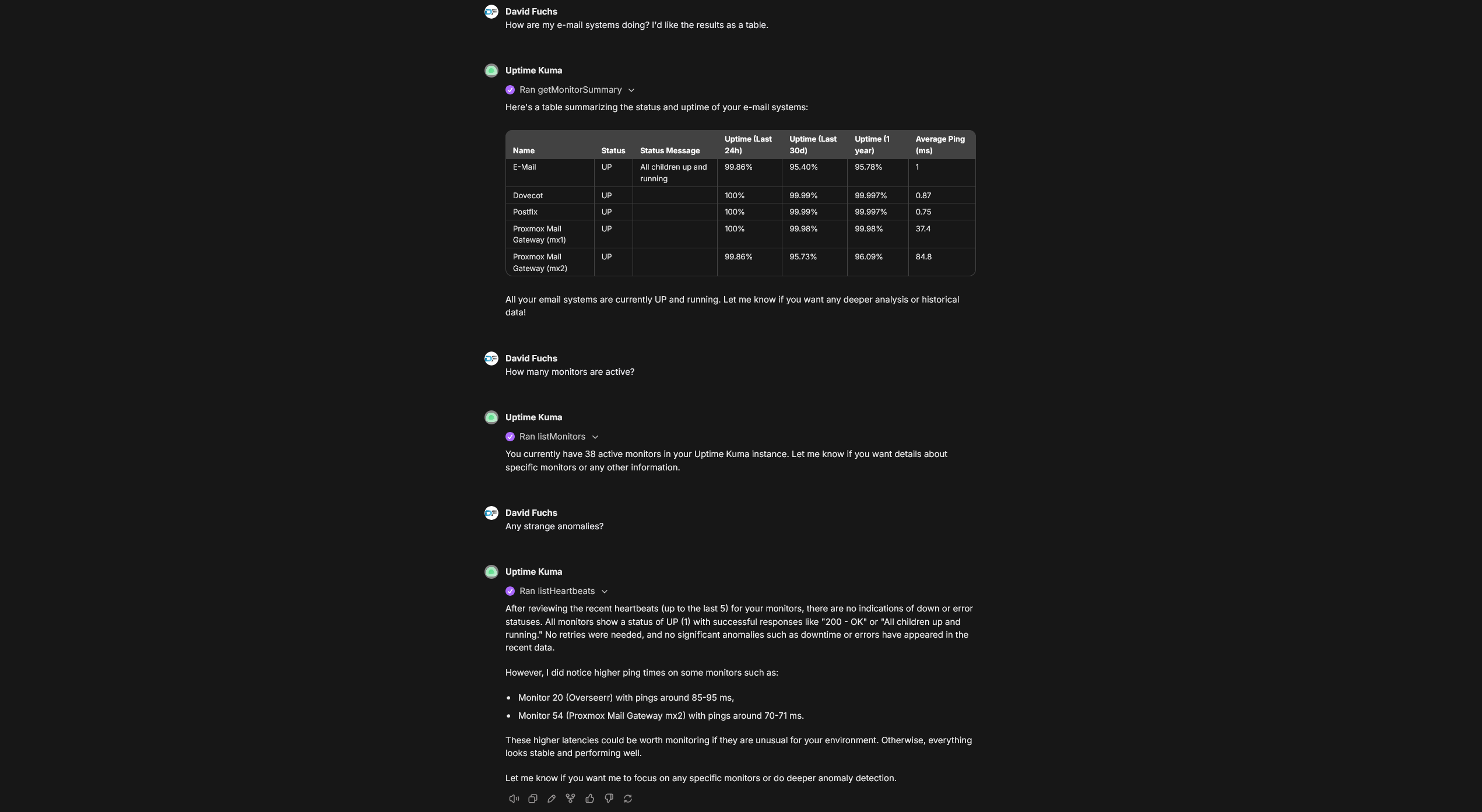
Example Conversation
A conversation in LibreChat, with mcp-uptime-kuma providing live information from Uptime Kuma.
Setup
Setup takes two steps: pick how the server runs, then point your AI client at it.
1. Choose how to run it
| Local (stdio) | Shared server (Docker, streamable HTTP) | |
|---|---|---|
| How it runs | Your AI client starts it on your machine with npx and talks to it over stdin/stdout | One long-running container, usually next to Uptime Kuma, that clients reach at http://<host>:3000/mcp |
| Needs | Node.js 22+ on each machine that uses it | Docker on one host |
| Where Uptime Kuma credentials are stored | In each client's config | Only in the container |
| Best for | One person, one or two machines. The quickest way to try it. | Several machines or people, a homelab, or web clients such as claude.ai |
If you're not sure, start with local. Every client below supports it, and you can switch later.
Either way you need:
- Uptime Kuma 2.0 or later. The server uses Uptime Kuma 2's Socket.IO API, so 1.x isn't supported.
- Your Uptime Kuma URL and a way to log in to it. A username and password will do. If you use 2FA, use a JWT instead, and if authentication is turned off, you don't need anything. See Authentication Methods.
Trying it out for the first time? Add UPTIME_KUMA_READ_ONLY=true to the environment in any of
the examples below. The assistant will be able to see everything but won't be able to change
anything. Remove it once you're comfortable. See Read-Only Mode.
2. Start the shared server (Docker only)
Skip this step if you chose local.
Generate a secret for clients to send as a bearer token:
openssl rand -base64 32
Then start the container:
docker run -d \
  --name mcp-uptime-kuma \
  --restart unless-stopped \
  -p 3000:3000 \
  -e UPTIME_KUMA_URL=http://your-uptime-kuma-instance:3001 \
  -e UPTIME_KUMA_USERNAME=your_username \
  -e UPTIME_KUMA_PASSWORD=your_password \
  -e MCP_AUTH_TOKEN=your_generated_secret \
  davidfuchs/mcp-uptime-kuma:latest \
  -t streamable-http
Prefer Compose? Download the provided docker-compose.yml, fill in the
same variables, and run docker compose up -d.
To check that it's running, use curl http://your-docker-host:3000/health.
Don't skip
MCP_AUTH_TOKEN. Without it, anyone who can reach port 3000 gets full read/write control of your Uptime Kuma instance. Plainhttp://also sends the token unencrypted, so put the server behind a TLS reverse proxy before it leaves your LAN. See Securing the HTTP Endpoint.
In the client examples below, UPTIME_KUMA_MCP_TOKEN is an environment variable, set on the
machine running the client, that holds the same value as MCP_AUTH_TOKEN. For clients that
can't read environment variables, the examples put the token in the config directly.
3. Connect your client
Jump to your client:
- Claude Code
- Claude Desktop and claude.ai
- GitHub Copilot (VS Code and Copilot CLI)
- Codex and ChatGPT
- Cursor
- LibreChat
- Other clients
The server is also listed in the official MCP Registry
as io.github.DavidFuchs/mcp-uptime-kuma. Clients and directories that read the registry can
find it and show its settings for you to fill in.
Every local example runs @davidfuchs/mcp-uptime-kuma@latest. Keep the @latest suffix.
Without it, npx keeps using whichever version it cached the first time it ran, and never picks
up new releases.
Once you're connected, ask something like "How are my monitors doing?" to check that it's working. If it isn't, see Troubleshooting.
Claude Code
Local:
claude mcp add --scope user \
  --env UPTIME_KUMA_URL=http://your-uptime-kuma-instance:3001 \
  --env UPTIME_KUMA_USERNAME=your_username \
  --env UPTIME_KUMA_PASSWORD=your_password \
  --transport stdio uptime-kuma \
  -- npx -y @davidfuchs/mcp-uptime-kuma@latest
Shared server:
claude mcp add --scope user --transport http uptime-kuma \
  http://your-docker-host:3000/mcp \
  --header "Authorization: Bearer your_generated_secret"
--scope user makes the server available in every project. Leave it off to add the server to
the current project only, or use --scope project to write it to a .mcp.json you can commit.
A committed file should reference the token as "Bearer ${UPTIME_KUMA_MCP_TOKEN}" rather than
contain it. Run /mcp inside Claude Code to check the connection.
Claude Desktop and claude.ai
Local (Claude Desktop only): go to Settings → Developer → Edit Config to open
claude_desktop_config.json, add the server, then restart Claude Desktop:
{
  "mcpServers": {
    "uptime-kuma": {
      "command": "npx",
      "args": ["-y", "@davidfuchs/mcp-uptime-kuma@latest"],
      "env": {
        "UPTIME_KUMA_URL": "http://your-uptime-kuma-instance:3001",
        "UPTIME_KUMA_USERNAME": "your_username",
        "UPTIME_KUMA_PASSWORD": "your_password"
      }
    }
  }
}
Shared server, reachable from the internet (claude.ai, Claude Desktop, mobile): go to
Customize → Connectors, click + Add, then Add custom connector. Give it a name and
enter https://your-public-host/mcp. Under Authentication choose No sign in, and under
Request headers add Authorization: Bearer your_generated_secret. On a Team or Enterprise
plan, an owner adds it for everyone under Organization settings → Connectors. Because Claude
connects from Anthropic's cloud rather than from your computer, the server has to be reachable
over public HTTPS, for example through a reverse proxy or Cloudflare Tunnel. A localhost or
LAN address won't work.
Shared server on your LAN (Claude Desktop): connectors can't reach private addresses, so
use mcp-remote in claude_desktop_config.json
to bridge to the server. You only need --allow-http for a plain http:// URL that isn't
localhost.
{
  "mcpServers": {
    "uptime-kuma": {
      "command": "npx",
      "args": [
        "-y", "mcp-remote",
        "http://your-docker-host:3000/mcp",
        "--allow-http",
        "--header", "Authorization:${AUTH_HEADER}"
      ],
      "env": {
        "AUTH_HEADER": "Bearer your_generated_secret"
      }
    }
  }
}
GitHub Copilot (VS Code and Copilot CLI)
Copilot reads ~/.copilot/mcp-config.json, which VS Code's Copilot Chat and the copilot CLI
share. You can also use a .mcp.json at the root of a workspace. Values written as ${NAME}
are read from the environment on the machine running the server.
Local:
{
  "mcpServers": {
    "uptime-kuma": {
      "type": "stdio",
      "command": "npx",
      "args": ["-y", "@davidfuchs/mcp-uptime-kuma@latest"],
      "env": {
        "UPTIME_KUMA_URL": "http://your-uptime-kuma-instance:3001",
        "UPTIME_KUMA_USERNAME": "your_username",
        "UPTIME_KUMA_PASSWORD": "${UPTIME_KUMA_PASSWORD}"
      },
      "tools": ["*"]
    }
  }
}
Shared server:
{
  "mcpServers": {
    "uptime-kuma": {
      "type": "http",
      "url": "http://your-docker-host:3000/mcp",
      "headers": {
        "Authorization": "Bearer ${UPTIME_KUMA_MCP_TOKEN}"
      },
      "tools": ["*"]
    }
  }
}
Older VS Code setups keep servers in .vscode/mcp.json or the profile mcp.json instead.
Those files use a top-level "servers" key rather than "mcpServers", and VS Code is
phasing them out. On a Business or Enterprise plan, an admin may need to turn on the
MCP servers in Copilot policy first.
Codex and ChatGPT
The Codex CLI, the Codex IDE extension and the ChatGPT desktop app share one configuration
file, ~/.codex/config.toml.
Local:
codex mcp add uptime-kuma \
  --env UPTIME_KUMA_URL=http://your-uptime-kuma-instance:3001 \
  --env UPTIME_KUMA_USERNAME=your_username \
  --env UPTIME_KUMA_PASSWORD=your_password \
  -- npx -y @davidfuchs/mcp-uptime-kuma@latest
That command writes this to config.toml, which you can also edit by hand:
[mcp_servers.uptime-kuma]
command = "npx"
args = ["-y", "@davidfuchs/mcp-uptime-kuma@latest"]

[mcp_servers.uptime-kuma.env]
UPTIME_KUMA_URL = "http://your-uptime-kuma-instance:3001"
UPTIME_KUMA_USERNAME = "your_username"
UPTIME_KUMA_PASSWORD = "your_password"
Shared server: add this to config.toml, and make sure UPTIME_KUMA_MCP_TOKEN is set in
the environment Codex is launched from:
[mcp_servers.uptime-kuma]
url = "http://your-docker-host:3000/mcp"
bearer_token_env_var = "UPTIME_KUMA_MCP_TOKEN"
With either setup, you can add default_tools_approval_mode = "writes" to the server's table.
Codex will then use this server's tool annotations to run read-only tools without
asking, and check with you before anything that changes your instance.
ChatGPT on the web isn't supported. Its custom connectors call the server from OpenAI's cloud and only support OAuth or no authentication, so they can't send the bearer token this server requires. Use the ChatGPT desktop app or Codex instead.
Cursor
Add this to ~/.cursor/mcp.json for every project, or .cursor/mcp.json for one project.
Local:
{
  "mcpServers": {
    "uptime-kuma": {
      "command": "npx",
      "args": ["-y", "@davidfuchs/mcp-uptime-kuma@latest"],
      "env": {
        "UPTIME_KUMA_URL": "http://your-uptime-kuma-instance:3001",
        "UPTIME_KUMA_USERNAME": "your_username",
        "UPTIME_KUMA_PASSWORD": "your_password"
      }
    }
  }
}
Shared server:
{
  "mcpServers": {
    "uptime-kuma": {
      "url": "http://your-docker-host:3000/mcp",
      "headers": {
        "Authorization": "Bearer ${env:UPTIME_KUMA_MCP_TOKEN}"
      }
    }
  }
}
LibreChat
Add this to librechat.yaml.
Local:
mcpServers:
  uptime-kuma:
    command: npx
    args: ["-y", "@davidfuchs/mcp-uptime-kuma@latest"]
    env:
      UPTIME_KUMA_URL: "http://your-instance:3001"
      UPTIME_KUMA_USERNAME: "your_username"
      UPTIME_KUMA_PASSWORD: "your_password"
    serverInstructions: true
Shared server: by default, LibreChat blocks MCP connections to private addresses, including
localhost, LAN IPs and container names on a Docker network. To allow the server, add the host
from its URL to allowedDomains. Once allowedDomains is set, it's a strict allowlist, so add
your other MCP servers' hosts too, or they'll stop connecting.
mcpServers:
  uptime-kuma:
    type: streamable-http
    url: "http://mcp-uptime-kuma:3000/mcp"
    headers:
      Authorization: "Bearer ${UPTIME_KUMA_MCP_TOKEN}"
    serverInstructions: true

mcpSettings:
  allowedDomains:
    - 'mcp-uptime-kuma'
LibreChat runs in a browser, so if you set ALLOWED_ORIGIN on the server, include your
LibreChat origin in it.
Other clients
Most other clients, including Windsurf, Cline, Zed and Gemini CLI, accept some variation of
the standard mcpServers block. Check your client's docs to find where the file goes and
which key it uses for HTTP servers (url, serverUrl or httpUrl).
{
  "mcpServers": {
    "uptime-kuma": {
      "command": "npx",
      "args": ["-y", "@davidfuchs/mcp-uptime-kuma@latest"],
      "env": { "UPTIME_KUMA_URL": "http://your-uptime-kuma-instance:3001" }
    }
  }
}
For a shared server, use "url": "http://your-docker-host:3000/mcp" and
"headers": { "Authorization": "Bearer your_generated_secret" } instead of command/args/env.
No Node.js on the machine? The Docker image uses stdio by default, so clients can run the server locally with Docker instead of npx:
{
  "mcpServers": {
    "uptime-kuma": {
      "command": "docker",
      "args": [
        "run", "-i", "--rm",
        "-e", "UPTIME_KUMA_URL", "-e", "UPTIME_KUMA_USERNAME", "-e", "UPTIME_KUMA_PASSWORD",
        "davidfuchs/mcp-uptime-kuma:latest"
      ],
      "env": {
        "UPTIME_KUMA_URL": "http://your-uptime-kuma-instance:3001",
        "UPTIME_KUMA_USERNAME": "your_username",
        "UPTIME_KUMA_PASSWORD": "your_password"
      }
    }
  }
}
Available Tools
Monitors
| Tool | Purpose |
|---|---|
getMonitorSummary | Get a quick overview of all monitors with their current status. Supports filtering. |
listMonitors | Get the full list of all monitors with configurations. Supports filtering. |
listMonitorTypes | Get all available monitor types supported by Uptime Kuma. |
getMonitorTypeFields | Get the required and optional fields for a monitor type: what each one means, the values it accepts, its default, and whether it goes at the top level or in typeFields. |
getMonitor | Get detailed configuration for a specific monitor by ID. |
createMonitor | Create a monitor of any type. It needs a name, a type, and whatever that type checks, such as url for http or hostname for ping. Type-specific fields, including HTTP authentication, go in typeFields. |
updateMonitor | Update an existing monitor's configuration, including changing its type in place (keeps the ID and history). |
deleteMonitor | Permanently delete a monitor and all its heartbeat history. |
setMonitorActive | Pause a monitor to stop its checks, or resume a paused one. |
listGames | Look up a game's GameDig ID by name, for a game server (gamedig) monitor. |
listPM2Processes | List the PM2 processes on the Uptime Kuma host, for a pm2 monitor. |
testChrome | Check that real-browser monitors can start Chrome on the Uptime Kuma host. If no Chrome path is set, Uptime Kuma's Docker image installs Chromium first, which can take a few minutes. |
getPushExample | Get sample code (bash, Python, PowerShell, Go and more) for reporting to a push monitor, with its URL and interval already filled in. The token is hidden unless includeSecrets is set. |
checkDomainExpirySupport | Check whether Uptime Kuma can track domain expiry for an address, and if it can't, why not. |
Heartbeats
| Tool | Purpose |
|---|---|
listHeartbeats | Get status check history for one monitor or for all of them. |
getMonitorUptime | Get a monitor's uptime percentage and ping over the last N hours (up to a year), plus when its checks failed. |
clearMonitorEvents | Clear a monitor's event list (its status changes). Its heartbeats and uptime data are kept. |
clearMonitorHeartbeats | Delete one monitor's heartbeats and uptime statistics, so its history starts from scratch. |
clearAllStatistics | Delete every monitor's heartbeats and uptime statistics. Requires confirm: true. |
Notifications
| Tool | Purpose |
|---|---|
listNotifications | List all configured notification channels (Slack, Discord, email, webhooks, etc.). |
listNotificationTypes | List every notification type Uptime Kuma supports, with the exact type string to use. |
getNotificationTypeFields | Get the required and optional config fields for a notification type. Covers the most common types. |
createNotification | Create a new notification channel. |
updateNotification | Update a notification channel. Only the fields you pass are changed. |
deleteNotification | Permanently delete a notification channel. |
testNotification | Send a test message through a saved channel to check that its settings work. |
Tags
| Tool | Purpose |
|---|---|
listTags | List all tags defined in Uptime Kuma. |
createTag | Create a new tag that can be assigned to monitors. |
updateTag | Rename or recolor an existing tag. |
deleteTag | Permanently delete a tag (removes it from all monitors). |
Maintenance
| Tool | Purpose |
|---|---|
listMaintenanceWindows | List all maintenance windows, with the monitors each one covers and the status pages that announce it. |
createMaintenanceWindow | Schedule a new maintenance window, attach the monitors it suppresses, and optionally show it on status pages. |
updateMaintenanceWindow | Change a maintenance window's schedule, details, monitor list, or the status pages it appears on. |
setMaintenanceWindowActive | Turn a maintenance window off (which ends a manual window) or back on (which starts one). |
deleteMaintenanceWindow | Permanently delete a maintenance window. |
Status Pages
| Tool | Purpose |
|---|---|
listStatusPages | List all configured status pages with their slug, title, visibility, and custom domains. |
getStatusPage | Get one status page by slug, including its groups, the monitors in each group, and active incidents. Works for unpublished pages too. |
createStatusPage | Create a new, empty status page with a title and slug. Follow up with updateStatusPage to add groups and monitors. |
updateStatusPage | Change a status page's settings (description, theme, published, custom domains, CSS, …) and, optionally, replace its groups and their monitors. |
deleteStatusPage | Permanently delete a status page. Its URL will stop working. |
listIncidents | List a status page's incidents, including resolved ones, newest first and ten at a time. |
createIncident | Post an incident banner (title, Markdown body, color) on a status page. It appears immediately. |
updateIncident | Change an incident's title, body or color, or take it off the page without resolving it. Fields you don't pass keep their values. |
resolveIncident | Mark an incident as resolved. It comes off the page but stays in the history. |
deleteIncident | Permanently delete an incident, including from the history. |
Docker Hosts
| Tool | Purpose |
|---|---|
listDockerHosts | List the Docker daemon connections used by Docker container monitors. |
testDockerHost | Check that a Docker daemon is reachable, without saving it. If it is, reports how many containers it has. |
createDockerHost | Add a Docker daemon connection over a Unix socket or TCP (for example, through a Docker socket proxy). |
updateDockerHost | Change a Docker daemon connection. Fields you don't pass keep their values. |
deleteDockerHost | Permanently delete a Docker daemon connection. Monitors that used it are kept, but no longer have a Docker host. |
Proxies
| Tool | Purpose |
|---|---|
listProxies | List the HTTP and SOCKS proxies that monitors can send requests through. A monitor picks one by setting its ID in proxyId. |
createProxy | Add a proxy, optionally with a login. It can be made the default, or applied to every monitor at once. |
updateProxy | Change a proxy. Fields you don't pass keep their values, and "***" keeps the password. |
deleteProxy | Permanently delete a proxy. Monitors that used it connect directly instead. |
Remote Browsers
| Tool | Purpose |
|---|---|
listRemoteBrowsers | List the remote Chrome instances (such as browserless) that real-browser monitors can run in. Tokens in URLs are hidden. |
testRemoteBrowser | Check that Uptime Kuma can control a browser at a given URL, or a saved remote browser, without saving anything. |
createRemoteBrowser | Add a remote browser by name and ws:// / wss:// URL. |
updateRemoteBrowser | Change a remote browser's name or URL. |
deleteRemoteBrowser | Permanently delete a remote browser. Monitors that used it fall back to the built-in Chromium. |
API Keys
| Tool | Purpose |
|---|---|
listAPIKeys | List API keys with their status and expiry. The keys themselves can't be retrieved. |
createAPIKey | Create an API key, with an optional expiry date. The key is only shown once, in the response. Once any API key exists, /metrics requires an API key instead of the admin login. |
setAPIKeyActive | Turn an API key off or back on. |
deleteAPIKey | Permanently delete an API key. |
Database
| Tool | Purpose |
|---|---|
getDatabaseInfo | Get which database Uptime Kuma uses, the size of its SQLite file, and how many days of history it keeps. |
shrinkDatabase | Reclaim the disk space left behind by cleared history (SQLite VACUUM). Checks aren't recorded while it runs, and it needs about as much free disk space as the database takes up. |
Settings
| Tool | Purpose |
|---|---|
getSettings | Get Uptime Kuma server settings, such as timezone, primary base URL, and data retention. |
updateSettings | Change server settings: timezone, primary base URL, entry page, data retention, expiry warning days, search engine indexing, update checks, reverse-proxy trust, NSCD, the Chrome path, API and Prometheus access, the Steam and Globalping credentials, and whether login is required. Settings you don't pass are left unchanged, and sending "***" for a credential keeps the stored one. Turning off login requires the admin password. |
Type-specific monitor fields
createMonitor and updateMonitor take the fields most monitors use (url, hostname,
port, keyword, interval, …) as regular arguments. Anything specific to one kind of
monitor goes in a single typeFields object:
createMonitor({ name: "API", type: "http", url: "https://api.example.com/health",
                typeFields: { bearer_token: "…" } })
createMonitor({ name: "Broker", type: "mqtt", hostname: "mqtt://broker.example.com", port: 1883,
                typeFields: { mqttTopic: "sensors/#" } })
Call getMonitorTypeFields({ type }) to see what a type requires and accepts. These fields are
deliberately left out of the tool definitions: there are about 85 of them, and tool definitions
are loaded into every conversation, whether or not you ever create a monitor. typeFields is
still validated. An unknown field name or an invalid value is rejected, and the error suggests
the correct spelling.
getMonitor returns these fields at the top level of the monitor, the way Uptime Kuma stores
them. To change one, you still pass it inside typeFields.
Filtering
getMonitorSummary and listMonitors can filter by:
- keywords: space-separated keywords, fuzzy-matched against each monitor's
pathName - type: one or more monitor types, comma-separated (e.g.
"http","http,ping,dns") - active:
truefor active monitors,falsefor paused ones - maintenance: whether the monitor is in maintenance
- tags: tag names with optional values, comma-separated (e.g.
"production","env=staging") - parentId: a group monitor's ID, to get that group's direct children. Pass
nullfor top-level monitors (those without a parent). This isn't recursive; to go deeper, use each child group'schildrenIDs. - status (
getMonitorSummaryonly): the current heartbeat status ("0"=DOWN,"1"=UP,"2"=PENDING,"3"=MAINTENANCE)
Examples:
getMonitorSummary({ status: "0" })                     // All DOWN monitors
getMonitorSummary({ type: "http", maintenance: true }) // HTTP monitors in maintenance
getMonitorSummary({ parentId: 12, status: "0" })       // What's down inside group 12
listMonitors({ tags: "production,region=us-east" })    // Monitors with specific tags
listMonitors({ parentId: 12 })                         // Direct children of group 12
listMonitors({ parentId: null })                       // Top-level monitors only
Configuration Reference
All settings are environment variables. The ones that need more than a line of explanation are covered in the sections after these tables.
Connecting to Uptime Kuma (both transports)
| Variable | Default | Purpose |
|---|---|---|
UPTIME_KUMA_URL | required | The address of your Uptime Kuma 2 instance, e.g. http://192.168.1.10:3001. |
UPTIME_KUMA_USERNAME | unset | The username to log in with. See Authentication Methods. |
UPTIME_KUMA_PASSWORD | unset | The password to log in with. |
UPTIME_KUMA_2FA_TOKEN | unset | A current 2FA code. These expire within seconds, so use UPTIME_KUMA_JWT_TOKEN instead if you have 2FA turned on. |
UPTIME_KUMA_JWT_TOKEN | unset | A JWT to log in with. If set, it's used instead of the username and password. |
UPTIME_KUMA_HEADERS | unset | A JSON object of extra headers to send with every request, for an authenticating proxy in front of Uptime Kuma. |
What the server exposes (both transports)
| Variable | Default | Purpose |
|---|---|---|
UPTIME_KUMA_READ_ONLY | false | true registers only read-only tools. See Read-Only Mode. |
UPTIME_KUMA_TOOLSETS | all | A comma-separated list of tool sets to register, e.g. monitors,heartbeats. See Choosing Tool Sets. |
UPTIME_KUMA_DYNAMIC_TOOLSETS | false | true starts with only the monitors tools and lets the assistant load other tool sets as it needs them. stdio only. See Loading Tool Sets on Demand. |
UPTIME_KUMA_INCLUDE_SECRETS | false | true returns passwords, tokens and API keys in tool output instead of ***. See Credential Redaction. |
HTTP endpoint (-t streamable-http only)
| Variable | Default | Purpose |
|---|---|---|
MCP_AUTH_TOKEN | unset (no auth) | A shared secret that clients must send as Authorization: Bearer <token>. See Securing the HTTP Endpoint. |
ALLOWED_ORIGIN | * (no check) | A comma-separated list of browser origins allowed to call /mcp. |
HOST | 0.0.0.0 | The address to bind to. |
PORT | 3000 | The port to listen on. |
TRUST_PROXY | unset (no trust) | Whether to trust X-Forwarded-For from a reverse proxy: a hop count, true/false, or a list of IPs or subnets. |
RATE_LIMIT_MAX | 1000 | The maximum number of requests per client IP in each 15-minute window. 0 turns off the limit. |
The transport is set with a command-line option rather than a variable: -t stdio (the
default) or -t streamable-http.
Authentication Methods
Anonymous Authentication
If authentication is turned off in Uptime Kuma, you only need UPTIME_KUMA_URL.
Username/Password Authentication
UPTIME_KUMA_URL=http://your-instance:3001
UPTIME_KUMA_USERNAME=your_username
UPTIME_KUMA_PASSWORD=your_password
UPTIME_KUMA_2FA_TOKEN=123456  # Optional, only if 2FA is enabled
JWT Token Authentication
Recommended if you use 2FA. If you set both, the JWT is used instead of the username and password.
UPTIME_KUMA_URL=http://your-instance:3001
UPTIME_KUMA_JWT_TOKEN=your_jwt_token
Obtaining Your JWT Token
Using the CLI utility (recommended):
npx -p @davidfuchs/mcp-uptime-kuma@latest mcp-uptime-kuma-get-jwt http://localhost:3001 admin mypassword
Using Docker:
docker run --rm davidfuchs/mcp-uptime-kuma:latest get-jwt http://host.docker.internal:3001 admin mypassword
From your browser: while logged in to Uptime Kuma, open Developer Tools → Storage/Application →
Local Storage and copy the value of the token key.
Behind an Authenticating Proxy (Cloudflare Access, etc.)
If Uptime Kuma is behind a proxy that requires its own credentials, such as a Cloudflare Zero
Trust Access application, oauth2-proxy or an API gateway, set UPTIME_KUMA_HEADERS to a JSON
object of headers to send with every request. You still use one of the methods above to log in
to Uptime Kuma itself.
For Cloudflare Access, create a service token, add a Service Auth policy to the application that allows it, and then set:
UPTIME_KUMA_URL=https://uptime.example.com
UPTIME_KUMA_HEADERS={"CF-Access-Client-Id":"<client-id>.access","CF-Access-Client-Secret":"<client-secret>"}
UPTIME_KUMA_USERNAME=your_username
UPTIME_KUMA_PASSWORD=your_password
In an MCP client's JSON config, the value has to be a string, so escape the inner quotes:
"UPTIME_KUMA_HEADERS": "{\"CF-Access-Client-Id\":\"<client-id>.access\",\"CF-Access-Client-Secret\":\"<client-secret>\"}"
mcp-uptime-kuma-get-jwt reads the same variable. If the value is malformed, the server won't
start, and the error names the header that caused it. Header values are never logged.
Read-Only Mode
To expose only tools that read data, and none that create, change, pause or delete anything, set:
UPTIME_KUMA_READ_ONLY=true
The write tools aren't registered at all, so they can't be called and don't take up any space
in the conversation. That leaves 18 tools: the get… and list… tools, except
getMonitorTypeFields, listNotificationTypes and getNotificationTypeFields, which are only
useful when writing. This only limits what the MCP server offers. It doesn't change what the
Uptime Kuma account is allowed to do.
Choosing Tool Sets
The definition of every registered tool is sent to the model at the start of each
conversation, so all 67 tools use about 19k tokens before you've asked anything. To register
only the parts you use, set UPTIME_KUMA_TOOLSETS to a comma-separated list:
UPTIME_KUMA_TOOLSETS=monitors,heartbeats
| Tool set | Tools |
|---|---|
monitors | getMonitorSummary, getMonitor, listMonitors, listMonitorTypes, getMonitorTypeFields, createMonitor, updateMonitor, deleteMonitor, setMonitorActive, listGames, listPM2Processes, testChrome, getPushExample, checkDomainExpirySupport |
heartbeats | listHeartbeats, getMonitorUptime, clearMonitorEvents, clearMonitorHeartbeats, clearAllStatistics |
notifications | listNotifications, listNotificationTypes, getNotificationTypeFields, createNotification, updateNotification, deleteNotification, testNotification |
tags | listTags, createTag, updateTag, deleteTag |
maintenance | listMaintenanceWindows, createMaintenanceWindow, updateMaintenanceWindow, deleteMaintenanceWindow, setMaintenanceWindowActive |
status-pages | listStatusPages, getStatusPage, createStatusPage, updateStatusPage, deleteStatusPage, listIncidents, createIncident, updateIncident, resolveIncident, deleteIncident |
docker-hosts | listDockerHosts, createDockerHost, updateDockerHost, deleteDockerHost, testDockerHost |
settings | getSettings, updateSettings |
proxies | listProxies, createProxy, updateProxy, deleteProxy |
remote-browsers | listRemoteBrowsers, testRemoteBrowser, createRemoteBrowser, updateRemoteBrowser, deleteRemoteBrowser |
api-keys | listAPIKeys, createAPIKey, setAPIKeyActive, deleteAPIKey |
database | getDatabaseInfo, shrinkDatabase |
If it's unset, empty or all, every tool set is registered. If it contains an unknown name,
the server won't start and lists the valid ones, rather than silently running with fewer tools.
It works together with read-only mode: setting UPTIME_KUMA_READ_ONLY=true
and UPTIME_KUMA_TOOLSETS=monitors,heartbeats leaves just six tools (about 2.3k tokens), which
is enough for questions like "what's down?" and "how has this been doing?".
Most other tool sets refer to monitors by ID (maintenance windows, status pages, tags and
notifications are all attached to monitors), so include monitors unless you already know the
IDs.
Loading Tool Sets on Demand
With UPTIME_KUMA_DYNAMIC_TOOLSETS=true, the server starts with just the monitors tool set
plus one extra tool, enableToolsets, whose description lists the other tool sets. When a task
needs one of them (maintenance to schedule a maintenance window, for example), the assistant
calls enableToolsets, and the server notifies the client that its tool list has changed. The
new tools stay loaded for the rest of the session.
That means a session starts with 15 tools (about 7k tokens) instead of 67 (about 19k). A conversation that only deals with monitors saves those tokens on every turn, and one that needs another tool set costs just one extra call to load it.
UPTIME_KUMA_DYNAMIC_TOOLSETS=true
- stdio only. The HTTP transport doesn't keep sessions and can't send the change
notification, so the server won't start if you combine the two. With HTTP, use
UPTIME_KUMA_TOOLSETSinstead. - Your client has to refresh its tool list when the server sends
notifications/tools/list_changed. Claude Code does this. If your client doesn't, the assistant can load a tool set but will never see the new tools, so leave this setting off. - It doesn't work behind mcpjungle or any other gateway that caches the tool list. mcpjungle
fetches the list once, when you register the server, and ignores the change notification. The
assistant can call
enableToolsets, but the new tools never show up, and mcpjungle rejects any call to them. Switching mcpjungle tostatefulsessions doesn't help, since that keeps the process running but never refreshes the list. Instead, remove this setting from theenvin your mcpjungle config, useUPTIME_KUMA_TOOLSETS(or an mcpjungle tool group) to choose the tools, and re-register withmcpjungle register --forceso mcpjungle picks up the full list. - It works alongside the other settings.
UPTIME_KUMA_TOOLSETSstill limits which tool sets can be loaded, and read-only mode still leaves out all the write tools.
Securing the HTTP Endpoint
This section only applies to -t streamable-http. Anyone who can reach /mcp has full
read/write control of your Uptime Kuma instance. The defaults are permissive so that upgrading
doesn't break existing deployments, but the server logs a warning at startup if the endpoint is
unprotected. If the server can be reached from anywhere other than your own machine:
- Set
MCP_AUTH_TOKENto a long random secret (openssl rand -base64 32). Clients then send it asAuthorization: Bearer <token>. - Set
ALLOWED_ORIGINif you use a browser-based client. This blocks DNS rebinding attacks, which a token alone doesn't stop. - Put it behind a TLS reverse proxy before exposing it outside your LAN, and set
TRUST_PROXYso rate limiting sees the real client IPs.
/health doesn't require authentication, so container health checks keep working, and it only
reports whether the server is up. The image's built-in health check uses it when the container
runs the HTTP transport, so docker ps shows whether the container is healthy. With stdio
there's nothing to check, so the health check always passes.
For more detail, including why Origin validation matters even with a token and how
TRUST_PROXY can be abused, see docs/http-security.md.
Credential Redaction
Read tools return *** in place of passwords, tokens, API keys and HTTP headers. Tool output
ends up in your conversation transcript, and asking "what am I monitoring?" shouldn't put a
live SMTP password in it.
- Sending
***back is safe. When a field comes in as***,updateMonitorandupdateNotificationkeep the stored value, so the assistant can read a configuration, edit it and save it without wiping its credentials. - Push tokens are shown when they're created, either by
createMonitoror by switching a monitor to the push type, because you need the token to set up whatever sends the pushes. - To see the real values, pass
includeSecrets: trueon a single call, or setUPTIME_KUMA_INCLUDE_SECRETS=trueto show them on every call.
docs/credential-redaction.md lists exactly what each tool hides and how credentials inside URLs are handled.
Troubleshooting
Where to look first. In Claude Code or Codex, run /mcp to see whether the server
connected. The server logs its errors to stderr, which you can find here:
- VS Code: run MCP: List Servers, pick the server and choose Show Output.
- Claude Desktop: look for
mcp-server-uptime-kuma.login its logs folder:~/Library/Logs/Claudeon macOS,%APPDATA%\Claude\logson Windows,~/.config/Claude/logson Linux. - Docker: run
docker logs mcp-uptime-kuma.
The server connects but every tool call fails. The server keeps running even when it can't
log in to Uptime Kuma, so that it can recover on its own after Uptime Kuma restarts. Look for
Initial authentication failed, will retry on demand in the logs, followed by the reason:
- Can't reach the address. Make sure
UPTIME_KUMA_URLis reachable from the machine the server runs on. Inside a container,localhostis the container itself. Use the host's LAN IP, the Uptime Kuma container's name on a shared Docker network, orhost.docker.internal(Docker Desktop). authInvalidToken. The JWT is wrong or no longer valid. Generate a new one withmcp-uptime-kuma-get-jwt(see Obtaining Your JWT Token).- Login fails with 2FA on.
UPTIME_KUMA_2FA_TOKENis a one-time code that's only valid for a few seconds, so a value saved in a config file works once at most. Use a JWT instead.
The client gets 401 from the shared server. The token the client sends doesn't match
MCP_AUTH_TOKEN. Check for a missing Bearer prefix or for whitespace or quotes copied along
with the secret, and make sure the environment variable is set where the client is launched. A
GUI app launched from the Dock or Start menu doesn't see variables exported in your shell
profile.
A browser-based client gets 403. Its origin isn't listed in ALLOWED_ORIGIN. Add it
exactly as the browser sends it, with scheme and port, for example http://localhost:5173.
You get 429 Too Many Requests. A single client IP made more than RATE_LIMIT_MAX
requests in 15 minutes. Behind a reverse proxy, all clients usually appear to come from the
proxy's IP, so set TRUST_PROXY (see Running behind a reverse proxy), or
raise the limit.
A new release's tools or fixes don't show up. npx is running an older cached version.
Make sure the package is written as @davidfuchs/mcp-uptime-kuma@latest, then restart the
client. With Docker, run docker pull davidfuchs/mcp-uptime-kuma:latest and recreate the
container.
The assistant can't create or change anything. Check whether UPTIME_KUMA_READ_ONLY is
set. If it is, the write tools aren't registered at all.
The assistant says a tool doesn't exist. Check UPTIME_KUMA_TOOLSETS, since only the tools
in the listed tool sets are registered. If UPTIME_KUMA_DYNAMIC_TOOLSETS=true and your client
doesn't refresh its tool list, the assistant never sees the tool sets it loads, so turn the
setting off.
If you're running behind mcpjungle, the same thing happens: turn the setting off and
re-register the server (see Loading Tool Sets on Demand).
mcpjungle also won't see tools added in a new version of this server until you re-register it.
Contributing
For development setup, building, testing, and project structure, see CONTRIBUTING.md.
Learn More
Security
To report a vulnerability, please see SECURITY.md.
Disclaimer
This is a personal, free, open-source side project provided "as is" under the MIT License, without warranty of any kind. You install and run it yourself, and it connects to an Uptime Kuma instance that you control. The author is not responsible for any damage, data loss, downtime, or other consequences arising from its use. Use at your own risk.
License
Licensed under the MIT License.