Listed from the MCP registry; nobody on Odel publishes it.

Backdraw
Generate images with your own ChatGPT account in a background Chrome tab. Needs Windows + Chrome.
Runs on your machine from its package; the steps are below.
What it does
- Reads
- Writes
- High impact
At most: creates or changes data: records, files, settings.
What it costs
FreeOdel charges nothing per call. The publisher may charge for its own service.
Runs locally over stdio
This server isn't hosted — your MCP client launches it from a package registry. Use one of the commands below, or drop the config into your client (e.g. Claude Desktop).
Run
npx -y backdraw
MCP client config
{
  "mcpServers": {
    "backdraw": {
      "command": "npx",
      "args": [
        "-y",
        "backdraw"
      ]
    }
  }
}
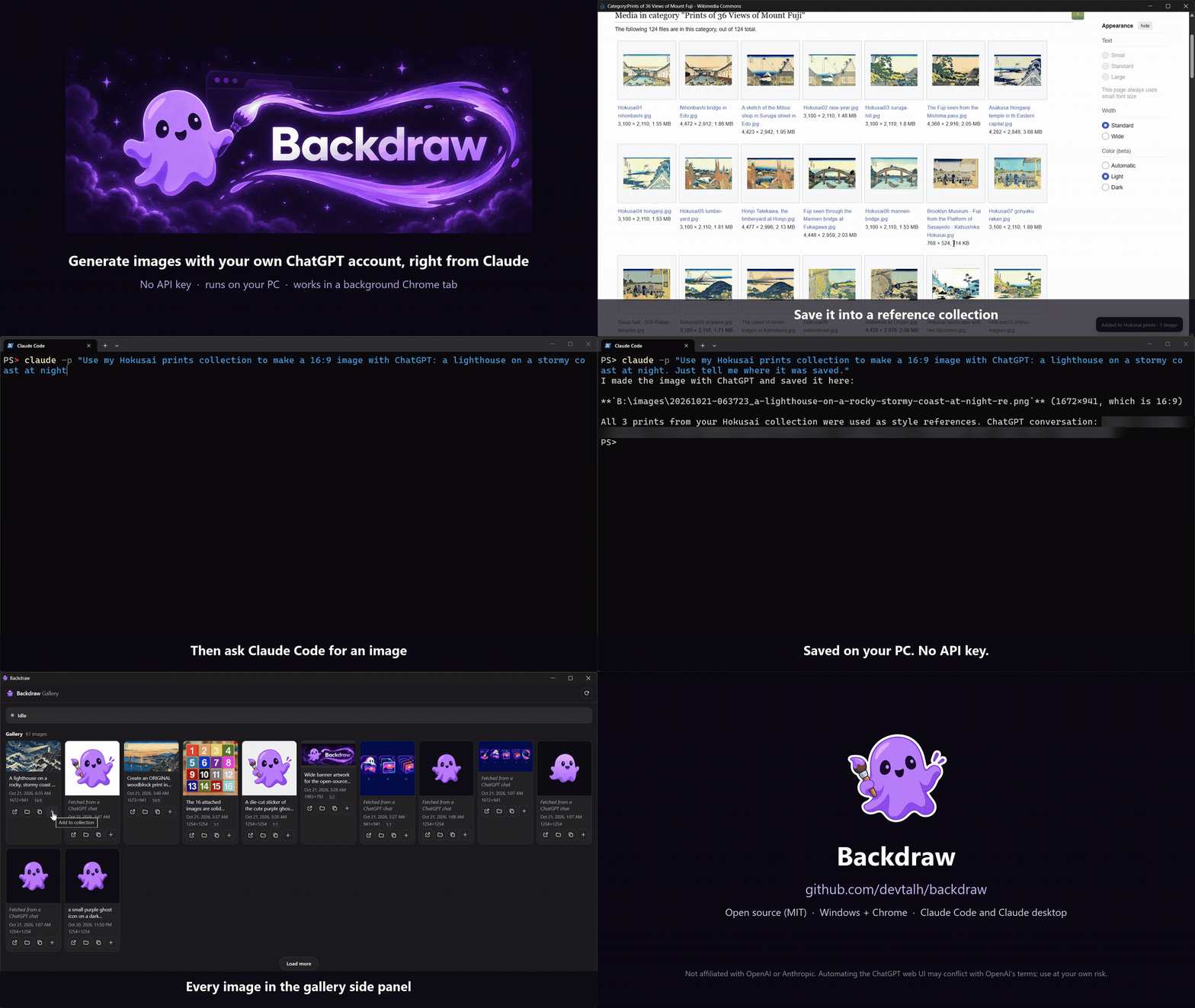
Let Claude generate images with your own ChatGPT account, in a background Chrome tab.
No API key, no extra cost, nothing to watch.


What it does
Backdraw is a local MCP server plus a Chrome extension. Ask Claude for an image "with ChatGPT" and Backdraw opens ChatGPT in a background tab of your own Chrome, where you are already signed in. It sends the prompt, waits for the picture and saves it on your PC. Claude gets the file path, a preview and the link to the chat.
- Generate new images, or edit one by attaching it as a reference.
- Ask for a shape (
16:9, a4:1banner, …) or a transparent background. - Make animated GIFs: ask ChatGPT for one, loop a single PNG locally (
animate_image), or turn a ChatGPT sprite sheet into an aligned transparent GIF (generate_sprite,animate_sheet). - Save reference images from any website with a right-click and reuse them as collections.
- Browse everything you made in a gallery side panel.
- Pure Node.js with zero npm dependencies. Everything runs on your computer.
Personal use, with your own ChatGPT account and at your own risk. Automating the ChatGPT web page may conflict with OpenAI's terms; read Disclaimer and responsible use before you start.
Why Backdraw?
- Your everyday Chrome. No separate browser profile, no second login, no automation browser: Backdraw works in the Chrome you already use, where you are signed in to ChatGPT.
- Out of your way. The work happens in a muted background tab that never takes focus, so you keep working while the image is made.
- No open ports. The pieces talk over Chrome native messaging and a named pipe that only your Windows user can open. There is no DevTools port (such as 9222) and no local web server.
- No API key. It uses your ChatGPT plan; each image counts toward your normal ChatGPT limits.
- References from the web. Right-click images on any site to collect them, then generate in their style.
- Sprite animation with checks. Backdraw cuts and aligns a sprite sheet's poses on your PC, checks frame count, empty frames and character identity, and reports any quality warnings left.
- A gallery of everything you made, in Chrome's side panel.
- One command to set up:
npx backdraw@latest setup. Loading the extension is the only step left to you.
How it compares
Other open-source projects take different approaches, and several of them do things Backdraw doesn't (macOS or Linux support, an API mode, running on a server). Each row was checked against the project's README and source on 2026-10-25; ? means we couldn't tell. Spotted a mistake? Please open an issue.
| Project | Uses your everyday Chrome (no separate profile or login) | Background tab (doesn't take focus) | Open port | API key needed | Right-click reference collections | Gallery | Platforms |
|---|---|---|---|---|---|---|---|
| Backdraw | Yes | Yes | No (native messaging + named pipe) | No | Yes | Yes | Windows |
| lownamlee/gpt-image-2-mcp | No (own browser profile) | Partly¹ | No | Optional (API mode) | No | No | ? |
| nothariharan/image-gen | No (own Edge profile) | No | Yes (CDP 9222) | No | No | No | Windows; macOS/Linux by hand |
| goofyshwetank/mcp-chatgpt-gemini-image | No (own Chromium profile) | No | No | No | No | No | ? |
| Dasemu/chatgpt-imagegen-mcp | No (own profile, on a server) | Partly² | Yes (HTTP 8088, remote server) | No (own server token) | No | No | Linux server |
Codex built-in $imagegen | – (no browser) | – | No | No (Codex sign-in) | No | ? | ? |
| Sateezg/codex-bridge | – (no browser, runs Codex) | – | No | No (Codex sign-in) | No | No | macOS, Linux |
¹ Its own browser window, moved off screen or minimized once ChatGPT is ready. ² A browser on a virtual display (Xvfb) on the server, or headless.
Codex users already have built-in image generation; Backdraw is mainly for Claude Code, the Claude desktop app and VS Code.
How it works
Claude Code / Claude desktop app (MCP client)
        │  MCP over stdio
        ▼
  mcp-server.js ──── named pipe, your Windows user only ────►  host.js
                                                                 │  Chrome native messaging
                                                                 ▼
                                                     Backdraw Chrome extension
                                                                 │  background tab
                                                                 ▼
                                      chatgpt.com → your Project → new chat → image
mcp-server.jsis what Claude talks to. It forwards every tool call tohost.js.host.jsis started by Chrome when the extension connects. It runs the job queue (one job at a time), saves the images and keeps the job history in%USERPROFILE%\.backdraw\data.- The extension opens chatgpt.com in a background tab, inside the ChatGPT Project you selected. The tab is never activated and is muted, no window takes focus, and your mouse and keyboard are never used: only synthetic events inside that one tab. The tab closes when the job is done, unless you are looking at it.
- No API key. Backdraw uses the ChatGPT session you already have in Chrome. It never reads cookies, tokens or passwords.
- Nothing leaves your PC except what you send to ChatGPT (the prompt and any reference images). There is no Backdraw server and no telemetry.
Images are saved in your Pictures folder under Backdraw, named after the time and the prompt, e.g.
20261021-153012_a-cozy-reading-nook.png.
Requirements
| OS | Windows 10 or 11 |
| Browser | Google Chrome 116 or newer (Edge, Brave and Chromium are registered too, but only Chrome is tested) |
| Runtime | Node.js 20 or newer |
| Account | A ChatGPT account that can generate images, signed in to chatgpt.com in Chrome |
| Client | Claude Code, the Claude desktop app, Codex, Cursor, VS Code or Gemini CLI (or another MCP client that runs stdio servers) |
Windows only for now — the code is split into a platform module and macOS/Linux contributions are
welcome. Everything OS-specific (named pipe, native host registration, user folders) lives in
platform/win32.js.
Installation
Quick install
Run this in PowerShell or cmd (no admin rights needed):
npx backdraw@latest setup
It runs the backdraw package from npm.
setup does everything except one click in the browser:
-
It copies Backdraw to
%USERPROFILE%\.backdraw(npx's own copy is temporary) and sets up the images folderPictures\Backdraw(reference collections go toPictures\Backdraw\References). Running it again updates Backdraw and keeps your settings, job history and collections. -
It registers the native messaging host for your Windows user, for each browser it finds (Chrome, Edge, Brave, Chromium).
-
It lists the MCP clients it finds (Claude Code, the Claude desktop app, Codex, Cursor, VS Code, Gemini CLI) and asks which ones to add Backdraw to. Only the
backdrawentry is added or updated, and every config file gets a timestamped.bakcopy before it changes.--yestakes every client it found;--clients=claude-code,cursortakes exactly those. -
It opens the extension folder and your browser's extensions page, copies the folder path to the clipboard, and waits for you to load the extension, the one step left to you:
- turn on Developer mode (top right),
- click Load unpacked,
- pick the folder (paste the path with Ctrl+V).
As soon as the extension connects, setup prints ✓ Ready and an example prompt.
The native host is still named io.github.muhammedtalha04.backdraw, after the project's old GitHub
user name: renaming it would break existing installs.
Install from your client
Your MCP client can also add Backdraw itself; it then starts the server with
npx backdraw@latest mcp. The browser side still needs a one-time setup on the PC, which leaves the
clients alone:
npx backdraw@latest setup --clients=none
| Client | Add Backdraw |
|---|---|
| Claude Code | /plugin install backdraw --marketplace devtalh/backdraw (Claude Code 2.1.275 or later; or /plugin marketplace add devtalh/backdraw, then /plugin install backdraw@backdraw). /backdraw:setup explains the browser step. |
| Cursor |  |
| VS Code |  |
| Codex | codex mcp add backdraw -- cmd /c npx -y backdraw@latest mcp |
| Gemini CLI | npx backdraw@latest setup --clients=gemini |
On Windows the command goes through cmd /c, because clients start npx without a shell. Use one
way per client: if setup already added Backdraw to Claude Code, the plugin would start a second
server with the same tools.
Manual install
-
Get the code. Clone the repository with git, or download it as a ZIP (Code → Download ZIP) and unzip it:
git clone https://github.com/devtalh/backdraw.git cd backdraw -
Run the installer in that folder (no admin rights needed):
node install.jsIt does steps 1 and 2 above and adds Backdraw to Claude Code (user scope). For the other clients, run
node bin/backdraw.js setupinstead, or see Use it. -
Load the extension once: open
chrome://extensions, turn on Developer mode, click Load unpacked and select%USERPROFILE%\.backdraw\extension.
Finish in the popup
- Open the popup. Click the Backdraw icon in the toolbar (pin it from the puzzle-piece menu).
Until everything works, the popup shows a setup checklist with the fix for each step:
- the bridge is connected,
- you are signed in to ChatGPT,
- a ChatGPT Project is selected,
- ready: an example prompt to copy into Claude.
- Create and select a ChatGPT Project. In ChatGPT, create a Project for your images (for example "Backdraw"), open it, click the Backdraw icon and press Use the “Backdraw” project. You can also ask Claude: "Select my Backdraw project in ChatGPT for images." Every new image chat is created inside that Project.
The popup also has a language (Auto / English / Türkçe) and a theme (Auto / Light / Dark) setting.
If something doesn't work, run npx backdraw@latest doctor.
Clean up ChatGPT chats
In the popup settings, After a job: ChatGPT chat offers Keep (the default), Archive and Delete. Clean up now previews eligible chats and lets you archive or delete them together, with a separate confirmation before deletion and a Stop button while cleanup runs. Only chats Backdraw opened for successfully completed jobs with saved images are eligible. Failed, timed-out jobs and jobs where ChatGPT asked a question stay open. Backdraw only knows the chats in its last 100 job records; older chats are not known. Chats that are already archived are skipped by both Archive and Delete; to delete them, use Settings > Archived chats in ChatGPT. If a chat's menu does not appear, Backdraw reloads the tab and tries that chat once more.
Cleanup uses the chat menu in ChatGPT's English interface and reads no session credentials. Deletion cannot be undone, but images stay in the ChatGPT Library and on your computer. Cleanup never changes local files. The gallery marks archived chats and disables deleted chat links.
Use it
From Claude Code
Start a new Claude Code session after installing (MCP servers are loaded when a session
starts) and ask in plain words, in any language. The backdraw server gives Claude these tools:
generate_image, job_status, cancel_job, fetch_images, list_projects, select_project and
list_collections (see Tools reference).
From the Claude desktop app (chat)
The desktop app keeps its own MCP config for chats. Claude rewrites that config when it exits, so Backdraw only changes it while Claude is closed. If setup found Claude running, add Backdraw later:
-
Quit Claude completely, also from the system tray.
-
Run this from PowerShell (not from a Claude session):
powershellnpx backdraw@latest setup --clients=claude-desktop(From a manual install:
node install.js --desktopin~\.backdraw.) A timestamped.bakcopy of each config file is written before it is changed. -
Start Claude again. Backdraw is available in new chats.
From other MCP clients
setup adds Backdraw to Codex, Cursor, VS Code and Gemini CLI too: pick them when it asks, or run
npx backdraw@latest setup --clients=codex,cursor,vscode,gemini. It writes the full path of
node.exe as the command, so a client that doesn't see your PATH still finds it. Restart the
client or start a new session afterwards.
VS Code and Gemini CLI allow comments in their config files. Rewriting such a file would drop the comments, so setup leaves a file with comments alone and tells you; add the entry by hand then.
Backdraw is a plain stdio MCP server: node %USERPROFILE%\.backdraw\mcp-server.js. To add it by
hand, use the examples below. In the config files, replace C:/Users/you with your home folder
(echo %USERPROFILE% in cmd prints it). Forward slashes work on Windows and need no escaping in
JSON. ~ below is your home folder. The PowerShell commands fill in the path themselves.
Codex (the CLI, the IDE extension and the app share ~\.codex\config.toml;
docs). From PowerShell:
codex mcp add backdraw -- node "$env:USERPROFILE\.backdraw\mcp-server.js"
or in config.toml:
[mcp_servers.backdraw]
command = "node"
args = ["C:/Users/you/.backdraw/mcp-server.js"]
Cursor (~\.cursor\mcp.json for all projects, or .cursor\mcp.json in a project;
docs). Cursor fills in ${userHome} itself:
{
  "mcpServers": {
    "backdraw": {
      "type": "stdio",
      "command": "node",
      "args": ["${userHome}/.backdraw/mcp-server.js"]
    }
  }
}
VS Code (GitHub Copilot agent mode: run MCP: Open User Configuration for every workspace,
or create .vscode\mcp.json in one; docs).
Here the key is servers and type is required:
{
  "servers": {
    "backdraw": {
      "type": "stdio",
      "command": "node",
      "args": ["C:/Users/you/.backdraw/mcp-server.js"]
    }
  }
}
Gemini CLI (~\.gemini\settings.json;
docs). -s user
adds it for all projects (the default is the current project only). From PowerShell:
gemini mcp add -s user backdraw node "$env:USERPROFILE\.backdraw\mcp-server.js"
or in settings.json:
{
  "mcpServers": {
    "backdraw": {
      "command": "node",
      "args": ["C:/Users/you/.backdraw/mcp-server.js"]
    }
  }
}
Example prompts
| You say | What Claude passes to generate_image |
|---|---|
| Generate an image with ChatGPT: a cozy reading nook by a rainy window, warm lamp light. | a detailed prompt |
| Make a 16:9 banner for my blog with ChatGPT: "Night Shift Notes", neon city at dusk. | aspect_ratio: "16:9" |
| Use ChatGPT to make a sticker of a happy cactus with a transparent background. | transparent_background: true |
| Make an animated GIF with ChatGPT: one cat waving a paw, fixed camera, no text. | animated: true |
Edit C:\path\to\photo.png with ChatGPT: turn the sky into a sunset, keep everything else. | reference_images: ["C:\\path\\to\\photo.png"] |
| Use my "Cats" collection as reference and make a poster with ChatGPT. | reference_collection: "Cats" |
To edit an image, Backdraw needs it as a file on your PC: give Claude its full path (type or paste
it) so Claude can pass it in reference_images. Files saved by earlier calls work directly. A fresh
chat with the image attached is the most reliable way to edit.
You can also ask "What's the status of the ChatGPT image job?" or "Cancel it."
Reference collections
Collect images from the web, then use them as references.
- Right-click an image on any web page → Add to Backdraw → pick a collection, or New collection… (a small window asks for the name).
- A short note in the page confirms it, e.g. "Added to Cats · 5 images". On pages where Chrome doesn't let extensions show anything, the toolbar icon flashes a ✓ (or a red ! on error) instead.
- Ask Claude to use the collection by name.
Each collection is a folder Pictures\Backdraw\References\<collection>\ with the images (named by
Backdraw: 001_<name>.png, …), a collection.json with the source page and date of each image,
and a thumbs\ folder. Adding the same image to a collection twice keeps one copy. PNG, JPEG, WebP
and GIF are kept as they are; other formats Chrome can show (such as AVIF, BMP or SVG) are saved as
PNG. If you delete an image file by hand, it drops out of the collection.
The popup's Collections section lists your collections. Open one to see its thumbnails, delete images, or rename or delete the collection.
| Limit | |
|---|---|
| References per message | 16 (reference_images and collection images together; ChatGPT accepted 16 in testing) |
| One reference | 20 MB |
| All references of one message | 80 MB |
| One collection image | 25 MB (an image over 20 MB stays in the collection; requests leave it out and say so, and naming it in reference_files makes the request fail with a message) |
A request uses the newest images of the collection that fit in the free slots. To use specific
ones, name them: Claude passes their file names (from list_collections) in reference_files.
Sizes and transparency
aspect_ratio
W:H with whole numbers, anywhere from 1:4 to 4:1: 1:1, 3:2, 2:3, 4:5, 16:9, 9:16,
5:2 (Discord banner), 3:1, 4:1, … 1920:1080 is reduced to 16:9; write 3:2, not 1.5:1.
A few names work too: square, landscape (3:2), portrait (2:3), wide (16:9), tall (9:16),
discord-banner (5:2).
- 1:3 to 3:1: ChatGPT draws these itself, at about 1.57 megapixels in the asked shape. Observed in October 2026: 1254×1254 (1:1), 1536×1024 (3:2), 1672×941 (16:9), 1983×793 (5:2).
- Up to 4:1 / 1:4: ChatGPT is asked for 3:1 (or 1:3) and told to keep subjects, faces and text inside the band that survives the crop; Backdraw then crops it from the centre.
- An image more than 1% off the asked ratio is cropped from the centre. The crop is the main file
(
<name>.png) and ChatGPT's original stays next to it as<name>_full.<ext>.output_dircopies get the main file only. - If ChatGPT drew another shape and the crop had to cut more than planned, the result warns you to check for cut-off subjects or text.
transparent_background
transparent_background: true asks ChatGPT for a transparent background showing only the subject
(not for animated GIFs, see below);
GIF transparency is reported as described in Animated GIFs below. ChatGPT doesn't always deliver,
so Backdraw checks the saved image: for PNGs, it reads the PNG header
(alpha channel or tRNS chunk) and measures the share of see-through pixels. The result says
either
Transparent background: yes — PNG with an alpha channel, 61% of the pixels are transparent.
or starts with ⚠ TRANSPARENT BACKGROUND MISSING (no alpha channel, or 2% or fewer of the pixels are transparent). Then
retry once in a fresh chat or remove the background with another tool. Previews of transparent
PNG images are drawn over a checkerboard.
Animated GIFs
animated: true asks ChatGPT for a short animated GIF. If it returns a still image, Backdraw asks
once more for an animated GIF; if the result is still a static image, the tool result warns you.
For best results, use one subject, one clear motion, a fixed camera and no small text in the scene.
Reference upload preparation follows the reference_images behavior under Tools reference. If
preparation fails, exceeds 4096 x 4096 pixels or produces a copy over 20 MB, the original is
uploaded instead.
GIFs are saved without cropping; aspect_ratio is not applied to them. Every GIF result reports
whether its background is transparent or opaque, using the share of transparent pixels measured
in the first frame. If measurement fails, the GIF's transparent color flag is reported instead.
ChatGPT's animated GIFs do not reliably keep a transparent background. An opaque result warns you
if transparent_background: true; with a transparent reference, it only reports this as information.
The attached preview shows all frames in a numbered grid (16 evenly spaced frames if there are
more than 16), with transparent areas over a checkerboard. If decoding fails, only the first
frame is shown. Fetching existing images keeps the first-frame preview. For example, a result line can be:
Animated GIF: 12 frames, 1200 ms per loop, loops forever; the attached preview shows all 12 frames in order, numbered from 1. Check that the subject keeps the same look, size and position from frame to frame.
Motion presets
Pass motion to choose a movement; for example, prompt: "A pixel-art fox", motion: "walk".
The prompt describes the subject and style; motion supplies the movement and enables animated
even when it is omitted or false. It adds a short request for a consistent character, a centered
frame, a still camera and a plain light background. References keep their drawn appearance.
Frame counts and timing below are hints; ChatGPT may produce different values.
send_as_is: true sends your prompt verbatim, without the preset text.
| Motion | Movement | Frame / timing hint |
|---|---|---|
idle | Gentle breathing and one blink | 8 frames, 150 ms each |
walk | Walk in place, viewed from the side | 8 frames, 100 ms each |
run | Run in place, viewed from the side | 8 frames, 80 ms each |
jump | Crouch, jump and land in place | 10 frames, 90 ms each |
wave | Wave one hand while the body stays still | 8 frames, 100 ms each |
dance | Step left and right with bounces and swinging arms | 10 frames, 100 ms each |
bounce | Bounce in place, squashing on landing and stretching upward | 8 frames, 90 ms each |
wiggle | Lean left and right through the center | 8 frames, 100 ms each |
spin | Turn a full circle in place | 12 frames, 80 ms each |
Inspired by ideas from kiki-pixel-gif (MIT) and sprite-gen (Apache-2.0); no code, prompt text or tables were copied.
Local motion (animate_image)
animate_image turns one PNG into a seamless looping GIF locally, in seconds, with no ChatGPT or
Chrome. The character stays unchanged, ideal for stickers and emoji. Use generate_sprite
when poses must change, such as walking or waving.
Example request: "Make the starfish sticker bounce."
| Name | Movement | Frames × ms | Loop duration |
|---|---|---|---|
bounce | Jump and land | 16 × 50 | 800 ms |
idle | Gentle breathing | 16 × 110 | 1760 ms |
sway | Rock side to side | 16 × 80 | 1280 ms |
nod | Dip the head | 12 × 80 | 960 ms |
squash | Squash and stretch | 12 × 60 | 720 ms |
wiggle | Quick little shake | 10 × 40 | 400 ms |
Pass image_path (local PNG, relative to the current folder or absolute) and motion.
size sets the long-edge limit (64-1024, default 384; enlargement uses the nearest whole multiple).
background is transparent by default, or white.
The output is <name>_<motion>.gif beside the source, with _2, _3, etc. if needed; the PNG is
never changed. A numbered preview shows every frame. With Chrome open, it also appears in the
gallery; if the bridge is off, the GIF is still saved and the result explains why it was not listed.
GIF transparency is 1-bit: pixels at least half opaque keep their own color; the rest become fully
transparent. Output larger than the source is enlarged by a whole-number factor with nearest-neighbor
sampling, keeping pixel art and small icons sharp; its long edge may be smaller than size. Smooth
premultiplied-alpha sampling is used only when downscaling, to avoid halos. All frames share one
palette, with no palette flicker or dithering. Detected pixel art (a k×k grid) still moves on its
pixel grid and scales with nearest neighbor.
Limits: non-interlaced PNG only, at most 20 MB and 16.7 million pixels (for example 4096 × 4096; edges up to 8192); the output GIF is at most 8 MB.
The light-motion idea comes from gif-factory (MIT), and the pixel-scale idea from sprite-gen (Apache-2.0); no code was copied.
Sprite animation (generate_sprite)
Ask "Claude, make a frog with a red scarf walk". With one generate_sprite call, ChatGPT draws
a sprite sheet and Backdraw cuts and aligns its poses locally into a looping transparent GIF,
atlas.png, manifest.json, individual frame PNGs and a numbered contact preview. The GIF and
original sheet appear in the gallery. Follow the returned job id with job_status.
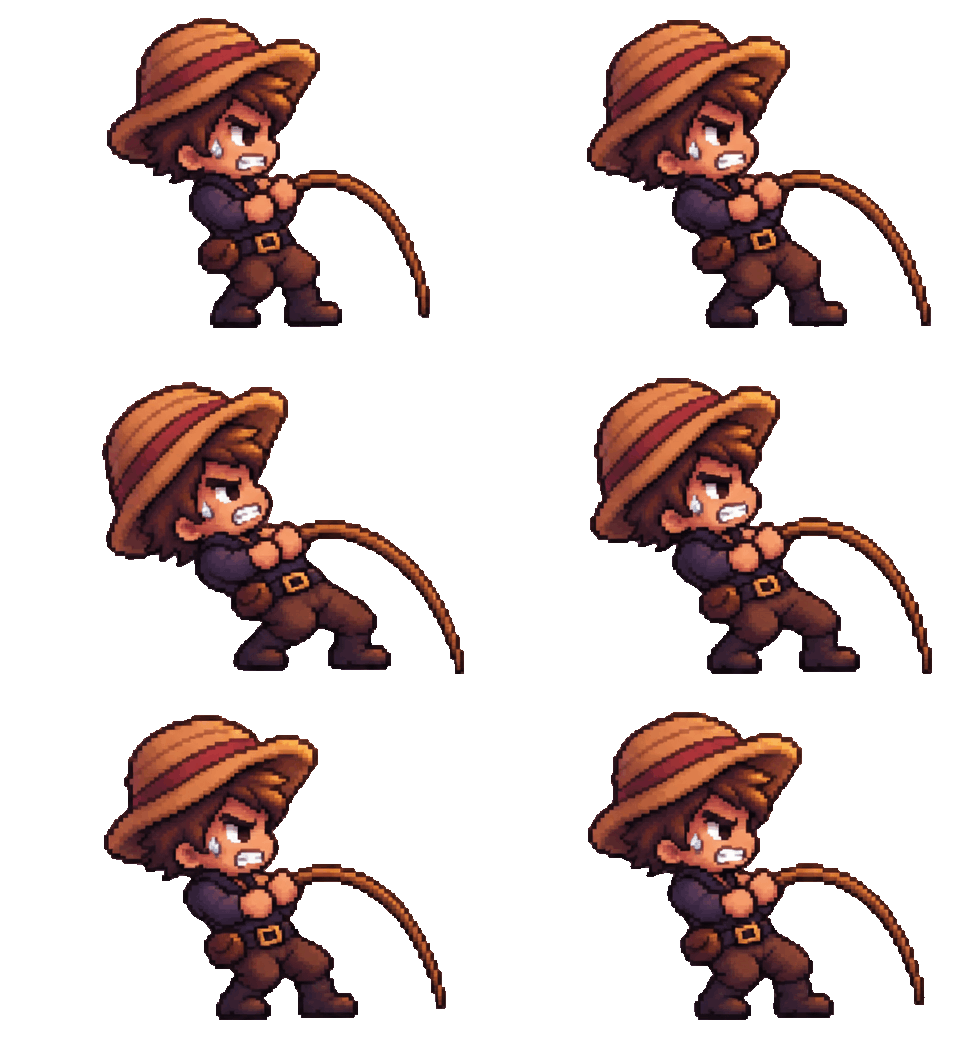
Choose walk, run, idle, jump, dance, wave or attack, with side (default) or front
view. The default 8 frames use a 4x2 grid; 16 frames use 4x4. If frame count, empty-frame or character
identity checks fail, Backdraw regenerates exactly once in a new chat and uses the better attempt;
remaining quality warnings are reported. Both source sheets are kept unchanged.
For a second motion of the same character, pass a character PNG or a frame from the previous
animation's frames/ folder in reference_images. size (64-1024) limits the GIF's long edge;
background: white also saves a white GIF. output_dir copies the complete export into a new
subfolder per attempt: GIFs, raw sheet, atlas.png, manifest.json, frames/ and contact.png.
Result and gallery paths point to those copies; the central images folder keeps the originals.
Sprite sheet animation (animate_sheet)
animate_sheet turns a local PNG containing all character poses into an aligned looping animation,
in seconds, without ChatGPT or Chrome. It finds connected components even on a loose grid, removes
semi-transparent haze with a 1-bit alpha mask, and keeps each pose's own pixels and colors. For
light motion from a single picture, use Local motion.
Pass image_path (absolute, or relative to the server's current folder) and motion. Give
columns and rows together (1-16 each, 2-64 cells), or frames (2-64), or omit these for automatic
detection. If both are supplied, frames must equal columns * rows.
If rows contain different numbers of frames, use frames or automatic detection instead of columns/rows.
| Motion | Timing (ms/frame, before GIF rounding) |
|---|---|
idle | 150 |
walk | 83 |
run | 55 |
jump | 60 airborne, 90 grounded; takeoff and landing 150 |
dance, wave, custom | 100 |
attack | 70; widest strike 220, preceding windup 140 |
fps (1-50) overrides the profile with equal frame durations. Alternatively, durations_ms
supplies one integer duration (20-5000) per detected frame. These options cannot be combined.
GIF delays are rounded to 10 ms. size (64-1024) limits only the GIF's long edge; omitting it keeps
source scale. Enlargement uses an integer nearest-neighbor multiple; reduction uses area averaging
with premultiplied alpha. background: white also writes a white GIF and lists it in the gallery;
the transparent GIF is always saved. include_preview: false omits the attached preview.
Frames are translated onto a common ground line and aligned by horizontal alpha center of mass,
without scaling the source poses. jump then lifts airborne frames along a parabola. Its default
peak is half the median frame height; jump_height overrides it (0-2048 source pixels), and
air_frames: [first, last] selects an inclusive 1-based range. Both options are jump-only. Automatic
air detection treats frames below 85% of the median height as crouches and uses the frames between the
first and last crouch runs, or the longest non-crouching run if unavailable, before falling back to the middle half.
Quality warnings report:
- Unexpected total or per-row frame counts.
- Very small frames and motion-specific size outliers.
- Changed color identity between poses.
- A last-to-first loop seam larger than typical adjacent differences.
- Pale or background-colored edge halos; source semi-transparent pixel coverage is also reported.
The new sibling folder <name>_<motion>_sheet (then _2, _3, etc.) contains the transparent
<name>_<motion>.gif, optional <name>_<motion>_white.gif, source-scale atlas.png,
frames/frame_01.png etc., manifest.json with timing/alignment/quality details, and numbered
contact.png. The source PNG is never changed and existing outputs are never overwritten. With a
connected bridge the GIF also appears in the gallery; otherwise the files are still saved. Opaque
sheets require a flat edge background, removed by an edge-connected flood fill.
This opaque-background fallback removes only edge-connected background; fully enclosed same-color holes inside sprites remain.
Limits: non-interlaced PNG, at most 20 MB / 16.7 million pixels (edges up to 8192), at most 64 frames,
each GIF at most 8 MB; the contact preview shows only the first 16 frames. Very large native GIF
canvases can exceed the encoder/decoder limits; supply a smaller size in that case.
Ideas from sprite-gen (Apache-2.0) and kiki-pixel-gif (MIT); no code was copied.
Gallery side panel
Click Open gallery in the popup to open Backdraw's side panel next to the page you are on. You can also right-click the Backdraw toolbar icon → Open Backdraw gallery.
- Top: the job in progress (step, job id and elapsed time; hover for ChatGPT's message), "Idle", or a not-connected notice.
- Gallery: your generated images, newest first, 12 at a time (Load more), each with a thumbnail, the date, the prompt (hover to see its first 300 characters), the size, format (PNG/JPG/WEBP/GIF; frame count and duration for GIFs) and the aspect ratio if it was applied.
- Per image: Open chat, Show in folder (Explorer with the file selected), Copy path and Add to collection (an existing collection or New collection…).
Local animations are listed too, without chat links, and their files stay beside the source PNG. The gallery lists the images of the job history, which keeps the last 100 jobs. Thumbnails come from the previews, which are kept for 7 days; older images show a placeholder. The image files themselves stay in your images folder. Hover over a GIF card to play it. GIFs larger than 640 KB stay still in the gallery, while the full file remains unchanged in your images folder.
Tools reference
| Tool | Parameters (default) | What it does |
|---|---|---|
generate_image | prompt (required), animated (false), motion, aspect_ratio, transparent_background (false), reference_images, reference_collection, reference_files, conversation_url, auto_reattach (false), send_as_is (false), output_dir, filename_hint, wait_seconds (45), include_preview (true) | Starts a new chat in your Project (or continues conversation_url) and generates or edits an image. |
generate_sprite | prompt (required), motion (required), frames (8 or 16, default 8), view (side), reference_images, size, background (transparent), filename_hint, output_dir, wait_seconds (45), include_preview (true) | Generates a sheet with ChatGPT and processes it locally into GIF, atlas, frames and manifest; regenerates once if needed. |
job_status | job_id, wait_seconds (45), include_preview (true) | Waits for a job and reports it. Without job_id: the bridge status (Chrome connected, selected Project, images folder, queue, recent jobs). |
cancel_job | job_id (required) | Cancels a queued or running job. If ChatGPT is already generating, it presses Stop in the background tab. |
fetch_images | conversation_url (required), aspect_ratio, output_dir, wait_seconds (45), include_preview (true) | Downloads the images of the latest answer in an existing chat, without sending anything. |
list_projects | – | Lists your ChatGPT Projects and shows the selected one. |
select_project | name or url | Selects and remembers the Project for new image chats (the name is matched loosely). |
list_collections | – | Lists your reference collections with image counts, folders and files (newest first). |
animate_image | image_path (required), motion (required), size (384), background (transparent), include_preview (true) | Animates a PNG locally into a looping GIF, without ChatGPT or Chrome. |
animate_sheet | image_path (required), motion (required), columns, rows, frames, fps, durations_ms, jump_height, air_frames, size (source scale), background (transparent), include_preview (true) | Aligns sprite sheet poses locally; saves GIF, atlas, frames, manifest and contact preview. |
animated: request a short animated GIF; if ChatGPT returns a still image, ask once more.motion: optional GIF movement (idle,walk,run,jump,wave,dance,bounce,wiggle,spin); enablesanimated. See Motion presets for frame/timing hints.reference_images: local png / jpg / webp / gif files, up to 16; collection images fill the slots that are left. Transparent PNG/WebP references (at least 0.5% of their pixels are transparent) are uploaded as PNG copies whose RGB is mixed over white while alpha is preserved; the source files stay unchanged.reference_files: file names fromlist_collections, to attach only those images ofreference_collection.conversation_url: ahttps://chatgpt.com/chat link. Fine for quick follow-ups; for exact edits a fresh chat withreference_imagesworks better.auto_reattach: if ChatGPT says it can't see the image and asks for it again, attach it automatically and ask once more.send_as_is: send the prompt word for word, without the short instruction Backdraw adds (e.g. to answer a question ChatGPT asked).output_dir: also copy the result into this folder; the images folder always keeps a copy.filename_hint: a few words naming the subject, used for the file name instead of the start of the prompt (handy when the prompt opens with instructions about the reference images).wait_seconds: 0 to 900.animate_image:image_pathis a local PNG;motionisbounce,idle,sway,nod,squashorwiggle.sizeis 64-1024 (default 384),backgroundistransparentorwhite, andinclude_preview: falseomits the numbered sheet. See Local motion.animate_sheet:motionisidle,walk,run,jump,dance,wave,attackorcustom.columns/rowsorframesguide detection;fpsordurations_msoverride profile timing.jump_height/air_framescontrol the jump arc. See Sprite sheet animation for output scaling, backgrounds, quality warnings and limits.
What a result can say:
| Result | Meaning |
|---|---|
SUCCESS | Saved file path(s), the chat link and a preview. Edits add an edit check line. |
STILL RUNNING / QUEUED | Not done yet; Claude keeps calling job_status with the job id. |
NEEDS USER ACTION | ChatGPT shows a login or human-verification page (see Troubleshooting). |
NEEDS REFERENCE IMAGE | ChatGPT couldn't reach the image it should edit. The result lists images already saved from that chat. |
CHATGPT REPLIED WITHOUT AN IMAGE | ChatGPT answered in text (a question, a refusal, a limit); up to 3,000 characters of it are included. |
FAILED / CANCELLED | With the reason, and the chat link if there is one. |
Edit checks measure visible color differences separately from structural similarity. A high
structural score can still contain a clear local edit. changed: false means no visible change
was detected beyond encoding noise; these thumbnail measurements do not verify the requested edit.
Fast return
Generating usually takes 1-3 minutes, but generate_image, fetch_images and job_status return
within 45 seconds by default (wait_seconds). If the image isn't ready yet, the result is
STILL RUNNING or QUEUED (with the queue position) plus a job id, and Claude calls
job_status(job_id, wait_seconds=45) again until the job is done.
Clients that reach your PC from the cloud often give up on a tool call after 60 seconds; the
45-second default keeps these calls under that limit. When the client asks for progress, Backdraw
sends progress notifications while it waits. Cancelling a tool call in the client only stops the
waiting; the job keeps running until cancel_job stops it.
CLI
For setup and troubleshooting, run these in the Backdraw folder (%USERPROFILE%\.backdraw, or the
folder you installed from). From anywhere, npx backdraw <command> runs the same commands, e.g.
npx backdraw status. npm run status is the same as node cli.js status. backdraw mcp runs
the MCP server itself on stdio; that is what MCP clients start.
node cli.js status                          Bridge status (Chrome connected, selected project, queue)
node cli.js projects                        List ChatGPT projects
node cli.js select <name | link>            Select the project where images are generated
node cli.js generate "<prompt>" [--ref IMAGE]... [--url CHAT_LINK] [--aspect W:H] [--transparent]
                     [--reattach] [--out FOLDER] [--raw] [--wait 300] [--collection NAME [--file FILE]...]
                                            Generate an image (--ref: a reference or the image to edit, up to 16)
node cli.js collect <chat link> [--aspect W:H] [--out FOLDER]
                                            Download the latest images of an existing chat (sends nothing)
node cli.js job <id> [--wait 60]            Show a job's status
node cli.js cancel <id>                     Cancel a job
node cli.js collections                     List the reference collections
node cli.js collection <name>               Show one collection and its images
node cli.js outdir <folder>                 Change the central images folder
node cli.js debug on|off                    Verbose logging (logs\host.log)
node cli.js diagnose [link] [--selector CSS] [--max N] [--worker]
                                            Page diagnostics
node cli.js reload                          Reload the Chrome extension
Examples:
node cli.js generate "a lighthouse at dawn, watercolor" --aspect 16:9
node cli.js generate "close only the eyes" --ref C:\path\to\portrait.png
node cli.js collect https://chatgpt.com/c/<chat id> --aspect 16:9
Doctor
npx backdraw@latest doctor          checks everything, changes nothing
npx backdraw@latest doctor --fix    repairs what is safe to repair, then checks again
doctor prints one line per check, ✓ (fine), ⚠ (worth a look) or ✗ (broken), each with a one-line
fix:
- Node.js version, the install folder, and that its files, the extension and this version match.
- The host manifest and, for each installed browser, the registry entry it really reads (also from inside the Claude desktop app's MSIX sandbox).
- Browser policies that switch off per-user native hosts (
NativeMessagingUserLevelHosts) or block them (NativeMessagingBlocklist). Only an administrator can change these. - The bridge (named pipe), the extension and its version, the ChatGPT sign-in as the extension last saw it, and whether a Project is selected.
- Every MCP client's Backdraw entry: there, and pointing to this install. It also says whether the Claude desktop app is running.
--fix rewrites the host manifest and the registry entries, and points client entries back at
this install (with a backup; the Claude desktop app only while it is closed). It says what it
couldn't fix. The output is safe to paste into an issue: your home folder is shown as ~, and
project names, prompts and chat links are never printed.
Troubleshooting
| Problem | What to do |
|---|---|
| Anything | Run npx backdraw@latest doctor first. |
BRIDGE NOT RUNNING | Chrome is closed, or the extension is not loaded or turned off. Open Chrome (the extension connects by itself) or turn Backdraw on at chrome://extensions. Check with node cli.js status. |
| Red ! on the Backdraw icon | The extension can't reach the local host. The popup shows the error and the fix. Run npx backdraw@latest doctor --fix (or node install.js again), then reload Backdraw at chrome://extensions. |
NEEDS USER ACTION | ChatGPT shows a login or a human verification (CAPTCHA). Open the ChatGPT tab in Chrome and finish it yourself; Backdraw never tries to get around it. The job waits up to 10 minutes for you; as soon as you finish, it continues by itself. After 10 minutes it fails and leaves the ChatGPT tab open. |
| Edit check warns about a redraw | The composition differs substantially from the reference. If an exact local edit is needed, ask again with the original in reference_images and without conversation_url, in a fresh chat. |
changed: false | No visible change was detected, including when ChatGPT returned a re-encoded copy of the reference. Inspect the result before retrying. |
NEEDS REFERENCE IMAGE | ChatGPT lost track of the image in a long chat. Attach it with reference_images (best in a fresh chat) or use auto_reattach. |
FAILED — ChatGPT did not finish in time | A job gives up after about 10 minutes. If the result has a chat link, fetch_images (or node cli.js collect <link>) downloads the image once ChatGPT has finished; pass the same aspect_ratio again to crop it the same way. |
No ChatGPT project is selected yet | Select one in the popup, or ask Claude to list and select your Projects. |
ChatGPT did not open the project | The Project was deleted or renamed; select it again. |
| Two Chrome profiles | The local bridge is one per Windows user, so load Backdraw in one Chrome profile only. |
For a detailed log, run node cli.js debug on and look at %USERPROFILE%\.backdraw\logs\host.log
(turn it off again with node cli.js debug off).
If the ChatGPT web UI changes
Backdraw drives the chatgpt.com web page, so a redesign can break it (for example, it can no longer find the message box). If chat menu labels change, cleanup leaves the affected chats open and stops.
- Run
node cli.js diagnose(ornode cli.js diagnose <chat link>). It prints a summary of the page structure Backdraw sees;--selector CSSand--max Nnarrow it down,--workerlooks at the tab of the running job. - The selectors live in
extension/inpage.js. - After a fix, run
node install.jsagain: it copies the files and reloads the running extension. - Please open an issue with what changed. Remove personal details (chat titles, project names, prompts) from the diagnose output first.
Updating
npx backdraw@latest setup
On an update, setup changes only the MCP clients that already have a Backdraw entry and leaves npx entries as they are; add a new client with --clients=….
From a manual install: git pull (or download the ZIP again), then node install.js.
Both copy the new files over the old ones, keep your settings, job history and collections, register everything again and reload the running extension. If Chrome was closed, it loads the new version when it starts.
Coming from the "ChatGPT image bridge" (1.x)? Setup (or node install.js) migrates it: it copies the
settings and job history from %USERPROFILE%\.claude\chatgpt-image-bridge (never overwriting) and
removes the old native host and the old chatgpt-images MCP entry. Then, at chrome://extensions,
remove the old "Claude ChatGPT Görsel Köprüsü" extension and load %USERPROFILE%\.backdraw\extension
instead; the extension ID stays the same. Delete the old folder by hand once Backdraw works.
Uninstall
npx backdraw@latest uninstall --dry-run     shows what would be removed, changes nothing
npx backdraw@latest uninstall
(From a manual install: node install.js --uninstall [--dry-run].) This removes the native host
registration of every browser, and the backdraw MCP entry from Claude Code, Codex, Cursor,
VS Code and Gemini CLI and, while Claude is closed, from the desktop app's config (each with a
backup), plus the names used by 1.x. Then remove the extension at chrome://extensions.
Your files are kept, in two places:
%USERPROFILE%\.backdraw: the program, your settings, the job history (with prompts), previews and logs.- The images folder,
Pictures\Backdrawby default: your generated images and, underReferences, your reference collections. The dry run lists the folders actually used, and so doesnode cli.js statusbefore you uninstall.
Delete these folders by hand if you want them gone. Coming from 1.x? Delete
%USERPROFILE%\.claude\chatgpt-image-bridge too.
Privacy & security
- Everything runs on your PC: no Backdraw server, no telemetry, no API key.
- Backdraw never reads cookies, tokens or passwords, and never automates logins or CAPTCHAs: you complete them yourself.
- The local bridge is a named pipe, not a network port, and the native host only accepts the Backdraw extension.
- Prompts, job history, previews and logs stay in
%USERPROFILE%\.backdraw(data\andlogs\). reference_imagescan attach any local file whose name ends in.png,.jpg,.jpeg,.webpor.gifto a ChatGPT message. Review Backdraw's tool calls when Claude works with content you don't trust.
Details, the threat model and how to report a vulnerability: SECURITY.md.
MCP protocol support
- 2026-07-28 (stateless): no handshake; each request names its version in
_meta;server/discoveris supported. - Legacy
initializehandshake: 2025-11-25, 2025-06-18, 2025-03-26 and 2024-11-05. - Tool titles and annotations, progress notifications,
notifications/cancelledand JSON-RPC batches. An unsupported version gets error-32022with the list of supported ones.
Disclaimer and responsible use
- Personal use, your own account. Backdraw is made for one person generating images with their own ChatGPT account in their own Chrome. Don't use it to share an account, to generate images for other people as a service, or as the backend of a product.
- OpenAI's terms. OpenAI's Terms of Use say you may not "automatically or programmatically extract data or Output", nor get around rate limits or protective measures. Backdraw drives the ChatGPT web page for you, so using it may conflict with these terms. Read them and decide for yourself.
- The risk to your account is yours. OpenAI may limit, suspend or close an account it finds in breach of its terms. Backdraw comes without any warranty (MIT license), and its authors are not responsible for what happens to your account.
- One job at a time, at a human pace. There is a single queue: one prompt in one background
tab, and the next job starts only after the image is saved. Backdraw doesn't open parallel
chats, doesn't resend prompts on its own (apart from the single re-asks of
auto_reattachandanimated) and stops at every login or human-verification page until you finish it yourself. - Your normal limits apply. Every image counts toward your own ChatGPT usage limits.
- Not affiliated with, endorsed or sponsored by OpenAI or Anthropic.