AInotate
Annotated screenshots for AI agents: steps, Skitch-style arrows, boxes, labels, solid redaction.
Runs on your machine from its package; the steps are below.

What it does
- Reads
- Writes
- High impact
Not assessed yet.
What it costs
FreeOdel charges nothing per call. The publisher may charge for its own service.
Runs locally over stdio
This server isn't hosted — your MCP client launches it from a package registry. Use one of the commands below, or drop the config into your client (e.g. Claude Desktop).
Run
uvx ainotate
MCP client config
{
  "mcpServers": {
    "ainotate": {
      "command": "uvx",
      "args": [
        "ainotate"
      ]
    }
  }
}

Annotated screenshots for AI agents: the agent shows you the button instead of describing where it is.





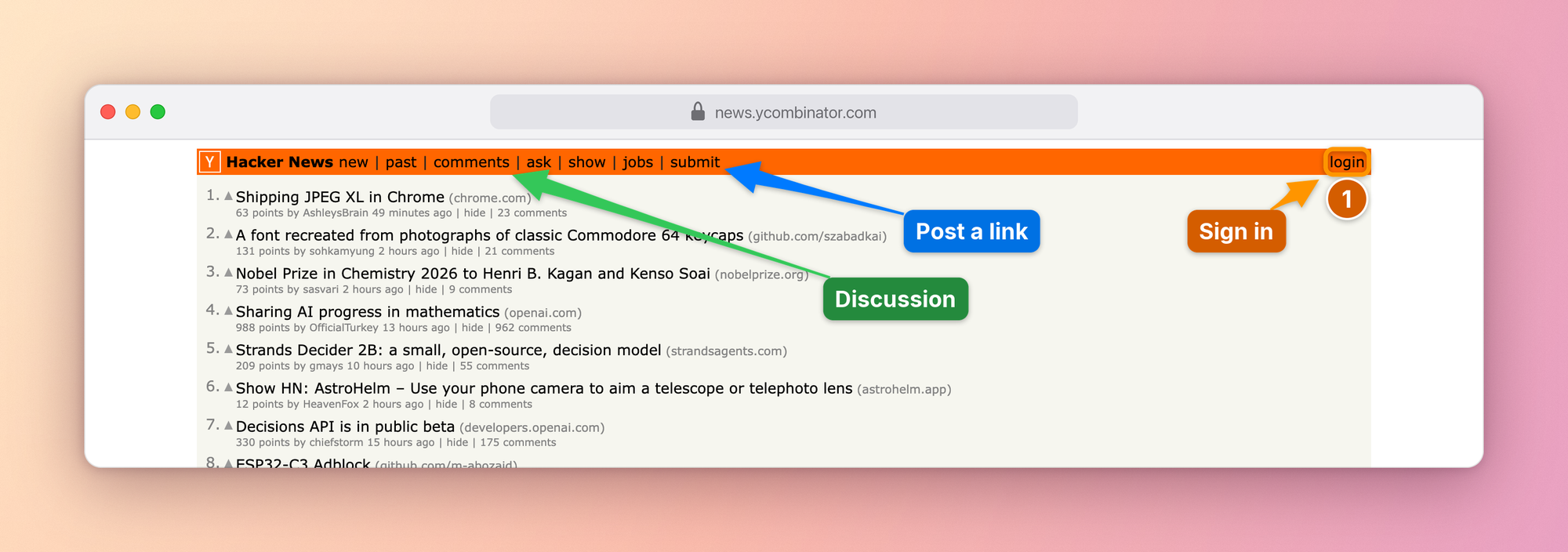
Ask an agent how to post a link on Hacker News and you usually get directions: the orange bar at the top, the last link after jobs. With AInotate it sends the picture above instead and says "click submit, where the blue arrow points".
It captures a web page, a window or a screenshot you already have, finds the elements you mean, draws numbered steps, arrows, boxes and labels where they hide the least, blacks out emails and tokens, and looks at the result before sending it. It works in Claude Code, Cowork, Claude Desktop, Codex, Gemini CLI, Cursor and any other MCP client, and from the command line or Python.
We built it at DontPayFull because our own agents kept answering "where is it?" with a paragraph. A picture with a number on the right button settles the question in a second, in a chat, a ticket or a guide.
What it is for
- "Where is it?" Settings, menus, buttons that hide behind icons. The agent answers with the screen itself, the control boxed and numbered.
- "Walk me through it." One image per step, in the order to follow;
ainotate guideturns them into a Markdown, HTML or PDF guide. - "Your turn." A permission switch, a 2FA code, a payment or consent screen: the agent does not click for you. It shows exactly what to press and says what the click does.
- Bug reports and tickets. What is wrong, outlined in red, what is right in green, emails and tokens blacked out before anyone sees them.
- Docs and changelogs. Screenshots that point at the thing the text talks about, re-shot from the same spec when the UI changes; before and after plates for a change.
Set it up in your agent
1. Install, one of:
| With | Command |
|---|---|
| Homebrew (macOS) | brew install dontpayfull/tap/ainotate |
| pipx or uv (Python 3.10+) | pipx install "ainotate[all]" or uv tool install "ainotate[all]" |
| Claude plugin or Desktop extension | nothing to install first: step 2 brings AInotate along |
Then ainotate doctor checks the machine and prints the exact fix for
anything missing, including the one command that downloads Chromium for
web capture. To update later: brew upgrade ainotate, pipx upgrade ainotate or uv tool upgrade ainotate; the plugin with /plugin marketplace update ainotate; the Desktop extension by opening the newer
.mcpb from Releases.
2. Connect it to the agent you use:
| Agent | How |
|---|---|
| Claude Code | /plugin marketplace add dontpayfull/AInotate, then /plugin install ainotate@ainotate: skill and MCP server in one step |
| Cowork | Customize > Plugins > Add marketplace > dontpayfull/AInotate, then install AInotate |
| Claude Desktop | download ainotate-<version>.mcpb from Releases and open it: a one-click extension |
| Codex | codex plugin marketplace add dontpayfull/AInotate, then codex plugin add ainotate@ainotate: skill and MCP server |
| Gemini CLI | gemini extensions install https://github.com/dontpayfull/AInotate: skill and MCP server |
| Cursor |  (needs uv), plus the skill below (needs uv), plus the skill below |
| VS Code, Cline, other MCP clients | command ainotate, arguments mcp (stdio); also listed in the MCP Registry as io.github.dontpayfull/ainotate; agents can follow llms-install.md |
{"mcpServers": {"ainotate": {"command": "ainotate", "args": ["mcp"]}}}
AInotate runs on your own computer: Cowork reaches it through the Claude
desktop app, so keep the app open while a task uses it. The plugin starts
the installed ainotate, or runs it with uvx when it is not installed.
The skill teaches an agent when and how to annotate: pick a source, find exact positions, annotate, read the image to verify, deliver. The plugin brings it along; without the plugin it ships with the package:
ainotate install-skill             # Claude Code and Codex (~/.claude/skills, ~/.agents/skills)
ainotate install-skill --zip ~/Desktop   # a ZIP for Claude Desktop, Cowork, claude.ai:
                                         # Customize > Skills > Upload a skill
npx skills add dontpayfull/AInotate      # any agent the skills CLI knows (Cursor, Windsurf, ...)
Config paths for every OS, permissions and the tool list: skills/ainotate/references/mcp.md.
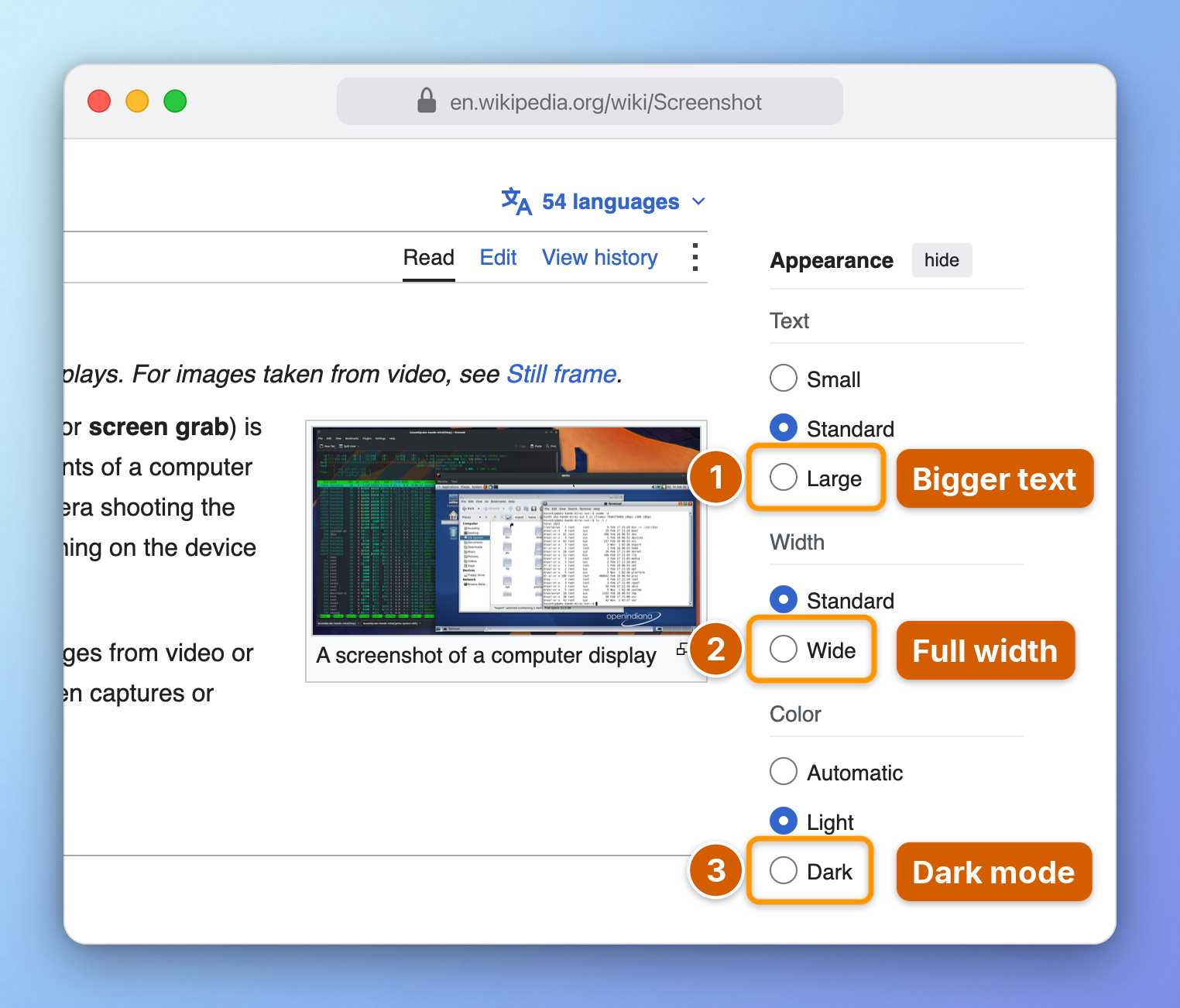
3. Ask. "Show me where to switch Wikipedia to dark mode." The agent captures the page, annotates it, checks it and sends the image. With the skill it also does this on its own whenever an answer depends on where something is on the screen: a "how do I" question, a visual bug, a before/after of a change.
Gallery
Every image below was made in one shoot call against a public site:
open the page, find the elements, place the labels, draw, frame. The specs
are in docs/images/specs.
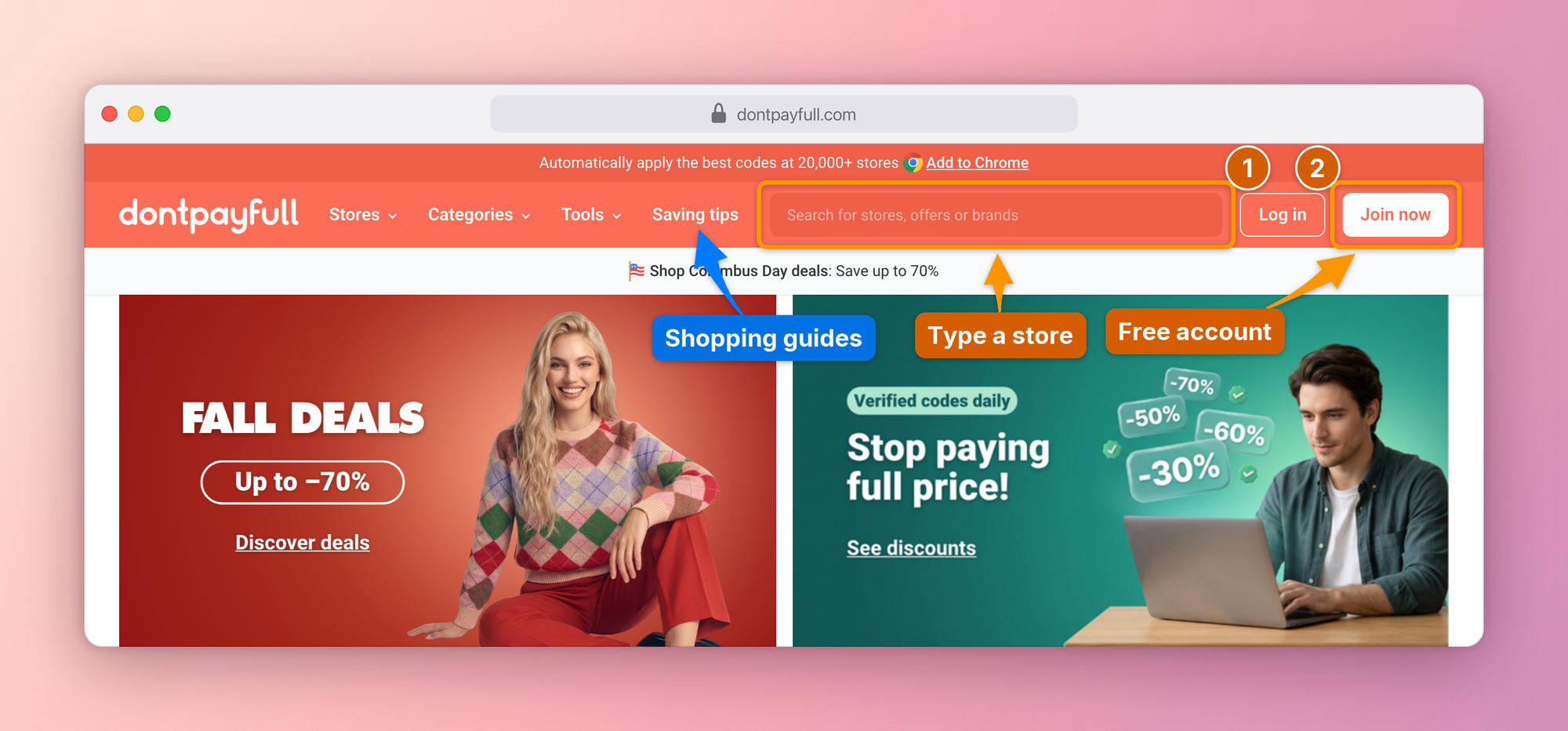 | 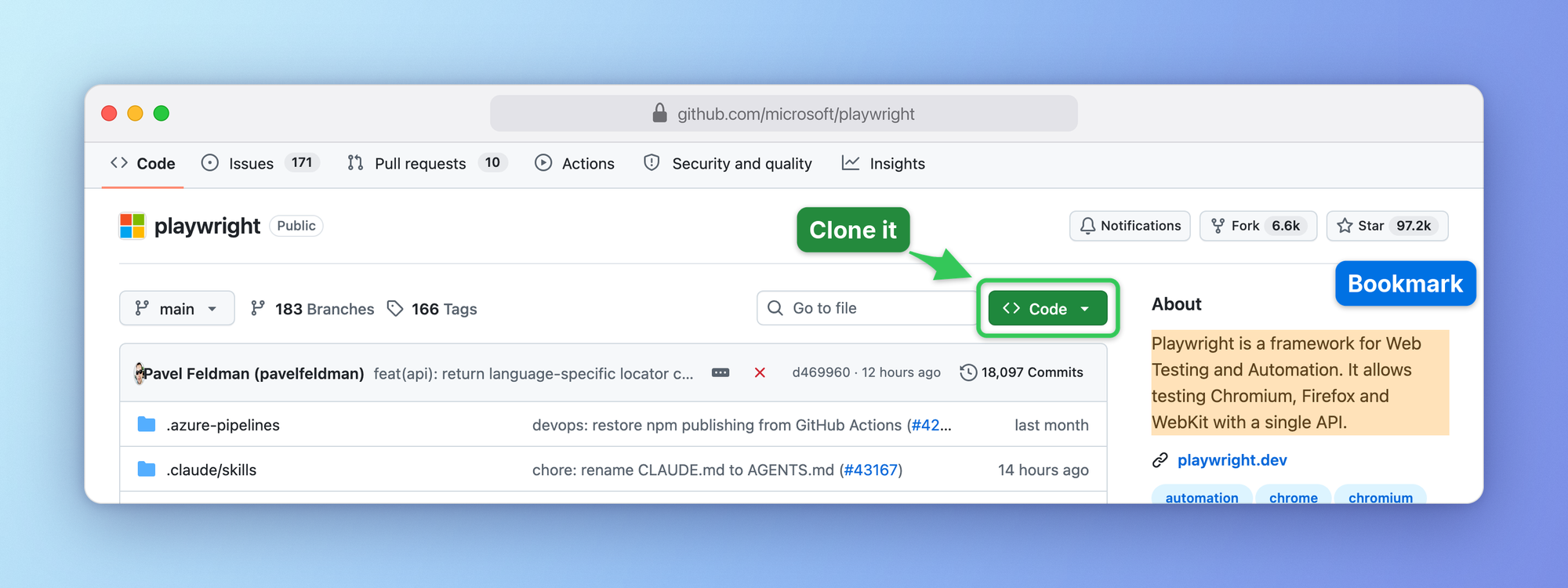 |
| Numbered steps on the busy header of DontPayFull, coupons for 20,000+ stores | Box, arrow and highlight on GitHub |
 | 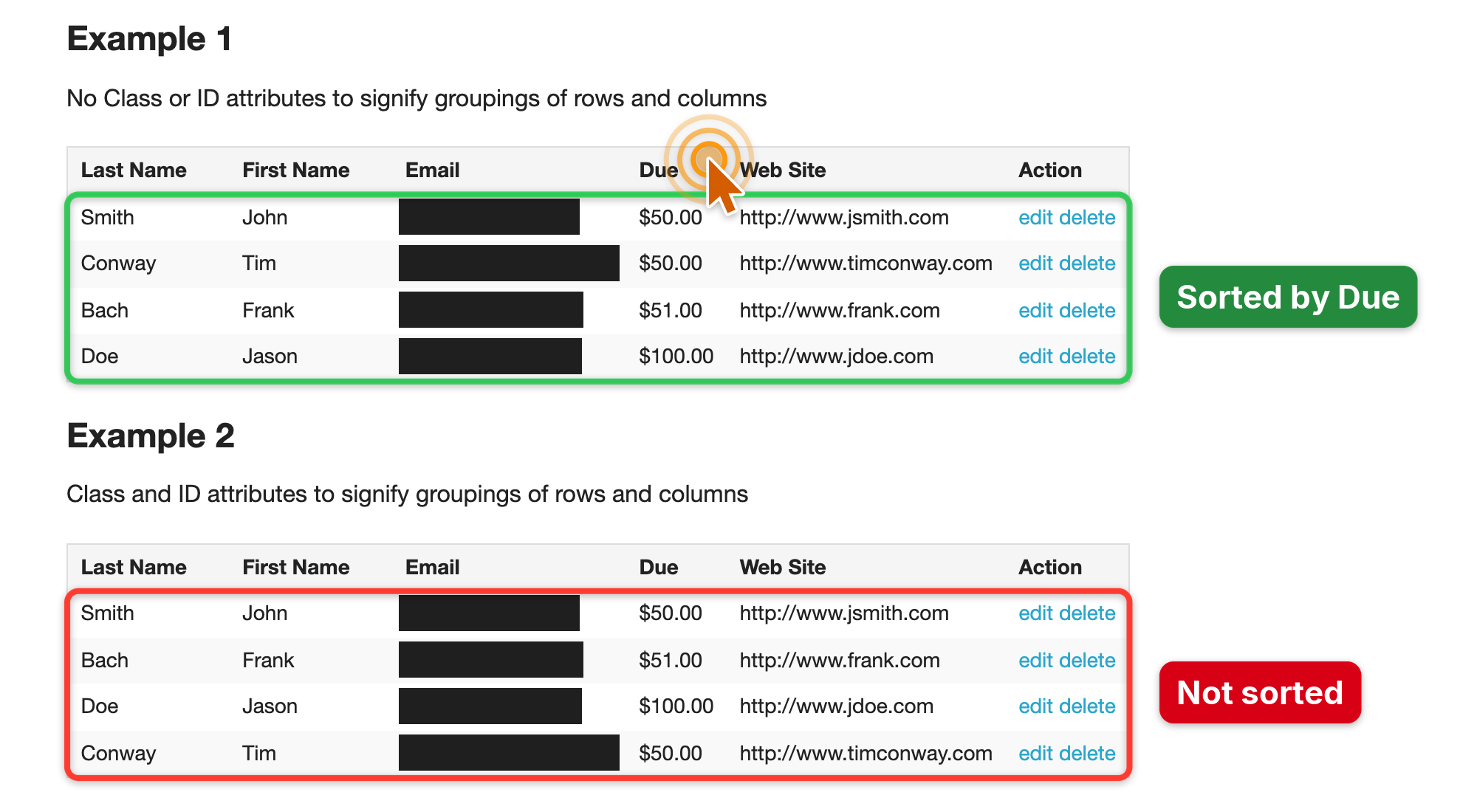 |
| Step-by-step guide with browser chrome and a gradient frame | Bug report, emails redacted automatically by the privacy scan |
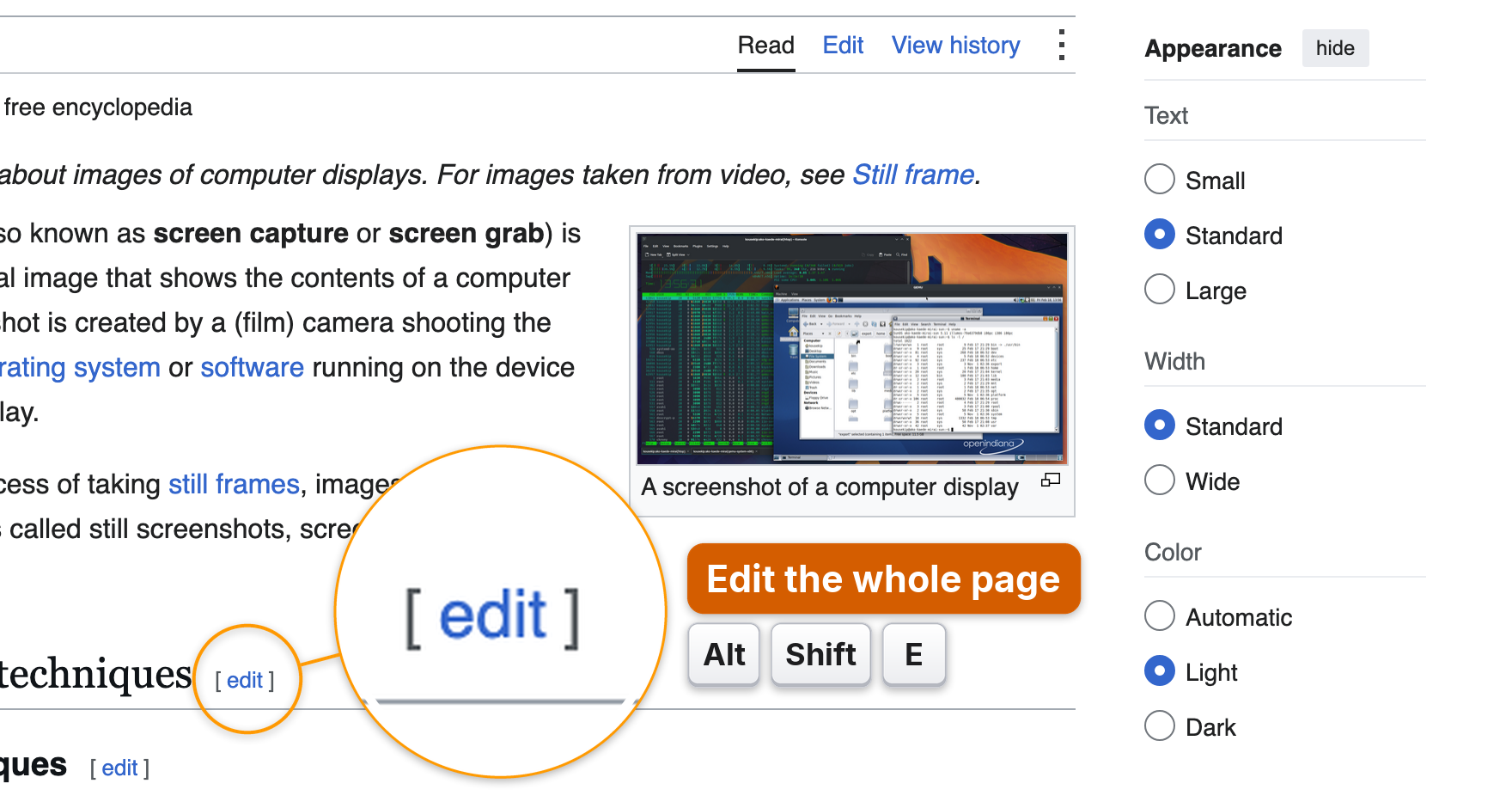 | 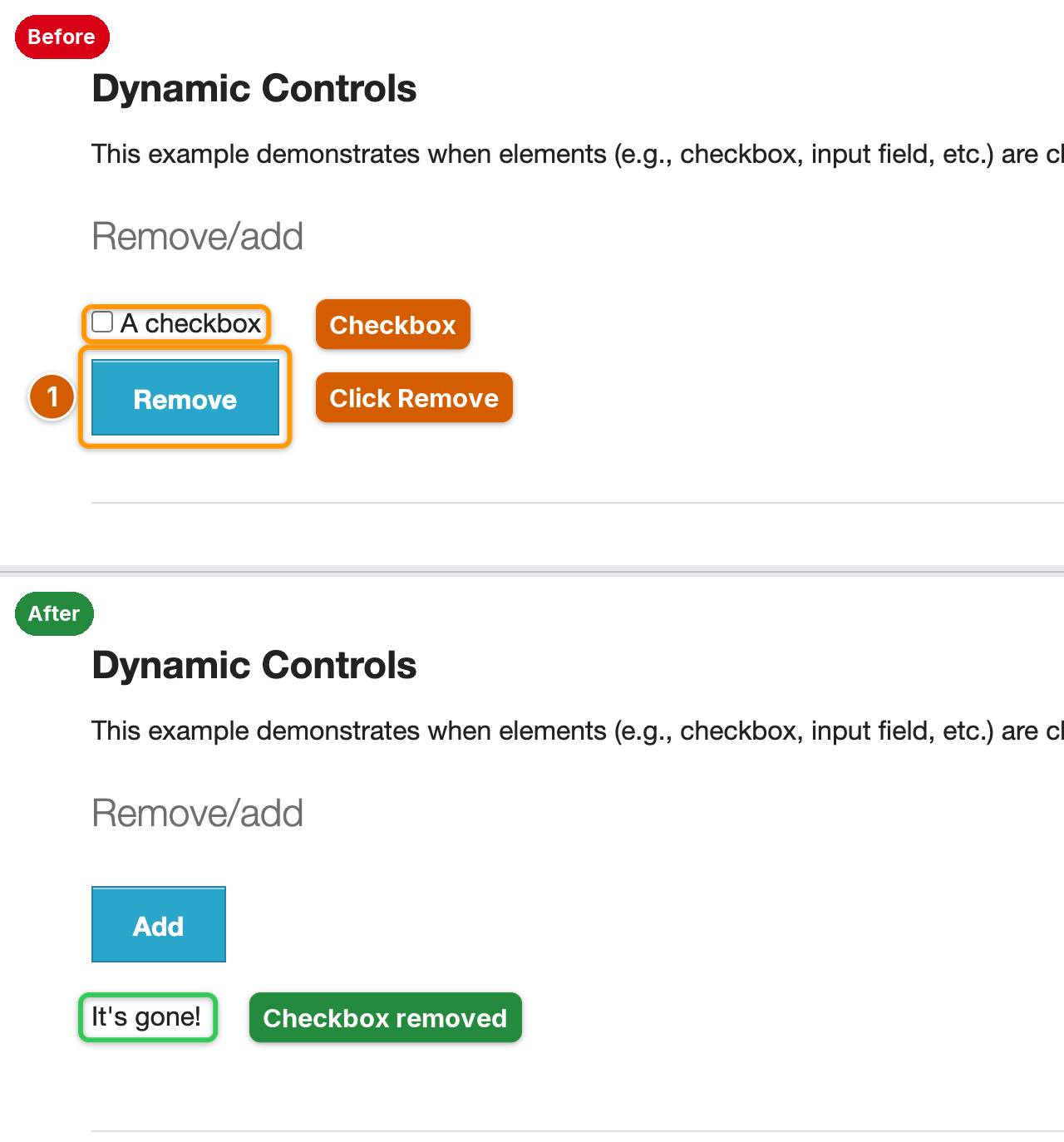 |
| Magnifier and keycaps for tiny controls and shortcuts | Before / after plate from two shots |
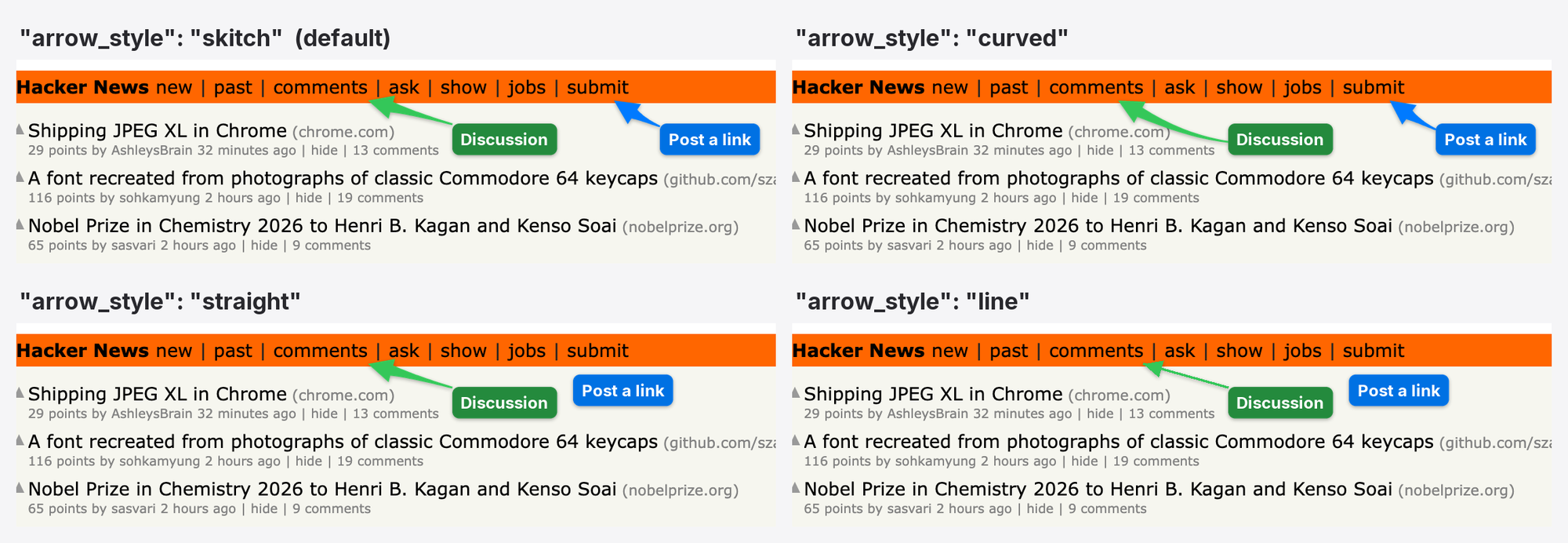
Four arrow styles: skitch (default: straight when the way is clear, a gentle bend when it is long and diagonal, a curve around text), curved, straight, line
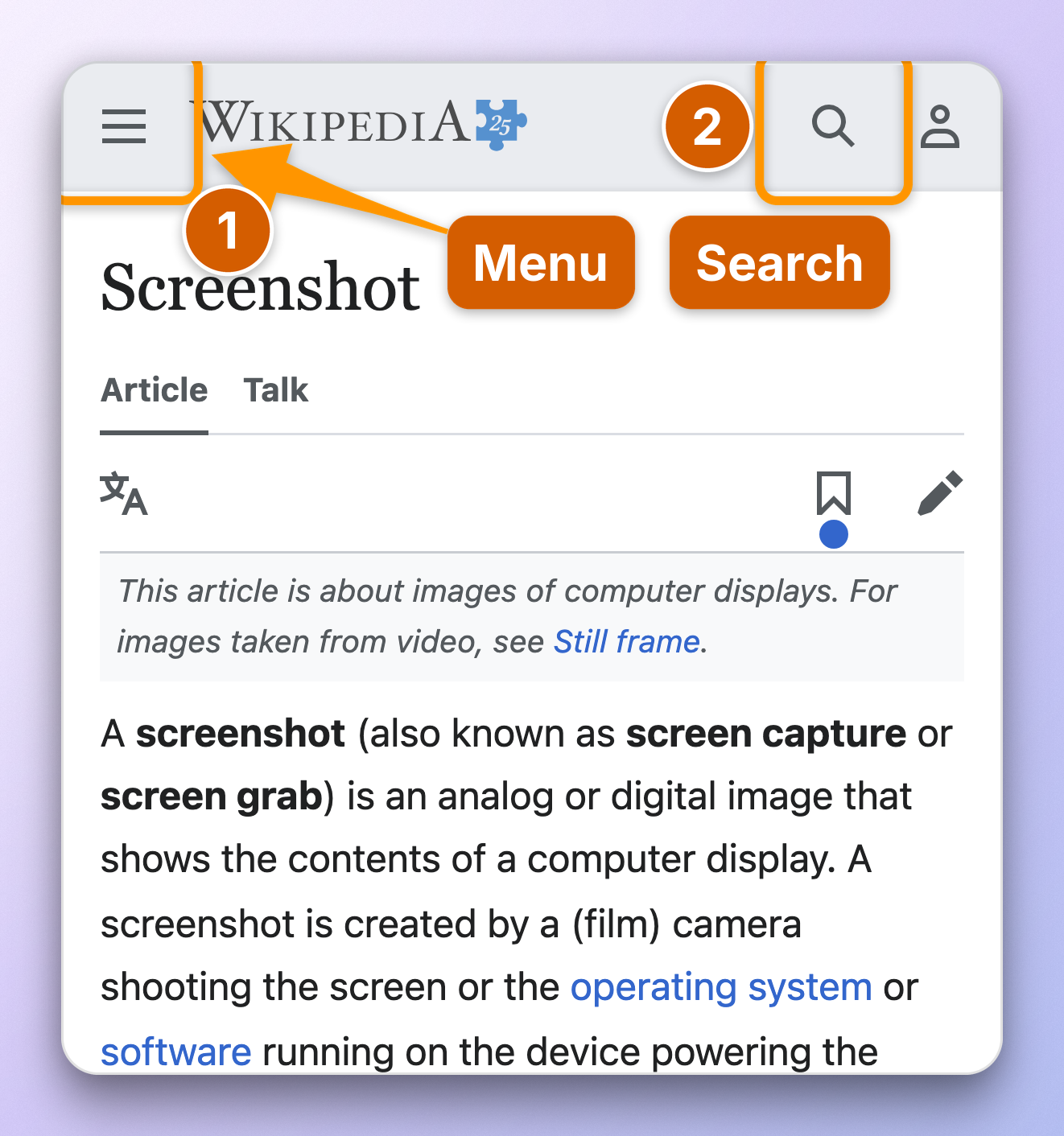
Phone preset: mobile viewport, touch and user agent
Labels that stay off the content

A label dropped at a fixed spot next to its target usually lands on the text the reader needs. AInotate places every label itself:
- It maps the page content first (text, icons, lines, images) and tries hundreds of spots per label. Empty space near the target wins; a spot over text is used only when the frame has no free room.
- Arrows are priced too: a long arrow, or one that crosses text, another label or another mark, loses to a shorter, cleaner one. When the straight path crosses text, the arrow curves around it.
- All labels are planned together, so the first one cannot take the only clean spot a later one needs.
- Step badges sit on the corner of their box that covers the least.
The image is never enlarged to make room. If a label still has to cover
something, AInotate says so in a warning, and label_at pins a label
exactly where you want it.
From the command line
Save this as hn.json:
{"url": "https://news.ycombinator.com",
 "frame": {"chrome": "browser"},
 "marks": [
  {"type": "step", "n": 1, "target": {"text": "new", "exact": true},
   "label": "Newest"},
  {"type": "step", "n": 2, "target": {"text": "login"},
   "label": "Sign in"}]}
ainotate shoot hn.json --draft # temp file; drop --draft to save
The output path is printed on stdout. Images are saved to
~/Pictures/AInotate unless you configure another folder. ainotate --help
lists every command (capture, annotate, locate by OCR, grid, zoom, window
capture with UI element targets, elements, guide, compare, animate, copy,
install-skill); the full spec is in
skills/ainotate/references/spec.md. Exit codes: 0 ok,
1 cannot save, 2 invalid spec, 3 cannot draw, 4 capture failed or an
optional dependency is missing, 5 ambiguous text target, 6 target not
found.
Python. The same pipeline is importable:
from ainotate.shoot import shoot
res = shoot({"url": "https://en.wikipedia.org/wiki/Screenshot",
             "marks": [{"type": "box",
                        "target": {"text": "View history"},
                        "label": "Past edits"}]}, draft=True)
print(res.paths[0], res.redactions)
Features
- Marks: numbered
step,box,arrow,clickripple,keys(keycaps),magnify(loupe),highlight,spotlight,text, solidredact, and decorativeblur/pixelate. - Placement that reads well: labels go to free space near their target and are planned together; arrows are tapered Skitch-style shapes with a soft shadow that curve around text (see Labels that stay off the content). Warnings for overlapping labels, crossing arrows, more than 6 marks or labels over 4 words.
- Web capture in one call:
ainotate shootopens a page (laptop, wide or phone preset), runs actions (click, fill, wait, scroll), measures each target, redacts, annotates and saves. - Any browser: its own Playwright Chromium, Firefox or WebKit, or attach over CDP to a Chromium you already use and are logged into (Chrome, Edge, Brave, Arc, BrowserOS). The preset is applied to that one tab and restored afterwards.
- Any image:
locatefinds text by OCR (Apple Vision, Windows OCR or Tesseract);gridandzoomlocate icons at full resolution. Screen, window and clipboard capture are built in. - Desktop apps on macOS:
ainotate window ID --targetmeasures buttons, switches and fields through the Accessibility API, so marks sit exactly on the control, icons included;ainotate elements --app NAMElists what it can find. - Frames: gradient backgrounds (auto from the screenshot, or presets), rounded corners, shadow, browser or window chrome, social aspect ratios.
- Sharing: guides in Markdown, HTML and PDF; before/after plates; APNG and GIF animations; copy to the clipboard.
- Strict specs: a typo stops the run with a list of every problem instead of saving a wrong or unredacted image. Clear exit codes.
- Diacritics: bundled Inter font, so Romanian, German, French and other Latin-script labels render correctly everywhere.
Privacy
- Redaction is solid.
redactpaints an opaque block. AInotate never uses blur to hide data: blur and pixelation can be reversed.blurandpixelateexist only to de-emphasize clutter, and a mark flagged"sensitive": trueis refused for them. - Automatic redaction is on for web shots.
shootscans the live page (text and input values) for emails, phone numbers, card numbers, IBANs, API keys, tokens, JWTs, password and personal-data fields, and blacks them out. On images it runs on OCR when you pass--privacy auto. You can allow-list your own addresses or add regexes. - It is best-effort. Detection misses things: text drawn in images or canvas, unusual formats, data split across elements, embedded frames from other sites (reported, not redacted). Always look at the image before you share it. The skill makes this check mandatory for agents.
- Local. Capture, OCR and rendering run on your machine. AInotate makes no network requests of its own beyond loading the pages you ask it to capture.
Platform support
| macOS | Windows | Linux | |
|---|---|---|---|
| Annotate, frames, export | verified | experimental | experimental |
| Web capture (Playwright, CDP) | verified | experimental | experimental |
| Screen and window capture | verified | experimental | experimental (X11) |
UI elements (window --target, elements) | verified (Accessibility) | not yet | not yet |
OCR (locate, text targets) | verified (Vision) | experimental (Windows OCR) | experimental (Tesseract) |
| Clipboard | verified | experimental | experimental |
| MCP server | verified | experimental | experimental |
Experimental means implemented and unit-tested with mocks, not yet verified on real Windows or Linux machines. Reports are welcome.
License
Copyright © 2026 DontPayFull. AInotate is free software under the GNU Affero General Public License v3.0 or later. If you run a modified AInotate as a network service, the AGPL requires you to offer its source to the users of that service.
Bundled and derived third-party work (the Inter font, arrow proportions from Arrowshot, a label-placement idea from github/awesome-copilot) and dependency licenses are listed in NOTICE.
Made with ❤️ by the DontPayFull team
Coupons & discount codes for 20,000+ stores