Listed from the MCP registry; nobody on Odel publishes it.

TaskHub
Report agent jobs to the TaskHub Windows tray app: progress, notifications, buttons (app required).
Runs on your machine from its package; the steps are below.
What it does
- Reads
- Writes
- High impact
At most: moves money, runs code or commands, deletes data, or sends messages for you.
What it costs
FreeOdel charges nothing per call. The publisher may charge for its own service.
Runs locally over stdio
This server isn't hosted — your MCP client launches it from a package registry. Use one of the commands below, or drop the config into your client (e.g. Claude Desktop).
Distributed as an MCP bundle (`https://github.com/FelixMUrphy/TaskHub/releases/download/v4.2.0/taskhub-mcp-win-x64.mcpb`) — download it and import the bundle in your MCP client.

One place to watch and control everything that runs in the background on your Windows PC — training runs, simulations, renders, builds, backups, and the scripts your AI agents (Claude, Codex, ChatGPT) start for you.
Any process reports progress over a tiny local HTTP API and gets a tray icon, Windows notifications and a pop-up panel with live charts, gauges and its own buttons (pause, change a parameter, save a snapshot, kill). No cloud, no account, loopback only.
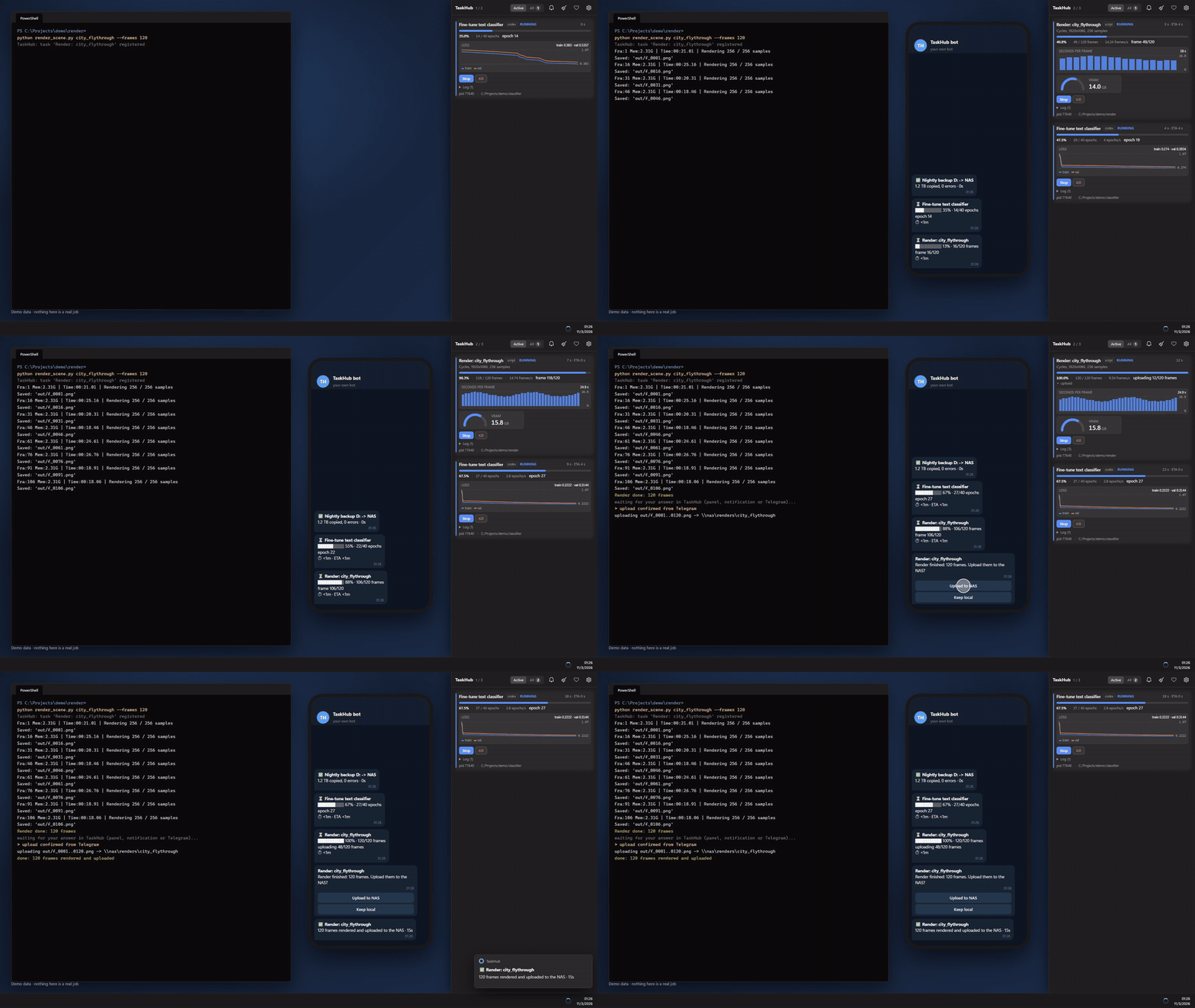
Demo data, recorded by a script — a render reports progress and a chart, asks "upload to the NAS?" in a notification and in Telegram, and goes on when the answer is tapped on the phone.
⬇ Download the latest setup.exe · What's new · API reference · Privacy · ❤ Sponsor
AI agent reading this? Claude Code / Codex: use the TaskHub MCP tools (
task_start,notify, …). If you don't see them, don't usecurl- ask the user to enable TaskHub tools (MCP) (panel → ⚙ Settings → AI agents) and to start a new session. Details: API.md → AI agents.
Why
- You start a 6-hour job and want to know when it finishes, fails or hangs — without watching a console.
- An AI agent launches long scripts for you; TaskHub gives them one documented way to report status and to receive your commands back ("lower the learning rate", "stop after this epoch").
- Several things run in parallel and you want one glance at all of them.
Features
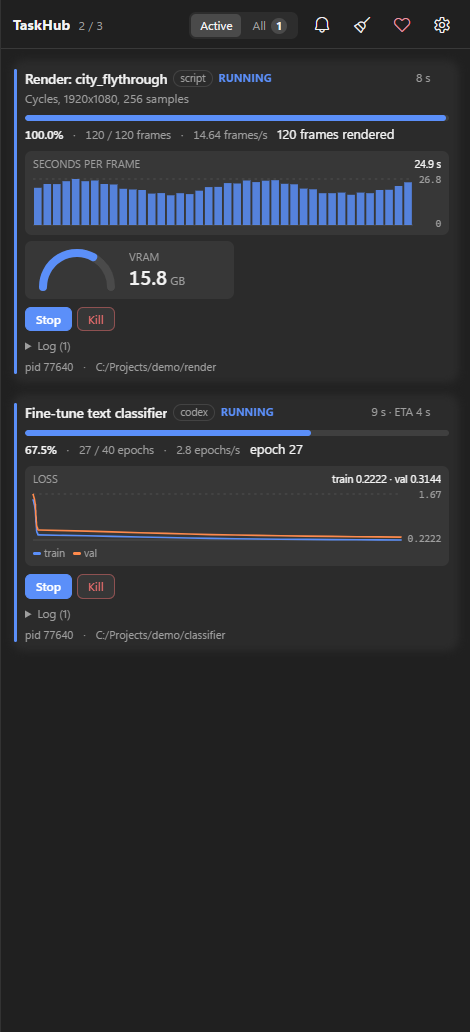
- Tray icon with a progress ring and the number of active tasks; colour shows running / stalled / failed / done.
- Panel (click the tray icon): every task with progress, ETA, status, log and widgets — line/area/bar charts, gauges, stats with deltas, LEDs, key-value lists, tables, text.
- Controls declared by the task itself: buttons, number/text/select inputs, confirmations, shell commands, open-file/folder, graceful stop, pause/resume, kill. Values go back to the process over long-polling.
- Task links open in the browser; a file / folder link is shown in Explorer (never run), its address is
in the link's tooltip, and a shell command gets a typed value as plain text (no extra commands from
&,|…). - Windows notifications on finish / failure / stall by default; start, milestone (plain) and log notifications on request; the task's buttons and input fields in notifications if it asks; a live progress notification; quiet while the panel is open.
- Claude Code and Codex in one click: TaskHub tools for the agent (MCP) and "finished / needs your permission" notifications (hooks) — see below.
- Plan limits (off until you turn it on): how much of the 5-hour and weekly limits Claude Code and Codex have used, in the panel, with warnings from 75% and 90% — see below.
- Telegram: the same notifications on your phone through your own bot, with the task's buttons; a live progress
bar per task and its charts when it finishes;
/tasks,/mute(optionally only when you are away from the PC) — see Telegram. - Discord (off until you connect it): the same notifications and buttons as direct messages from your own bot — see Discord.
- GitHub Actions: the workflow runs of your repositories as tasks — progress and ETA from the usual duration of earlier runs (by jobs / steps when there are none), the failed step and the end of its log, cancel / re-run buttons, artifact and release links — see GitHub Actions.
- Runpod: your GPU pods as tasks — GPU, region, image, $/h, spent, uptime, SSH and Jupyter links, load charts, GPU idle warning with a Stop button, balance and runway with a low-balance warning, stop / start / restart (delete only in the panel, after typing the pod's name) — see Runpod.
- Vast.ai: your instances as tasks — the same as Runpod (GPU, location, image, $/h, spent, uptime, SSH, load charts with disk, GPU idle, balance / credit and runway, stop / start / reboot, delete only in the panel) — see Vast.ai.
- SSH (off until you turn it on; tested on a real OpenSSH server in WSL, not yet on a remote one): your own Linux hosts as tasks, read-only and with nothing installed on them: load, disks, GPU, tmux sessions; a notification when a job ends, a disk fills up or the connection is lost. TaskHub keeps no key. SSH.
- AWS (off until you turn it on; built from AWS's documentation, not yet checked on a real account): EC2 instances as tasks with a Forgotten? reminder; SageMaker training jobs, AWS Batch jobs, this month's cost and forecast, and AWS Budgets, each behind its own switch. Read-only. AWS.
- Balance guard (off until you turn it on): for Runpod and Vast.ai — a warning at your own balance threshold (balance, $/h, time left), and at the stop threshold the running machines are stopped (never deleted) after a notification with Stop now / Snooze (Windows, and Telegram / Discord when linked) — see Balance guard.
- Work hours (off until you turn it on): Start / Pause / Finish above the task list, week and month bars against your norm, overtime and the amount earned; a calendar to correct any day, month closing, public holidays you confirm, amounts in another currency, and reminders for a session left open — see Work hours.
- Stall detection (heartbeat timeout) and lost state when the process dies.
- Agent-friendly: an MCP server (
taskhub mcp), a nativetaskhubCLI on PATH, a stdlib-only Python client, plain HTTP for everything else;taskhub apiprints the docs an agent needs. - Update check: a notification when a new version is released (once a day; switch and Check now in Settings → System; Check now answers right there, also when you already have the latest version).
- Panel like the Windows notification center: docked to the right edge of the screen at full height, slides in and out (instant if Windows animations are off), width by dragging its left edge, a pin to keep it open (the pinned panel keeps its screen edge: maximized windows make room, other windows too if you switch that on in ⚙); blurred see-through background and cards (Panel transparency; Card transparency — in ⚙), light / dark theme and accent colour follow Windows (or set in ⚙). The settings say when Windows itself draws no blur (energy saver on, or Transparency effects off in Windows settings), with a link to that setting.
- Settings: ⚙ in the panel (or Settings in the tray menu) opens them next to it, one icon tab per section — appearance, notifications, messengers (Telegram, Discord), work hours, connectors, AI agents, system (autostart, updates, data folder, API reference), about; the tray menu keeps only the quick actions (open the panel, mute, settings, support, exit) in the Windows 11 style. While the panel is pinned, only their own button closes them. On battery the panel and settings appear and go at once, without the slide.
- 10 UI languages (English, Українська, Español, Deutsch, Français, Italiano, Português, Polski, 中文, 日本語).
- Per-user install, no admin rights, no .NET runtime needed; self-healing autostart.
Quick start
- Run
TaskHub-<version>-setup.exe→ Install (choose a folder, autostart, PATH and the Claude Code / Codex options). The setup window stays open with the progress and ends with Open TaskHub; uninstalling works the same way (with an optional Also delete my data). - Report something:
taskhub notify "Render" "finished in 42 min"
taskhub run --name "Build" -- cmake --build build -j 16     # wraps any command, parses % from its output
taskhub run --name "Shot 12" -- blender -b shot12.blend -s 1 -e 240 -a   # frame, samples, overall %, s/frame
taskhub run knows Blender's background-render output by itself (no add-on in Blender): the frame
and its samples, overall progress when the frame range is known (-s/-e or -f), a seconds-per-frame chart and the
last saved file, render memory. Blender exits with 0 even when a render fails, so its Error: lines mark the task failed
(and taskhub run exits with 1; not the memory-leak note Blender prints at exit). Video output (FFmpeg) and stereo views
saved as separate files count by frame. Stop after this frame (panel / notification) ends Blender once the
frame is saved and the next one begins; after such a stop or a crash the task says where to resume and taskhub run prints the same command with -s
set to the next frame. --preset none turns this off.
from taskhub_client import Task, W, C          # stdlib only; installed next to taskhub.exe

with Task("Train", total=100, unit="epochs", source="codex",
          widgets=[W.chart("loss", "Loss", series=["train", "val"]), W.gauge("vram", "VRAM", max=24, unit="GB")],
          controls=[C.signal("lr", "Set LR", input=C.number(default=1e-3))], pausable=True) as t:
    t.on("lr", lambda v: set_lr(v))
    for e in range(100):
        t.wait_if_paused()
        if t.stop_requested: break
        t.progress(e + 1, status=f"epoch {e+1}", widgets={"loss": {"train": tl, "val": vl}, "vram": mem})
curl -s -X POST localhost:47800/api/notify -H "X-TaskHub: 1" -H "Authorization: Bearer $(taskhub token)" -d '{"title":"Done","message":"backup ok"}'
With AI agents — Claude Code and Codex: enable TaskHub tools (MCP) (next section), nothing else to do. Other
agents (ChatGPT, scripts, any tool with a shell) — add one line to AGENTS.md / custom instructions:
For any job longer than a minute, report it to TaskHub (
taskhub apiprints the docs; wrap commands withtaskhub run --name ... -- <cmd>).
Claude Code and Codex: one click
The setup dialog (and later Settings → AI agents) has independent options per agent. If an agent is used on your PC and you haven't chosen yet, the panel shows a card until you choose, one notification says so, and nothing is written until you press Connect:
| Option | What you get | Where TaskHub writes |
|---|---|---|
| Notifications (hooks) | a toast when the agent finishes a response or needs your permission | Claude Code: ~/.claude/settings.json · Codex: ~/.codex/hooks.json |
| Plan limits (off until you turn it on in Settings → AI agents, for each agent) | how much of the 5-hour and weekly limits is used, in the panel, yellow with a warning from 75%, red with a warning from 90% | Claude Code: ~/.claude/settings.json (statusLine) · Codex: nothing, TaskHub asks it directly |
| TaskHub tools (MCP) | the agent gets tools notify, task_start/update/finish, task_commands, task_wait, task_list and shows its long jobs in the panel by itself | Claude Code: ~/.claude.json · Codex: ~/.codex/config.toml |
TaskHub adds — and on uninstall removes (Store edition: see below) — only its own entries and keeps everything else (backup of the original:
*.taskhub.bak, and the version from just before TaskHub's last write: *.taskhub.last). An existing empty settings file is left alone and reported as an error. What to do in the agent afterwards:
- Claude Code — start a new local session (desktop app → Code tab → environment Local, the CLI or VS Code).
/mcpshould listtaskhubas connected. Cloud sessions run on Anthropic's servers and can't reach TaskHub on your PC. - Plan limits — needs a Pro, Max or Ultra plan; the numbers appear after Claude Code's next reply and update only while a session runs, so an old reading says how old it is.
Your own status line keeps working unchanged. If you have none, Claude Code shows an empty one and hides hints such as
esc to interrupt. Details: API.md. - Plan limits in Codex — TaskHub asks Codex for the numbers every 10 minutes while Codex is running, with no model requests. This relies on a part of Codex that its makers call experimental, so a Codex update can stop it: the numbers then just get old, and everything else keeps working. With no numbers to show, the panel says why (not found on
PATH, not signed in, couldn't read). Details: API.md. - Codex — restart Codex. Hooks: Codex → Settings → Hooks → Trust all (Codex asks once for new hooks).
MCP: the
taskhubserver should appear among Codex's MCP servers.
Scripted: TaskHubHost.exe --integrations claude=on codex=on claude-mcp=on codex-mcp=off. Manual setup:
API.md → Claude Code hooks, Codex hooks, MCP server.
Telegram
Settings → Messengers → Telegram: create a bot with @BotFather (/newbot), paste its token, press
Connect, scan the QR code with your phone (or open the link on this PC) and press Start (in a private chat with the bot:
groups can't be linked, since every member could press the tasks' buttons). Everything is set up right on the settings
page. To link another account later (e.g. the one on your phone), press
New link; Disconnect removes the bot token from this PC. From then on every notification TaskHub shows also arrives in
that chat (only that chat can talk to the bot); a task's notification buttons become inline buttons — including
select options and yes/no; number / text inputs: the bot asks for the value and your reply goes to the task — and presses
go back to the task. A task with progress gets one silent message with a progress bar, ETA, status and the task's
buttons that is edited in place (no new message per update); when the task finishes, its charts arrive
as one picture (option Progress and charts, telegram_progress). Commands: /tasks, /mute, /unmute. Option: send only
when you are away from the PC (no keyboard / mouse for 5 min, telegram_away_minutes in config.json). The bot token
is kept in the Windows Credential Manager (if the Credential Manager is unavailable it stays in
config.json, with a warning in Settings); messages go from your PC straight to Telegram's Bot API.
TaskHub keeps to Telegram's pace (about one message a second, and as long as Telegram asks after Too many
requests) instead of dropping messages, and long texts are shortened so they always arrive.
Discord
Built from Discord's documentation, tested against a simulator and checked with a real bot.
Settings → Messengers → Discord: create an application with a bot in the Developer Portal, paste the bot's token, press Connect, add the bot to a server of yours (a bot can't write to someone it shares no server with), press Check again and then the Connect button in the bot's direct message. Only the application's owner can be linked, and only that person's presses in that chat count. Disconnect removes the token from this PC.
From then on every notification also arrives there. A task's notification buttons become buttons, a list becomes a list (up to 25 options), number and text inputs open Discord's input window, and what doesn't fit in 5 rows stays in the panel. A task with progress gets one silent message that is edited in place, and its charts arrive as a picture when it finishes (option Progress and charts, discord_progress). Commands: /tasks, /mute, /unmute. Option: send only when you are away from the PC (discord_away_only, discord_away_minutes).
The token is kept only in the Windows Credential Manager; without it TaskHub doesn't connect. Your PC talks straight to Discord: no public address, no server of ours. How to get a token: docs/keys/discord.md (step by step, revoking; українською).
GitHub Actions
Off until you turn it on. Settings → Connectors → GitHub Actions (everything on the settings page): list the repositories (owner/repo) and give access — your own
fine-grained token limited to those repositories (Actions: Read and
write, Contents: Read-only, Metadata: Read-only; kept in the Windows Credential Manager, never in config.json), or the token
the Git Credential Manager already has (broad rights: all your repositories). Your workflows stay unchanged. Each run becomes a
task with the repository, workflow, branch / tag, commit and actor; failures always notify (Windows, and Telegram / Discord when linked), successes
if you want. TaskHub talks only to api.github.com; the optional log tail is fetched from GitHub's log storage through the
one-time link GitHub gives, without the token. A notification warns a week before the token expires. A run waiting for
approval (e.g. from a fork) shows Waiting for approval on GitHub and is followed once approved; a renamed repository is
followed and reported (repository moved to …); GitHub's rate limits pause polling. Details:
API.md → Connectors.
Pull requests, read-only (two switches on the same page, both off by default): pull requests
waiting for your review (any repository the token can see; a fine-grained token sees only its own repositories and
public ones) and open Dependabot pull requests in the listed repositories (the token also needs Pull requests:
Read-only). Each is a task with a link and a
notification when it appears; it ends quietly when it leaves the list (Merged, Closed without merging, No longer
waiting for your review). Nothing is merged, approved or commented on.
How to get a token: docs/keys/github.md (step by step, minimum permissions, revoking; українською).
Runpod
Off until you turn it on. Settings → Connectors → Runpod: paste an API key from the
Runpod console (Settings → API Keys; kept in the Windows Credential Manager, never in
config.json; turning the connector off keeps it, Remove deletes it). A read-only key is enough to watch: TaskHub checks once (and daily) whether the key
may run actions and shows the Stop / Start / Restart / Delete buttons only if it may. Each pod is a task (rp-<pod id>):
active while it runs or starts, finished stopped when it stops and terminated when it is deleted; GPU (type × count),
region, image, price per hour, spent so far (≈, from Runpod's billing), uptime, the SSH command and https links to its HTTP
ports (Jupyter on 8888) through Runpod's proxy, and GPU / VRAM and CPU / RAM charts from TaskHub's own polls (every 30 s).
When every GPU of a pod stays under 5 % for 30 minutes (idle_minutes, idle_util) TaskHub warns GPU idle — on Windows and
in Telegram, with a Stop button. Balance and runway (balance ÷ current spend per hour) are shown in Settings and on the pods;
below 12 hours (low_runway_hours, or under low_balance $) TaskHub warns once — at $0 Runpod stops pods and terminates the
ones without a network volume. Stop, start and restart ask for a confirmation (stop and restart also work from the
notification, Telegram and Discord); delete works only in the panel, after typing the pod's name (never through the HTTP API). TaskHub talks only to
api.runpod.io: REST v2 for pods and billing, and GraphQL for the balance (graphql_balance, on by default; turn it off to
skip the balance). Details: API.md → Connectors.
How to get a key: docs/keys/runpod.md (step by step, minimum permissions, revoking; українською).
Vast.ai
Off until you turn it on. Settings → Connectors → Vast.ai: paste an API key from the Vast.ai console
(its API keys page; a key with instance_read, user_read and billing_read is enough to watch, actions need
instance_write). It is kept in the Windows Credential Manager, never in config.json; turning the connector off keeps it, Remove deletes it. Like Runpod,
TaskHub checks once (and daily) whether the key may run actions and shows the Stop / Start / Reboot / Delete buttons only if it
may. Each instance is a task (va-<id>, named by its label): active while it runs or starts, finished stopped when it stops
and terminated when it is destroyed; GPU (type × count), location, image, price per hour, spent so far (≈, from Vast.ai's
charges of the last 30 days), uptime, the SSH command, a link to the Vast.ai console, and GPU / VRAM and CPU / RAM / disk
charts from TaskHub's own polls (Vast.ai often reports no load — then the charts stay empty). GPU idle and the low-balance
warning work as for Runpod. Vast.ai reports a balance and a credit; TaskHub shows both and counts the credit for the
runway — at $0 Vast.ai stops instances (stopped ones still pay for storage), and without a payment method they are scheduled
for deletion. A start can wait in Scheduling when the host rented the GPU out meanwhile; TaskHub says so. TaskHub talks only
to console.vast.ai. Details: API.md → Connectors.
How to get a key: docs/keys/vastai.md (step by step, minimum permissions, revoking; українською).
AWS
Off until you turn it on. Built from AWS's documentation and tested against a simulator, not yet on a real account. Settings → Connectors → AWS: paste an access key of a dedicated IAM user with a read-only policy (how to get it). TaskHub starts, stops and changes nothing in your account. EC2 instances become tasks with their state and how long they have run: in every Region enabled in the account, or only those you list. One running longer than your limit (72 hours by default, 0 = off) gets a Forgotten? reminder, with a button for the ones meant to run. Each of these has its own switch and its own permissions: SageMaker training jobs (phase and time; SageMaker reports no percentage for ordinary training, so TaskHub shows none), AWS Batch jobs (real progress for array jobs), this month's cost and forecast from Cost Explorer (AWS charges $0.01 per request; TaskHub makes 2 at most every 8 hours, about $1.80 a month, and a restart doesn't pay again) and AWS Budgets (one notification when a budget goes over its limit). Details: API.md → Connectors. How to get a key: docs/keys/aws.md (step by step, minimum permissions, revoking; українською).
SSH
Off until you turn it on. Built from the OpenSSH documentation and tested on a real OpenSSH server in WSL, not yet on a remote one.
Settings → Connectors → SSH: add a host you already reach with ssh from a terminal. TaskHub runs Windows' own ssh.exe with your config, agent and known_hosts: it keeps no key,
trusts no new host key by itself and installs nothing on the host. Linux hosts for now.
Each host becomes a task with its CPU, memory, disks, GPU and tmux sessions. You get a notification when a disk fills up, the connection is lost, the host restarts, a tmux session or a command in it
ends, or a process you named (Watch a process, by its number) ends. TaskHub says "ended", not "succeeded": it can't see an exit code. It reads, and changes nothing on the host.
Details: API.md → Connectors. Setting up a host: docs/keys/ssh.md (українською).
Balance guard
Off until you turn it on. Settings → Connectors → Runpod / Vast.ai → Auto-stop at low balance. Each provider has its own two thresholds in $: warn (default $10) and stop (default $2; warn must be above stop).
- At the warning threshold TaskHub warns once (Windows notification, and Telegram / Discord if linked): the balance, the current spend per hour and how long until the stop threshold. It warns again only after the balance has gone back up.
- At the stop threshold TaskHub announces a stop of the running machines with Stop now and Snooze N min buttons (in the notification, in Telegram and on the balance guard card in the panel). Without an answer the machines are stopped when the time to answer runs out (default 10 min; never later than the moment the balance would reach $0 at the current spend — a snooze is capped the same way and says until when). A top-up above the stop threshold cancels it.
- TaskHub reads the balance sooner as the stop threshold gets near, down to once a minute. A service can book charges in steps (Runpod: about every 10 minutes), so while its figure stands still TaskHub carries it down at the current spend, for at most 15 minutes, and says so when that estimate is what reached the threshold. The estimate only brings the warning and the deadline forward: machines are stopped when a fresh reading shows the threshold reached. A charge booked in one step bigger than your stop threshold can take the balance to $0 before the figure confirms it, so keep the threshold above one step of your spend (Runpod: about a sixth of your hourly spend). A machine whose stop failed is tried again about a minute later.
- If the service refuses an action for your key, auto-stop and the Stop button go off and TaskHub says so out loud. It asks again within minutes, then ever less often, up to once an hour, and turns them back on by itself; a page from something in between (a challenge, a proxy) changes nothing.
- Stop only — TaskHub never deletes, terminates or destroys a machine. Machines marked Never auto-stop in the same settings are left alone. Each stop is confirmed (Runpod: EXITED, Vast.ai: no longer running); a machine that could not be stopped is reported as failed, never as stopped.
- If a saved key stops working later (Runpod, Vast.ai, AWS, GitHub), TaskHub warns once, with the guard on or off, and says when it works again.
- If the balance can't be read (no network, the service is down, the key was revoked) TaskHub warns once and, at the deadline, stops nothing ("auto-stop held, check manually") until it can read the balance again. About 15 minutes before the estimated $0 it warns once more, as at $0 the service acts on its own. A read-only key can only warn — the settings say so. So does an account the provider doesn't stop at $0 (Runpod post-paid; Vast.ai with a card on file charged automatically): the guard only warns there. While Runpod's billing mode can't be read it is asked again at each reading; if it is still unknown at a stop, the account is treated as prepaid and the announcement says so.
- Stop now asks for confirmation first. A machine that failed to stop is tried again at the next balance reading. A pending stop survives a TaskHub restart. The low balance warning keeps working with the guard on (no double warning at the guard's threshold).
- Auto-stop on GPU idle — Stop when the GPU is idle for, min (0 = off, the default) in the same settings, also with the balance guard off. A running machine whose GPUs all stay idle that long gets the same announcement with Stop now / Snooze; the GPU busy again cancels it, and at the deadline it is stopped only if it is still idle (a recent reading, idle for at least the current setting; unknown load: not stopped). On Vast.ai it waits until the machine's GPU has been seen busy, and its task says so: the unit of Vast's load figure isn't settled. Never auto-stop machines are left alone; a balance stop takes its place when both come at once.
- After a stop TaskHub says what was stopped and what its storage costs while stopped — ≈, per the provider's price
list: Runpod — the container disk is wiped and not billed, the volume disk costs $0.20 / GB / month while stopped, a
network volume $0.07 / GB / month as before (its size read from Runpod; Runpod pricing,
storage types); Vast.ai — the instance's storage price × its disk size
(host-specific; Vast.ai pricing). The settings show the forecast ("at the
current spend the balance reaches the stop threshold at …") and the last stops; every stop (when, which machine, why,
spent so far, result, storage ≈) is kept in
guard_log.jsonin the data folder (GET /api/guard/log). - Runpod books charges in steps: its balance doesn't move continuously but drops every few minutes (about every 10 min in a test), so the stop threshold can be crossed up to ~10 min late — set it with some margin (the settings say so). Details: API.md → Balance guard.
Work hours
Off until you turn it on. Settings → Work hours: turn it on, then give the start date, your weekly norm, the working days, the salary and its currency, and the hours carried over from before. The carried hours are set once; the start date can later be moved earlier (open a day before it in the calendar) to fill in past hours; the rest can be changed later.
- The panel gets Start, Pause and Finish above the task list, a week bar and a month bar coloured against the norm (under it, on it, above it), the overtime and the amount earned so far this month. A second session on the same day adds to that day.
- The calendar in Settings shows each day's hours. A day opens with its periods: add, change or delete one, set a total for the whole day, mark it as a holiday or vacation (or clear the mark: the day is then as in the calendar), or undo the last change. Several days can be set at once. Every change first shows what it does to the overtime, the shortfall and the amount earned, and is saved only when you confirm it.
- Overtime and the month. Hours above the norm are paid at your multipliers (weekday, weekend, holiday). After a month ends, Settings offers to close it: cover a shortfall with weekend or holiday hours, carry the rest over or not. The latest closed month can be reopened.
- Holidays. With a country (and optionally a region) set, the month's public holidays are fetched from nagerholidays.com and count only after you confirm them; you can drop any and add your own. Ukrainian holidays have their Ukrainian names.
- Another currency. The amounts can be shown in a currency of your choice at the daily rate of the European Central Bank, the National Bank of Poland or the National Bank of Ukraine, refreshed each morning. When the chosen bank doesn't answer (some refuse VPNs) or hasn't got the pair, another one stands in and the panel says which; your own rate is used only when none has the pair, and an old rate shows its date.
- Reminders (in the same settings): a session paused longer than 2 hours or still open after 23:00, repeated every 30 minutes until you answer — Finish now, Finish at your last activity, Still working; and, if you set a time, work not started on a working day — Start now, Start from, Not working today. A month to close or holidays to confirm are said once a day while you haven't opened Settings. At the PC they are notifications; away from it they go where you choose — Telegram, Discord, every linked messenger, or nowhere but this PC — never with amounts (one that isn't linked can't be chosen; until it is, a notification comes instead). TaskHub never finishes a session by itself.
- Export: the hours of a period — any dates, or this week, this month, last month — to an Excel file you save on this PC (day by day and a summary; the amounts of each month only if you turn them on), or a short summary to Telegram or Discord without amounts.
- Everything stays in
worktime.dbin the data folder on your PC (see PRIVACY.md). Details: API.md → Work hours.
Install details
The setup dialog installs to %LOCALAPPDATA%\Programs\TaskHub by default (or any folder you choose), unpacks the
taskhub CLI, taskhub_client.py and API.md, registers taskhub:// and an Apps & features entry, and
adds TaskHub to the Start menu. Over an existing
install the setup shows the installed version and folder (the version is read from the installed exe) and offers
Update, Reinstall (same version) or installing the older version, keeping the folder, autostart and PATH choice. Run without installing is also available.
- Silent:
TaskHub-<version>-setup.exe --install [--dir PATH] [--no-autostart] [--no-path] [--claude|--no-claude] [--codex|--no-codex] [--claude-mcp|--no-claude-mcp] [--codex-mcp|--no-codex-mcp] --quiet(agent options not given stay unchanged) - Uninstall: Apps & features → TaskHub, or
TaskHubHost.exe --uninstall [--quiet] [--purge](--purgealso deletes the data in%APPDATA%\TaskHub, the Telegram and Discord bot tokens and the GitHub, Runpod, Vast.ai and AWS keys TaskHub saved in the Windows Credential Manager; a plain uninstall keeps them for a reinstall). Also removes TaskHub's entries from the Claude Code / Codex settings. - Autostart restores itself if its entry is removed or changed, unless you turn it off in Settings → System. Turning it off in Task Manager / Settings → Apps → Startup is respected too (TaskHub's switch then shows it off);
- Installing and uninstalling first ask a running TaskHub to quit (it saves its tasks) and end it only if it doesn't within a few seconds.
- Requirements: Windows 10 1809+ / 11 x64 (Microsoft Store edition: Windows 10 2004+), WebView2 runtime (preinstalled on current Windows). TaskHub says so (with Microsoft's download link) when the runtime is missing, and the panel recovers by itself if WebView2 crashes. If Windows has TaskHub's notifications turned off, Settings → Notifications shows a warning with a button to the Windows setting.
- Port 47800,
127.0.0.1only, CSRF header + Host/Origin checks; a generated bearer token is required on the API (api.tokenin the data folder, readable only by your Windows account). Thetaskhubcommand, MCP server, hooks and Python client find it themselves; your own scripts get it fromtaskhub token, andtaskhub uiopens the panel's page in a browser. See API.md.
Updates: once a day the installed hub looks up the latest release on GitHub (one request to api.github.com, nothing is
downloaded or installed; also when the settings page opens and the last check is older than 15 minutes) and shows a notification when a newer version is out; Settings → System has Check now and the
Check daily switch ("update_check": false in config.json). Run the new setup.exe to update.
If something goes wrong, taskhub.log in the data folder says what happened. "log_level": "debug" in config.json adds more, including notification
text and task names; nothing is sent anywhere, so look through the log before you share it.
Toast timing: toast_seconds / toast_seconds_interactive (4 s / 8 s) in config.json; afterwards notifications stay
in the notification center. Bursts: at most toast_rate notifications a minute (10; 0 = no limit) and one per task
every toast_task_gap seconds (2); the rest fold into the latest one ("+N more notifications"), toasts and Telegram alike.
Build from source
build.cmd (needs the .NET 10 SDK) → dist\TaskHub-<version>-setup.exe (single self-contained file; the CLI is built
first and embedded) and app\ for development; build.cmd beta is the same version with the full log, never a release. Sources: src\Host (Kestrel HTTP API, WinForms tray, WebView2 panel,
WinRT toasts; connectors in src\Host\Connectors\<Name>\, see its README), src\Cli, ui\ (the panel page: index.html
- CSS / JS parts the hub puts together),
i18n\(translations, 10 languages),clients\python.
Microsoft Store edition: after build.cmd, packaging\build-msix.ps1 → dist\TaskHub-<version>.msix (unsigned; the
Store signs it; -Name / -Publisher / -PublisherDisplay from Partner Center). Same code: in the package TaskHub
has no setup or update check of its own, and autostart, taskhub:// and the taskhub command come from
packaging\AppxManifest.xml. -Register installs the build folder as a package for testing (Developer Mode).
Only one edition at a time: the Store edition offers to remove a setup-exe installation (or, with "Keep both", turns
its own autostart off), and the setup exe offers to replace the Store edition. Both use the same data folder and agent
connections; the package writes to the real %APPDATA% and HKCU (unvirtualizedResources).
Windows runs nothing on a package uninstall, so the Store edition points the agents at a copy of taskhub.exe in
%LOCALAPPDATA%\TaskHub\bin (with store.json naming the package): when an agent starts it after the package is gone,
it removes TaskHub's entries from the agents' settings (the copy stays; the setup-exe edition removes it on start).
Tests: tests\run_tests.cmd starts an isolated hub (port 47899, temp data, no tray, no notifications) and runs, each with temporary data and,
where needed, its own hub or mock APIs: the API and its contract (api_test.py, api_contract_test.py, validation_test.py, payload_bounds_test.py,
bounds_test.py, parallel_test.py, durable_test.py, token_test.py, hub_proof_test.py, link_pid_test.py, backoff_test.py), the CLI and the MCP
server (cli_console_test.py, mcp_test.py), setup, packaging and updates (install_test.py, package_test.py, update_test.py), agent settings and hooks
(integration_test.py, hooks_offer_test.py, hook_form_test.py), plan limits (limits_test.py, codex_limits_test.py), Telegram and Discord against
mocks of their APIs (telegram_test.py, telegram_gate_test.py, discord_test.py), the connectors and the balance guard against mock APIs (github_test.py,
github_prs_test.py, github_askpass_test.py, runpod_test.py, vastai_test.py, guard_test.py, guard_timing_test.py, guard_403_test.py,
guard_unknown_test.py, connector_trust_test.py, ssh_test.py, blender_test.py), AWS (aws_sigv4_test.py: the signer against AWS's own test suite;
aws_test.py, aws_http_test.py: the connector against a simulator), work hours (worktime_test.py, worktime_month_test.py, worktime_rates_test.py,
worktime_remind_test.py, worktime_remind_to_test.py, worktime_export_test.py), the log (log_test.py), the translations (i18n_test.py), unit tests
(unit_test.py) and a check of the suite itself (suite_honesty_test.py).
Every push runs the build and these tests on GitHub Actions (.github/workflows/ci.yml, Windows runner); pushing a tag
v<version> (matching Settings.Version, build.cmd and both .csproj) also publishes the release with the setup exe
and its SHA-256.
tests\demo_long.py is an interactive ~20 min demo against the main hub. tools\demo\record.py records the demo at
the top of this page (MP4, GIF and 1920×1080 stills for the Store) on an isolated hub with fake data and a mock Telegram
bot: python tools\demo\record.py after build.cmd (needs Microsoft Edge and ffmpeg).
The setup and uninstall windows can be checked without changing anything: set TASKHUB_SETUP_DRYRUN=1, then run the
setup exe (or --uninstall) - every step is only shown.
Hub command line: TaskHubHost.exe [--port N] [--data DIR] [--install|--uninstall [--quiet] [--purge] | --status | --panel [ID] | --integrations [claude|codex|claude-mcp|codex-mcp|claude-limits|codex-limits=on|off ...] | --no-tray]. A TaskHubHost.settings.json next to the exe ({"port": 47801, "data": "..."}) runs an
independent second instance.
Support
TaskHub is free. If it saves you time, sponsoring keeps it maintained — and tells me which ideas are worth building next. Bug reports and feature requests: Issues.
License
PolyForm Shield 1.0.0 — source-available: free to use, modify and share for any purpose, including at work, except to provide a product that competes with TaskHub (e.g. repackaging or reselling it).