Listed from the MCP registry; nobody on Odel publishes it.

CODESYS MCP Toolkit
Read, write, compile and simulate Structured Text in CODESYS V3.5 projects.
Runs on your machine from its package; the steps are below.
What it does
- Reads
- Writes
- High impact
At most: moves money, runs code or commands, deletes data, or sends messages for you.
What it costs
FreeOdel charges nothing per call. The publisher may charge for its own service.
Runs locally over stdio
This server isn't hosted — your MCP client launches it from a package registry. Use one of the commands below, or drop the config into your client (e.g. Claude Desktop).
Run
npx -y @codesys/mcp-toolkit
MCP client config
{
  "mcpServers": {
    "codesys-mcp-toolkit": {
      "command": "npx",
      "args": [
        "-y",
        "@codesys/mcp-toolkit"
      ]
    }
  }
}CODESYS MCP Toolkit
Let Claude, or any MCP client, read, write, compile and simulate Structured Text in your CODESYS V3.5 projects.
English | 简体中文




An MCP server that keeps one CODESYS session open in the background and gives Claude, or any MCP client, direct access to it. Claude works on your real project with the real CODESYS compiler, and you can watch the code change as it happens.
Highlights
- Edits your real project. POUs, methods, properties, interfaces, DUTs and GVLs, as Structured Text.
- Compiles with the real compiler. Errors come back with object, line and code, including in code that no task calls yet.
- Tests in simulation. Run, step exact cycles, read, write and force values in CODESYS's own simulation, with nothing else to install.
- Understands the project. Outlines, I/O lists, the device tree and library interfaces, without reading every object.
- Shows its work. A live panel with the project tree, the code as it is written, compile results, and Accept or Revert for each change.
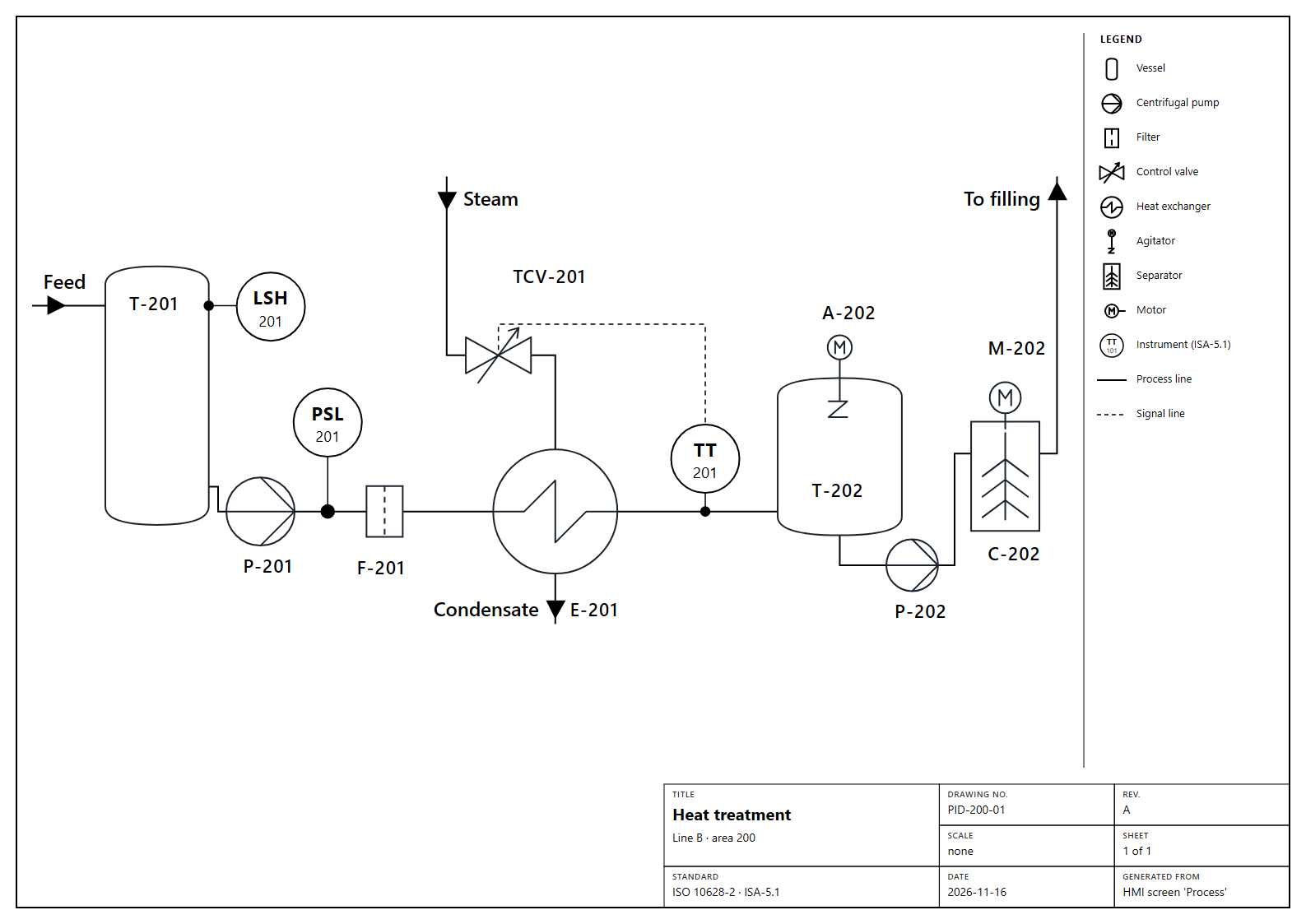
- Designs operator screens. Claude builds a live HMI for your program: an overview of the line's stations, process diagrams with ISO 10628-2 symbols and ISA-5.1 instruments, clear state signs, values, trends and alarms. It looks at the result and polishes it. You operate it in the browser against the simulation, it exports as a native CODESYS visualization with real CODESYS alarms, and as a P&ID sheet for the documentation.
- Ready for handover. A project report with a commissioning checklist built from the project, and a plain-text export of every object for git.
- Never touches a real controller. The only online connection is to CODESYS's own simulation, and every online call checks for it first.
Quick start
Requirements
- Windows with CODESYS V3.5 and its Scripting add-on. Tested with SP21 and SP22 on Scripting 4.2, and SP21 on 4.1. SP16 and later should work.
- Node.js 20 or later.
Schneider EcoStruxure Machine Expert V2.3 (LogicBuilder.exe, Scripting 4.1)
works too: pass --codesys-path and leave out --codesys-profile, since Machine
Expert has no profiles. See the Machine Expert notes.
Install
npm install -g @codesys/mcp-toolkit
Coming from version 1? The tools have changed: see Migrating from v1.
Connect it to Claude Desktop
Add the server to %APPDATA%\Claude\claude_desktop_config.json, then restart
Claude Desktop:
{
  "mcpServers": {
    "codesys": {
      "command": "codesys-mcp-tool",
      "args": [
        "--codesys-path", "C:\\Program Files\\CODESYS 3.5.21.0\\CODESYS\\Common\\CODESYS.exe",
        "--codesys-profile", "CODESYS V3.5 SP21",
        "--workspace", "C:\\PLC\\Projects"
      ]
    }
  }
}
--codesys-path and --codesys-profile are optional. Without them the server
uses the newest CODESYS install under Program Files and its newest profile.
Using OpenCode, Cursor, Cline or another client, or a model such as DeepSeek or Qwen? See Other clients and models.
Try it
Create a project called
BlinkDemo.project. Add a function block that toggles an output once per second, call it fromPLC_PRG, compile it, and prove in simulation that the output toggles.
CODESYS starts in the background when the server launches. A cold start takes 1 to 3 minutes; later starts take about 10 seconds.
Claude Desktop asks for approval per tool. Choose Always allow the first
time it asks about codesys, and once more for open_sim_panel. After that it
doesn't ask again.
What Claude can do
Everything goes through one MCP tool, codesys, with an action for each
operation. The reference describes each one.
| Area | Actions |
|---|---|
| Projects | open_project create_project save_project close_project codesys_status |
| Read code | get_project_tree read_objects search_code get_outline |
| Change code | write_object create_object create_graphical delete_object rename_object |
| Build | compile |
| Libraries | find_library list_libraries add_library pin_library remove_library get_library_api get_signature |
| Navigate code | find_references rename_symbol |
| Tasks and I/O | list_tasks configure_task get_io_list get_devices find_device add_device device_parameters configure_device |
| Change tracking | checkpoint get_changes revert_object |
| Simulation | codesys_sim_start codesys_sim_stop codesys_sim_status codesys_sim_control codesys_sim_cycle codesys_sim_read codesys_sim_write codesys_sim_force codesys_sim_unforce codesys_sim_test |
| Trace | trace_setup trace_record |
| Debug | breakpoint_set breakpoint_on_change breakpoint_clear debug_status debug_step debug_continue watch |
| HMI screens | hmi_save_screen hmi_template hmi_screenshot hmi_export_codesys hmi_list hmi_delete_screen open_hmi hmi_save_symbol hmi_symbols hmi_delete_symbol hmi_translate hmi_pid |
| Alarms | alarm_list alarm_status alarm_acknowledge alarm_history create_alarm_history |
| Handover | project_report export_sources compare_sources create_recipes |
| Helpers | batch wait help open_workspace show_in_codesys |
batch runs up to 50 actions in one call, which is much faster than separate
calls.
Some actions go beyond what CODESYS's scripting API documents and use CODESYS's
own services inside the IDE: get_signature, find_references,
rename_symbol, trace_setup, trace_record, the debug actions,
hmi_export_codesys (with its alarms and user groups), the alarm actions and
--show-window.
They are experimental: checked on CODESYS V3.5 SP21 and SP22 as noted in
the changelog. On another version they may report that the
feature isn't available, or not work. They don't depend on CODESYS's
language: the native HMI export was checked with a German and a Chinese user
interface too.
Claude writes Structured Text, and creates ladder (LD), FBD, CFC and SFC
programs and function blocks with create_graphical from a simple description
of rungs, networks or steps; CODESYS draws them. SFC charts can have alternative
and parallel branches and jumps. Reading an LD, FBD, CFC or SFC POU gives the
same description, so Claude can change existing graphical code too: it edits the
description and sends it back with replace: true.
Live panel
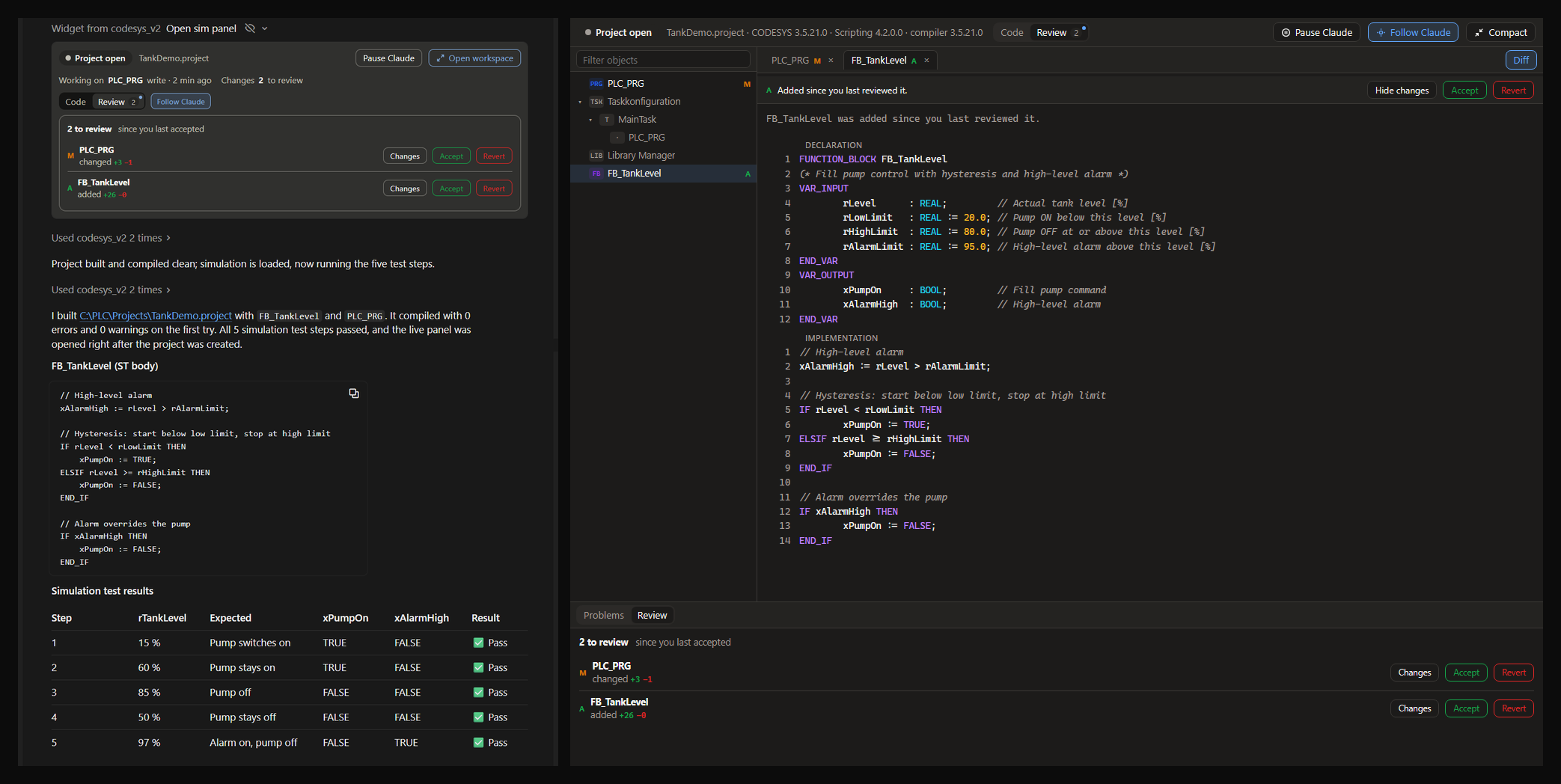
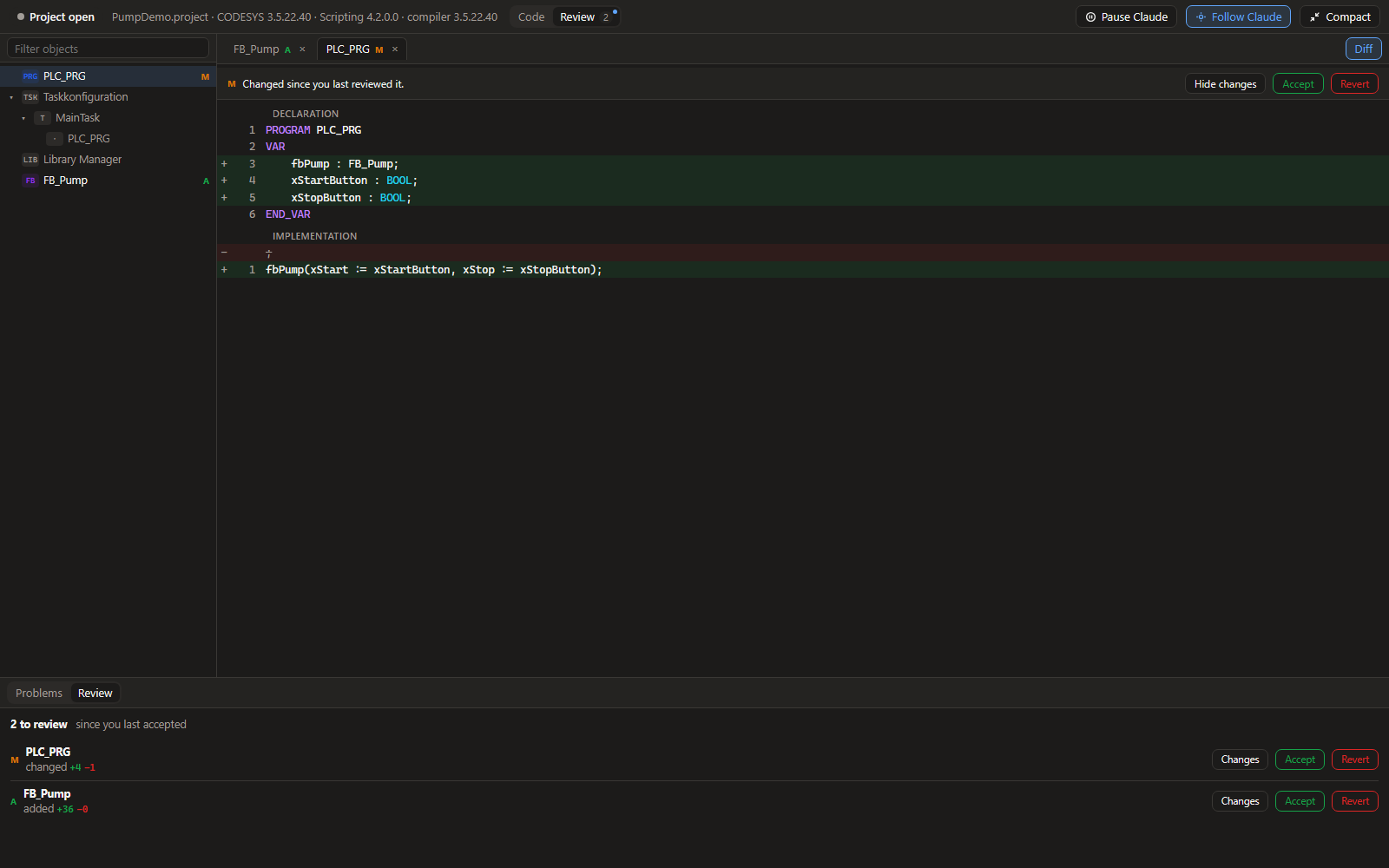
Right after opening or creating a project, Claude opens the panel as a card in the chat. It shows the status, the object Claude is working on and how many objects changed. Open workspace expands it into a CODESYS-style view with the project tree, editor tabs, compile problems and a review list.
From the panel you can Accept or Revert each change, compare it with the version you last reviewed, and Pause Claude while you look around.
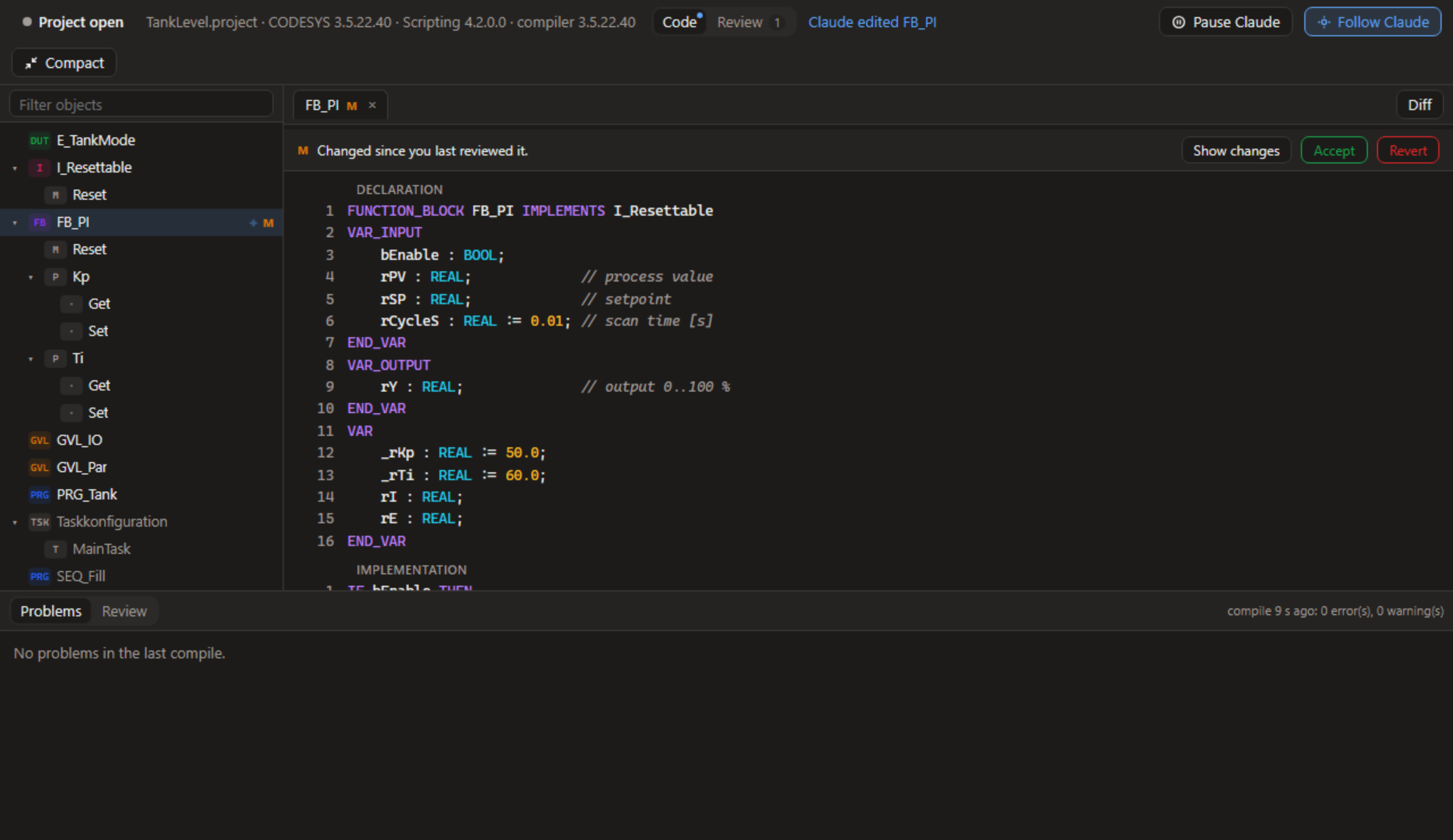
The card needs a client that supports MCP Apps. In our testing Claude Desktop draws it in the Code tab but not in a normal chat (anthropics/claude-ai-mcp#1243). Ask Claude to open the workspace in your browser if you'd rather have it there; the browser never opens by itself.
HMI screens
Ask Claude for operator screens and it designs them for your program: an overview of the line's stations, process diagrams, values with their set-points, trends and alarms, all bound to your PLC variables. The look is a calm, flat design system (Siemens iX colours, high-performance HMI practice after ISA-101): colour means a state or something to act on, never decoration.
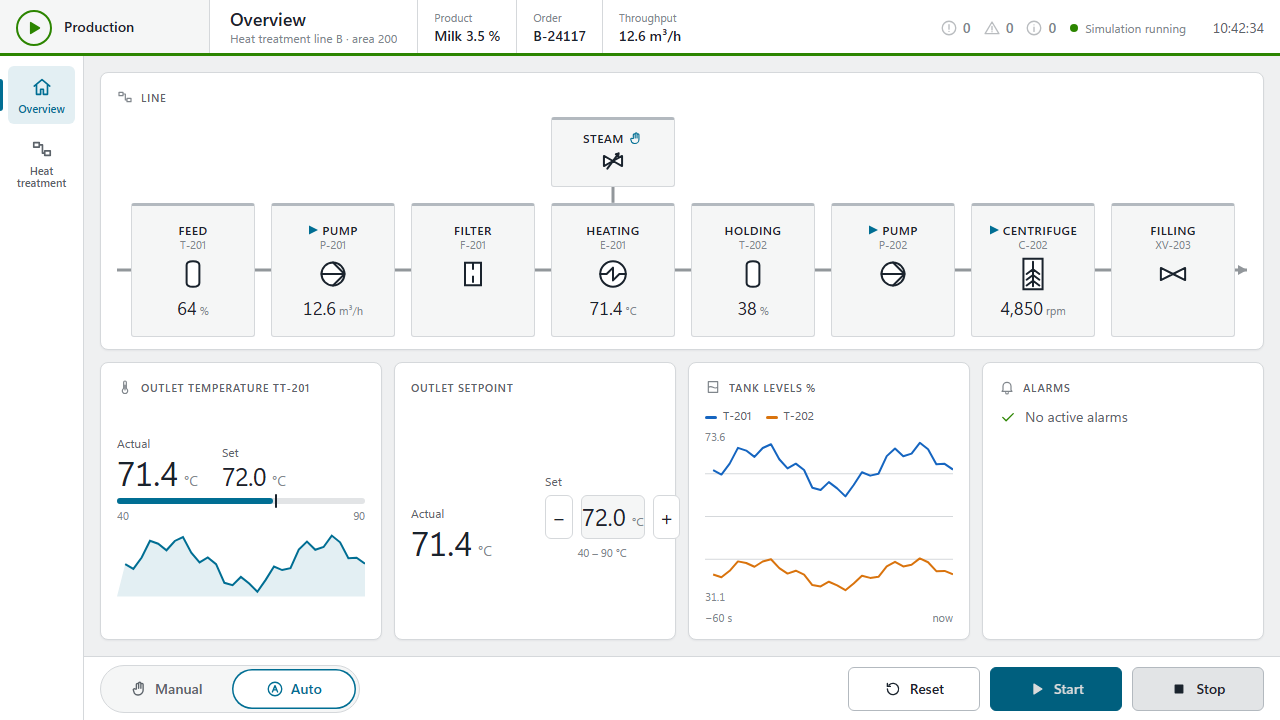
- The machine in the frame. Its state (Production, Fault, Stopped, ...)
sits in the top bar's corner with a thin line in its colour under the bar;
Start, Stop, Reset and the Manual/Auto switch in a bar along the bottom; the
active faults, warnings and messages counted in the top bar; the pages in a
rail on the left.
hmi_templategives Claude a good layout for each kind of page. Panels: 1280x720, 1920x1080, 1024x768 or 800x480. - An overview of the stations. A
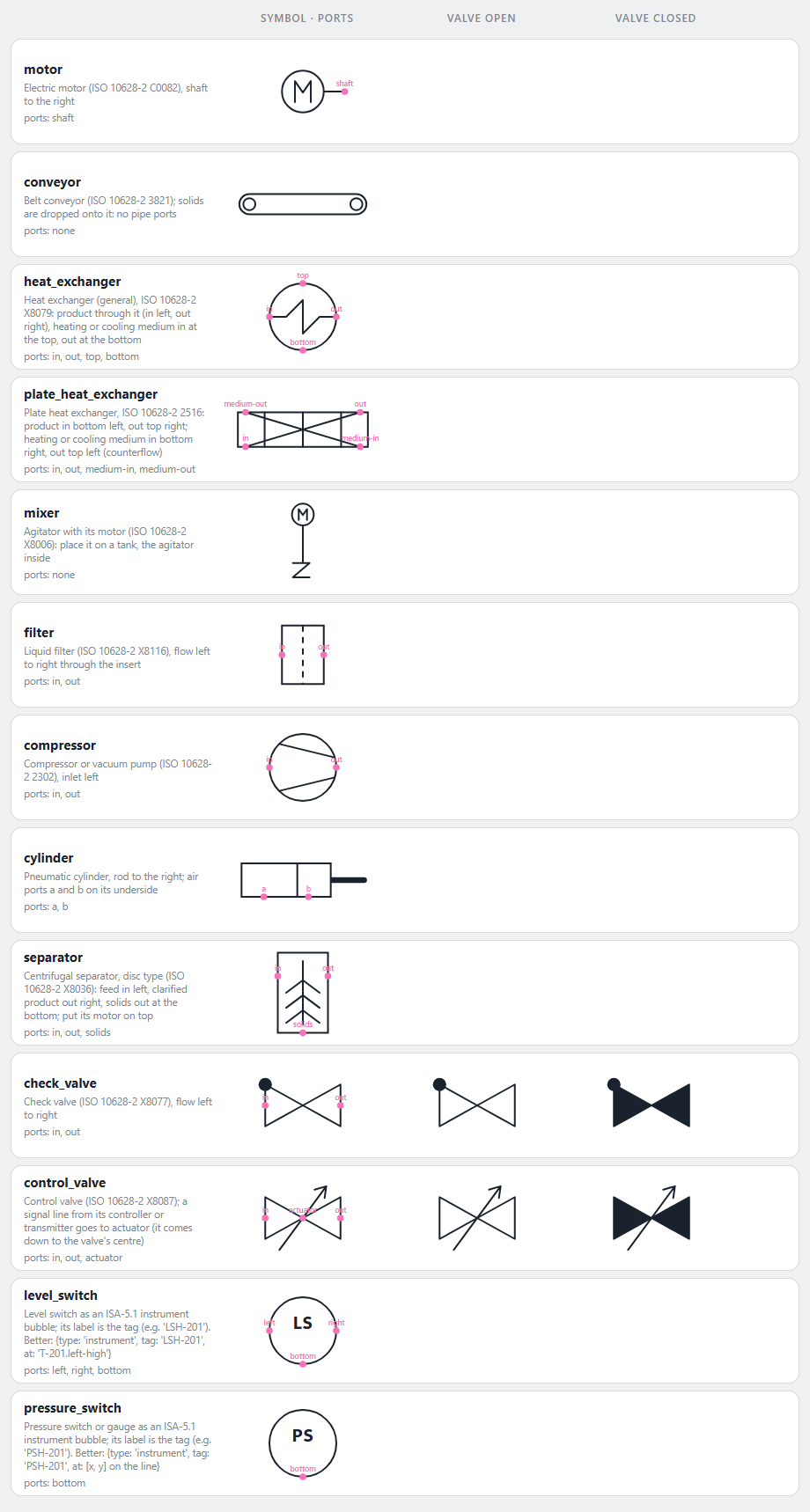
linecard draws the process as station tiles on a product path, each with its pictogram, key value and state; a supply such as steam joins its station from above, and tapping a tile opens its page. - Process diagrams to the standards. Symbols drawn from ISO 10628-2 (pumps,
fans, valves, check and control valves, heat exchangers, motors on the
machine they drive, agitators, separators, filters, conveyors and more),
instruments as ISA-5.1 bubbles outside the vessel and joined to where they
measure, and pipes that route themselves between named ports
(
T-201.right,P-201.in) with line names and flow arrows at the edges. - State at a glance, without clutter. Three separate things, each with its own sign, so none hides another: the run state before the name (▶ running, ■ stopped), the mode after it (a hand in Manual; Auto shows nothing) and the condition at the symbol's corner (an amber warning or a red alarm; OK shows nothing). A tripped switch (LSH, PSL) gets the same badge at its bubble. A closed valve is drawn filled, as on a P&ID. Symbols are never filled grey or coloured by state, and nothing moves.
- Labels place themselves. Every name, line name and reading is put where it touches no pipe, equipment or other text and stays inside the card; a tank's name goes inside the vessel. A value that belongs to a piece of equipment, such as a control valve's opening, is shown under its name.
- Claude checks its own work. Saving a screen checks the layout (overlaps,
labels without room) and that the diagram is a process: equipment no pipe
reaches, an inlet without an outlet, a heat exchanger with one circuit,
instruments inside a vessel, a motor that drives nothing, a reading drawn
as a separate sensor when it belongs to equipment, or a run state on a
filter.
hmi_screenshotreturns the screen as an image to look at. - Your own symbols. Claude can draw a symbol you need as SVG, or import
yours from an SVG file (
hmi_save_symbol), and gets back a picture of it with its ports. Custom SVG is checked against a short list of elements and attributes: scripts, styles, links and external images are refused. - Live in your browser. Ask Claude to open the HMI (
open_hmi). The page is served by the toolkit on 127.0.0.1 with a token, like the workspace. While CODESYS's simulation runs it shows live values and trends, and buttons, switches and setpoints write to the simulation, so you can operate your program before any hardware exists. - Light, dark and high-contrast themes, the same on every page;
accentputs your company colour on the highlights, and text on it turns black or white to stay readable. Screens are saved next to the project as<project>.hmi.json, so they travel with it and can go into version control.
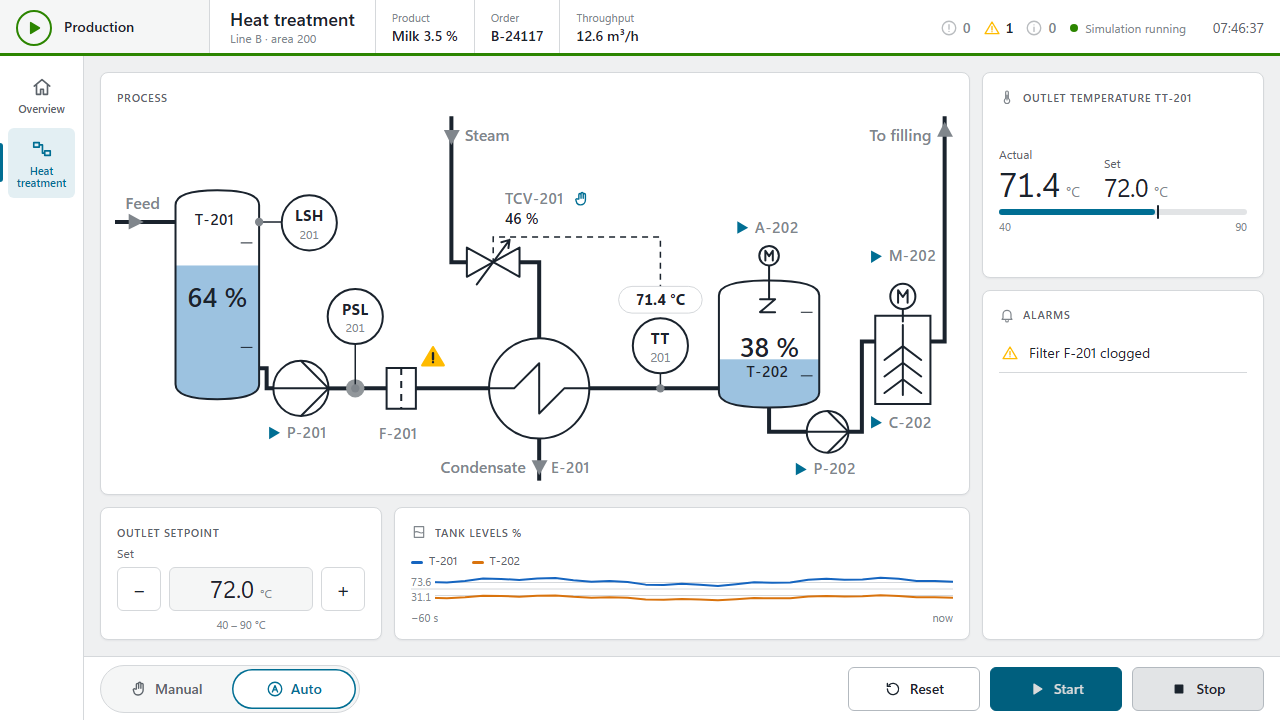
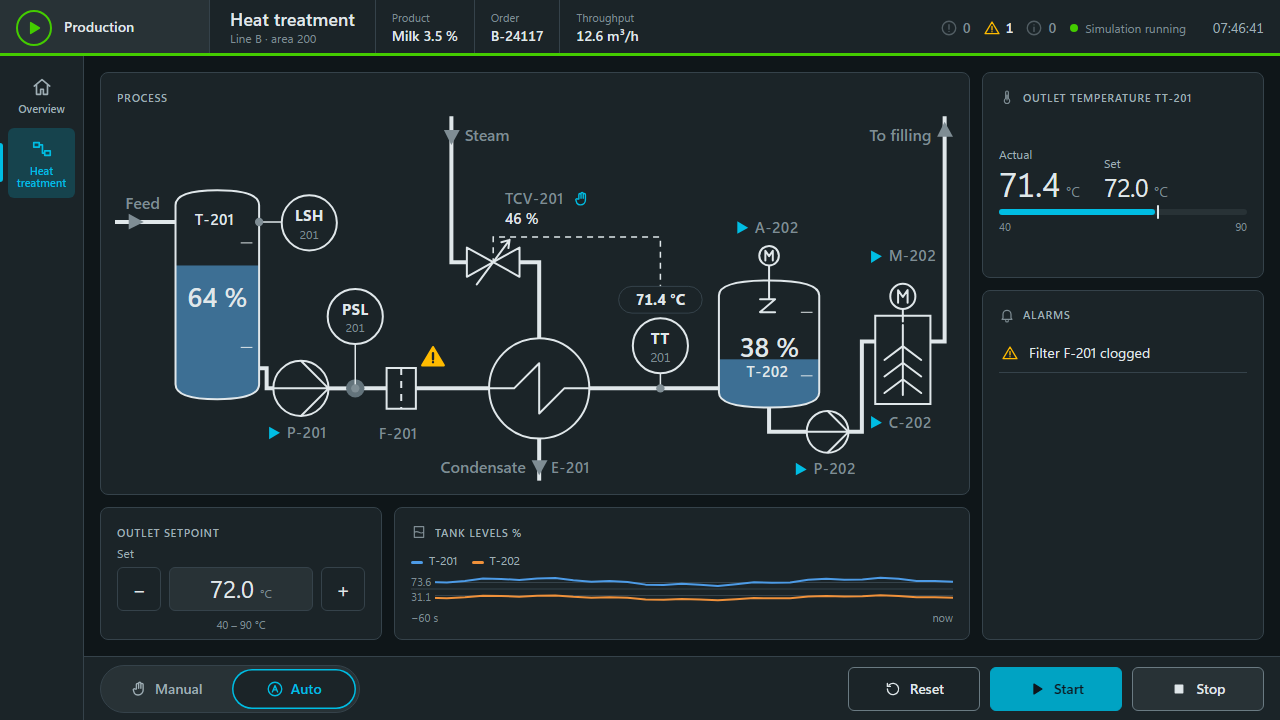
The HMI writes only into CODESYS's own simulation, like the rest of the toolkit. Screenshots use Microsoft Edge or Google Chrome, whichever is installed.
P&ID sheet
hmi_pid exports a screen's process diagram as an engineering P&ID drawing
for documentation and commissioning: the same diagram drawn black on white,
with nothing live, on an A3 sheet with a frame, a legend of the symbols it
uses and a title block (drawing number, revision, date). It is saved next to
the project as PDF, SVG or PNG. Since it comes from the HMI's own diagram,
there is no second drawing to keep up to date.
As a native CODESYS visualization
hmi_export_codesys builds the same screens as real CODESYS visualizations in
your project. They are ordinary visualization objects, so they go with the
application like ones you drew yourself (checked in CODESYS's simulation, not
on a controller): the same frame, cards, symbols, state signs, labels and
station tiles as in the browser, drawn with CODESYS's own elements and
pictures in an embedded image pool. A generated program, PRG_HMI_<screen>,
works out what the pictures need (scaled bars and levels, the machine state,
alarm counts). Claude gets a picture of the result.
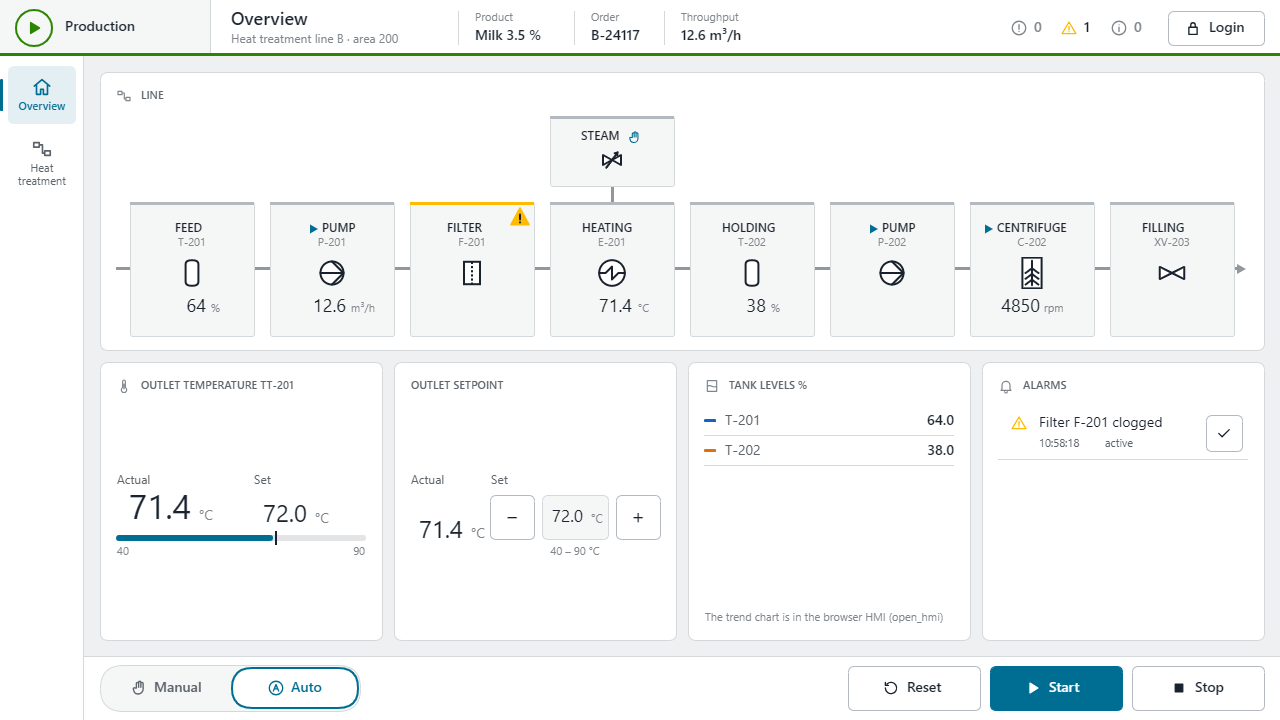
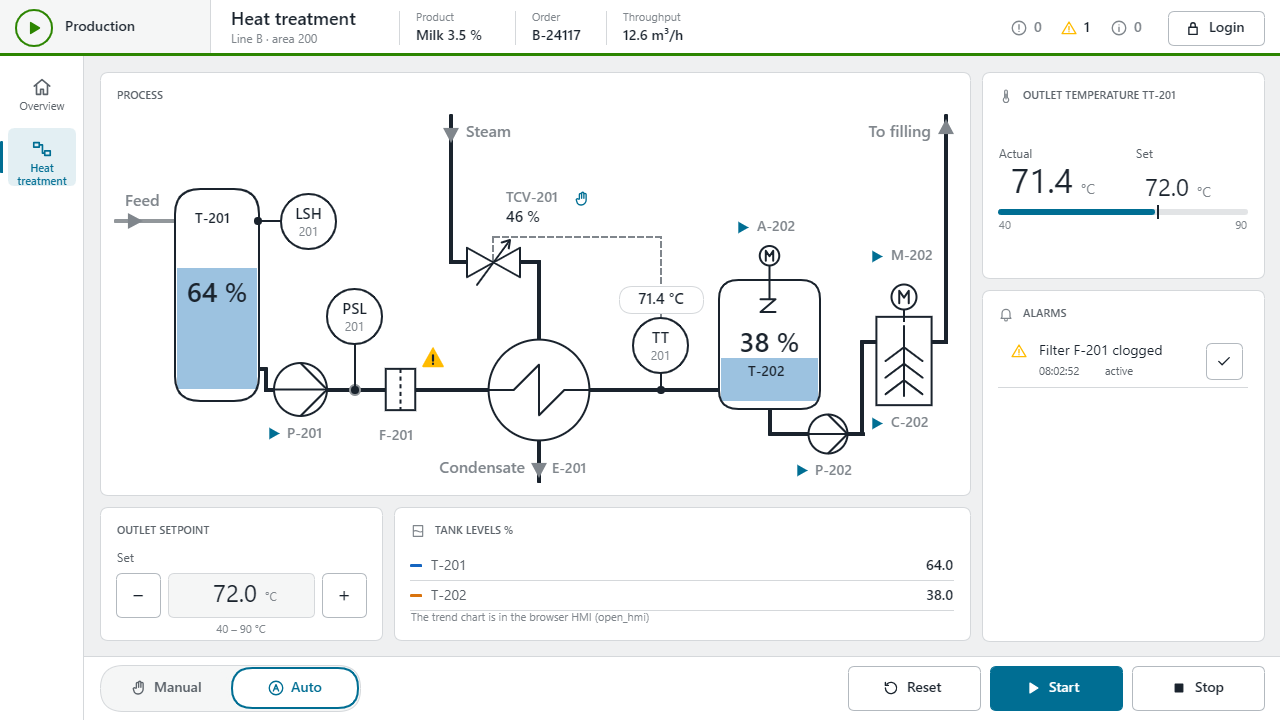
A multi-page HMI comes out as one visualization per page with the rail of page buttons, the first page as the start page of TargetVisu and WebVisu at the panel size, faceplates as CODESYS dialogs, the pages' alarms in CODESYS's alarm management (Alarm Configuration, with timestamps and acknowledge in the PLC), and user groups (Operator, Maintenance, Admin) behind a Login button. Users and passwords are yours to add in the Visualization Manager.
A tile can be limited to a group and up: access: {min: 'Maintenance'} lets
lower groups see it without operating it, below: 'hide' hides it from them.
The rights go on CODESYS's own elements and also apply when nobody is logged
in.
The alarms are CODESYS's own, not a copy in the HMI: an alarm group with its observations, classes and messages, which CODESYS's alarm manager evaluates in the PLC. In the simulation, raising the fault made the group report an active alarm, and it stayed pending after the fault cleared, until acknowledged, as an Error-class alarm should.
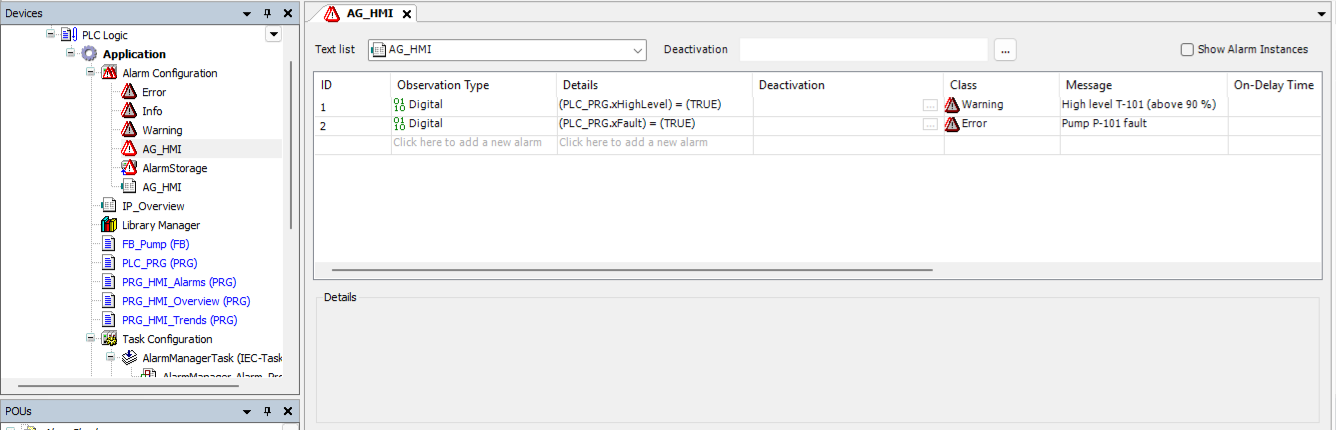
Claude can test them in the simulation: alarm_status reads each alarm's
state from CODESYS's alarm manager (normal, active, active acknowledged,
cleared but waiting for confirmation or acknowledgement), and
alarm_acknowledge acknowledges as an operator would. In the browser HMI and
in CODESYS, an alarm row stays until it is acknowledged, with the time it
came, its state and an acknowledge button.
CODESYS's runtime alarm forgets its times once it is normal again, so the
export also adds an alarm history to the PLC: generated ST that records every
state change of every alarm (with CODESYS's own time of the change) in a
RETAIN ring buffer. alarm_history lists it, and an alarms tile with
history: 5 shows the last events, in the browser and in CODESYS
(create_alarm_history adds the same to a project with alarms of its own).
Gauges are the same arc gauge as in the browser (pictures in the image pool,
one per 2.5 % of the range), not CODESYS's chrome meter. Trends show their
current values: a CODESYS trend needs a trend recording that scripting can't
create yet. Checked on CODESYS V3.5 SP21 in the simulation. A visualization
needs the FloatingPointUtils library in CODESYS's library repository; if
it's missing, the export says so before it builds anything. A long export
reports its progress (each page, the alarms, the compile) to clients that
show MCP progress.
Handover and version control
project_report writes a Markdown report next to the project for whoever
commissions or takes over the machine: a summary, the tasks, the I/O list and
device-tree mappings, the CODESYS alarms, the HMI pages, libraries, devices and
the program structure. It ends with a commissioning checklist built from the
project itself: every task's cycle time, every input and output, every mapped
channel, every alarm, every HMI page and the persistent variables to check on
the real machine, plus the safety and archiving items no checklist should
skip. Everything Claude did was tested in CODESYS's simulation only, and the
report says so.
export_sources writes the project as plain text for git: one .st file per
POU, method, property, action, DUT, GVL and interface, in folders like the
project tree, ladder/FBD/SFC bodies as PLCopenXML, a project.txt with tasks,
libraries, devices and alarms, and the HMI screens. A .project file is
binary; this folder is what makes a change reviewable as a diff. Exporting
again rewrites only what changed and removes the files of deleted objects.
compare_sources compares the open project with such a folder or with another
.project file: the objects only in one of them, and a line diff of each
changed one.
Other clients and models
The server works with any MCP client, not only Claude. For
OpenCode, put this in opencode.json in your project
folder (or in ~/.config/opencode/opencode.json):
{
  "$schema": "https://opencode.ai/config.json",
  "mcp": {
    "codesys": {
      "type": "local",
      "command": [
        "codesys-mcp-tool",
        "--codesys-path", "C:\\Program Files\\CODESYS 3.5.22.40\\CODESYS\\Common\\CODESYS.exe",
        "--codesys-profile", "CODESYS V3.5 SP22 Patch 4",
        "--workspace", "C:\\PLC\\Projects"
      ],
      "enabled": true
    }
  }
}
opencode mcp list should then show codesys as connected. Clients that read
an mcpServers file (Cursor, Cline, VS Code and others) take the same
command and args as the Claude Desktop example above.
Tested on 13 November 2026 with OpenCode 1.19.5 and CODESYS V3.5 SP22: each of
these models created a project, read and changed PLC_PRG, compiled, listed
libraries and devices, and ran the simulation, without help.
| Model | Result |
|---|---|
| DeepSeek V4.1 Flash | All steps passed |
| Qwen 3.6 Plus | All steps passed |
| GLM 5.3 | All steps passed |
| MiniMax M3 | All steps passed |
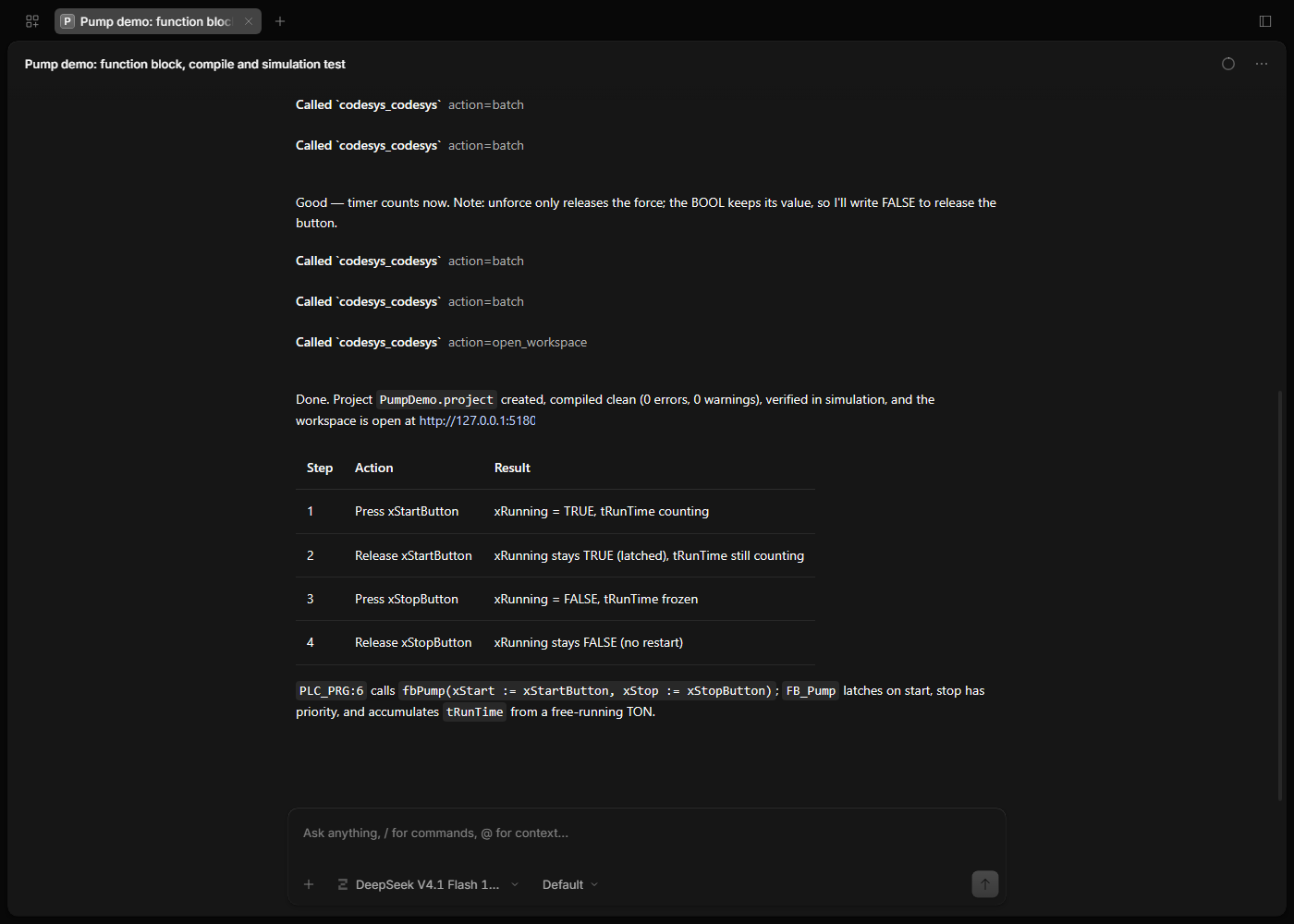
The live panel needs a client that shows MCP Apps cards (see
Live panel). In other clients open_sim_panel does nothing
visible; ask the model to open the workspace (open_workspace) to get the same
view in your browser, or start the server with
--show-window to watch the CODESYS window
itself.
Safety
- No real controller. The toolkit doesn't log in or download to a controller. It goes online only to CODESYS's own simulation, and every online call first checks that simulation mode is on.
- One approval covers every action. That includes the actions that change or delete project code, so work on a copy of any project you can't afford to lose, or keep it in version control.
- Changes can be undone. A checkpoint is taken when a project is opened, and
revert_objectputs an object back to it, including its methods and properties. - Saved as it goes. The project is saved after every change by default. Use
--no-autosaveto save only on request. - The simulation can't change your project. Editing is refused while it runs, and the simulation setting on the device is never saved.
Configuration
| Option | Meaning |
|---|---|
--codesys-path <exe> | CODESYS.exe to run |
--codesys-profile <name> | Profile, e.g. "CODESYS V3.5 SP21" (file name in CODESYS\Profiles, without .profile.xml). A name that isn't installed is refused at start, with the installed ones listed |
--codesys-additional-folder <dir> | CODESYS's add-on folder, passed as --additionalfolder. SP22 installs add-ons such as Scripting there; the toolkit finds CODESYS\AdditionalFolders\Default by itself |
--workspace <dir> | Base folder for relative project paths (default: the working directory). Created if missing |
--project <file> | Open this project as soon as CODESYS is up |
--session-dir <dir> | Where session folders go (default: %TEMP%\codesys-mcp-toolkit) |
--no-autostart | Start CODESYS on the first tool call instead of at launch |
--no-autosave | Don't save after every change; use save_project |
--viewer-port <port> | Port of the browser workspace on 127.0.0.1 (default 5180, or the next free one) |
--no-viewer | Don't serve the browser workspace |
--no-shared | Run CODESYS in this process instead of the shared session |
--attach <dir> | Experimental: work in a CODESYS / Machine Expert window you already have open, instead of starting one. See Working in an open window |
--show-window | Start CODESYS with its window instead of headless. See Watch it in the CODESYS window |
Watch it in the CODESYS window
By default CODESYS runs headless. With --show-window the server starts it with
its normal window, so you can watch the work in any MCP client: every object the
model creates or writes opens in its editor tab, with the new code in it.
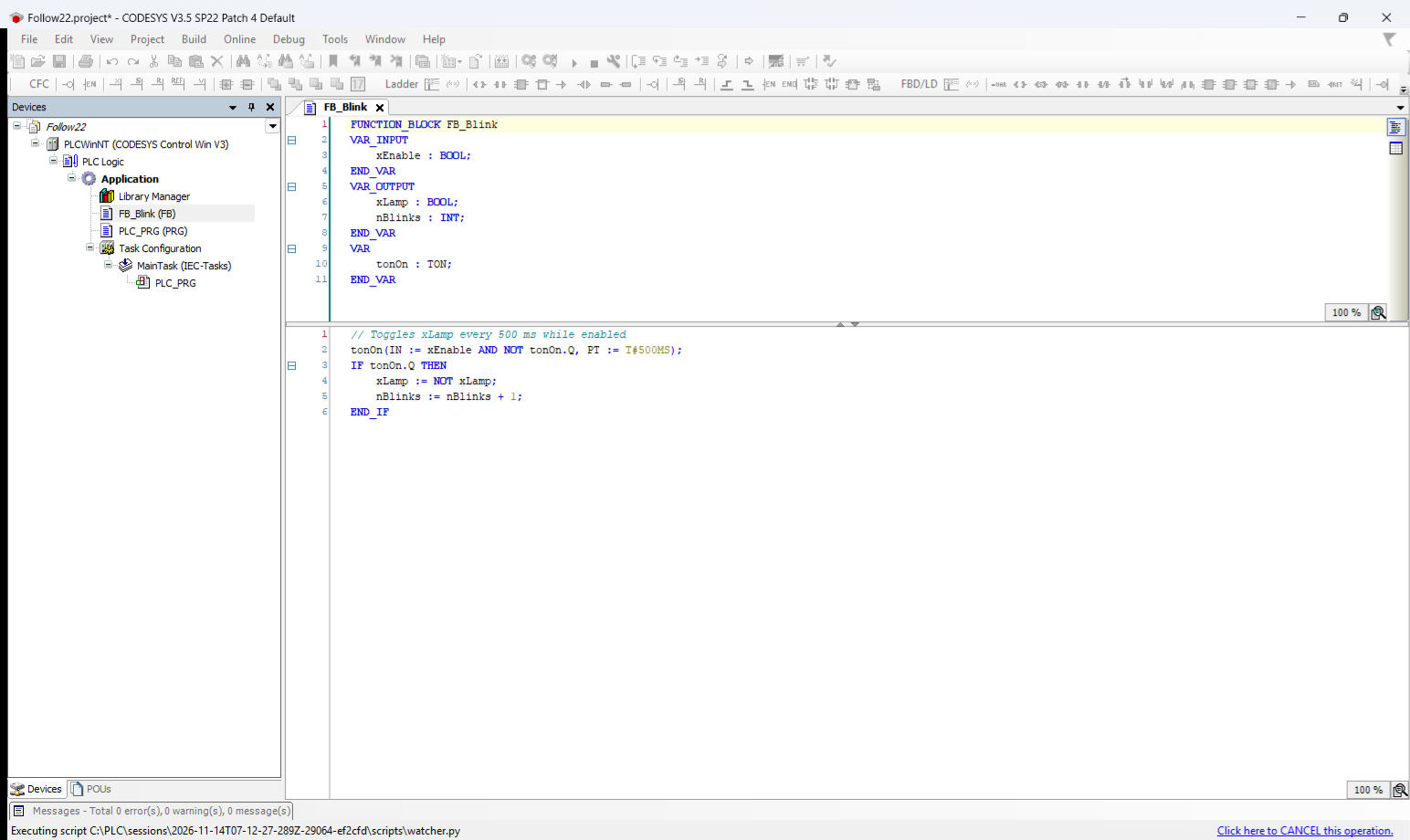
While the simulation runs, the open editors show live values, as in CODESYS's own online mode:
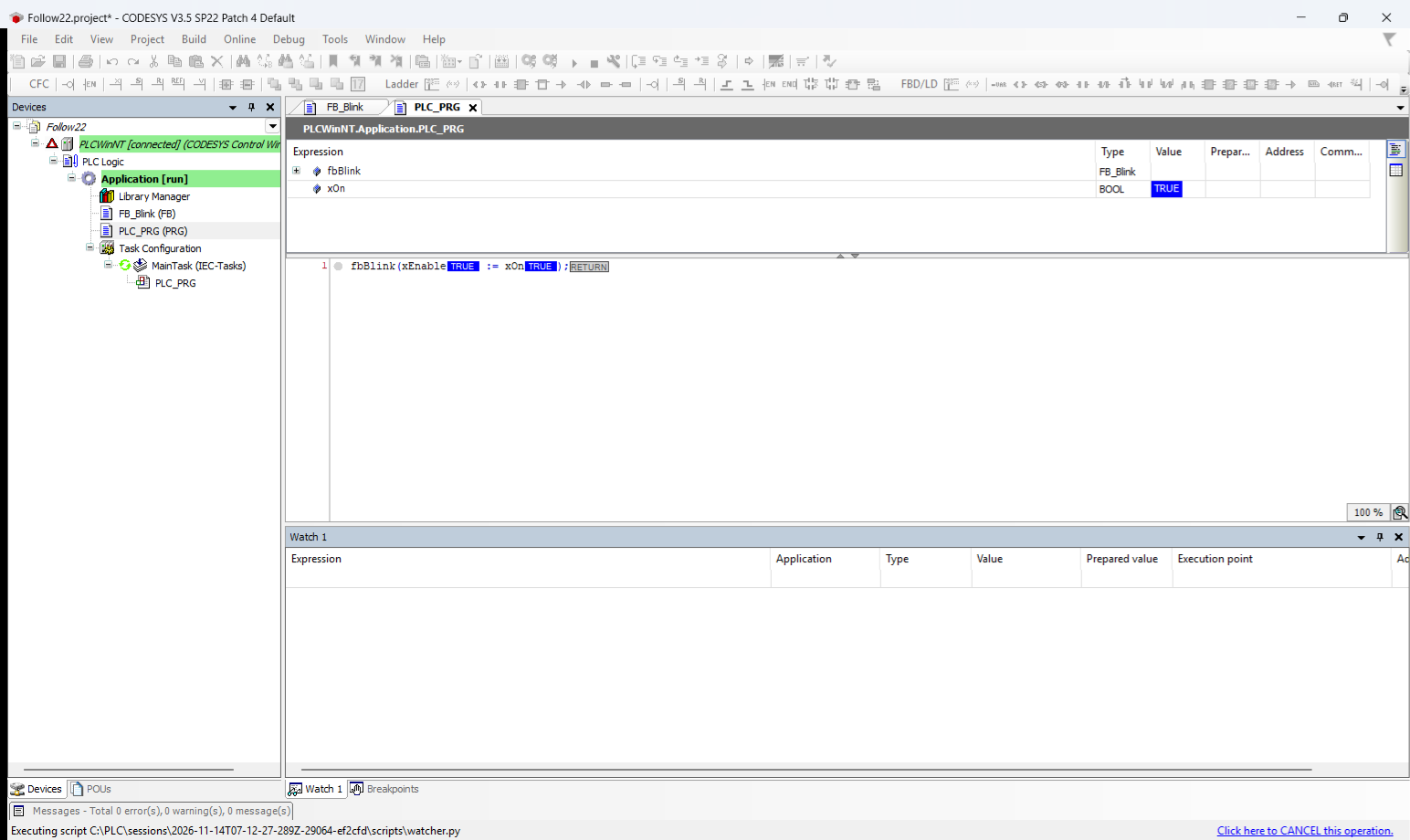
CODESYS's scripting API has no call for opening an editor, so the toolkit uses CODESYS's own (undocumented) frame for it, checked on SP21 and SP22. If a CODESYS version doesn't have it, nothing opens and everything else works as before.
While the server is connected, the window is for watching: the toolkit's script keeps running in it (that is what lets it answer CODESYS's prompts, such as a storage-format upgrade, the same way as headless), so CODESYS treats it as one long operation. The status bar says "Executing script"; its Click here to CANCEL link stops the toolkit's script, so leave it alone while you work with the model. When the server stops, the script ends and the window is yours to work in.
The toolkit never closes the window: not when a call hangs or a dialog waits for an answer (answer it in the window), and not when the server stops. Close it yourself when you're done; the next call then starts a new one.
Several CODESYS versions
To keep SP21 and SP22 side by side, add one server entry per version, each with
its own --codesys-path and --codesys-profile.
The toolkit never updates a project's compiler or library versions, and
open_project says when they differ from the running CODESYS. A project that
needs a newer compiler opens, but can't compile until you open it in that
version. Each version keeps its own devices and libraries, so a project from an
older CODESYS may report missing libraries until you update it in the CODESYS
window.
Shared session
Claude Desktop may start the server more than once. All processes started with
the same options share one background session, so only one CODESYS runs and the
panel shows the project Claude is working on. The session stops two minutes
after the last client disconnects. Its log is daemon-<id>.log in
%LOCALAPPDATA%\codesys-mcp-toolkit.
Work in a window you already have open (experimental)
--attach <dir> makes the server use a CODESYS / Machine Expert window you
already work in, instead of starting a hidden one. It starts nothing and kills
nothing.
- Add
--attach "C:\\PLC\\attach"to the server arguments and start the server. It writesC:\PLC\attach\scripts\start_attach.py. - In your window, open the project, then run that file with Tools > Scripting > Execute Script File. It returns at once; a UI timer polls for requests, so the window stays usable.
- Use the
codesystool as usual.open_projecton the project that is already open just reuses it. - To stop, create an empty file
stop.flagin the attach folder (or close the window).
The window is busy only while a request runs, for example during compile.
Your own unsaved edits are saved with the next change Claude makes
(autosave), so use --no-autosave if that is not what you want. If the window
stops answering (a dialog is open), the call fails with an error and nothing is
closed; run start_attach.py again if the watcher was stopped.
How it works
MCP client ── stdio ──▶ codesys-mcp-tool (Node.js)
                            │   requests/<id>.json  ▶  operation name + JSON arguments
                            │   ◀  results/<id>.json
                            │   ◀  heartbeat.json      idle or busy, with a deadline
                            ▼
                        CODESYS.exe --noUI --runscript=watcher.py
                            └─ fixed operation handlers (IronPython 2.7)
With --show-window, CODESYS starts without --noUI and runs the same watcher.
- No generated code. Requests are an operation name plus JSON arguments,
handled by fixed functions in
watcher/mcp_ops.py. - Hang detection. The watcher reports
busywith a deadline. If CODESYS blocks past it, the server kills it and starts a fresh one on the next call. - No orphans. The watcher exits when the server process goes away.
- Modal dialogs are suppressed and logged, so they can't freeze CODESYS.
- UTF-8 from end to end.
- Localised names. Object kinds come from CODESYS type GUIDs, not names, so
a German task folder called
Taskkonfigurationworks.
Troubleshooting
| Message | What to do |
|---|---|
| CODESYS is still starting | The first start after boot can take minutes. Check codesys_status, then try again. |
startup_failed or startup_timeout | Check the profile name and that CODESYS starts by hand. The error includes the last lines of watcher.log. |
Library errors after create_project (#4) | The default template is brought up to the running CODESYS, so its libraries should resolve. A template you pass yourself is used as it is. If libraries are still missing, install them with the CODESYS Library Repository. |
hung or timeout | CODESYS was restarted. Re-open the project. With --show-window nothing is closed: check the window. |
dialog | CODESYS opened a dialog, named in the error, that a session without a window can't answer. CODESYS was stopped and restarts on the next call. Do the same step once in the CODESYS window, answer the dialog there, and try again. With --show-window, answer it in the window. |
Each session folder keeps a watcher.log.
Development
npm install
npm test                                    # unit, bridge and tool tests (no CODESYS needed)
CODESYS_LIVE=1 npx vitest run test/live     # end-to-end against your CODESYS
npm run build                               # server and the single-file panel
The normal tests run the real watcher under CPython 3 against a fake
scriptengine (test/fake/). Watcher code must stay valid IronPython 2.7:
ASCII-only, no f-strings.
To work on the panel without Claude Desktop, run the dev host, then open http://localhost:5199:
npm run build:panel && node scripts/dev-host/run.mjs 5199
See CONTRIBUTING.md to get involved.
Migrating from v1
- Everything is now an action of the one
codesystool. - Actions don't take
projectFilePath. Callopen_projectonce. create_pou,create_methodandcreate_propertyare nowcreate_objectwith akind.set_pou_codeis nowwrite_object.compile_projectis nowcompile, and it returns the errors.- Read access is through actions (
read_objects,get_project_tree) instead of resources, so it works in Claude Desktop (#6).
Acknowledgements
The persistent-watcher design borrows ideas from zbest1000/mcptoolkit-for-codesys (op-handler registry, heartbeat, prompt handling) and phobicdotno/Codesys-MCP-Master (file-queue IPC, version-safe opening). Both are MIT-licensed.
The Chinese README was reviewed by Zhen Yang (Alfabete-spec).
License
CODESYS is a trademark of CODESYS GmbH. This project is independent and isn't affiliated with or endorsed by CODESYS GmbH.