Happyhorse
Generate and edit Happy Horse AI videos through Ace Data Cloud
One address for any MCP client. You sign in at happyhorse.mcp.acedata.cloud once, after adding it.
What it does
- Reads
- Writes
- High impact
At most: creates or changes data: records, files, settings.
What it costs
FreeOdel charges nothing per call. The publisher may charge for its own service.
What it asks for at sign-in
| Access to | Read | Change |
|---|---|---|
| Mcp | Not stated: mcp:access | |
From the sign-in at happyhorse.mcp.acedata.cloud, as the endpoint publishes it. You approve it there.
Tools
None listed · checked 5 Oct 2026Odel could not list its tools without signing in.
Happy Horse MCP Server



Model Context Protocol server for Happy Horse AI video generation and editing through the Ace Data Cloud API.
Capabilities
- Text-to-video generation
- First-frame image-to-video animation
- Reference-to-video generation with 1-9 subject or style images
- Video editing with up to 5 reference images
- 720P and 1080P output
- Single and batch task polling
- Local stdio and hosted Streamable HTTP/SSE transports
- Direct Bearer token and AceDataCloud OAuth authentication
Connect: hosted OAuth, API token, or local stdio
The hosted endpoint is https://happyhorse.mcp.acedata.cloud/mcp. Choose one route for the MCP client:
| Route | When to use it | Credential setup |
|---|---|---|
| Hosted OAuth | The client supports remote MCP OAuth | Add only the URL, then sign in to AceDataCloud and approve access. No token needs to be pasted into client configuration. |
| Hosted API token | The client cannot finish OAuth, or you need an explicit integration credential | Send an AceDataCloud API token in the Authorization: Bearer … header. Keep it in a local secret store or environment variable. |
| Local stdio | The client runs a local MCP process | Install mcp-happyhorse and pass ACEDATACLOUD_API_TOKEN to that process. It still calls the AceDataCloud API. |
The hosted service advertises OAuth metadata and Dynamic Client Registration (DCR). DCR registers the client application; it is not an API key. OAuth signs you in and the client sends the resulting Bearer token; it may reuse or create an API credential for the account. Browser sign-in still requires an AceDataCloud account. The hosted service can be metered: review current service documentation and displayed pricing before a real operation. Do not configure both an OAuth login and a fixed Authorization header for the same server.
Hosted OAuth examples
- Claude and Claude Desktop chat: Add a remote custom connector in
Customize → Connectors → Add custom connector, enterhttps://happyhorse.mcp.acedata.cloud/mcp, select sign-in, and choose Register automatically if Claude asks how to register its OAuth client. Complete consent. Claude Desktop's localclaude_desktop_config.jsonis a separate setup. Claude connector guide. - Claude Code:
claude mcp add --transport http --scope user happyhorse https://happyhorse.mcp.acedata.cloud/mcp, thenclaude mcp login happyhorse. Check/mcp. Claude Code MCP guide. - Cursor: Add a remote server with only
https://happyhorse.mcp.acedata.cloud/mcp. For a project, merge the entry below into<project>/.cursor/mcp.json; for personal use, use~/.cursor/mcp.json. Cursor MCP guide. - VS Code / Copilot: Run MCP: Add Server, select HTTP, enter
https://happyhorse.mcp.acedata.cloud/mcp, then finish the browser sign-in. New portable workspace configs use<project>/.mcp.json; the VS Code-specific format below uses<project>/.vscode/mcp.jsonor the user profile. Check MCP: List Servers. VS Code MCP setup. - Codex:
codex mcp add happyhorse --url https://happyhorse.mcp.acedata.cloud/mcp, thencodex mcp login happyhorse. Its user settings are in~/.codex/config.toml. Official Codex MCP guide.
Cursor project config (OAuth):
{
  "mcpServers": {
    "happyhorse": {"url": "https://happyhorse.mcp.acedata.cloud/mcp"}
  }
}
VS Code-specific workspace config (OAuth):
{
  "servers": {
    "happyhorse": {"type": "http", "url": "https://happyhorse.mcp.acedata.cloud/mcp"}
  }
}
Hosted API token
- Open Ace Data Cloud → Applications. Sign in, or register an account first.
- Find General application. If it has not been created, choose Initialize General Application. A general key can use the services available to your account; a dedicated application's key is limited to its service. Check the required service/model access and current pricing.
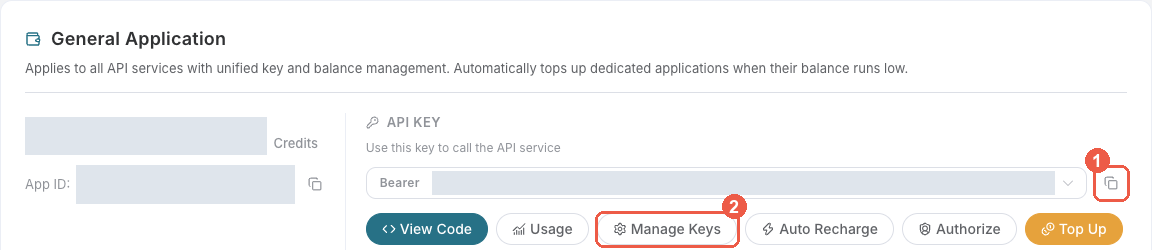
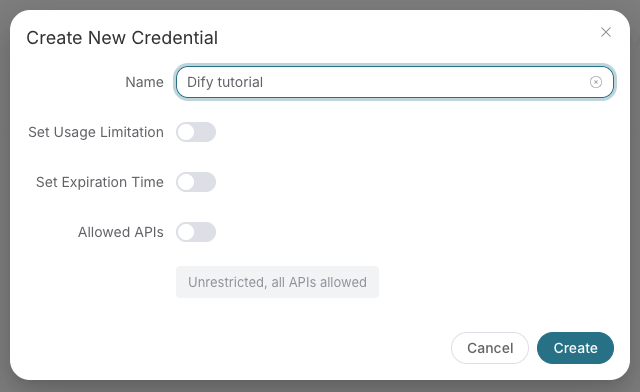
- Copy the API Key from the application card, or open Keys / Manage Keys → Create to create a separate key for this integration. Give it a recognizable name so you can revoke or rotate it independently.
- When creating a key, review Expiration Time, Set Usage Limitation, and Allowed APIs. Enable only the restrictions you need, allow the operations you will call, then click Create and copy the token from the key list. Task lookup does not grant permission to submit a generation. Confirm the application's balance can cover your first request; any trial allowance is whatever your account currently displays.
- Copy only the token value, without quotation marks, spaces, or
Bearer. An API Key / API Token field expects this raw value; only a manually configured HTTPAuthorizationheader needs theBearerprefix. Aplatform-...account-management token cannot replace a generation API key.
Save the key in the client's credential store or the environment variable shown below. Never put it in a prompt, shared workflow, screenshot, or Git commit. If authentication fails, check the full copied value, application/service access, expiration, usage limit, and balance before creating another key.
A fixed Bearer header bypasses OAuth. If the header is invalid, remove it before trying browser sign-in; keep the saved credential private.
For Claude Code, the shell expands the token when you add the server; treat the saved user MCP config as a secret:
export ACEDATACLOUD_API_TOKEN='YOUR_API_TOKEN'
claude mcp add --transport http --scope user happyhorse https://happyhorse.mcp.acedata.cloud/mcp \
  --header "Authorization: Bearer $ACEDATACLOUD_API_TOKEN"
For a Claude Code project config, put a variable reference in <project>/.mcp.json and set that variable in the environment that launches Claude Code:
{
  "mcpServers": {
    "happyhorse": {
      "type": "http",
      "url": "https://happyhorse.mcp.acedata.cloud/mcp",
      "headers": {"Authorization": "Bearer ${ACEDATACLOUD_API_TOKEN}"}
    }
  }
}
Cursor uses a different environment-variable syntax in ~/.cursor/mcp.json or an uncommitted project config:
{
  "mcpServers": {
    "happyhorse": {
      "url": "https://happyhorse.mcp.acedata.cloud/mcp",
      "headers": {"Authorization": "Bearer ${env:ACEDATACLOUD_API_TOKEN}"}
    }
  }
}
In VS Code, run MCP: Open User Configuration and merge this server plus its masked input; ${input:...} is for VS Code's user/workspace format and is not portable to the Agent Host .mcp.json format:
{
  "inputs": [
    {"id": "acedata-happyhorse-token", "type": "promptString", "description": "AceDataCloud API token", "password": true}
  ],
  "servers": {
    "happyhorse": {
      "type": "http",
      "url": "https://happyhorse.mcp.acedata.cloud/mcp",
      "headers": {"Authorization": "Bearer ${input:acedata-happyhorse-token}"}
    }
  }
}
For Cline, use its MCP configuration UI or CLI file ~/.cline/data/settings/cline_mcp_settings.json; its remote transport value is streamableHttp. For JetBrains AI Assistant, add a remote URL from Settings → Tools → AI Assistant → Model Context Protocol (MCP). For Zed, use a context_servers entry with the URL only for OAuth or add a local Bearer header. These clients have different configuration schemas; follow their current UI rather than copying another client's JSON. Cline · JetBrains · Zed.
Local stdio
Install the package and give the local process an API token:
python -m pip install mcp-happyhorse
export ACEDATACLOUD_API_TOKEN='YOUR_API_TOKEN'
mcp-happyhorse
For Claude Desktop local MCP, merge this entry into the file opened by its developer settings (~/Library/Application Support/Claude/claude_desktop_config.json on macOS). uvx requires uv on PATH:
{
  "mcpServers": {
    "happyhorse": {
      "command": "uvx",
      "args": ["mcp-happyhorse"],
      "env": {"ACEDATACLOUD_API_TOKEN": "YOUR_API_TOKEN"}
    }
  }
}
Keep this user-level file private. Self-hosted HTTP uses mcp-happyhorse --transport http --port 8000; expose it only with suitable network and TLS controls. Local execution still calls the AceDataCloud API.
Check before using the service
https://happyhorse.mcp.acedata.cloud/healthreturning{"status":"ok"}checks endpoint reachability only.- Confirm that the MCP client loads tools.
happyhorse_list_modelsis a reference tool; it does not verify downstream API access or balance. - If you need a full API check, call
happyhorse_generate_videowith your own valid input after reviewing current service documentation and displayed pricing. If the result contains a task ID, callhappyhorse_get_taskon that same ID until terminal success or failure. Do not resubmit the operation just to check progress.
For 401, check which auth route the client used and whether the token or OAuth session is valid. A 403 may mean an account permission or content moderation failure; read the returned error. Insufficient balance and downstream service failures need their own diagnosis. A listed tool or submitted task does not prove a successful result.
Tools
| Tool | Purpose |
|---|---|
happyhorse_generate_video | Generate a video from text |
happyhorse_generate_video_from_image | Animate one first-frame image |
happyhorse_generate_video_from_references | Generate from 1-9 reference images |
happyhorse_edit_video | Edit a source video with up to 5 references |
happyhorse_get_task | Query one task |
happyhorse_get_tasks_batch | Query multiple tasks |
happyhorse_list_models | List valid models for each action |
Generation tools submit asynchronously when no callback_url is supplied. Keep the returned
task_id, wait about 15 seconds, then call happyhorse_get_task until the response contains a
final video_url or terminal error.
Models
| Action | Models | Default |
|---|---|---|
| Text-to-video | happyhorse-1.0-t2v, happyhorse-1.1-t2v | happyhorse-1.1-t2v |
| Image-to-video | happyhorse-1.0-i2v, happyhorse-1.1-i2v | happyhorse-1.1-i2v |
| Reference-to-video | happyhorse-1.0-r2v, happyhorse-1.1-r2v | happyhorse-1.1-r2v |
| Video edit | happyhorse-1.0-video-edit | happyhorse-1.0-video-edit |
Generation duration is 3-15 seconds. Supported resolutions are 720P and 1080P. Text and
reference generation support 16:9, 9:16, 1:1, 4:3, and 3:4. Image-to-video follows the
input image ratio. Video-edit duration follows the source video.
Example Requests
Ask your MCP client:
Generate a 720P, 9:16 video of a white horse crossing a snowy ridge at sunrise.
Animate https://example.com/horse.jpg with a slow camera push and wind moving the mane.
Edit https://example.com/source.mp4 to preserve the camera motion but apply the costume style from https://example.com/reference.jpg. Keep the original audio.
Environment
| Variable | Default | Purpose |
|---|---|---|
ACEDATACLOUD_API_TOKEN | none | API token for local stdio mode |
ACEDATACLOUD_API_BASE_URL | https://api.acedata.cloud | API origin |
HAPPYHORSE_REQUEST_TIMEOUT | 60 | HTTP request timeout in seconds |
MCP_TRANSPORT | stdio | stdio or http |
MCP_SERVER_URL | none | Public URL that enables hosted OAuth |
LOG_LEVEL | INFO | Logging level |
Development
pip install -e ".[all]"
pytest --cov=core --cov=tools
ruff check .
mypy core tools main.py