Listed from the MCP registry; nobody on Odel publishes it.

Cloud ALM by Didro
SAP Cloud ALM: requirements, features, tests, defects, landscape; writes wait for your approval.
Runs on your machine from its package; the steps are below.
What it does
- Reads
- Writes
- High impact
At most: creates or changes data: records, files, settings.
What it costs
FreeOdel charges nothing per call. The publisher may charge for its own service.
Runs locally over stdio
This server isn't hosted — your MCP client launches it from a package registry. Use one of the commands below, or drop the config into your client (e.g. Claude Desktop).
Run
npx -y cloud-alm-mcp-server
MCP client config
{
  "mcpServers": {
    "cloud-alm-by-didro": {
      "command": "npx",
      "args": [
        "-y",
        "cloud-alm-mcp-server"
      ]
    }
  }
}
SAP Cloud ALM for your AI assistant


Ask your SAP Cloud ALM project questions in Claude, ChatGPT, Codex, Cursor
or VS Code, and let the assistant prepare changes that you approve, field by
field. An open-source MCP
server, cloud-alm-mcp-server.
For a browser-only connection to your own tenant, try the hosted connector for ChatGPT and Claude. Choose your BTP service key during sign-in to start a read-only session of up to one hour. There your browser uploads the key to Didro's server, which exchanges it with SAP and discards it (PRIVACY.md).
No SAP account at hand? Try the demo with synthetic data.
For local clients, download your Cloud ALM API service key and run npx -y cloud-alm-mcp-server setup in a terminal with Node.js 22 or later; it asks which key and which apps. Claude Desktop users can also install the extension and choose their key file.
- "Where does the project stand, and what changed since Friday?"
- "What blocks UAT exit? List failed tests with their defects and the requirements without a test."
- "Prepare the fit-gap workshop for Order to Cash."
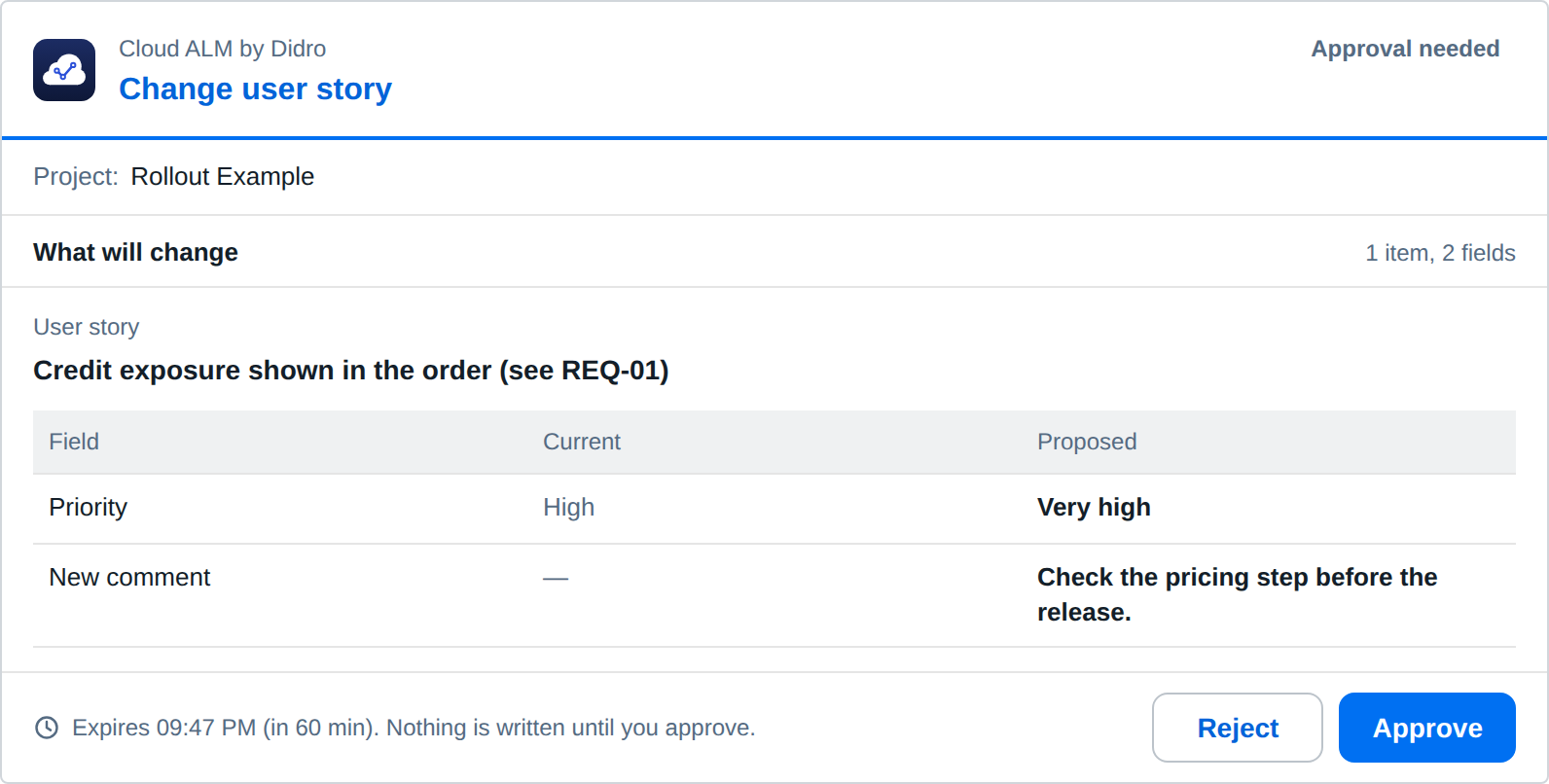
- "Lower 3-14 to high, due Friday, and add a note that pricing fixes it." → an approval card shows the change; nothing is written until you click Approve.
MIT licence. An independent open-source project, not affiliated with or endorsed by SAP. SAP and SAP Cloud ALM are trademarks of SAP SE.
How it works
- Your key, your machine. A local install runs on your computer with a service key of the SAP Cloud ALM API from your SAP BTP subaccount. No background telemetry. It connects to SAP and, when your assistant reports a tool problem, to Didro (PRIVACY.md).
- The key decides. A read-only key reads. A key with write scopes also lets the assistant propose changes: create, update, comment, link, tag, delete. Every change waits for your approval in a card (or your "yes" in the chat).
- Links back to Cloud ALM. With a tenant UI address, record cards can open requirements, defects, tasks, features, documents and test cases (manual and automated) directly. Test plans and processes open their SAP list. Project links open the launchpad. Dashboard counts and approval fields are plain text. The demo has no tenant links.
Browsing results in chat
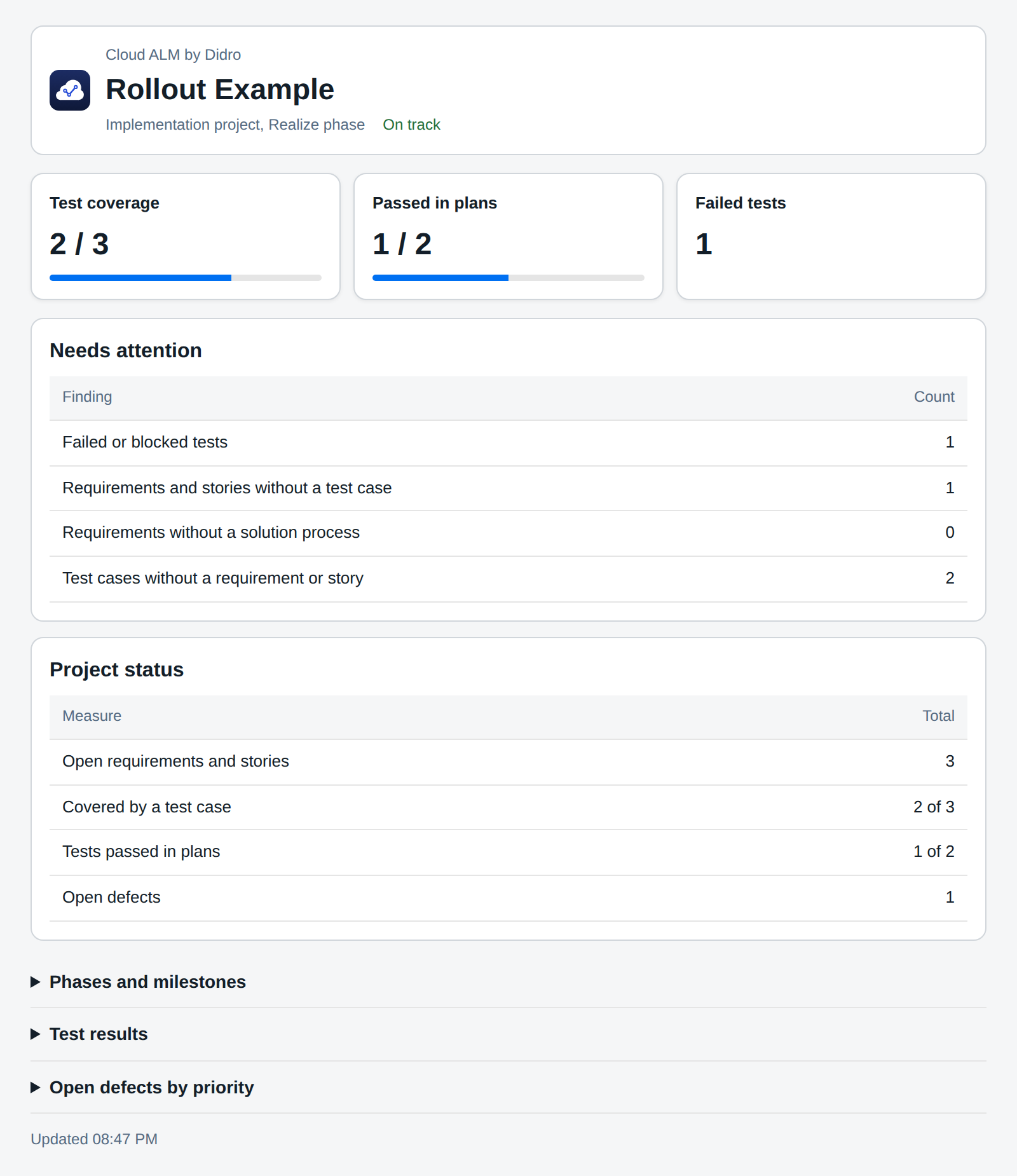
In clients with MCP Apps, project lists, search results and item details open as cards. Use the Cloud ALM links to open the source record or its SAP app. View all expands a compact list in hosts with fullscreen support. Load more fetches the next page with the same filters. Clients that use text receive the read result.
For a host that supports MCP Apps, set
CALM_CONTENT_PRESENTATION=explicit in the server environment to show only
the final selection. The assistant reads the data, then calls calm_show
with the selected read. The first page travels with the card, even in a host
that cannot fetch more pages. For a text answer or an export, the assistant can skip that last call.
Agent feedback
Your assistant can report missing fields, unexpected results or extra tool calls to Didro’s private inbox with calm_report_feedback. A report is the tool's name, the outcome, one or two sentences, the server's version and a random report ID. The server attaches no records, credentials or chat text; the one or two sentences are written by the assistant (PRIVACY.md). It is on by default in a local install, whichever way you installed; turn it off with npx -y cloud-alm-mcp-server feedback off (every app on this computer) or CALM_FEEDBACK=off (one app's configuration). How to do that for the Claude Desktop extension, the Claude Code plugin and a registry install: docs/install.md#reports-about-tool-problems. Operators can send the reports to a receiver of their own with CALM_FEEDBACK_URL. Agent feedback guide
Setup in 2 minutes (video)
https://github.com/user-attachments/assets/302faf0d-5347-4bf3-ae41-ce079fe7469c
Every click in SAP BTP, then setup in a terminal, or one prompt to your
coding agent. With narration, 2 minutes. No player here?
Open the video file.
1. Get a service key
Someone with admin rights in the SAP BTP subaccount of your Cloud ALM tenant creates an instance of the SAP Cloud ALM API service with the scopes in scopes/read-only.json (or read-write.json), creates a binding, and downloads its JSON. Step by step, with an e-mail you can send to your BTP admin: docs/service-key.md, or watch it in the setup video.
2. Install
Local clients, one command (needs Node.js 22+):
npx -y cloud-alm-mcp-server setup
In a terminal, setup asks its way through:
- Which service key? Type the path of the key file (or drag the file
into the window), or paste the key; a pasted key is not shown. A key
found in
~/Downloadsfrom the last week and the key saved before are offered too. - It checks the key against SAP (a token, its scopes, one read) and saves it readable only by you.
- Which apps? Claude Code, Codex, Claude Desktop and Cursor, the ones installed, all ticked; untick what you do not want.
- The skills too? Yes or no (Skills).
- It prints what was done per app and what to do next: what to restart, and a first question to ask.
setup <file> names the key up front and skips the first question. Run by
an AI agent, in CI or through a pipe, or with --no-input, setup asks
nothing: it takes the file named, else the newest key in ~/Downloads from
the last week, else the key saved before, adds the server to every app
installed and installs the skills. --client <list> chooses the apps and
--no-skills leaves the skills out, with or without questions. All options:
docs/install.md.
Or pick your client:
| Client | How |
|---|---|
| Claude Desktop |  Download, double-click, choose your key file. No terminal, no Node.js. |
| Claude Code | /plugin install cloud-alm --marketplace DidroAI/cloud-alm-mcp-server (server and skills). Instead of setup for Claude Code, not as well: one or the other |
| Cursor |  after setup saved the key |
| VS Code (Copilot) |  after setup saved the key |
| Codex | setup adds it; by hand: codex mcp add cloud-alm -- npx -y cloud-alm-mcp-server |
All channels, by hand and in detail: docs/install.md.
Or let your agent do it
Download the key, then paste this into Claude Code, Codex, Cursor's agent or any assistant with a terminal:
Set up the SAP Cloud ALM MCP server for me: run `npx -y cloud-alm-mcp-server setup` and follow what it prints (instructions for agents: https://github.com/DidroAI/cloud-alm-mcp-server/blob/main/docs/agent-setup.md). Never open or print my service key file.
Tested with Codex and Claude Code: they run setup, check with doctor,
and tell you what to restart, without reading the key.
What the agent follows.
3. Ask
| You want | Ask, for example |
|---|---|
| The state of the project | "Where does the project stand?" |
| What moved | "What changed since Monday?" |
| Traceability | "Trace REQ-04: stories, features, transports, tests, defects." |
| Gaps and audit | "Which requirements have no passing test?" |
| Test readiness | "Are we ready to exit UAT?" |
| Who | "Who in the team can I assign the export defects to?" |
| SAP services | "Is there planned maintenance on our systems?" |
The tools behind these answers: docs/tools.md.
Skills: whole workflows
The server publishes its SAP workflows through Skills over MCP. Compatible
clients can discover them with skills/list and read a selected guide on
demand. Each workflow is also available in the client's MCP prompt menu.
| Skill | For |
|---|---|
cloud-alm-explore | answering questions: which tool for which question |
cloud-alm-fit-gap | fit-to-standard: fit, configuration or gap per requirement and process |
cloud-alm-workshop-prep | agenda, open questions and decisions for a workshop |
cloud-alm-backlog-from-notes | minutes or a transcript into requirements, user stories, tasks and comments |
cloud-alm-daily-brief | what moved since yesterday, what is at risk, what is due |
cloud-alm-status-report | a steering committee or weekly status report |
cloud-alm-test-readiness | SIT/UAT entry and exit, go-live readiness, go / no-go |
cloud-alm-defect-triage | duplicates, priority, owner and due date of open defects |
cloud-alm-test-design | test cases for what is untested |
cloud-alm-retest | which tests to rerun after a change, with the evidence for each case in the selected cycle |
setup copies them to where Claude Code (~/.claude/skills, or
$CLAUDE_CONFIG_DIR/skills), Codex (~/.agents/skills) and Cursor read
skills; Cursor reads one of those two folders, and gets ~/.cursor/skills
only when neither was written. The wizard asks first; --no-skills skips
them. Claude Desktop reads no skills from disk: there, and in other apps,
use the prompts, or point the agent to the SKILL.md.
Approving changes
When the assistant wants to change Cloud ALM, the tool only proposes: you see the change field by field (before → after, what is created, what is deleted) and click Approve or Reject. In apps without cards, the assistant shows the change and waits for your "yes". Before writing, the server checks the change still matches what you saw. Details and limits: docs/tools.md#approving-writes.
Update, rotate, uninstall
npx -y cloud-alm-mcp-server doctor      # check Node, key, token, scopes, API; say whether reports are on for this computer
npx -y cloud-alm-mcp-server setup       # again after rotating the key
npx -y cloud-alm-mcp-server feedback    # are reports about tool problems on for this computer? (feedback off / feedback on)
npx -y cloud-alm-mcp-server uninstall   # remove it and its skills from your apps (--key: also the saved key)
Settings are environment variables in the app's server entry: docs/install.md#environment-variables.
Client configs run cloud-alm-mcp-server, so you get updates on the
next start.
Troubleshooting
- "Cloud ALM is not set up yet" in the app's MCP log: run
setup, or choose the key file in the extension or plugin settings. - Token or API errors: run
doctor; it names the failing step. A corporate proxy or TLS inspection can blocknpxor SAP: setHTTPS_PROXYandNODE_EXTRA_CA_CERTSas your IT advises. Node followsHTTPS_PROXYonly whenNODE_USE_ENV_PROXY=1is set as well (Node 24). - "not readable with this key": the key lacks a scope; ask for the scope named in the answer (docs/service-key.md).
- Claude Desktop does not show the server: quit it fully (also from the tray / menu bar) and reopen.
Security
Reads are GET only, to *.alm.cloud.sap only. Writes go to a fixed
allow-list of SAP APIs and only after your approval. In a local install the
key is stored readable only by you and never printed or sent to the model;
with the hosted connector your browser uploads it to Didro's server for the
sign-in. Text from Cloud ALM reaches the model marked as data. A key opens
the whole tenant (SAP cannot limit it to one project): give read-only keys to
whoever only reads.
More: SECURITY.md, PRIVACY.md.
More
- Tools and outputs
- Getting a service key
- All install channels
- Running it as a shared HTTP endpoint
- Using it as a library
- Cloud ALM API notes, errors and limits
- Contributing, Changelog, Code of conduct
Licence
MIT: see LICENSE.