Deprecated. Deprecated by the publisher: Renamed and expanded: now published as io.github.yusong652/itasca-mcp (PyPI: itasca-mcp), covering PFC, FLAC3D and 3DEC. The pfc-mcp package is frozen.




PFC - ITASCA Discrete Element Simulation
Give AI agents full access to ITASCA PFC - documentation, simulation, and plot capture.
Runs on your machine from its package; the steps are below.

What it does
- Reads
- Writes
- High impact
Not assessed yet.
What it costs
FreeOdel charges nothing per call. The publisher may charge for its own service.
Runs locally over stdio
This server isn't hosted — your MCP client launches it from a package registry. Use one of the commands below, or drop the config into your client (e.g. Claude Desktop).
Run
uvx pfc-mcp
MCP client config
{
  "mcpServers": {
    "pfc-itasca-discrete-element-simulation": {
      "command": "uvx",
      "args": [
        "pfc-mcp"
      ]
    }
  }
}
itasca-mcp





itasca>model new ;now, with LLM.
itasca-mcp connects AI agents to ITASCA's geomechanics simulation software — PFC, FLAC, 3DEC, MPoint, and MassFlow — through the Model Context Protocol. Browse documentation, run simulations, and execute code, all through natural conversation.
itasca>model solve ;LLM solves.

Tools (10)
5 documentation tools — browse and search the selected engine's commands, Python API, and reference docs. No bridge required.
5 execution tools — interactive REPL, task submission, progress monitoring, interruption, and history. Requires bridge.
Example Prompts
- "Run a biaxial compression test on a dense specimen and plot the stress–strain curve"
- "Build a slope model in FLAC3D and find the factor of safety"
- "Model a tunnel excavation in jointed rock with 3DEC and check block displacements around the opening"
- "Simulate a landslide runout with MPoint and report the final deposit profile"
- "The simulation is still running, check the current unbalanced force without stopping it"
- "Look up the
plotcommands in the docs, then plot the contact force chains of the current model" - "The command I just typed in the console doesn't seem right, take a look"
First-time Setup
Prerequisites
- An ITASCA engine installed — PFC, FLAC, 3DEC, MPoint, or MassFlow. 9.0+ recommended; PFC 6.0 / 7.0, FLAC 7.0, and 3DEC 7.0 are also supported.
- uv installed (for
uvx) - An AI agent — Claude Code, Codex CLI, Gemini CLI, or any MCP-capable client
Agentic Setup (Recommended)
Copy this to your AI agent and let it self-configure:
Fetch and follow this bootstrap guide end-to-end:
https://raw.githubusercontent.com/yusong652/itasca-mcp/main/docs/agentic/itasca-mcp-bootstrap.md
Manual Setup
1. Register the MCP server with your agent.
Most agents register it with a single command:
# Claude Code
claude mcp add itasca-mcp -- uvx itasca-mcp

# Codex / Codex-cli
codex mcp add itasca-mcp -- uvx itasca-mcp

# Gemini CLI
gemini mcp add itasca-mcp uvx itasca-mcp
Or fill in the MCP config file manually:
{
  "mcpServers": {
    "itasca-mcp": {
      "command": "uvx",
      "args": ["itasca-mcp"]
    }
  }
}
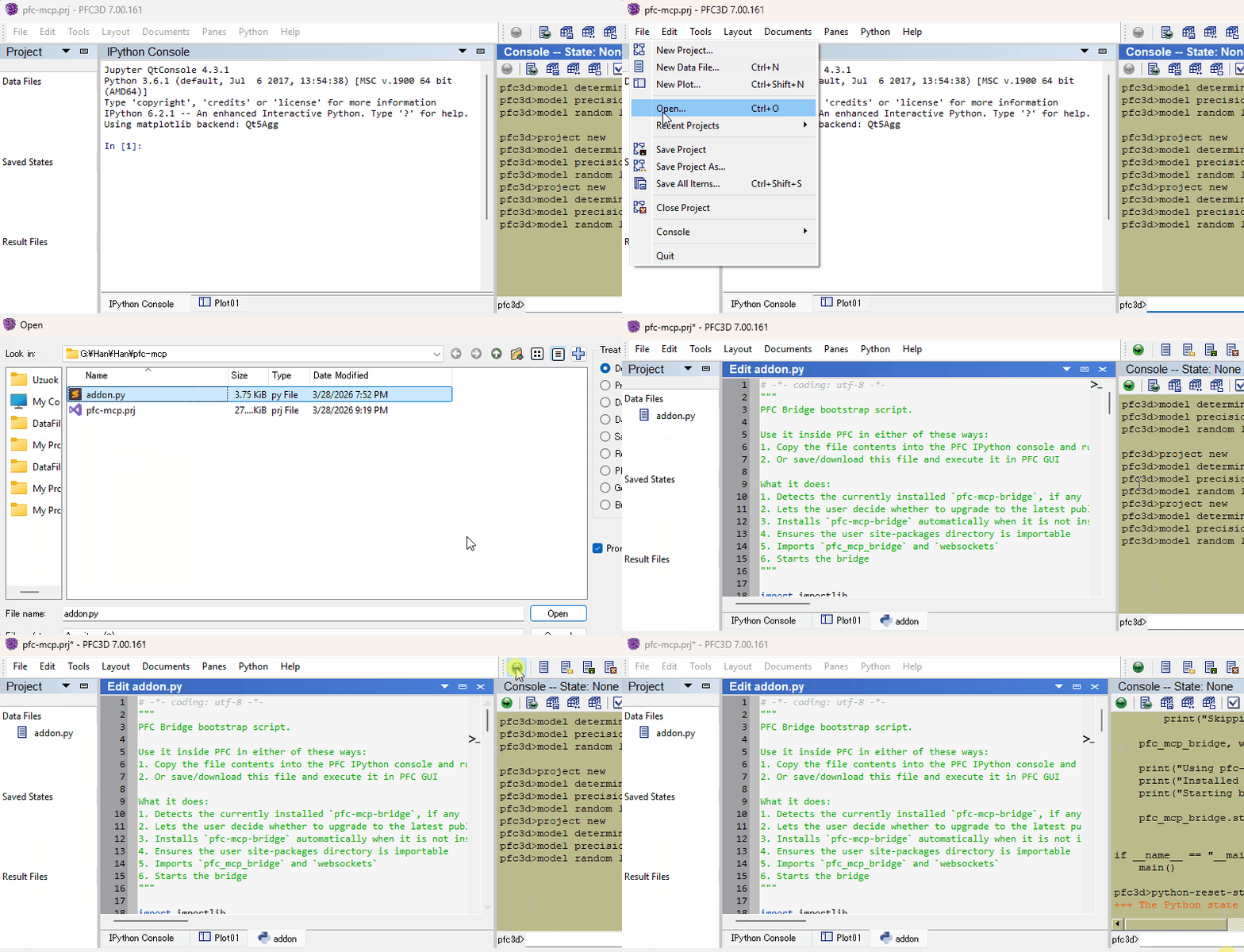
2. Start the bridge from inside the ITASCA engine:
Download addon.py, then use either of these two flows inside the engine GUI (PFC, FLAC, 3DEC, ...):
- Copy the file contents into the engine's IPython console and run them
- Or download the file and execute it in the engine GUI
Verify
Restart your AI agent and ask it to call itasca_execute_code to verify the connection.
Daily Startup
Once first-time setup is done, each new engine session only needs the bridge re-started — run this in the engine's IPython console and you're back online:
import itasca_mcp_bridge
itasca_mcp_bridge.start()
start() checks PyPI for a newer bridge release and self-upgrades before starting. The MCP client config persists.
Features
- Multi-engine, multi-version corpus - command, Python API, and reference docs for PFC, FLAC, 3DEC, MPoint, and MassFlow across engine versions (PFC: 6.0/7.0/9.0, FLAC: 7.0/9.0, 3DEC: 7.0/9.0), selected via the
softwareandversionparameters - Documentation agents can navigate - agents browse the engine command tree to discover capabilities and boundaries, reducing hallucinated commands, with plot item reference docs supplementing the official documentation
- Live REPL alongside running tasks - execute code while a simulation is running: check model state and intermediate results without stopping the task; also useful for quick iteration before writing a full script
- Task lifecycle management - submit long-running simulations, monitor progress, interrupt running tasks, and browse task history
- Sees what you do in the GUI - cells you run in the engine's IPython pane, commands you enter at its prompt, the plots and data files you open, close or switch to, the items you add to a plot, and the data files you execute from the editor all reach the agent on its next call, so you can work in the GUI and with the agent at the same time
- Agent-started bridge - an AI agent can start the bridge itself through the engine's
console.exe - Multi-client compatible - works with Claude Code, Codex CLI, Gemini CLI, GitHub Copilot CLI, OpenCode, toyoura-nagisa, and other MCP clients
Troubleshooting
See Troubleshooting in the bootstrap guide.
Development
See Developer Guide: Install and Run from Source.
Contributing
PRs and issues are welcome! See CONTRIBUTING.md for where changes land and how the documentation corpus is structured, and the Developer Guide for the source install.
License
MIT - see LICENSE.


